Query activity
The Query activity page in Kibana gives you a real-time view of all search work running in your Elasticsearch cluster. Use it to find long-running or resource-intensive queries, trace them back to their source, and cancel them when needed.
Query activity surfaces search tasks from all query languages, including ES|QL, DSL, EQL, SQL, and multi-search requests. It shows only what is currently running. For historical query data, use slow logs or AutoOps.
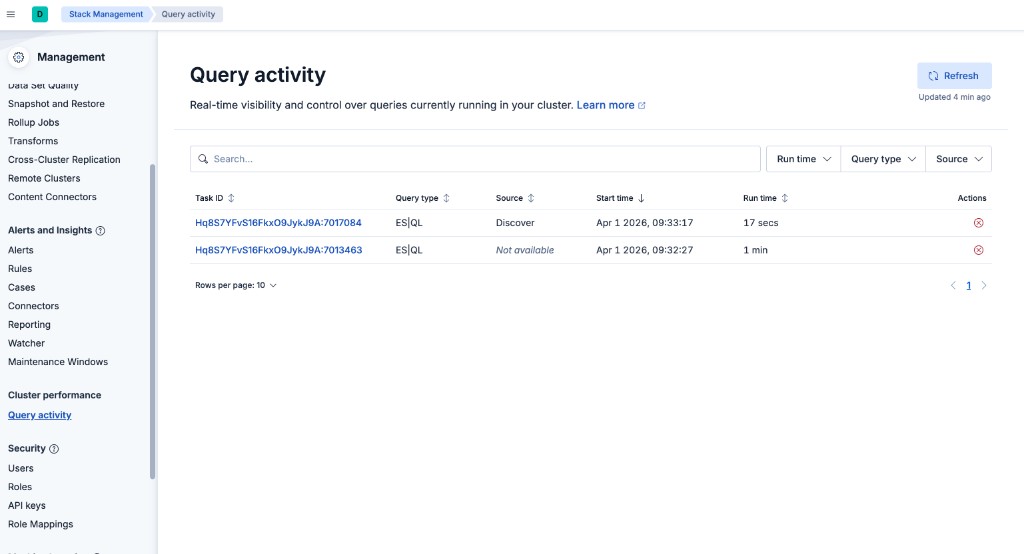
To use the Query activity page, you need the following privileges:
| Action | Required Elasticsearch cluster privilege | Required Kibana privilege |
|---|---|---|
| View running queries | monitor |
Query activity read access |
| Cancel a query | manage |
Query activity all access |
If you don't have the required privileges, the page displays a message asking you to contact your administrator.
To open Query activity, go to Stack Management → Cluster performance → Query activity.
The Query activity page lists all in-flight search tasks in your cluster. The list does not auto-refresh. Select Refresh to update the data. The time of the last refresh is displayed next to the button.
Searches that users send to the background from Discover or Dashboards also appear on this page as Async search queries. Background search lets users queue their own Discover and Dashboards long-running searches and return to view results later. Query activity gives administrators cluster-wide visibility to monitor and manage all running queries.
The table displays the following columns:
- Task ID
- The unique identifier for the Elasticsearch task. Select the task ID to open the query details flyout.
- Query type
- The query language used: ES|QL, DSL, EQL, SQL, MSearch, Async search, or Other.
- Source
- The Kibana application that originated the query, such as Discover or Dashboard. This value is extracted from the
X-Opaque-Idheader set by Kibana. If the source cannot be determined, the column shows Not available. For more information about tracing queries, refer to Trace an Elasticsearch query to its origin in Kibana. - Start time
- The timestamp when the query started running.
- Run time
- How long the query has been running.
- Actions
- A cancel button to request cancellation of the query. This button is only available if you have the required privileges.
You can narrow down the list of running queries using several filters:
- Search bar: Enter any text to match against table contents, including task IDs.
- Run time: Set a minimum run time threshold to surface only queries that have been running longer than a specific duration.
- Query type: Filter by one or more query languages. The available options depend on the types of queries currently running.
- Source: Filter by one or more originating applications. The available options depend on the sources of queries currently running.
Select a task ID from the table to open the Query details flyout.
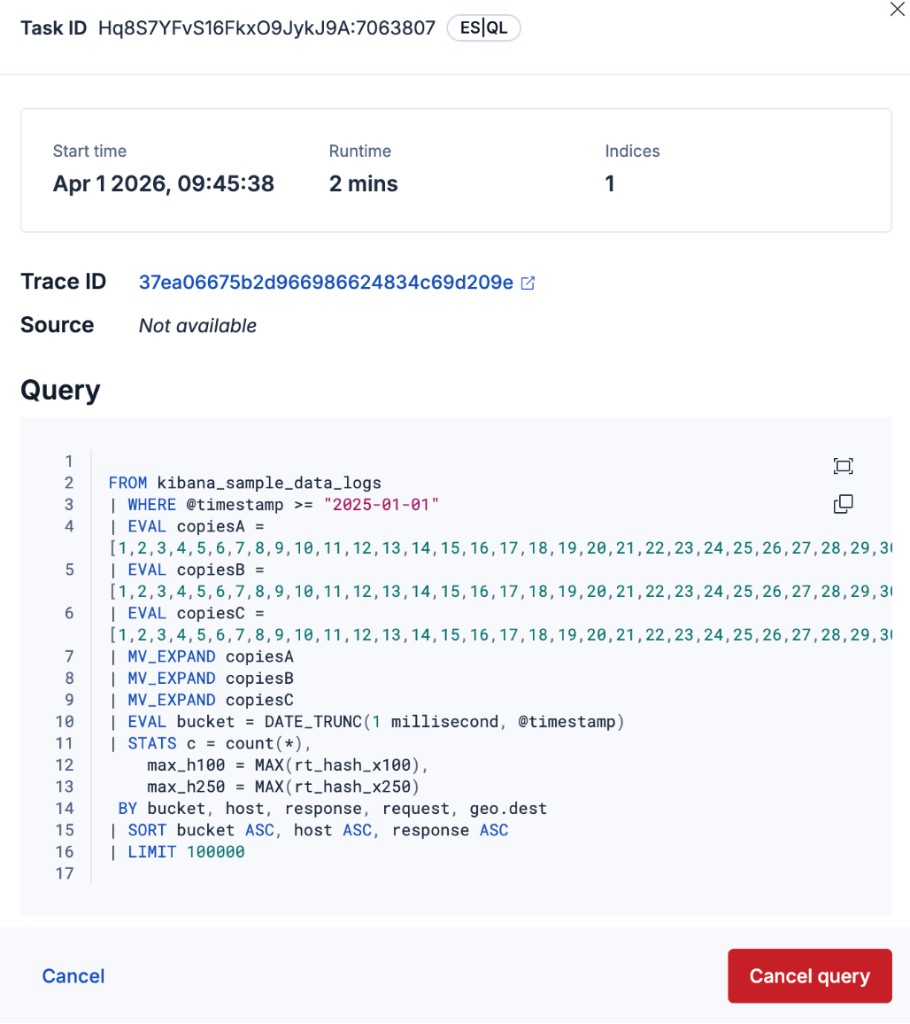
The flyout provides detailed information about the selected query:
- Task ID and query type badge
- Start time and Run time
- Indices: the number of indices the query targets
- Trace ID: when available, a link that opens Discover with
trace.idpre-filtered and a time range starting 10 minutes before the query began - Source: the originating Kibana application (such as Discover or Dashboard), when available
- Query: the full query text, displayed in a syntax-highlighted code block
- Opaque ID: the raw
X-Opaque-Idheader value, when present. The Source field above is derived from this header.
Use the navigation controls at the top of the flyout to browse through queries without returning to the list.
You can cancel a running query from the table or from the query details flyout.
Select the cancel icon in the Actions column, or select Cancel query in the flyout footer.
In the confirmation dialog, select Confirm to proceed.
WarningCanceling a query is irreversible. The query stops running and any partial results are discarded.
After confirmation, the UI displays a cancellation status until Elasticsearch confirms the task has stopped.
A toast notification confirms when the cancel request has been submitted.
By default, the Query activity page only displays queries that have been running for longer than 100 milliseconds. This filters out fast-completing queries so you can focus on the ones that are most likely to affect cluster performance.
To change this threshold:
- Go to Stack Management → Advanced Settings.
- Search for
query_activity:minRunningTime. - Enter a new value in milliseconds.
- Select Save changes.