Fill rule execution gaps
Gaps are periods when a detection rule didn't run as scheduled. They can be caused by various disruptions, including system updates, resource constraints, or simply turning off a rule. Addressing gaps is essential for maintaining consistent detection coverage and avoiding missed alerts.
This page explains how to find gaps and fill them, either manually or automatically.
You can find gaps from two locations:
- Rule Monitoring tab: Provides an overview of gaps across all rules
- Gaps table: Shows detailed gap information for a specific rule
From the Rule Monitoring tab on the Rules page, you can get an overview of existing gaps and their status. The total number of rules with gaps is tracked in the panel above the Rules table.
The panel displays:
- Rules with gaps: The number of rules with gaps (left metric) and the number of rules with all gaps filled (right metric). Shows data from the last 90 days.
The panel displays:
- Time filter: Select a time range for viewing gap data.
- Total rules with gaps: The number of rules with unfilled gaps (left metric) and rules with gaps being filled (right metric) within the selected time range.
- Only rules with unfilled gaps: Filters the Rules table to only display rules with unfilled gaps (excludes rules with gaps currently being filled).
The panel displays:
- Time filter: Select a time range for viewing gap data.
- Total rules with gaps: The number of rules with unfilled or partially filled gaps within the selected time range.
- Only rules with gaps: Filters the Rules table to only display rules with unfilled or partially filled gaps.
Within the Rule Monitoring tab Rules table, several columns provide gap data:
| Column | Description |
|---|---|
| Last Gap (if any) | How long the most recent gap lasted. |
| Unfilled gaps duration | Total duration of remaining unfilled or partially filled gaps. The total can change based on the time range you select (data on gaps older than 90 days is not retained). If a rule has no gaps, the column displays a dash (––). |
| Gap fill status |
|
The following table breaks down the available Gap fill status values.
| Status | Description |
|---|---|
| Unfilled | The rule still has gaps that aren't fully filled. There are also no manual runs or automatic gap fill runs actively filling them. |
| In progress | At least one gap is being filled by a manual run or an automatic gap fill run. |
| Filled | Every gap for the rule is fully filled. |
| Error |
Unfilled displays instead of Error. When automatic gap fill is on, use the Gap fill status filter in the Rules table to find rules with the Error status. They may need manual follow-ups after retries are exhausted. |
The Gaps table on a rule's Execution results tab provides detailed information about that rule's gaps. Use it to assess the scope and severity of gaps for a specific rule.
To access the Gaps table, select a rule's name to open its details, then scroll to the Execution results tab.
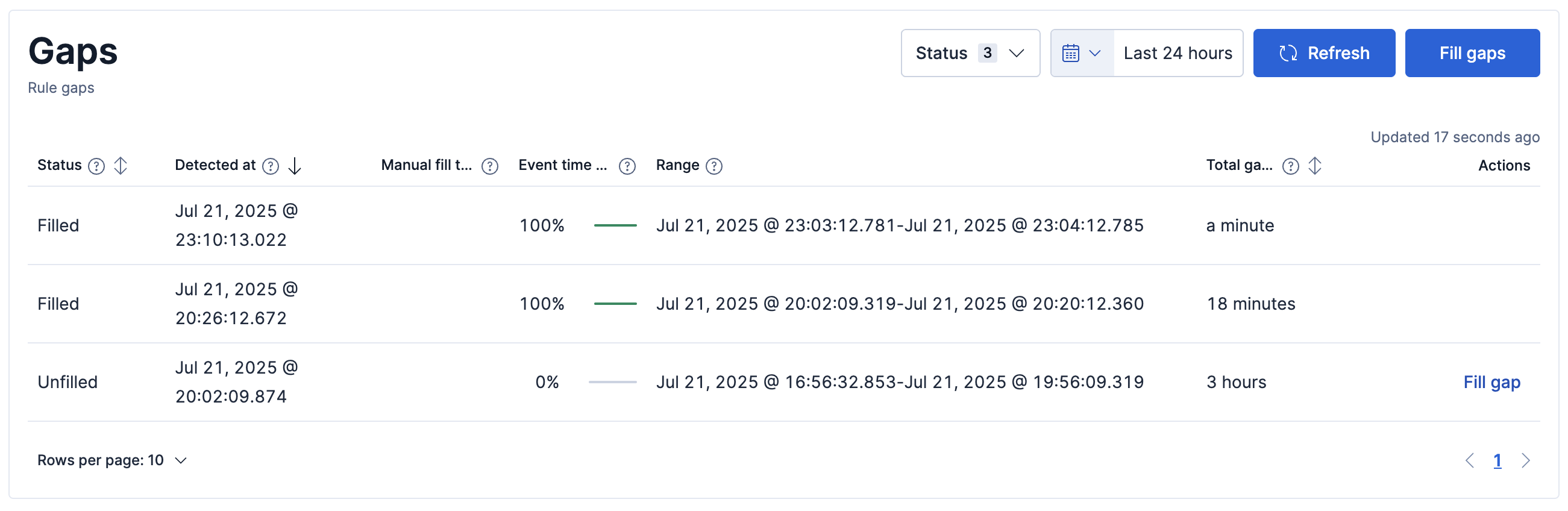
The Gaps table has the following columns:
| Column | Description |
|---|---|
| Status | The current state of the gap: Filled, Partially filled, or Unfilled. |
|
|
Why the gap occurred, when gap reason detection is enabled. Typical values are Rule was disabled and Rule did not run. |
| Detected at | When the gap was first discovered. |
| Manual fill tasks | The status of the manual run filling the gap. For details, refer to the Manual runs table. |
| Event time covered | How much progress the manual run has made filling the gap. |
| Range | When the gap started and ended. |
| Total gap duration | How long the gap lasted. |
| Actions | Available actions: Fill gap (starts a manual run) or Fill remaining gap (fills the leftover portion of a partially filled gap). |
If you stop a manual run before it finishes filling a gap, the gap's status changes to Partially filled. To fill the remaining gap, select Fill remaining gap or manually run the rule over the gap's time frame.
You can manually fill gaps in two ways:
- For a specific rule: Use the Fill gap action in the rule's Gaps table.
- For multiple rules: Use the Fill gaps bulk action from the Rules table.
From the Rules table, fill gaps for multiple rules using the Fill gaps bulk action.
Find Detection rules (SIEM) in the navigation menu or by using the global search field.
In the Rules table, select the Rule Monitoring tab, then do one of the following:
- Fill rules with unfilled or partially filled gaps: Select the appropriate rules or all rules on the page, then select Bulk actions > Fill gaps.
- Only fill rules with unfilled gaps: Filter for rules with unfilled gaps:
-
Use the Gap fill status filter in the Rules table to find rules with the Unfilledgap status(or Errorif automatic gap fill has exhausted retries and you want to try manual fills), then select Bulk actions > Fill gaps. -
In the panel above the table, select the Only rules with unfilled gaps filter to show only rules with unfilled gaps (excludes rules with gaps currently being filled). Select the appropriate rules, then select Bulk actions > Fill gaps.
-
Specify when to start and end the manual run that fills the gaps.
Select Schedule gap fills. The rule runs over unfilled gaps in the selected time range.
After scheduling the manual run, track gap fill progress by checking the Total rules with gaps field in the panel above the Rules table. The left metric shows remaining rules with unfilled gaps; the right metric shows rules currently having their gaps filled.
You can also check gap fill progress for individual rules by opening their details page and viewing the Gaps table on the Execution results tab.
Automatic gap fill requires the appropriate subscription. Refer to the subscription page for Elastic Cloud and Elastic Stack/self-managed for feature availability.
When enabled, the automatic gap fill feature runs a job every two minutes to check for new and existing gaps, then schedules tasks to fill them.
- On the Rules page, select Settings (above the Rules table).
- In the Auto gap fill settings section, turn on the toggle.
The Auto gap fill status field (in the panel above the Rules table) shows whether automatic gap fill is on or off. Select the field value to access the settings.
Gap reasons are available only after you select Include gaps created when a rule was disabled in Settings (above the Rules table). With that option on, gaps can record why they occurred, and you can control how those reasons participate in gap monitoring and automatic gap filling.
- Settings (above the Rules table) — Your role must include the right detection rule permissions and access to Advanced Settings in Kibana. If Settings is missing or options are read-only, ask an administrator to update your privileges.
- Gap detection scope — Changing this requires
Allprivileges for the Advanced Settings Kibana feature. Saving your changes updates the gap auto-fill scheduler.
The description at the top of the modal that opens when you select Settings reflects your access, which can be access to gap monitoring only, or access to both the gap monitoring and automatic gap fill features.
Gap reasons describe the source of a gap. It can be either of the following:
- Rule was disabled - The rule was off during part of the gap interval.
- Rule did not run - The rule did not execute, for example, when Kibana was not available.
These values appear in the Reason column on the Execution results tab (and in related filters). They also drive which gaps are included in the Rules with gaps overview and in automatic gap fill.
The gap detection scope applies to the whole Kibana space. Use it to include or exclude gaps that occurred while a rule was turned off. By default, those gaps are excluded from the overview and from automatic gap fill because they often reflect planned maintenance rather than an unexpected detection failure.
When gaps from disabled rules are excluded, the Fill gaps bulk action shows a reminder that rules with that gap type won't be filled.
The Gap fill status value Error means automatic gap fill has reached the maximum retry limit for a gap and the gap is still not filled. It's not derived from Gap detection scope, which only controls which gaps are monitored and filled.
Details about the automatic gap fill job and scheduled tasks are captured in the gap fill scheduler logs. Access the logs by selecting Gap fill scheduler in the Auto gap fill status section (above the Rules table).
In the scheduler logs table, expand rows to learn more about gaps discovered and tasks scheduled each time the job ran. Key details include:
- When each job ran to check for gaps
- The number of gaps detected and rules affected
- The number of gap fill tasks scheduled
- Task status:
- Success: Gap fill tasks were successfully scheduled. Check log details to see if any rules were not processed.
- Error: Some gap fill tasks were not scheduled or failed to run. Check log details for more information.
- Task skipped: Gap fill tasks were scheduled but did not run (rules may have been disabled or the maximum task limit was reached).
- No gaps: No gaps were detected; no tasks were scheduled.
Refer to the Troubleshoot gaps section for strategies on avoiding and resolving gaps.