Text panels
To provide context to your dashboard panels, add Text panels that display important information, instructions, images, and more. You can create Text panels using GitHub-flavored Markdown text.
- From your dashboard, select Add => New panel.
- In the Add panel flyout, select Markdown Text. A Markdown editor appears and lets you configure the information you want to display.
- Enter your text, then click Apply.
While switching between Editor and Preview modes, you can keep editing your text.
For example, in Editor mode you enter:
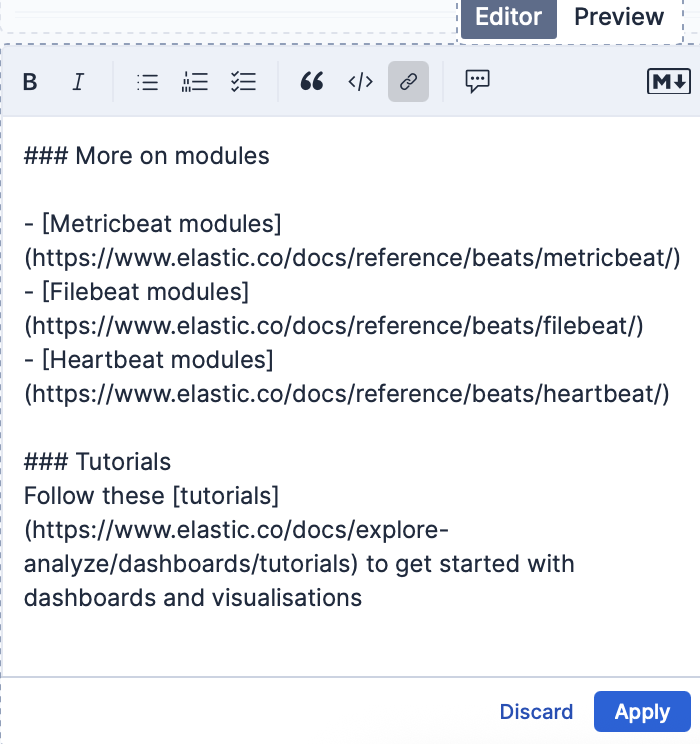
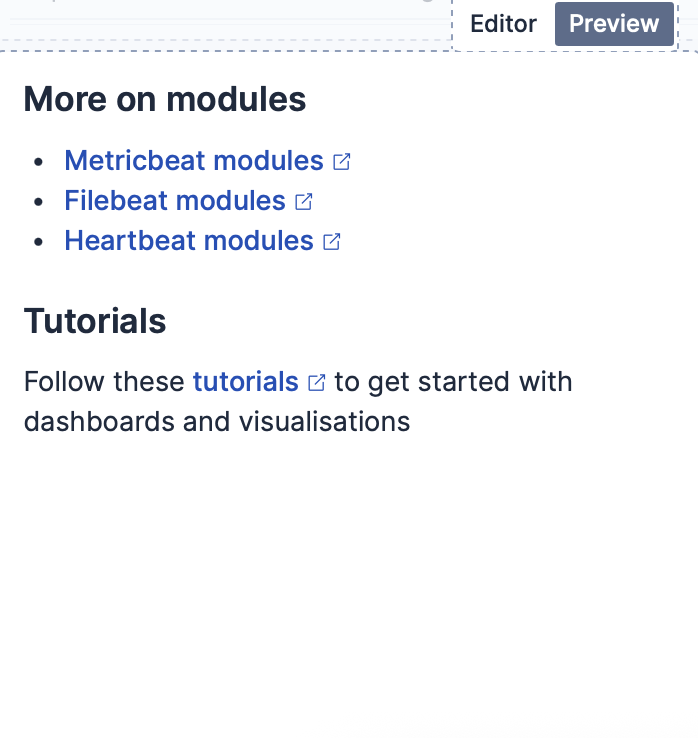
The following instructions are displayed in Preview mode:
Or when you enter:
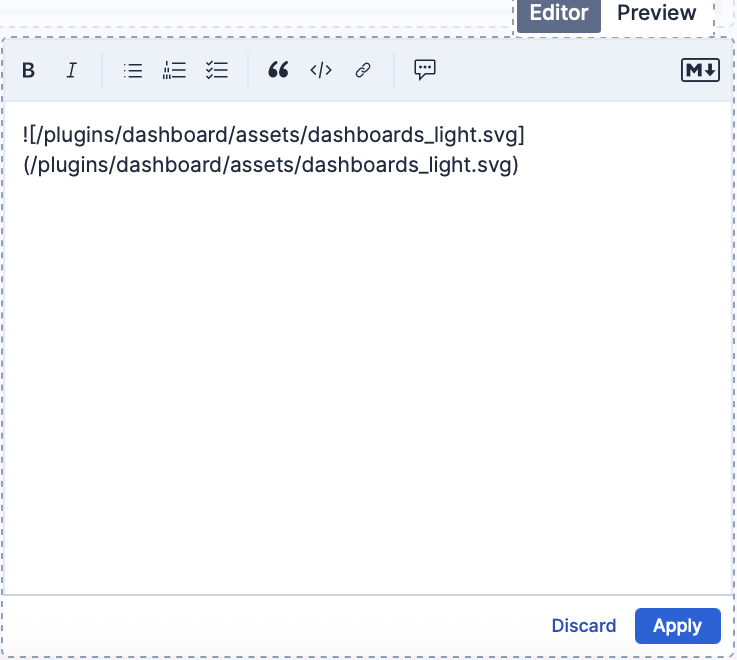
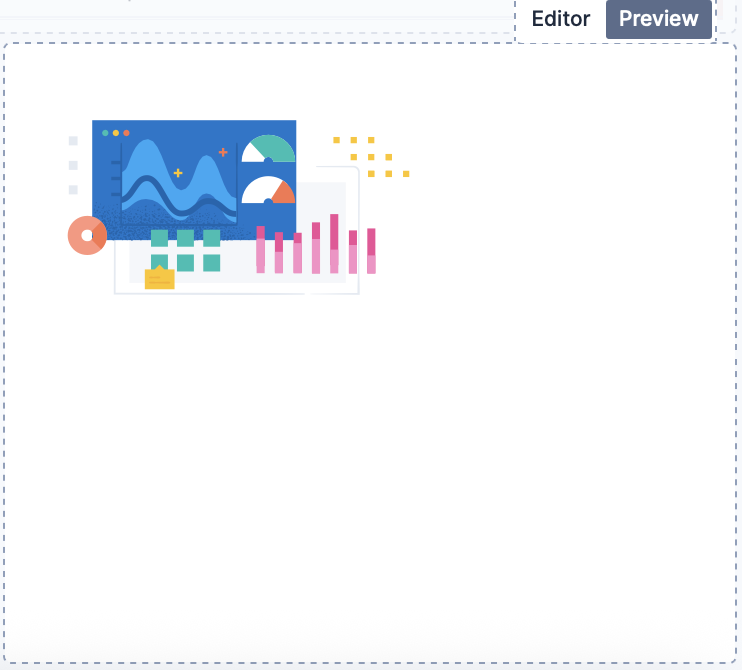
The following image is displayed:
For detailed information about writing on GitHub, click Syntax help on the top-right of the Markdown editor.
- From your dashboard, select Add panel.
- In the Add panel flyout, select Text. A Markdown editor appears and lets you configure the information you want to display.
- In the Markdown field, enter your text, then click Update.
For example, when you enter:
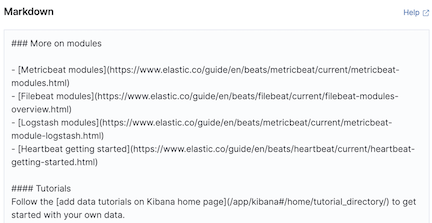
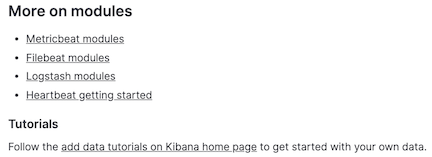
The following instructions are displayed:
Or when you enter:
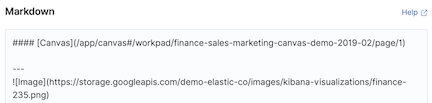
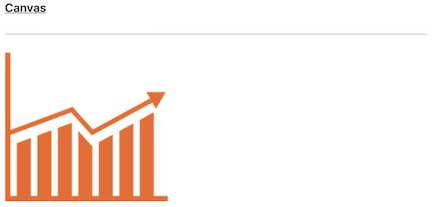
The following image is displayed:
For detailed information about writing on GitHub, click Help on the top-right of the Markdown editor.
Save a Markdown panel to the Visualize Library so you can add it to multiple dashboards. When you edit a saved Markdown panel, your changes are reflected on every dashboard that uses it. For an overview of the library, refer to Visualize Library.
To save an existing Markdown panel from a dashboard to the Visualize Library:
- On your dashboard, open the panel menu of the Markdown panel.
- Select Save to library.
- Enter a Title for the panel, then select Save.
The panel is now linked to the library. Any subsequent edit you apply to it from a dashboard updates the library entry, and the change appears on every dashboard where the panel is added.
To add a previously saved Markdown panel to a dashboard:
- From your dashboard, select Add > From library in the toolbar.
- From the Types dropdown, select Markdown.
- Select the panel you want to add.
To make changes to a saved Markdown panel on a single dashboard without affecting other dashboards, unlink it from the library:
- On your dashboard, open the panel menu of the Markdown panel.
- Select Unlink from library.
The panel is now part of the dashboard only. Edits you make to it no longer update the library entry or other dashboards.