Alert triggers
Alert triggers run workflows automatically when detection or alerting rules generate an alert. Use alert triggers for alert enrichment, automated incident response, case creation, or notification routing.
When a rule generates an alert that triggers your workflow, the trigger provides rich context data to the workflow through the event field.
Declaring type: alert on a workflow isn't enough to run the workflow when alerts fire. You also have to attach the workflow to the rule's Actions using a Run Workflow action. Without the attachment, the rule fires alerts but the workflow is never invoked. This is the single most common setup mistake.
| Parameter | Type | Required | Description |
|---|---|---|---|
type |
string | Yes | Must be alert. |
That's the entire trigger schema. There's no with block on an alert trigger: rule targeting happens in the alerting rule's Actions configuration, not in the workflow.
triggers:
  - type: alert
To set up an alert trigger, follow these steps:
-
Define an alert trigger
Create a workflow with an alert trigger:
name: Security Alert Response description: Enriches and triages security alerts enabled: true triggers: - type: alert steps: .... -
Configure the alert rule
After creating your workflow, configure your alert rule to trigger it.
- Go to Rules in Stack Management or use the global search field.
- Find or create the alerting rule you want to trigger the workflow.
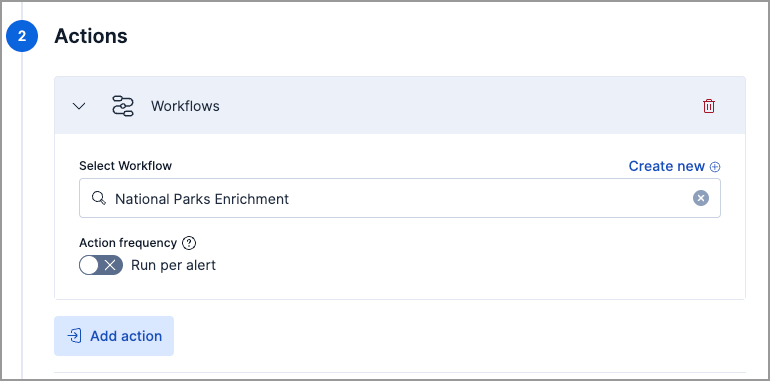
- In the rule settings, under Actions, select Add action.
- Select Workflows.
- Select your workflow from the dropdown or create a new one. You can only select enabled workflows.
- Under Action frequency, choose whether to run separate workflows for each generated alert.
- (Optional) Add multiple workflows by selecting Add action again.
- Create or save the rule.
- Go to Detection rules (SIEM) in the navigation menu or use the global search field.
- Find or create the detection rule you want to trigger the workflow.
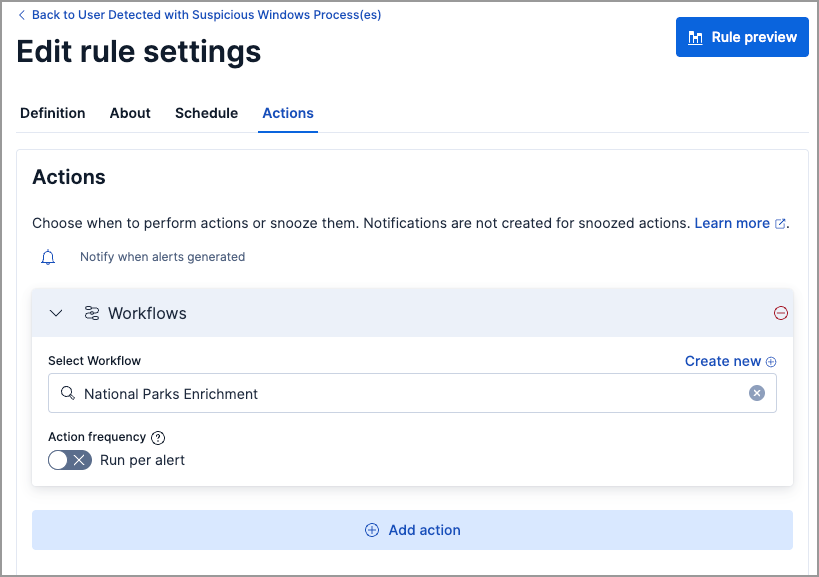
- In the rule settings, under Actions, select Workflows.
- Select your workflow from the dropdown or create a new one. You can only select enabled workflows.
- Under Action frequency, choose whether to run separate workflows for each generated alert.
- (Optional) Add multiple workflows by selecting Add action.
- Create or save the rule.
When the configured rule generates an alert, your workflow automatically executes with the alert context.
When an attached rule fires, the workflow runs and receives the alert payload through the event context variable:
event.* field |
Contains |
|---|---|
event.alerts |
Array of alert documents produced by the rule. |
event.rule |
Metadata about the rule that fired, including id, name, tags, and type. |
event.spaceId |
The Kibana space the rule belongs to. |
event.params.* |
Any params configured on the rule's Run Workflow action. |
Reference these fields with Liquid templating in workflow steps:
- name: log
  type: console
  with:
    message: |
      Got {{ event.alerts | size }} alerts from rule "{{ event.rule.name }}".
      First host: {{ event.alerts[0].host.name }}
The shape of an individual alert document inside event.alerts depends on the rule type (detection rule, alerting rule, or ES|QL rule) and the source data the rule runs against. Common fields include _id, _index, host.name, user.name, kibana.alert.severity, kibana.alert.risk_score, and kibana.alert.start.
When you attach a workflow to an alerting rule, you can choose which alert states trigger it:
| State | Meaning | Default |
|---|---|---|
new |
First time this alert has fired. | On |
ongoing |
Alert is continuing from a previous check. | Off |
recovered |
Alert has cleared and returned to normal. | Off |
Security detection rules produce only new alerts, so the state checkboxes are hidden for them. Observability rules that track ongoing conditions benefit from separate workflows per state. For example, a first-response workflow on new and a recovery-notification workflow on recovered.