Notification settings
AutoOps can notify you of new events opened or closed through various connectors. You can specify which events you want to be notified about, as well as how and when you want to receive these notifications.
Only Organization owners can configure these settings.
To set up notifications for specific events in AutoOps, you have to:
- Add connectors to specify where the notifications will be sent.
- Add notification filters to determine which notifications will be sent to each connector and when.
To receive notifications for new events, the first step is to specify where the notifications should be sent. AutoOps provides a selection of built-in connectors to choose from. You can set up multiple connectors of the same type or of different types based on your needs.
To add a connector, follow these steps:
- On the Notifications settings page, navigate to the Connector settings tab and click Add connector.
- Select a connector type and fill in the required fields. Refer to Configure connectors for specific instructions for each connector.
- Click Run to test to send a test notification.
- Save your settings.
The following connectors are available with AutoOps. Expand each section for specific configuration instructions.
Email
To set up notifications through email, follow these steps:
- Follow the instructions to set up a connector and select Email as your connector type.
- Add a list of recipients. You can add up to 40 emails for a single email connector, and opt in to also notify the recipients when events close.
- Add a notification filter for this connector.
PagerDuty
The PagerDuty integration consists of the following parts:
PagerDuty configuration
- In PagerDuty, go to Services > Service Directory.
- Create a new service (or open an existing one) for AutoOps alerts.
- Assign an escalation policy to specify who gets paged.
- On the service Integrations tab, click Add another integration.
- select Events API v2.
- Expand the integration and copy the integration key (also known as the routing key for Events API v2).
- Store the key securely. You will need it when configuring the connector in AutoOps.
AutoOps configuration
- Follow the instructions to set up a connector and select PagerDuty as your connector type.
- In the Key field, paste the integration key you copied during the PagerDuty configuration.
- Add a notification filter for this connector.
Slack
The Slack integration consists of the following parts:
Slack configuration
- Go to Slack API
- Click Create an App > From scratch.
- Enter an app name and select your workspace, and then click Create App.
- From the left menu, select Incoming Webhooks.
- Turn on Activate Incoming Webhooks.
- Click Request to Add New Webhook and submit a request to your organization's admins.
- When your request is approved, select a Slack channel from the list of Webhook URLs for Your Workspace and click Allow.
- Copy the webhook URL.
- Store the URL securely. You will need it when configuring the connector in AutoOps.
AutoOps configuration
- Follow the instructions to set up a connector and select Slack as your connector type.
- In the URL field, paste the URL you copied during the Slack configuration.
- Add a notification filter for this connector.
VictorOps
AutoOps integrates with VictorOps/Splunk On-Call using the REST Endpoint integration.
The VictorOps/Splunk On-Call integration consists of the following parts:
VictorOps/Splunk On-Call configuration
- In Splunk On-Call, open Integrations > 3rd Party Integrations > REST - Generic and enable it.
- Copy the REST Endpoint URL.
- Replace
$routing_keyat the end of the URL with your routing key (for exampleelastic). - Store the modified URL securely. You will need it when configuring the connector in AutoOps.
- Configure routing keys under Settings > Keys so notifications reach the right team.
AutoOps configuration
- Follow the instructions to set up a connector and select VictorOps as your connector type.
- In the URL field, paste the URL you copied during the Splunk On-Call configuration.
- Add a notification filter for this connector.
Opsgenie
The Opsgenie integration consists of the following parts:
Opsgenie configuration
- Open the main page of your Opsgenie account and click the Teams tab. Make sure a team is defined.
- Go to Settings > Integrations.
- Click Add Integration. In the Integration List, search for API.
- Complete the fields and click Save.
- Copy the API key and store it securely. You will need it when configuring the connector in AutoOps.
AutoOps configuration
- Follow the instructions to set up a connector and select Opsgenie as your connector type.
- In the API key field, paste the API key you copied during the Opsgenie configuration.
- Add a notification filter for this connector.
Microsoft Teams
The Microsoft Teams integration consists of the following parts:
Microsoft Teams configuration
- Follow Microsoft Teams' instructions to create an incoming webhook.
- Store the URL displayed during the creation securely. You will need it when configuring the connector in AutoOps.
AutoOps configuration
- Follow the instructions to set up a connector and select Microsoft Teams as your connector type.
- In the URL field, paste the URL you copied during the Microsoft Teams configuration.
- Add a notification filter for this connector.
Webhook
To set up notifications through a custom webhook, follow these steps:
Follow the instructions to set up a connector and select Webhook as your connector type.
Complete the fields as follows:
- Name: Enter a unique name for this webhook.
- URL: Enter the endpoint to which HTTP requests will be sent when events occur.
- Method: Select a method.
POSTis selected by default. - Header: Add a key and value.
Content-Typeandapplication/jsonare added by default.
In the Body section, edit the message according to how you want it to appear in notifications. Refer to your application documentation for the expected message schema. AutoOps provides a set of optional fields to use.
RESOURCE_ID: Customer deployment IDRESOURCE_NAME: Customer deployment nameTITLE: The title of the event.DESCRIPTION: The description of the issue that was found.SEVERITY: One of the three severity levels (High, Medium, Low).STATUS: Indicates if the event is currently open or closed.MESSAGE: The background and impact of the issue.START_TIME: The time the event was opened.END_TIME: The time the event was closed.ENDPOINT_TYPE: The type of endpoint (PagerDuty, Slack, VictorOps, Opsgenie, or Microsoft Teams).AFFECTED_NODES: List of affected nodes.AFFECTED_INDICES: List of affected indices.EVENT_LINK: Direct link to the event in AutoOps.
Optionally, test the webhook integration by using the webhook.site.
Add a notification filter for this connector.
After adding a connector, add a notification filter to specify which events to receive notifications for and how you want to be notified. You can create an unlimited number of filters, and the same connector can be used across multiple filters.
To add a filter, follow these steps:
- On the Notifications settings page, navigate to the Filter settings tab and click Add filter.
- Enter a name that best describes the type of notification. This name will appear in other reports and dashboards.
- Select the connectors to receive the notification.
- Select the deployments for which this filter should trigger notifications.
- Use the Delay field to set the period of time you want AutoOps to wait before sending the notification. If all the events listed in this filter are closed by AutoOps in this time, no notification will be sent.
- Use the Included Events and Excluded Events fields to select which events should trigger or not trigger this notification.
- Save your settings.
From the Notifications report, you can check all the notifications sent. The report lists all the events that were set up in the notification filters and their status.
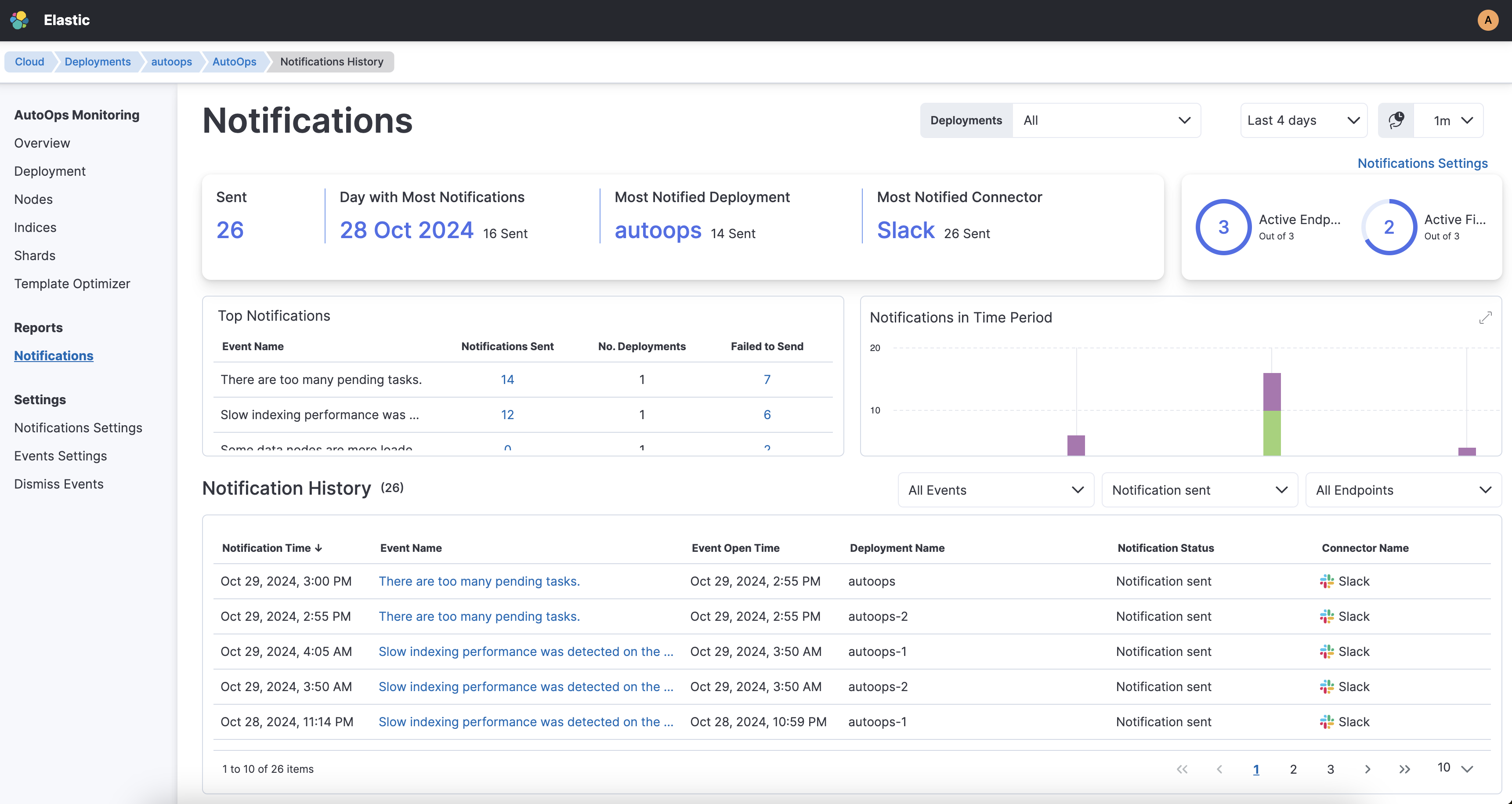
The notification can have one of the following statuses:
- Notification sent
- Connector not defined
- Notification muted
- Sending notification
- Notification failed to send
- Event closed before notification sent
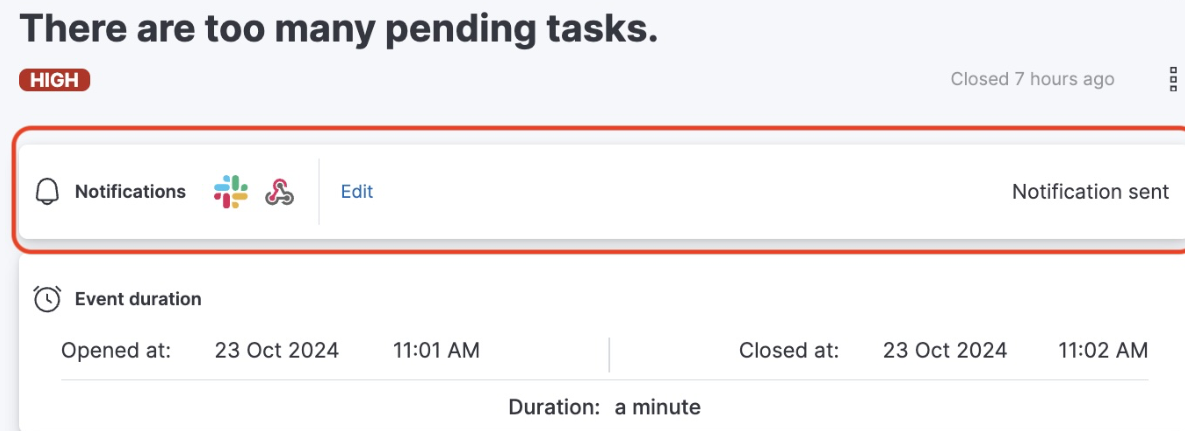
The notification status for each event is also shown in the flyout when you select an event on the Deployment or Cluster page.