Import a dashboard
Import a dashboard that was exported from another Kibana space, instance, deployment, or project. How you import it depends on the format it was exported in. Refer to Share and export dashboards for the export options, then use the matching import method:
-
JSON: import it with the Dashboards API. This is the recommended method. - NDJSON: import it with the Saved Objects API, or from the Saved Objects page.
Prerequisites
- The dashboard's API-compatible JSON. Refer to Share and export dashboards to produce it.
- All privilege for the Dashboard feature in Kibana.
- A way to call the API, such as Kibana Dev Tools Console or an API key.
Send the JSON to the Dashboards API in the target space, instance, deployment, or project. The JSON export flow can open a pre-populated request in Kibana Dev Tools Console, where you set the target space before sending it. The API creates the dashboard, or updates it in place when you send it with an existing ID.
For the imported dashboard to work, the objects it references, such as data views and library visualizations, must also exist in the target environment. To version-control dashboards and keep their references portable across environments, refer to Manage dashboards as code.
Import the dashboard and its related objects from an NDJSON file on the Saved Objects page.
Prerequisites
- An NDJSON file containing the dashboard and its related objects. Refer to Share and export dashboards to produce it.
- All privilege for the Dashboard and Saved Objects Management features in Kibana.
- Access to Stack Management in Kibana.
Import the dashboard from the Saved Objects page under Stack Management. When you import a dashboard, you also import its related objects, such as data views and visualizations. Import options control how the import handles these related objects:
- Check for existing objects: When selected, objects are not imported when another object with the same ID already exists in this space or cluster. For example, if you import a dashboard that uses a data view which already exists, the data view is not imported and the dashboard uses the existing data view instead. You can also choose which of the imported or existing objects to keep by selecting Request action on conflict.
- Create new objects with random IDs: All related objects are imported and are assigned a new ID to avoid conflicts.
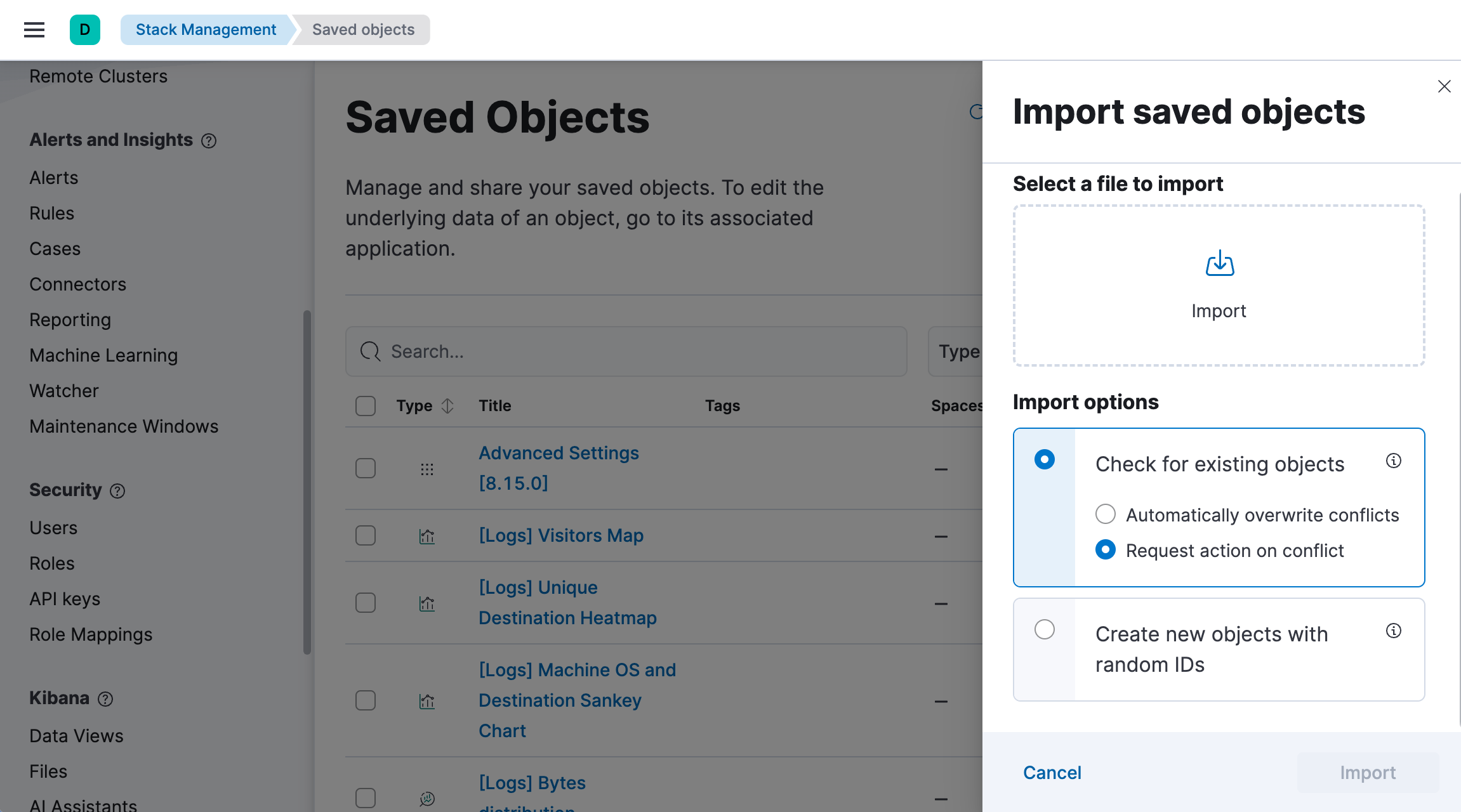
To automate the import, use the import saved objects API instead.
To move a dashboard to another space within the same deployment, you don't need to export and import it. Instead, copy it to the target space from the Saved Objects page, together with its related objects. To automate this, use the copy saved objects to space API.