Filtering in Kibana
This page describes the common ways Kibana offers in most apps for filtering data and refining your initial search queries.
Some apps provide more options, such as Dashboards.
Display data within a specified time range when your index contains time-based events, and a time-field is configured for the selected data view. The default time range is 15 minutes, but you can customize it in Advanced Settings.
Select the time range control.
Set the time range in one of the following ways:
- Enter a range directly, such as
last 5 minutesor-12d to now, then press Enter. - Select a range from Presets or Recent.
- Select Calendar, select the start and end dates, then select Apply.
- Select Custom range, configure the Start date and End date as Relative, Absolute, or Now, then select Apply.
- Enter a range directly, such as
To configure automatic refresh, select the Settings icon, then set Refresh every.
The new picker doesn't support auto-refresh-only views. In those views, the time control and auto-refresh aren't available.
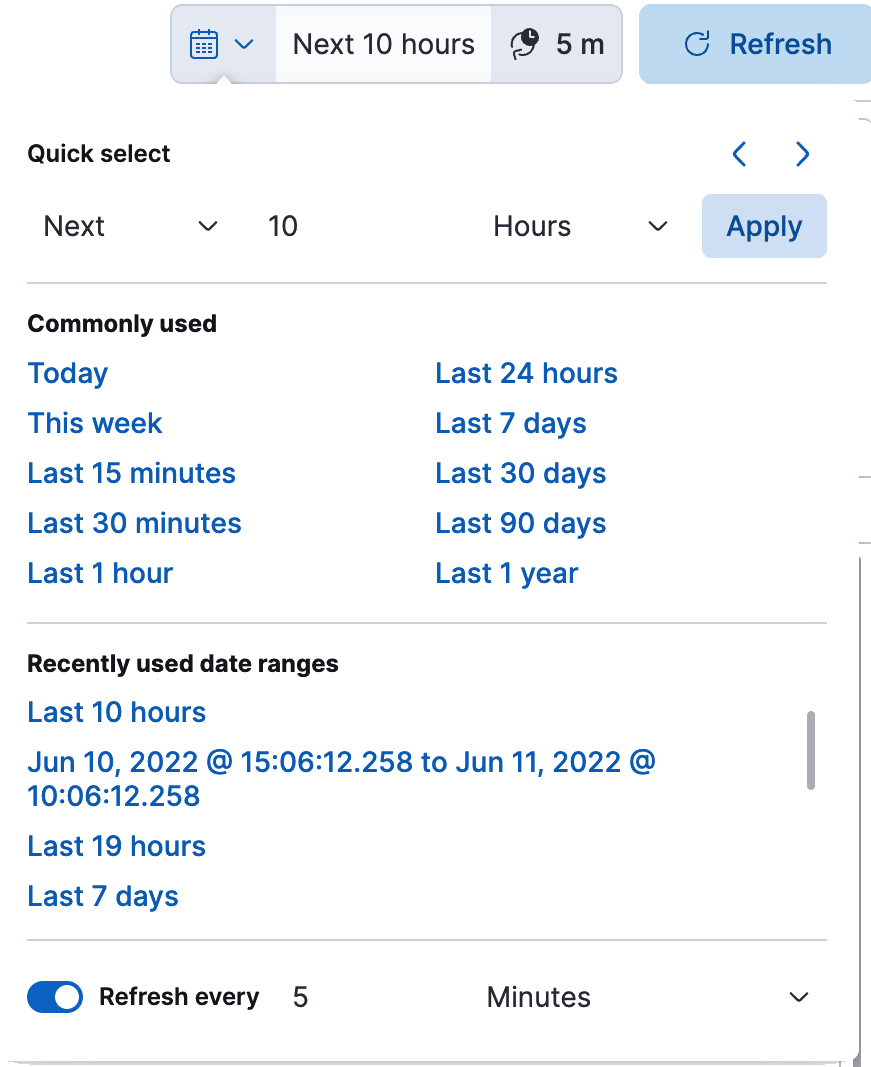
Select the calendar icon:

Select one of the following:
- Quick select. Set a time based on the last or next number of seconds, minutes, hours, or other time unit.
- Commonly used. Select a time range from options such as Last 15 minutes, Today, and Week to date.
- Recently used date ranges. Use a previously selected date range.
- Refresh every. Specify an automatic refresh rate.
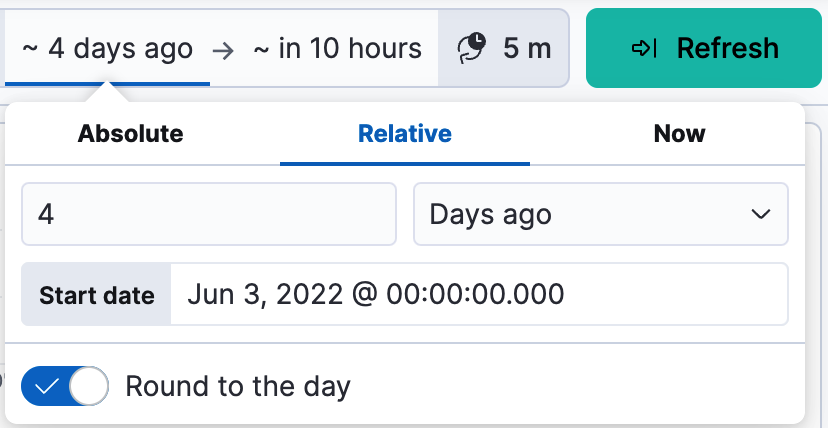
To set start and end times, select the bar next to the time filter. In the popup, select Absolute, Relative, or Now, then specify the required options.
The global time filter limits the time range of data displayed. In most cases, the time filter applies to the time field in the data view, but some apps allow you to use a different time field.
Using the time filter, you can configure a refresh rate to periodically resubmit your searches.
To manually resubmit a search, click the Refresh button. This is useful when you use Kibana to view the underlying data.
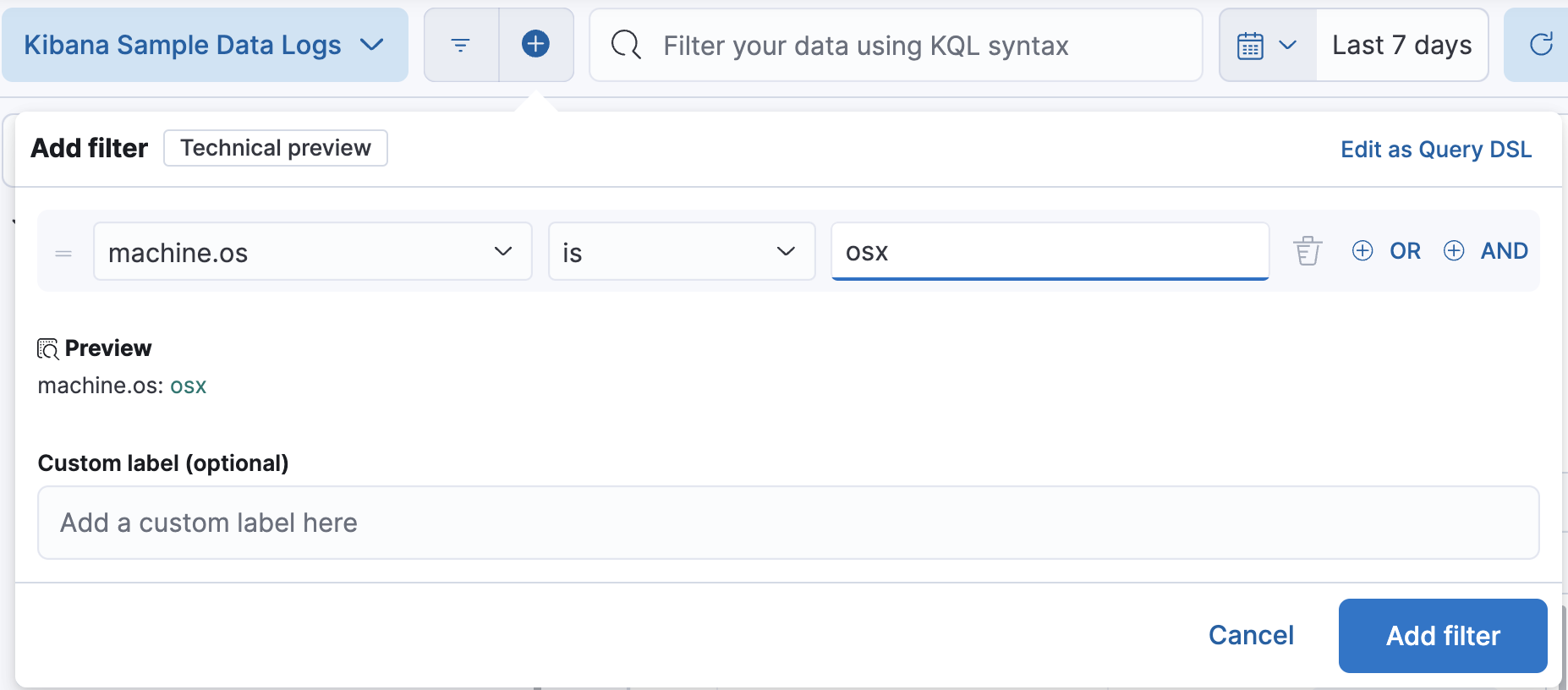
Structured filters are a more interactive way to create Elasticsearch queries, and are commonly used when building dashboards that are shared by multiple analysts. Each filter can be disabled, inverted, or pinned across all apps. Each of the structured filters is combined with AND logic on the rest of the query.