Manage and organize workflows
The Workflows page allows you to view and manage all your workflows. From the page, you can create, edit, duplicate, delete, and more with your workflows. To find the Workflows page, use the navigation menu or the global search field.
To use workflows, you must turn on the feature and ensure your role has the appropriate privileges. Refer to Set up Workflows for more information.
You must also have the appropriate subscription. Refer to the subscription page for Elastic Cloud and Elastic Stack/self-managed for the breakdown of available features and their associated subscription tiers.
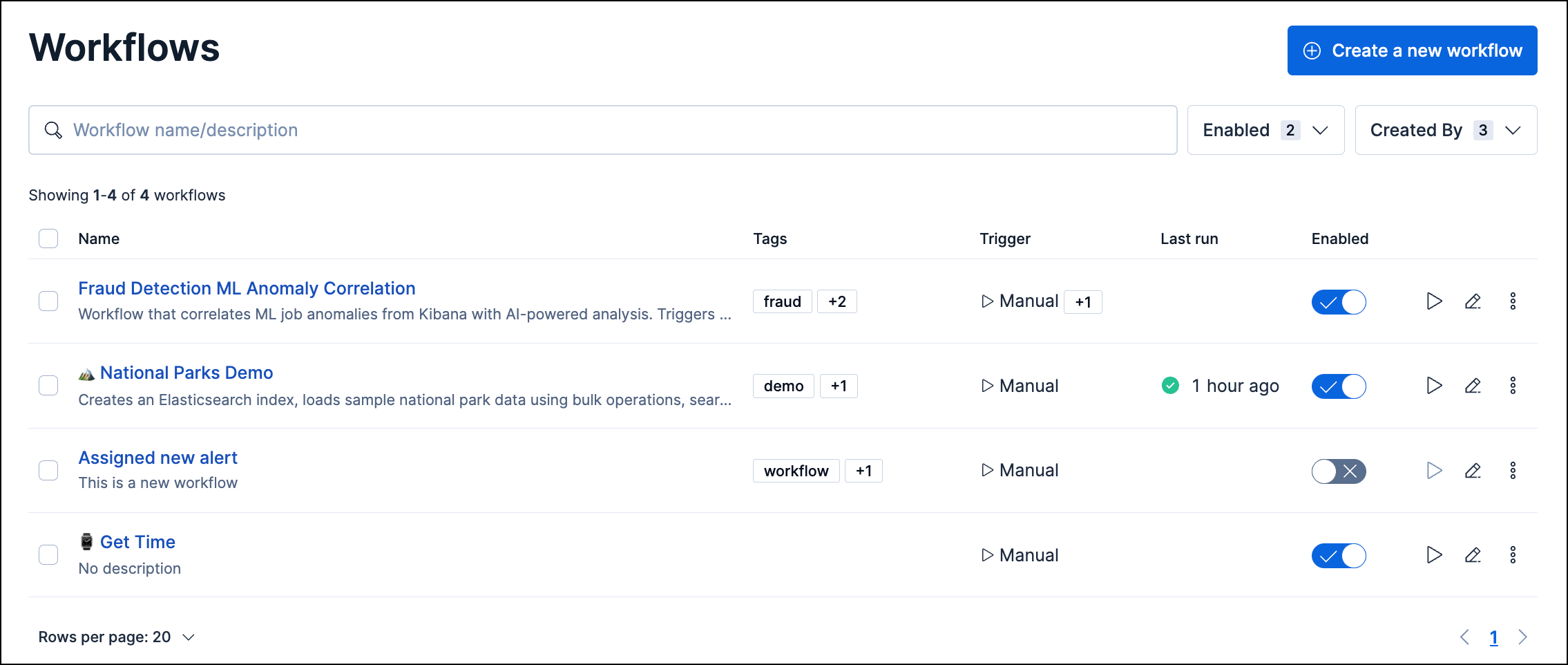
From the Workflows page, you can create new workflows, search and filter existing ones, manually trigger workflows, and more.
Click Create a new workflow to open the YAML editor. Refer to Use the YAML editor to learn how to use the editor.
Use the search bar to filter workflows by name, description, or tag. You can also use the Enabled filter to only show workflows that are turned on (enabled) or off (disabled), and the Created By filter to only show workflows created by the specified user.
To instantly run a workflow, click the Run icon for a workflow, or open the All actions menu ( ) and click Run. The workflow manually runs regardless of its specified triggers. To learn about monitoring workflow runs, refer to Monitor workflow execution.
Click the Edit icon to open the workflow in the YAML editor. Alternatively, open the All actions menu ( ), and click Edit.
Use the Enabled toggle to control whether a workflow can run:
- Enabled: The workflow responds to its configured triggers.
- Disabled: The workflow won't run, even if it's triggered.
Every time you save a workflow, Elastic records a new workflow version: a numbered snapshot of the full definition, who saved it, and when. Use version history to review teammate edits, inspect what changed after a refactor, or roll back to a known-good definition.
Versions are kept indefinitely by default.
- Open a workflow in the editor.
- From the workflow detail header menu, select History.
The timeline lists committed versions newest first. Each entry shows:
- A version badge (
v1,v2,v3, and so on) - Current version on the latest committed version (when you have no unsaved edits)
- Who saved the version and when
- A change summary grouped by Steps, Triggers, and Settings (for example, steps added or removed), so you can scan changes without reading the full YAML
Select a version in the timeline to preview its YAML in the editor:
- Single-version view: The full YAML for that version
- Compare view: A structure-aware side-by-side or unified diff against the previous version or against another version you choose with Compare to this version. Changes are grouped by steps, triggers, and settings rather than only line-by-line text. Use hunk navigation to move between changes. Validation errors in the preview are highlighted inline.
If you have unsaved edits, they appear at the top of the timeline as Unsaved changes. Select that row to compare your draft against the last committed version before you save.
- Select a version in the timeline or use Restore this version on a timeline row.
- Review the preview or diff.
- Select Restore, then confirm.
Restoring creates a new version at the top of the timeline with a comment such as Restored from v3. History is preserved; restore is not a destructive revert.
You cannot restore Managed workflows. Restore requires the Workflows Update privilege; viewing history requires Read. Refer to Set up Workflows > Manage access to workflows.
Each workflow execution is linked to the workflow version that was active when it ran. Open an execution from the Executions tab to see which version was used for that run. Refer to Monitor workflow execution.