OpenCTI
| Version | 2.16.0 (View all) |
| Managed integration release status | GA |
| Subscription level What's this? |
Basic |
| Developed by What's this? |
Elastic |
| Ingestion method(s) | API |
| Minimum Kibana version(s) | 9.0.5 8.19.2 |
You can use this integration as an Elastic Managed integration on Elastic Cloud Hosted deployments running this version or later.
The OpenCTI integration allows you to ingest data from the OpenCTI threat intelligence platform.
Use this integration to get indicator data from OpenCTI. You can monitor and explore the ingested data on the OpenCTI dashboard or in Kibana's Discover tab. Indicator match rules in Elastic Security can then use the ingested indicator data to generate alerts about detected threats.
Agentless integrations allow you to collect data without having to manage Elastic Agent in your cloud. They make manual agent deployment unnecessary, so you can focus on your data instead of the agent that collects it. For more information, refer to Agentless integrations and the Agentless integrations FAQ. Agentless deployments are only supported in Elastic Serverless and Elastic Cloud environments. This functionality is in beta and is subject to change. Beta features are not subject to the support SLA of official GA features.
The OpenCTI integration collects one type of data stream: indicator.
Indicator are lists of records created over time. Each event in the Indicator data stream collected by the OpenCTI integration is an indicator that can be used to detect suspicious or malicious cyber activity. The data is fetched from OpenCTI's GraphQL API.
This integration requires Filebeat version 8.16.0, or later.
It has been updated for OpenCTI version 6.1.0 and requires that version or later.
For additional information about threat intelligence integrations, including the steps required to add an integration, please refer to the Enable threat intelligence integrations page of the Elastic Security documentation.
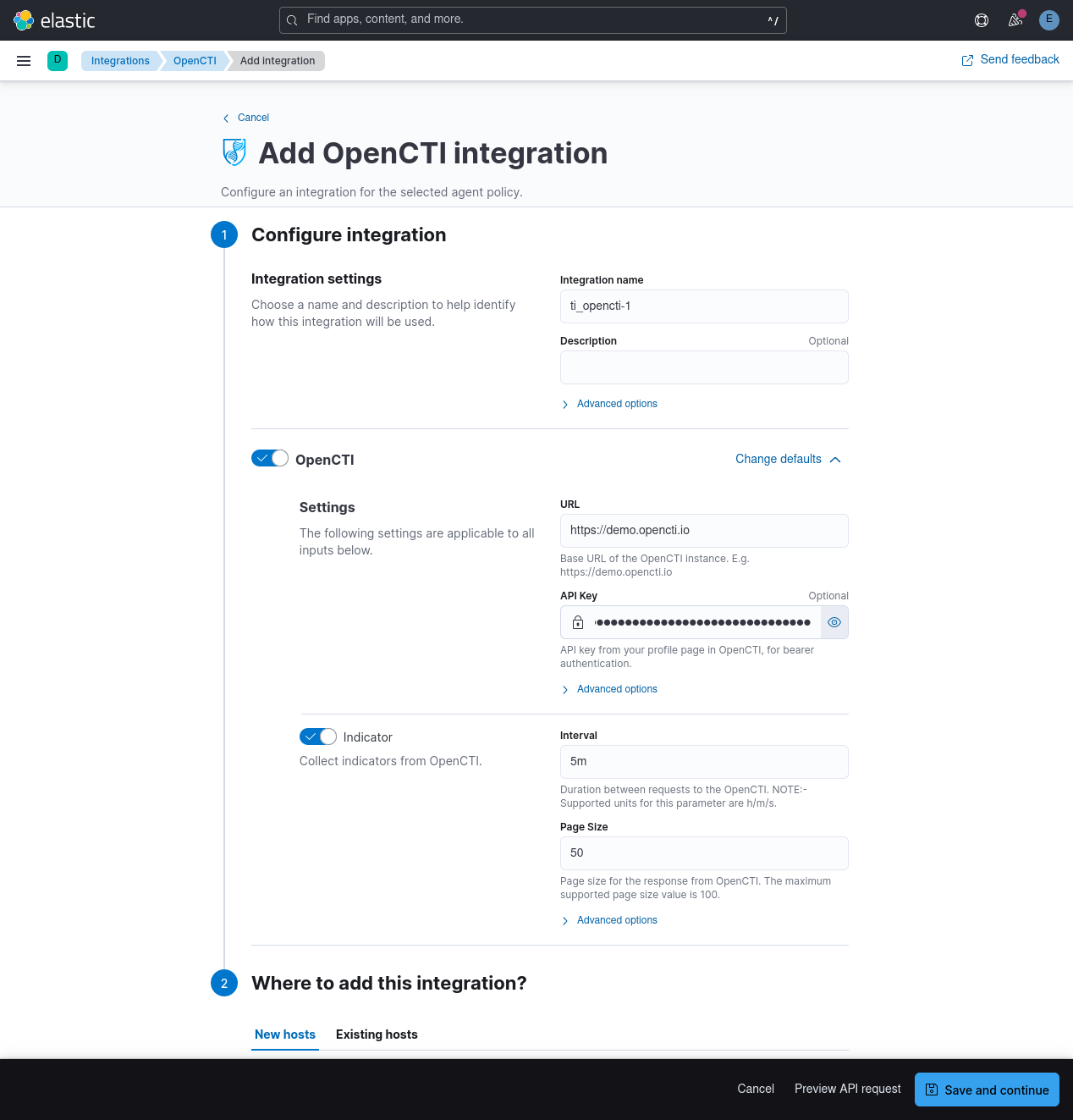
When adding the OpenCTI integration, you will need to provide a base URL for the target OpenCTI instance. It should be just the base URL (e.g. https://demo.opencti.io) and not include an additional path for the API or UI.
The simplest authentication method to use is an API key (bearer token). You can find a value for the API key on your profile page in the OpenCTI user interface. Advanced integration settings can be used to configure various OAuth2-based authentication arrangements, and to enter SSL settings for mTLS authentication and for other purposes. For information on setting up the OpenCTI side of an authentication strategy, please refer to OpenCTI's authentication documentation.
The OpenCTI integration supports advanced filtering capabilities to help you control which indicators are ingested. This allows you to focus on specific types of indicators, confidence levels, authors, or time ranges that are most relevant to your security operations.
The following filters can be configured when setting up the integration (Note: The integration automatically filters for entity type 'Indicator' only):
Pattern Types: Filter indicators by pattern type (e.g., 'stix'). The values are customizable in OpenCTI, and any custom pattern types defined in your OpenCTI instance are supported (if an observable is associated).
Indicator Types: Filter indicators by type. Values are customizable in OpenCTI. Common defaults include: 'malicious-activity', 'attribution', 'benign', 'anomalous-activity', 'compromised', 'unknown'. Custom types defined in your OpenCTI instance are also supported.
Revoked Status: Filter by revoked status. Set to 'true' to get only revoked indicators, 'false' for only active (non-revoked) indicators, or leave empty to get all indicators regardless of revoked status.
Valid From (Start Date): Filter indicators with valid_from date after this date. Use ISO 8601 format (e.g., '2024-01-01T00:00:00Z') or relative date expressions (e.g., 'now-30d', 'now-7d').
Valid Until (End Date): Filter indicators with valid_until date before this date. Use ISO 8601 format (e.g., '2024-12-31T23:59:59Z') or relative date expressions (e.g., 'now+30d', 'now+7d').
Label IDs: Filter by label IDs. Enter the UUIDs of the labels to filter indicators that have these labels applied. Important: You must use label IDs (UUIDs), not label names. You can find label IDs in the OpenCTI interface by navigating to Settings > Taxonomies > Labels, or via the API.
Minimum Confidence Level: Filter indicators with confidence level greater than or equal to a specified value (0-100).
Author IDs: Filter by author IDs (createdBy relationship). Enter the UUIDs of the authors to filter indicators created by them. Important: You must use author IDs (UUIDs), not author names. You can find author IDs in the OpenCTI interface by clicking on an entity and checking its details, or via the API.
Creator IDs: Filter by technical creator IDs. Enter the UUIDs of the internal users who created the indicators in OpenCTI.
Created After: Filter indicators created after a specific date. Use ISO 8601 format (e.g., '2024-01-01T00:00:00Z') or relative date expressions (e.g., 'now-30d', 'now-7d', 'now-24h').
Modified After: Filter indicators modified after a specific date. Use ISO 8601 format (e.g., '2024-01-01T00:00:00Z') or relative date expressions (e.g., 'now-30d', 'now-7d', 'now-24h').
Marking Definition IDs: Filter by marking definitions (e.g., TLP levels). Enter the UUIDs of the marking definitions. Important: You must use marking definition IDs (UUIDs), not names. Common TLP marking IDs:
- TLP:CLEAR (TLP:WHITE):
marking-definition--34098fce-860f-48ae-8e50-ebd3cc5e41da - TLP:GREEN:
marking-definition--bab4a63c-aed9-4cf5-a766-dfca5abac2bb - TLP:AMBER:
marking-definition--55d920b0-5e8b-4f79-9ee9-91f868d9b421 - TLP:RED:
marking-definition--e828b379-4e03-4974-9ac4-e53a884c97c1
- TLP:CLEAR (TLP:WHITE):
Here are some practical examples of filter configurations:
High-confidence indicators only: Set
Minimum Confidence Levelto 75 to ingest only indicators with high confidence.Active threat indicators: Set
Indicator Typesto ['malicious-activity', 'compromised'] andRevoked Statusto 'false' to focus on active, non-revoked threats.Currently valid indicators: Set
Valid From (Start Date)to 'now-365d' andValid Until (End Date)to 'now+30d' to get indicators that are currently within their validity period.Recent indicators: Set
Created Afterto 'now-7d' to collect only indicators created in the last 7 days.Specific pattern types: Set
Pattern Typesto ['stix'] to collect only STIX pattern indicators, or include your custom pattern types defined in OpenCTI.Specific campaign tracking: Use
Label IDsfilter with specific campaign label UUIDs (e.g., ['550e8400-e29b-41d4-a716-446655440000']) to track indicators related to particular threat campaigns.Indicators from specific sources: Use
Author IDswith the UUIDs of specific threat intelligence sources (e.g., ['123e4567-e89b-12d3-a456-426655440000']) to filter indicators from trusted sources.Recently modified high-value indicators: Combine
Modified Afterset to 'now-24h',Minimum Confidence Levelto 80, andRevoked Statusto 'false' to get recently updated, high-confidence active indicators.TLP-restricted indicators: Use
Marking Definition IDswith TLP:CLEAR and TLP:GREEN UUIDs to only ingest indicators that are safe to share broadly: ['marking-definition--34098fce-860f-48ae-8e50-ebd3cc5e41da', 'marking-definition--bab4a63c-aed9-4cf5-a766-dfca5abac2bb'].
All filters work together using AND logic at the top level. Within each multi-value filter (like pattern types or label IDs), OR logic is applied between values.
The OpenCTI integration supports running on multiple Elastic Agents for high availability. When multiple agents fetch the same indicators:
- Automatic Deduplication: The integration uses a fingerprint-based document ID to prevent duplicates. Each indicator version gets a consistent ID based on its
standard_id,modifiedandupdated_attimestamps. - No Manual Configuration Needed: Deduplication works automatically - just deploy the integration to multiple agents.
- Update Handling: When an indicator is updated in OpenCTI, a new document is indexed alongside the previous version in
logs-ti_opencti.indicator-*. Thelatest_ioctransform keeps only the most recent version per indicator inlogs-ti_opencti_latest.indicator, which is the index detection rules and dashboards should query.
- Stagger Execution Times: To avoid all agents hitting OpenCTI simultaneously, consider offsetting their schedules slightly (e.g., Agent 1 at :00, Agent 2 at :02).
- Use the Same Configuration: Ensure all agents use identical filter settings to fetch the same dataset.
- Monitor Performance: Check OpenCTI server load when multiple agents are polling.
Since several filters require UUIDs rather than names, here are ways to find these IDs:
Label IDs:
- In OpenCTI UI: Navigate to Settings → Taxonomies → Labels. Click on a label to see its ID in the URL or details.
- Via API: Query the
labelsendpoint to list all labels with their IDs.
Author IDs:
- In OpenCTI UI: Click on any entity that has an author, then click on the author name to see its details including the ID.
- Via API: Query the
identitiesendpoint to list all identities (organizations, individuals) with their IDs.
Creator IDs:
- In OpenCTI UI: Navigate to Settings → Security → Users to see user IDs.
- Via API: Query the
usersendpoint (requires appropriate permissions).
For more information about OpenCTI's filtering system, refer to the OpenCTI filters documentation.
The indicator data stream includes indicators of the following types (threat.indicator.type): artifact, autonomous-system, bank-account, cryptocurrency-wallet, cryptographic-key, directory, domain-name, email-addr, email-message, email-mime-part-type, hostname, ipv4-addr, ipv6-addr, mac-addr, media-content, mutex, network-traffic, payment-card, phone-number, process, software, file, text, url, user-account, user-agent, windows-registry-key, windows-registry-value-type, x509-certificate, unknown.
OpenCTI's data model closely follows the STIX standard. It supports complex indicators defined using STIX patterns or other languages, and each indicator can be related to one or more observables. In the ECS threat fields the focus is on atomic indicators. This integration fetches as much data as possible about indicators and their related observables, and populates relevant ECS fields wherever possible. It uses related observables rather than the indicator pattern as the data source for type-specific indicator fields.
The opencti.indicator.invalid_or_revoked_from field is set to the earliest time at which an indicator reaches its valid_until time or is marked as revoked. From that time the indicator should no longer be considered active.
An Elastic Transform is created to provide a view of active indicators for end users. This transform creates destination indices that are accessible via the alias logs-ti_opencti_latest.indicator. When querying for active indicators or setting up indicator match rules, use that alias to avoid false positives from expired indicators.
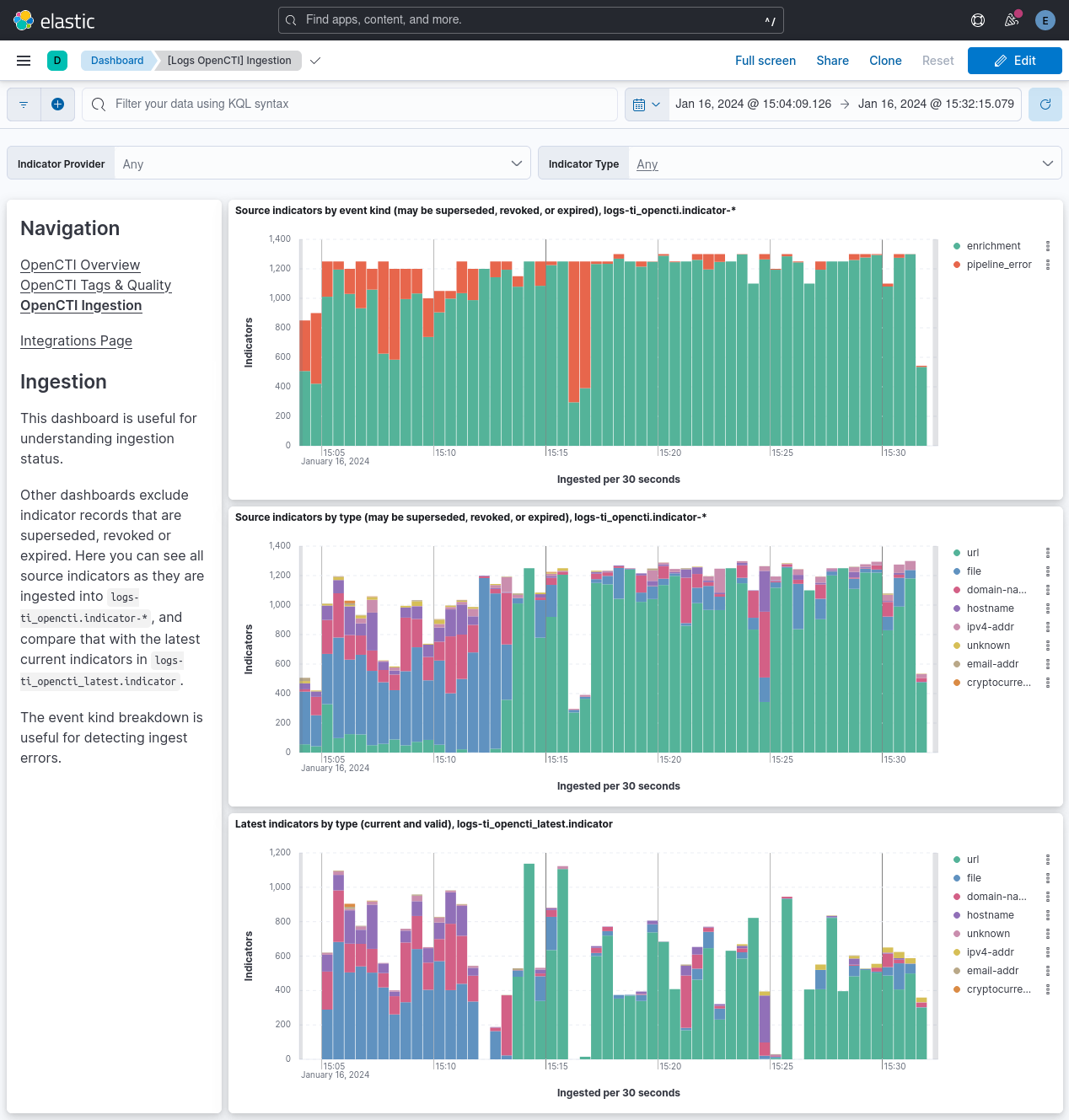
The dashboards show only active indicators, except the Ingestion dashboard, which shows data from both the source data stream and the indices of the latest indicators.
Indicators that are never expired or revoked will not be removed from the indices of the latest indicators. If accumulation of indicators is a problem there, it can be managed upstream in OpenCTI, or by manually deleting indicators from those indices.
To prevent unbounded growth of the source data stream logs-ti_opencti.indicator-*, it has an index lifecycle management (ILM) policy that deletes records 5 days after ingestion.
Here is an example indicator event:
Example
{
    "@timestamp": "2026-07-29T12:09:03.572Z",
    "agent": {
        "ephemeral_id": "f2c072b7-7955-4811-9ae3-9c6fe3f315c4",
        "id": "83d99a75-f67a-4fa0-a55e-3dcaf28762bd",
        "name": "elastic-agent-82823",
        "type": "filebeat",
        "version": "9.4.3"
    },
    "data_stream": {
        "dataset": "ti_opencti.indicator",
        "namespace": "14780",
        "type": "logs"
    },
    "ecs": {
        "version": "8.11.0"
    },
    "elastic_agent": {
        "id": "83d99a75-f67a-4fa0-a55e-3dcaf28762bd",
        "snapshot": false,
        "version": "9.4.3"
    },
    "event": {
        "agent_id_status": "verified",
        "category": [
            "threat"
        ],
        "created": "2018-02-05T08:04:53.000Z",
        "dataset": "ti_opencti.indicator",
        "id": "d019b01c-b637-4eb2-af53-6d527be3193d",
        "ingested": "2026-07-29T12:09:06Z",
        "kind": "enrichment",
        "module": "ti_opencti",
        "original": "{\"confidence\":15,\"created\":\"2018-02-05T08:04:53.000Z\",\"createdBy\":{\"identity_class\":\"organization\",\"name\":\"CthulhuSPRL.be\"},\"description\":\"\",\"externalReferences\":{\"edges\":[]},\"id\":\"d019b01c-b637-4eb2-af53-6d527be3193d\",\"is_inferred\":false,\"killChainPhases\":[],\"lang\":\"en\",\"modified\":\"2023-01-17T05:53:42.851Z\",\"name\":\"ec2-23-21-172-164.compute-1.amazonaws.com\",\"objectLabel\":[{\"value\":\"information-credibility-6\"},{\"value\":\"osint\"}],\"objectMarking\":[{\"definition\":\"TLP:GREEN\",\"definition_type\":\"TLP\"}],\"observables\":{\"edges\":[{\"node\":{\"entity_type\":\"Hostname\",\"id\":\"b0a91059-5637-4050-8dce-a976a607f75c\",\"observable_value\":\"ec2-23-21-172-164.compute-1.amazonaws.com\",\"standard_id\":\"hostname--2047cd44-ffae-5b34-b912-5856add59b59\",\"value\":\"ec2-23-21-172-164.compute-1.amazonaws.com\"}}],\"pageInfo\":{\"globalCount\":1}},\"pattern\":\"[hostname:value = 'ec2-23-21-172-164.compute-1.amazonaws.com']\",\"pattern_type\":\"stix\",\"pattern_version\":\"2.1\",\"revoked\":false,\"standard_id\":\"indicator--cde0a6e1-c622-52c4-b857-e9aeac56131b\",\"updated_at\":\"2023-01-17T05:53:43.100Z\",\"valid_from\":\"2018-02-05T08:04:53.000Z\",\"valid_until\":\"2019-02-05T08:04:53.000Z\",\"x_opencti_detection\":false,\"x_opencti_main_observable_type\":\"Hostname\",\"x_opencti_score\":40}",
        "type": [
            "indicator"
        ]
    },
    "input": {
        "type": "cel"
    },
    "labels": {
        "is_ioc_transform_source": "true"
    },
    "opencti": {
        "indicator": {
            "creator_identity_class": "organization",
            "detection": false,
            "invalid_or_revoked_from": "2019-02-05T08:04:53.000Z",
            "is_inferred": false,
            "lang": "en",
            "observables_count": 1,
            "pattern": "[hostname:value = 'ec2-23-21-172-164.compute-1.amazonaws.com']",
            "pattern_type": "stix",
            "pattern_version": "2.1",
            "revoked": false,
            "score": 40,
            "standard_id": "indicator--cde0a6e1-c622-52c4-b857-e9aeac56131b",
            "updated_at": "2023-01-17T05:53:43.100Z",
            "valid_from": "2018-02-05T08:04:53.000Z",
            "valid_until": "2019-02-05T08:04:53.000Z"
        },
        "observable": {
            "hostname": {
                "entity_type": "Hostname",
                "id": "b0a91059-5637-4050-8dce-a976a607f75c",
                "standard_id": "hostname--2047cd44-ffae-5b34-b912-5856add59b59",
                "value": "ec2-23-21-172-164.compute-1.amazonaws.com"
            }
        }
    },
    "related": {
        "hosts": [
            "ec2-23-21-172-164.compute-1.amazonaws.com"
        ]
    },
    "tags": [
        "preserve_original_event",
        "forwarded",
        "opencti-indicator",
        "information-credibility-6",
        "osint",
        "ecs-indicator-detail"
    ],
    "threat": {
        "feed": {
            "dashboard_id": "ti_opencti-83b2bef0-591c-11ee-ba5f-49a63bb985cd",
            "description": "Indicator data from OpenCTI",
            "name": "OpenCTI",
            "reference": "https://docs.opencti.io/latest/usage/overview/"
        },
        "indicator": {
            "confidence": "Low",
            "marking": {
                "tlp": "GREEN"
            },
            "modified_at": "2023-01-17T05:53:42.851Z",
            "name": "ec2-23-21-172-164.compute-1.amazonaws.com",
            "provider": "CthulhuSPRL.be",
            "reference": "http://svc-opencti_stub:8080/dashboard/observations/indicators/d019b01c-b637-4eb2-af53-6d527be3193d",
            "type": "hostname",
            "url": {
                "domain": "ec2-23-21-172-164.compute-1.amazonaws.com",
                "registered_domain": "ec2-23-21-172-164.compute-1.amazonaws.com",
                "top_level_domain": "compute-1.amazonaws.com"
            }
        }
    }
}
Fields for indicators of any type are mapped to ECS fields when possible (primarily threat.indicator.*) and otherwise stored with a vendor prefix (opencti.indicator.*).
Fields for related observables of the various types are always stored under opencti.observable.<type>.* and when possible their values will be copied into corresponding ECS fields.
The related.* fields will also be populated with any relevant data.
Timestamps are mapped as follows:
| Source | Destination | Description |
|---|---|---|
| - | @timestamp | Time the event was received by the pipeline |
| - | event.ingested | Time the event arrived in the central data store |
| created | event.created | Time of the indicator's creation |
| modified | threat.indicator.modified_at | Time of the indicator's last modification |
| updated_at | opencti.indicator.updated_at | Time the indicator record was last updated in the OpenCTI platform, including UI edits, enrichment and scoring changes |
| valid_from | opencti.indicator.valid_from | Time from which this indicator is considered a valid indicator of the behaviors it is related to or represents |
| valid_until | opencti.indicator.valid_until | Time at which this indicator should no longer be considered a valid indicator of the behaviors it is related to or represents |
| - | opencti.indicator.invalid_or_revoked_from | The earliest time at which an indicator reaches its valid_until time or is marked as revoked |
The table below lists all opencti.* fields.
The documentation for ECS fields can be found at:
Exported fields
| Field | Description | Type |
|---|---|---|
| @timestamp | Time the event was received by the pipeline. | date |
| data_stream.dataset | Data stream dataset. | constant_keyword |
| data_stream.namespace | Data stream namespace. | constant_keyword |
| data_stream.type | Data stream type. | constant_keyword |
| event.module | Event module | constant_keyword |
| input.type | Input type. | keyword |
| labels.is_ioc_transform_source | Indicates whether an IOC is in the raw source data stream, or the in latest destination index. | constant_keyword |
| opencti.indicator.creator_identity_class | The type of the creator of this indicator (e.g. "organization"). | keyword |
| opencti.indicator.detection | Whether the indicator has been detected. | boolean |
| opencti.indicator.detection_rule.query | The query for the detection rule. | keyword |
| opencti.indicator.detection_rule.type | The type of the detection rule. | keyword |
| opencti.indicator.external_reference.description | A description for a related record in an external system. | keyword |
| opencti.indicator.external_reference.external_id | A non-STIX ID for a related record in an external system. | keyword |
| opencti.indicator.external_reference.source_name | The name of an external source of related records. | keyword |
| opencti.indicator.external_reference.url | A URL for a related record in an external system. | keyword |
| opencti.indicator.invalid_or_revoked_from | A time from which this indicator should be considered invalid or revoked. | date |
| opencti.indicator.is_inferred | Whether the indicator is inferred. | boolean |
| opencti.indicator.kill_chain_phase | The kill chain name and kill change phase name (e.g. "[mitre-attack] exfiltration"). | keyword |
| opencti.indicator.lang | A language associated with the indicator record. | keyword |
| opencti.indicator.observables_count | The number of observables related to this indicator, which may exceed the number fetched. | long |
| opencti.indicator.pattern | The detection pattern for this indicator, expressed as a STIX pattern or using another appropriate language such as SNORT, YARA, etc. | keyword |
| opencti.indicator.pattern_type | The pattern language used in this indicator. | keyword |
| opencti.indicator.pattern_version | The version of the pattern language used in this indicator. | keyword |
| opencti.indicator.revoked | Whether the indicator is revoked. | boolean |
| opencti.indicator.rule_compatible | Whether the indicator is compatible with detection rules. | boolean |
| opencti.indicator.score | An integer score for the indicator. | long |
| opencti.indicator.standard_id | A predictable STIX ID, generated based on one or multiple attributes of the indicator. | keyword |
| opencti.indicator.updated_at | The date and time the indicator was last updated in the OpenCTI platform (including UI edits, enrichment, and scoring changes). Distinct from threat.indicator.modified_at, which reflects the source-supplied STIX modified timestamp. | date |
| opencti.indicator.valid_from | The time from which this indicator is considered a valid indicator of the behaviors it is related to or represents. | date |
| opencti.indicator.valid_until | The time at which this indicator should no longer be considered a valid indicator of the behaviors it is related to or represents. | date |
| opencti.observable.artifact.additional_names | Additional names of the artifact. | keyword |
| opencti.observable.artifact.decryption_key | The decryption key for the encrypted binary data. | keyword |
| opencti.observable.artifact.encryption_algorithm | The type of encryption algorithm the binary data is encoded in, if the artifact is encrypted. | keyword |
| opencti.observable.artifact.entity_type | The observable type. | keyword |
| opencti.observable.artifact.hash.md5 | MD5 hash for the contents of the url or the payload_bin. | keyword |
| opencti.observable.artifact.hash.sha1 | SHA1 hash for the contents of the url or the payload_bin. | keyword |
| opencti.observable.artifact.hash.sha256 | SHA-256 hash for the contents of the url or the payload_bin. | keyword |
| opencti.observable.artifact.hash.sha3_256 | SHA3-256 hash for the contents of the url or the payload_bin. | keyword |
| opencti.observable.artifact.hash.sha3_512 | SHA3-512 hash for the contents of the url or the payload_bin. | keyword |
| opencti.observable.artifact.hash.sha512 | SHA-512 hash for the contents of the url or the payload_bin. | keyword |
| opencti.observable.artifact.hash.ssdeep | SSDEEP hash for the contents of the url or the payload_bin. | keyword |
| opencti.observable.artifact.hash.tlsh | TLSH hash for the contents of the url or the payload_bin. | keyword |
| opencti.observable.artifact.id | The ID of the observable in OpenCTI. | keyword |
| opencti.observable.artifact.mime_type | MIME type of the artifact, given as of the values defined in the Template column in the IANA media type registry, when feasible. | keyword |
| opencti.observable.artifact.payload_bin | The binary data contained in the artifact as a base64-encoded string. | keyword |
| opencti.observable.artifact.standard_id | A predictable STIX ID, generated based on one or multiple attributes of the observable. | keyword |
| opencti.observable.artifact.url | A valid URL that resolves to the unencoded content. | keyword |
| opencti.observable.artifact.value | The main value for the observable. | keyword |
| opencti.observable.autonomous_system.entity_type | The observable type. | keyword |
| opencti.observable.autonomous_system.id | The ID of the observable in OpenCTI. | keyword |
| opencti.observable.autonomous_system.name | The name of the AS. | keyword |
| opencti.observable.autonomous_system.number | The number assigned to the AS, typically by a Regional Internet Registry (RIR). | long |
| opencti.observable.autonomous_system.rir | The name of the Regional Internet Registry (RIR) that assigned the number to the AS. | keyword |
| opencti.observable.autonomous_system.standard_id | A predictable STIX ID, generated based on one or multiple attributes of the observable. | keyword |
| opencti.observable.autonomous_system.value | The main value for the observable. | keyword |
| opencti.observable.bank_account.account_number | A bank account number. | keyword |
| opencti.observable.bank_account.bic | A Bank Identifier Code (BIC). | keyword |
| opencti.observable.bank_account.entity_type | The observable type. | keyword |
| opencti.observable.bank_account.iban | An International Bank Account Number (IBAN). | keyword |
| opencti.observable.bank_account.id | The ID of the observable in OpenCTI. | keyword |
| opencti.observable.bank_account.standard_id | A predictable STIX ID, generated based on one or multiple attributes of the observable. | keyword |
| opencti.observable.bank_account.value | The main value for the observable. | keyword |
| opencti.observable.cryptocurrency_wallet.entity_type | The observable type. | keyword |
| opencti.observable.cryptocurrency_wallet.id | The ID of the observable in OpenCTI. | keyword |
| opencti.observable.cryptocurrency_wallet.standard_id | A predictable STIX ID, generated based on one or multiple attributes of the observable. | keyword |
| opencti.observable.cryptocurrency_wallet.value | A cryptocurrency wallet ID. | keyword |
| opencti.observable.cryptographic_key.entity_type | The observable type. | keyword |
| opencti.observable.cryptographic_key.id | The ID of the observable in OpenCTI. | keyword |
| opencti.observable.cryptographic_key.standard_id | A predictable STIX ID, generated based on one or multiple attributes of the observable. | keyword |
| opencti.observable.cryptographic_key.value | A cryptographic key. | keyword |
| opencti.observable.directory.atime | The date/time the directory was last accessed. | date |
| opencti.observable.directory.ctime | The date/time the directory was created. | date |
| opencti.observable.directory.entity_type | The observable type. | keyword |
| opencti.observable.directory.id | The ID of the observable in OpenCTI. | keyword |
| opencti.observable.directory.mtime | The date/time the directory was last written to/modified. | date |
| opencti.observable.directory.path | The path, as originally observed, to the directory on the file system. | keyword |
| opencti.observable.directory.path_enc | The observed encoding for the path, using the IANA character set registry. | keyword |
| opencti.observable.directory.standard_id | A predictable STIX ID, generated based on one or multiple attributes of the observable. | keyword |
| opencti.observable.directory.value | The main value for the observable. | keyword |
| opencti.observable.domain_name.entity_type | The observable type. | keyword |
| opencti.observable.domain_name.id | The ID of the observable in OpenCTI. | keyword |
| opencti.observable.domain_name.standard_id | A predictable STIX ID, generated based on one or multiple attributes of the observable. | keyword |
| opencti.observable.domain_name.value | The value of the domain name, using RFC1034, RFC5890. | keyword |
| opencti.observable.email_addr.display_name | A single email display name, i.e., the name that is displayed to the human user of a mail application, using RFC5322. | keyword |
| opencti.observable.email_addr.entity_type | The observable type. | keyword |
| opencti.observable.email_addr.id | The ID of the observable in OpenCTI. | keyword |
| opencti.observable.email_addr.standard_id | A predictable STIX ID, generated based on one or multiple attributes of the observable. | keyword |
| opencti.observable.email_addr.value | The value of the email address, using RFC5322. | keyword |
| opencti.observable.email_message.attribute_date | The date/time that the email message was sent. | date |
| opencti.observable.email_message.body | A string containing the email body. | keyword |
| opencti.observable.email_message.content_type | The value of the "Content-Type" header of the email message. | keyword |
| opencti.observable.email_message.entity_type | The observable type. | keyword |
| opencti.observable.email_message.id | The ID of the observable in OpenCTI. | keyword |
| opencti.observable.email_message.is_multipart | Indicates whether the email body contains multiple MIME parts. | boolean |
| opencti.observable.email_message.message_id | The Message-ID field of the email message. | keyword |
| opencti.observable.email_message.received_lines | One or more "Received" header fields that may be included in the email headers. | keyword |
| opencti.observable.email_message.standard_id | A predictable STIX ID, generated based on one or multiple attributes of the observable. | keyword |
| opencti.observable.email_message.subject | The subject of the email message. | keyword |
| opencti.observable.email_message.value | The main value for the observable. | keyword |
| opencti.observable.email_mime_part_type.body | The contents of the MIME part. | keyword |
| opencti.observable.email_mime_part_type.content_disposition | The value of the "Content-Disposition" header field of the MIME part. | keyword |
| opencti.observable.email_mime_part_type.content_type | The value of the "Content-Type" header field of the MIME part. | keyword |
| opencti.observable.email_mime_part_type.entity_type | The observable type. | keyword |
| opencti.observable.email_mime_part_type.id | The ID of the observable in OpenCTI. | keyword |
| opencti.observable.email_mime_part_type.standard_id | A predictable STIX ID, generated based on one or multiple attributes of the observable. | keyword |
| opencti.observable.email_mime_part_type.value | The main value for the observable. | keyword |
| opencti.observable.file.additional_names | Additional names of the file. | keyword |
| opencti.observable.file.atime | The date/time the file was last accessed. | date |
| opencti.observable.file.content.decryption_key | The decryption key for the encrypted binary data. | keyword |
| opencti.observable.file.content.encryption_algorithm | The type of encryption algorithm the binary data is encoded in, if the file is encrypted. | keyword |
| opencti.observable.file.content.payload_bin | The binary data contained in the file as a base64-encoded string. | keyword |
| opencti.observable.file.content.url | A valid URL that resolves to the unencoded content. | keyword |
| opencti.observable.file.ctime | The date/time the file was created. | date |
| opencti.observable.file.entity_type | The observable type. | keyword |
| opencti.observable.file.hash.md5 | MD5 hash for the file. | keyword |
| opencti.observable.file.hash.sha1 | SHA1 hash for the file. | keyword |
| opencti.observable.file.hash.sha256 | SHA-256 hash for the file. | keyword |
| opencti.observable.file.hash.sha3_256 | SHA3-256 hash for the file. | keyword |
| opencti.observable.file.hash.sha3_512 | SHA3-512 hash for the file. | keyword |
| opencti.observable.file.hash.sha512 | SHA-512 hash for the file. | keyword |
| opencti.observable.file.hash.ssdeep | SSDEEP hash for the file. | keyword |
| opencti.observable.file.hash.tlsh | TLSH hash for the file. | keyword |
| opencti.observable.file.id | The ID of the observable in OpenCTI. | keyword |
| opencti.observable.file.magic_number_hex | The hexadecimal constant ("magic number") associated with a specific file format that corresponds to the file, if applicable. | keyword |
| opencti.observable.file.mime_type | MIME type of the file, given as of the values defined in the Template column in the IANA media type registry, when feasible. | keyword |
| opencti.observable.file.mtime | The date/time the file was last written to/modified. | date |
| opencti.observable.file.name | The name of the file. | keyword |
| opencti.observable.file.name_enc | The observed encoding for the name of the file, using the IANA character set registry. | keyword |
| opencti.observable.file.size | The size of the file, in bytes. | long |
| opencti.observable.file.standard_id | A predictable STIX ID, generated based on one or multiple attributes of the observable. | keyword |
| opencti.observable.file.value | The main value for the observable. | keyword |
| opencti.observable.hostname.entity_type | The observable type. | keyword |
| opencti.observable.hostname.id | The ID of the observable in OpenCTI. | keyword |
| opencti.observable.hostname.standard_id | A predictable STIX ID, generated based on one or multiple attributes of the observable. | keyword |
| opencti.observable.hostname.value | A hostname. | keyword |
| opencti.observable.ipv4_addr.entity_type | The observable type. | keyword |
| opencti.observable.ipv4_addr.id | The ID of the observable in OpenCTI. | keyword |
| opencti.observable.ipv4_addr.standard_id | A predictable STIX ID, generated based on one or multiple attributes of the observable. | keyword |
| opencti.observable.ipv4_addr.value | The values of one or more IPv4 addresses expressed using CIDR notation. | keyword |
| opencti.observable.ipv6_addr.entity_type | The observable type. | keyword |
| opencti.observable.ipv6_addr.id | The ID of the observable in OpenCTI. | keyword |
| opencti.observable.ipv6_addr.standard_id | A predictable STIX ID, generated based on one or multiple attributes of the observable. | keyword |
| opencti.observable.ipv6_addr.value | The values of one or more IPv6 addresses expressed using CIDR notation. | keyword |
| opencti.observable.mac_addr.entity_type | The observable type. | keyword |
| opencti.observable.mac_addr.id | The ID of the observable in OpenCTI. | keyword |
| opencti.observable.mac_addr.standard_id | A predictable STIX ID, generated based on one or multiple attributes of the observable. | keyword |
| opencti.observable.mac_addr.value | The value of a single MAC address. | keyword |
| opencti.observable.media_content.content | The content of an item of media content. | keyword |
| opencti.observable.media_content.entity_type | The observable type. | keyword |
| opencti.observable.media_content.id | The ID of the observable in OpenCTI. | keyword |
| opencti.observable.media_content.media_category | The category of an item of media content. | keyword |
| opencti.observable.media_content.publication_date | The publication date of an item of media content. | date |
| opencti.observable.media_content.standard_id | A predictable STIX ID, generated based on one or multiple attributes of the observable. | keyword |
| opencti.observable.media_content.title | The title of an item of media content. | keyword |
| opencti.observable.media_content.url | The URL of an item of media content. | keyword |
| opencti.observable.media_content.value | The main value for the observable. | keyword |
| opencti.observable.mutex.entity_type | The observable type. | keyword |
| opencti.observable.mutex.id | The ID of the observable in OpenCTI. | keyword |
| opencti.observable.mutex.name | The name of the mutex object. | keyword |
| opencti.observable.mutex.standard_id | A predictable STIX ID, generated based on one or multiple attributes of the observable. | keyword |
| opencti.observable.mutex.value | The main value for the observable. | keyword |
| opencti.observable.network_traffic.dst_byte_count | The number of bytes, as a positive integer, sent from the destination to the source. | long |
| opencti.observable.network_traffic.dst_packets | The number of packets, as a positive integer, sent from the destination to the source. | long |
| opencti.observable.network_traffic.dst_port | The destination port used in the network traffic, as an integer. | long |
| opencti.observable.network_traffic.end | The date/time the network traffic ended, if known. | date |
| opencti.observable.network_traffic.entity_type | The observable type. | keyword |
| opencti.observable.network_traffic.id | The ID of the observable in OpenCTI. | keyword |
| opencti.observable.network_traffic.is_active | Indicates whether the network traffic is still ongoing. | boolean |
| opencti.observable.network_traffic.protocols | The protocols observed in the network traffic, along with their corresponding state. | keyword |
| opencti.observable.network_traffic.src_byte_count | The number of bytes, as a positive integer, sent from the source to the destination. | long |
| opencti.observable.network_traffic.src_packets | The number of packets, as a positive integer, sent from the source to the destination. | long |
| opencti.observable.network_traffic.src_port | The source port used in the network traffic, as an integer. | long |
| opencti.observable.network_traffic.standard_id | A predictable STIX ID, generated based on one or multiple attributes of the observable. | keyword |
| opencti.observable.network_traffic.start | The date/time the network traffic was initiated, if known. | date |
| opencti.observable.network_traffic.value | The main value for the observable. | keyword |
| opencti.observable.payment_card.card_number | A payment card number. | keyword |
| opencti.observable.payment_card.cvv | A Card Verification Value (CVV) for a payment card. | keyword |
| opencti.observable.payment_card.entity_type | The observable type. | keyword |
| opencti.observable.payment_card.expiration_date | A payment card expiration date. | date |
| opencti.observable.payment_card.holder_name | The name of a payment card holder. | long |
| opencti.observable.payment_card.id | The ID of the observable in OpenCTI. | keyword |
| opencti.observable.payment_card.standard_id | A predictable STIX ID, generated based on one or multiple attributes of the observable. | keyword |
| opencti.observable.payment_card.value | The main value for the observable. | keyword |
| opencti.observable.phone_number.entity_type | The observable type. | keyword |
| opencti.observable.phone_number.id | The ID of the observable in OpenCTI. | keyword |
| opencti.observable.phone_number.standard_id | A predictable STIX ID, generated based on one or multiple attributes of the observable. | keyword |
| opencti.observable.phone_number.value | A phone number. | keyword |
| opencti.observable.process.aslr_enabled | Whether Address Space Layout Randomization (ASLR) is enabled for the process (on Windows). | boolean |
| opencti.observable.process.command_line | The full command line used in executing the process, including the process name and any arguments. | keyword |
| opencti.observable.process.created_time | The date/time at which the process was created. | date |
| opencti.observable.process.cwd | The current working directory of the process. | keyword |
| opencti.observable.process.dep_enabled | Whether Data Execution Prevention (DEP) is enabled for the process (on Windows). | boolean |
| opencti.observable.process.description | Description of the process. | keyword |
| opencti.observable.process.descriptions | The descriptions defined for the (Windows) service. | keyword |
| opencti.observable.process.display_name | The display name of the service in Windows GUI controls. | keyword |
| opencti.observable.process.entity_type | The observable type. | keyword |
| opencti.observable.process.environment_variables | The list of environment variables associated with the process. | keyword |
| opencti.observable.process.group_name | The name of the load ordering group of which the (Windows) service is a member. | keyword |
| opencti.observable.process.id | The ID of the observable in OpenCTI. | keyword |
| opencti.observable.process.integrity_level | The Windows integrity level, or trustworthiness, of the process. | keyword |
| opencti.observable.process.is_hidden | Whether the process is hidden. | boolean |
| opencti.observable.process.owner_sid | The Security ID (SID) value of the owner of the process (on Windows). | keyword |
| opencti.observable.process.pid | The Process ID, or PID, of the process. | long |
| opencti.observable.process.priority | The current priority class of the process in Windows. | keyword |
| opencti.observable.process.service_dll.additional_names | Additional names of the service DLL file. | keyword |
| opencti.observable.process.service_dll.atime | The date/time the service DLL file was last accessed. | date |
| opencti.observable.process.service_dll.content.decryption_key | The decryption key for the encrypted binary data of the service DLL file. | keyword |
| opencti.observable.process.service_dll.content.encryption_algorithm | The type of encryption algorithm the binary data is encoded in, if the service DLL file is encrypted. | keyword |
| opencti.observable.process.service_dll.content.payload_bin | The binary data contained in the service DLL file as a base64-encoded string. | keyword |
| opencti.observable.process.service_dll.content.url | A valid URL that resolves to the unencoded content of the service DLL file. | keyword |
| opencti.observable.process.service_dll.ctime | The date/time the service DLL file was created. | date |
| opencti.observable.process.service_dll.hash.md5 | MD5 hash for the service DLL file. | keyword |
| opencti.observable.process.service_dll.hash.sha1 | SHA1 hash for the service DLL file. | keyword |
| opencti.observable.process.service_dll.hash.sha256 | SHA-256 hash for the service DLL file. | keyword |
| opencti.observable.process.service_dll.hash.sha3_256 | SHA3-256 hash for the service DLL file. | keyword |
| opencti.observable.process.service_dll.hash.sha3_512 | SHA3-512 hash for the service DLL file. | keyword |
| opencti.observable.process.service_dll.hash.sha512 | SHA-512 hash for the service DLL file. | keyword |
| opencti.observable.process.service_dll.hash.ssdeep | SSDEEP hash for the service DLL file. | keyword |
| opencti.observable.process.service_dll.hash.tlsh | TLSH hash for the service DLL file. | keyword |
| opencti.observable.process.service_dll.magic_number_hex | The hexadecimal constant ("magic number") associated with a specific file format that corresponds to the service DLL file, if applicable. | keyword |
| opencti.observable.process.service_dll.mime_type | MIME type of the service DLL file, given as of the values defined in the Template column in the IANA media type registry, when feasible. | keyword |
| opencti.observable.process.service_dll.mtime | The date/time the service DLL file was last written to/modified. | date |
| opencti.observable.process.service_dll.name | The name of the service DLL file. | keyword |
| opencti.observable.process.service_dll.name_enc | The observed encoding for the name of the service DLL file, using the IANA character set registry. | keyword |
| opencti.observable.process.service_dll.size | The size of the service DLL file, in bytes. | long |
| opencti.observable.process.service_name | The name of the (Windows) service. | keyword |
| opencti.observable.process.service_status | The type of the (Windows) service. | keyword |
| opencti.observable.process.service_type | The DLLs loaded by the (Windows) service, as a reference to one or more File objects. | keyword |
| opencti.observable.process.standard_id | A predictable STIX ID, generated based on one or multiple attributes of the observable. | keyword |
| opencti.observable.process.start_type | The start options defined for the (Windows) service. | keyword |
| opencti.observable.process.startup_info | The STARTUP_INFO struct used by the process (on Windows). | flattened |
| opencti.observable.process.value | The main value for the observable. | keyword |
| opencti.observable.process.window_title | The title of the main window of the process (on Windows). | keyword |
| opencti.observable.software.cpe | The Common Platform Enumeration (CPE) entry for the software, if available. | keyword |
| opencti.observable.software.entity_type | The observable type. | keyword |
| opencti.observable.software.id | The ID of the observable in OpenCTI. | keyword |
| opencti.observable.software.languages | The languages supported by the software, using RFC5646. | keyword |
| opencti.observable.software.name | The name of the software. | keyword |
| opencti.observable.software.standard_id | A predictable STIX ID, generated based on one or multiple attributes of the observable. | keyword |
| opencti.observable.software.swid | The Software Identification (SWID) Tags entry for the software, if available. | keyword |
| opencti.observable.software.value | The main value for the observable. | keyword |
| opencti.observable.software.vendor | The name of the vendor of the software. | keyword |
| opencti.observable.software.version | The version of the software. | keyword |
| opencti.observable.text.entity_type | The observable type. | keyword |
| opencti.observable.text.id | The ID of the observable in OpenCTI. | keyword |
| opencti.observable.text.standard_id | A predictable STIX ID, generated based on one or multiple attributes of the observable. | keyword |
| opencti.observable.text.value | Text. | keyword |
| opencti.observable.url.entity_type | The observable type. | keyword |
| opencti.observable.url.id | The ID of the observable in OpenCTI. | keyword |
| opencti.observable.url.standard_id | A predictable STIX ID, generated based on one or multiple attributes of the observable. | keyword |
| opencti.observable.url.value | The value of the URL, using RFC3986. | keyword |
| opencti.observable.user_account.account_created | When the account was created. | date |
| opencti.observable.user_account.account_expires | The expiration date of the account. | date |
| opencti.observable.user_account.account_first_login | When the account was first accessed. | date |
| opencti.observable.user_account.account_last_login | When the account was last accessed. | date |
| opencti.observable.user_account.account_login | The account login string, where it differs from the user_id. | keyword |
| opencti.observable.user_account.account_type | The type of the account. | keyword |
| opencti.observable.user_account.can_escalate_privs | That the account has the ability to escalate privileges. | boolean |
| opencti.observable.user_account.credential | A cleartext credential, not PII. | keyword |
| opencti.observable.user_account.credential_last_changed | When the account credential was last changed. | date |
| opencti.observable.user_account.display_name | The display name of the account, to be shown in user interfaces, if applicable. | keyword |
| opencti.observable.user_account.entity_type | The observable type. | keyword |
| opencti.observable.user_account.id | The ID of the observable in OpenCTI. | keyword |
| opencti.observable.user_account.is_disabled | If the account is disabled. | boolean |
| opencti.observable.user_account.is_privileged | That the account has elevated privileges. | boolean |
| opencti.observable.user_account.is_service_account | Indicates that the account is associated with a network service or system process (daemon), not a specific individual. | boolean |
| opencti.observable.user_account.standard_id | A predictable STIX ID, generated based on one or multiple attributes of the observable. | keyword |
| opencti.observable.user_account.user_id | The identifier of the account and may be a numeric ID, a GUID, an account name, an email address, etc. | keyword |
| opencti.observable.user_account.value | The main value for the observable. | keyword |
| opencti.observable.user_agent.entity_type | The observable type. | keyword |
| opencti.observable.user_agent.id | The ID of the observable in OpenCTI. | keyword |
| opencti.observable.user_agent.standard_id | A predictable STIX ID, generated based on one or multiple attributes of the observable. | keyword |
| opencti.observable.user_agent.value | An HTTP User-Agent string. | keyword |
| opencti.observable.windows_registry_key.attribute_key | The full registry key including the hive. | keyword |
| opencti.observable.windows_registry_key.entity_type | The observable type. | keyword |
| opencti.observable.windows_registry_key.id | The ID of the observable in OpenCTI. | keyword |
| opencti.observable.windows_registry_key.modified_time | The last date/time that the registry key was modified. | date |
| opencti.observable.windows_registry_key.number_of_subkeys | The number of subkeys contained under the registry key. | long |
| opencti.observable.windows_registry_key.standard_id | A predictable STIX ID, generated based on one or multiple attributes of the observable. | keyword |
| opencti.observable.windows_registry_key.value | The main value for the observable. | keyword |
| opencti.observable.windows_registry_value_type.data | The data contained in the registry value. | keyword |
| opencti.observable.windows_registry_value_type.data_type | The registry (REG_*) data type used in the registry value. | keyword |
| opencti.observable.windows_registry_value_type.entity_type | The observable type. | keyword |
| opencti.observable.windows_registry_value_type.id | The ID of the observable in OpenCTI. | keyword |
| opencti.observable.windows_registry_value_type.name | The name of the registry value. | keyword |
| opencti.observable.windows_registry_value_type.standard_id | A predictable STIX ID, generated based on one or multiple attributes of the observable. | keyword |
| opencti.observable.windows_registry_value_type.value | The main value for the observable. | keyword |
| opencti.observable.x509_certificate.authority_key_identifier | The identifier that provides a means of identifying the public key corresponding to the private key used to sign a certificate. | keyword |
| opencti.observable.x509_certificate.basic_constraints | A multi-valued extension which indicates whether a certificate is a CA certificate. | keyword |
| opencti.observable.x509_certificate.certificate_policies | A sequence of one or more policy information terms, each of which consists of an object identifier (OID) and optional qualifiers. | keyword |
| opencti.observable.x509_certificate.crl_distribution_points | How CRL information is obtained. | keyword |
| opencti.observable.x509_certificate.entity_type | The observable type. | keyword |
| opencti.observable.x509_certificate.extended_key_usage | A list of usages indicating purposes for which the certificate public key can be used for. | keyword |
| opencti.observable.x509_certificate.hash.md5 | MD5 hash calculated for the entire contents of the certificate. | keyword |
| opencti.observable.x509_certificate.hash.sha1 | SHA1 hash calculated for the entire contents of the certificate. | keyword |
| opencti.observable.x509_certificate.hash.sha256 | SHA-256 hash calculated for the entire contents of the certificate. | keyword |
| opencti.observable.x509_certificate.hash.sha3_256 | SHA3-256 hash calculated for the entire contents of the certificate. | keyword |
| opencti.observable.x509_certificate.hash.sha3_512 | SHA3-512 hash calculated for the entire contents of the certificate. | keyword |
| opencti.observable.x509_certificate.hash.sha512 | SHA-512 hash calculated for the entire contents of the certificate. | keyword |
| opencti.observable.x509_certificate.hash.ssdeep | SSDEEP hash calculated for the entire contents of the certificate. | keyword |
| opencti.observable.x509_certificate.hash.tlsh | TLSH hash calculated for the entire contents of the certificate. | keyword |
| opencti.observable.x509_certificate.id | The ID of the observable in OpenCTI. | keyword |
| opencti.observable.x509_certificate.inhibit_any_policy | The number of additional certificates that may appear in the path before anyPolicy is no longer permitted. | keyword |
| opencti.observable.x509_certificate.is_self_signed | Whether the certificate is self-signed, i.e., whether it is signed by the same entity whose identity it certifies. | boolean |
| opencti.observable.x509_certificate.issuer | The name of the Certificate Authority that issued the certificate. | keyword |
| opencti.observable.x509_certificate.issuer_alternative_name | The additional identities to be bound to the issuer of the certificate. | keyword |
| opencti.observable.x509_certificate.key_usage | A multi-valued extension consisting of a list of names of the permitted key usages. | keyword |
| opencti.observable.x509_certificate.name_constraints | A namespace within which all subject names in subsequent certificates in a certification path are located. | keyword |
| opencti.observable.x509_certificate.policy_constraints | Any constraints on path validation for certificates issued to CAs. | keyword |
| opencti.observable.x509_certificate.policy_mappings | One or more pairs of OIDs; each pair includes an issuerDomainPolicy and a subjectDomainPolicy. | keyword |
| opencti.observable.x509_certificate.private_key_usage_period_not_after | The date on which the validity period ends for the private key, if it is different from the validity period of the certificate. | date |
| opencti.observable.x509_certificate.private_key_usage_period_not_before | The date on which the validity period begins for the private key, if it is different from the validity period of the certificate. | date |
| opencti.observable.x509_certificate.serial_number | The unique identifier for the certificate, as issued by a specific Certificate Authority. | keyword |
| opencti.observable.x509_certificate.signature_algorithm | The name of the algorithm used to sign the certificate. | keyword |
| opencti.observable.x509_certificate.standard_id | A predictable STIX ID, generated based on one or multiple attributes of the observable. | keyword |
| opencti.observable.x509_certificate.subject | The name of the entity associated with the public key stored in the subject public key field of the certificate. | keyword |
| opencti.observable.x509_certificate.subject_alternative_name | The additional identities to be bound to the subject of the certificate. | keyword |
| opencti.observable.x509_certificate.subject_directory_attributes | The identification attributes (e.g., nationality) of the subject. | keyword |
| opencti.observable.x509_certificate.subject_key_identifier | The identifier that provides a means of identifying certificates that contain a particular public key. | keyword |
| opencti.observable.x509_certificate.subject_public_key_algorithm | The name of the algorithm with which to encrypt data being sent to the subject. | keyword |
| opencti.observable.x509_certificate.subject_public_key_exponent | The exponent portion of the subject’s public RSA key, as an integer. | long |
| opencti.observable.x509_certificate.subject_public_key_modulus | The modulus portion of the subject’s public RSA key. | keyword |
| opencti.observable.x509_certificate.validity_not_after | The date on which the certificate validity period ends. | date |
| opencti.observable.x509_certificate.validity_not_before | The date on which the certificate validity period begins. | date |
| opencti.observable.x509_certificate.value | The main value for the observable. | keyword |
| opencti.observable.x509_certificate.version | The version of the encoded certificate. | keyword |
| threat.indicator.file.hash.sha3_256 | SHA3-256 hash. | keyword |
| threat.indicator.file.hash.sha3_512 | SHA3-512 hash. | keyword |
| threat.indicator.first_seen | The date and time when intelligence source first reported sighting this indicator. | date |
| threat.indicator.last_seen | The date and time when intelligence source last reported sighting this indicator. | date |
| threat.indicator.modified_at | The date and time when intelligence source last modified information for this indicator. | date |
| threat.indicator.type | Type of indicator as represented by Cyber Observable in STIX 2.1 or OpenCTI | keyword |
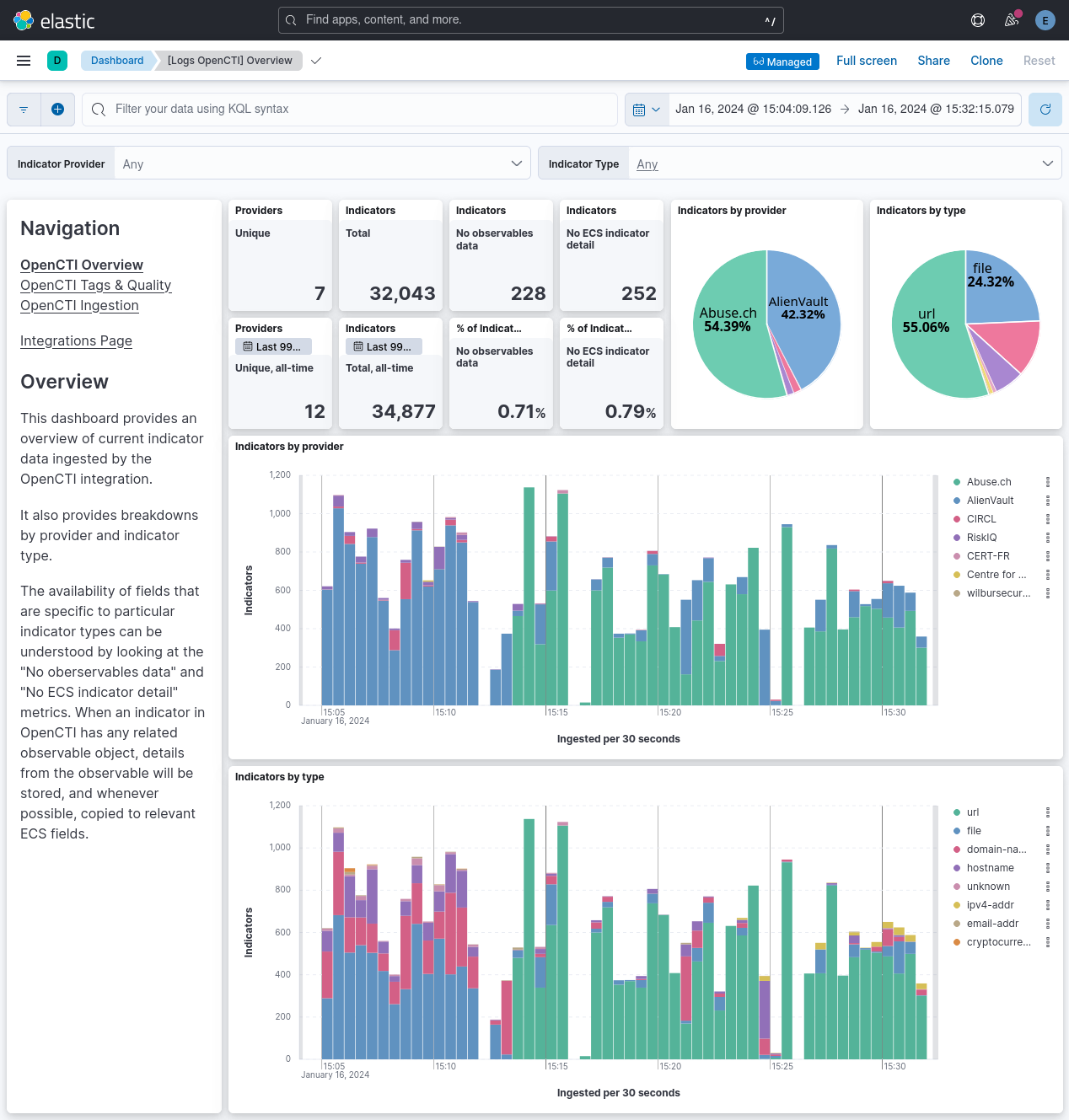
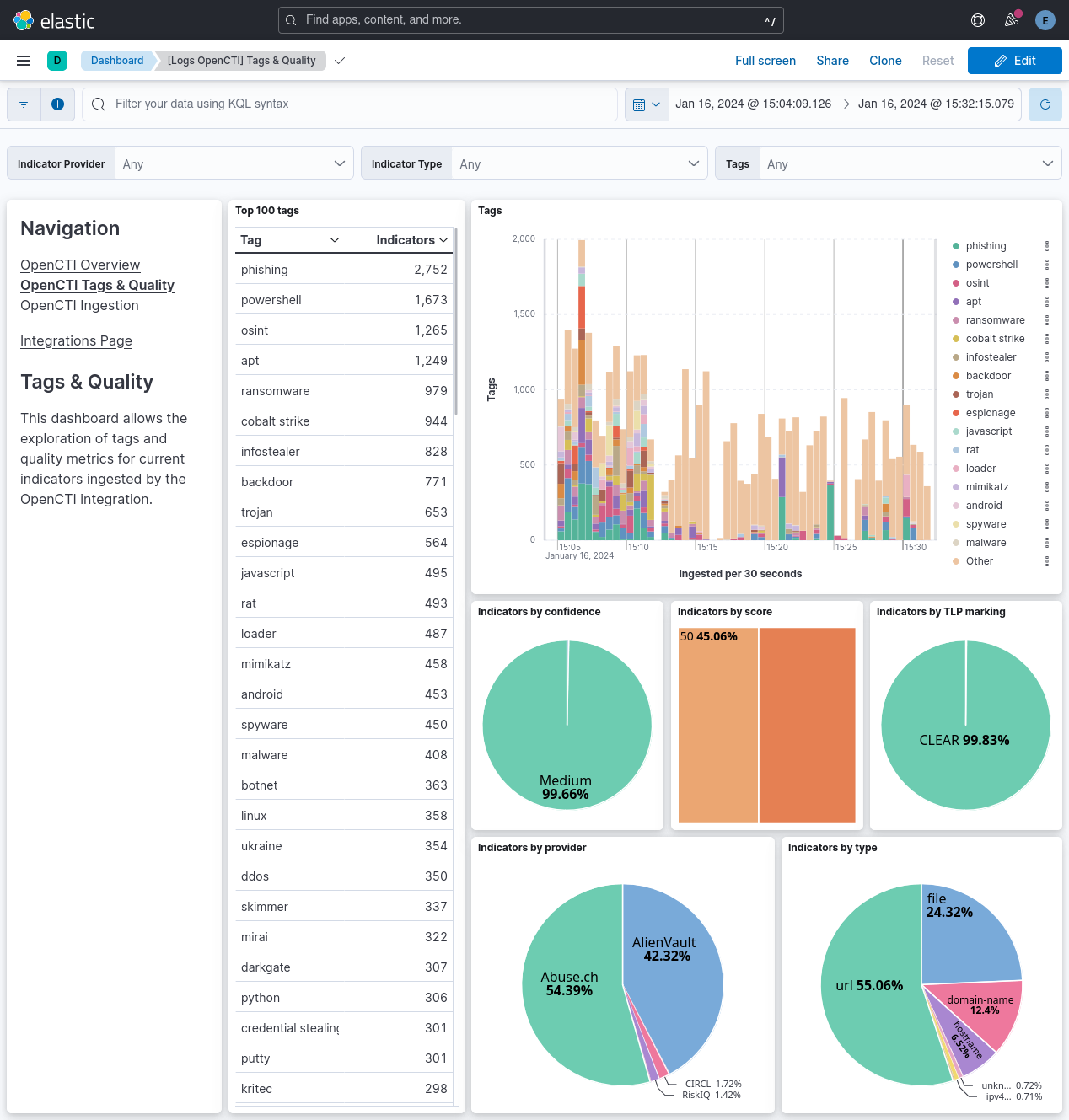
This integration includes one or more Kibana dashboards that visualizes the data collected by the integration. The screenshots below illustrate how the ingested data is displayed.
Changelog
| Version | Details | Minimum Kibana version |
|---|---|---|
| 2.16.0 | Enhancement (View pull request) Add tags to ingest pipeline processors and add preserve_original_event to pipeline-level on_failure handlers. |
9.0.5 8.19.2 |
| 2.15.3 | Enhancement (View pull request) Set agentless deployment mode release field to ga. |
9.0.5 8.19.2 |
| 2.15.2 | Bug fix (View pull request) Fix incremental polling missing UI-edited indicators. |
9.0.5 8.19.2 |
| 2.15.1 | Bug fix (View pull request) Fix transform destination to use keyword for data_stream.namespace, allowing multi-namespace deployments. |
9.0.5 8.19.2 |
| 2.15.0 | Enhancement (View pull request) Enable Agentless deployment. |
9.0.5 8.19.2 |
| 2.14.1 | Bug fix (View pull request) Fix multi-value filter fields rendered as comma-separated strings instead of YAML lists in CEL state. |
9.0.0 8.16.0 |
| 2.14.0 | Enhancement (View pull request) Use num_failure_retries instead of unattended mode for transform failure recovery. |
9.0.0 8.16.0 |
| 2.13.0 | Enhancement (View pull request) Enable request trace log removal. |
9.0.0 8.16.0 |
| 2.12.1 | Bug fix (View pull request) Fix request tracer path in input configuration by including the input name in the path. |
9.0.0 8.16.0 |
| 2.12.0 | Enhancement (View pull request) Allow transforms to run in unattended mode. |
9.0.0 8.16.0 |
| 2.11.0 | Enhancement (View pull request) Read indicators from STIX pattern when no observables are present. |
9.0.0 8.16.0 |
| 2.10.1 | Bug fix (View pull request) Fix null reference errors in ingest pipelines. |
9.0.0 8.16.0 |
| 2.10.0 | Enhancement (View pull request) Add comprehensive filtering support for indicators including pattern types, confidence levels, labels, dates, authors, creators, and marking definitions. Enhancement (View pull request) Implement deduplication mechanism using fingerprint processor to prevent duplicate indicators. Enhancement (View pull request) Add state management to track last modified timestamp and prevent re-fetching already processed indicators. Enhancement (View pull request) Update OpenCTI logo for better visual consistency. |
9.0.0 8.16.0 |
| 2.9.0 | Enhancement (View pull request) Avoid adding documents with errors to the transform destination index. |
9.0.0 8.16.0 |
| 2.8.0 | Enhancement (View pull request) Add script processor to drop all nulls / empty strings. |
9.0.0 8.16.0 |
| 2.7.0 | Enhancement (View pull request) Use terminate processor instead of fail processor to handle agent errors. |
9.0.0 8.16.0 |
| 2.6.1 | Bug fix (View pull request) Update error.message field mapping as per ECS inside transform destination indices. |
9.0.0 8.13.0 |
| 2.6.0 | Enhancement (View pull request) Update Kibana constraint to support 9.0.0. |
9.0.0 8.13.0 |
| 2.5.1 | Bug fix (View pull request) Updated SSL description in package manifest.yml to be uniform and to include links to documentation. |
8.13.0 |
| 2.5.0 | Enhancement (View pull request) Allow proxy configuration. |
8.13.0 |
| 2.4.0 | Enhancement (View pull request) Add "preserve_original_event" tag to documents with event.kind set to "pipeline_error". |
8.13.0 |
| 2.3.4 | Bug fix (View pull request) Fix labels.is_ioc_transform_source values |
8.13.0 |
| 2.3.3 | Bug fix (View pull request) Add missing fields in transform |
8.13.0 |
| 2.3.2 | Bug fix (View pull request) Fix ECS date mapping on threat fields. |
8.13.0 |
| 2.3.1 | Bug fix (View pull request) Ignore missing createdBy, improve registry hive name handling. |
8.13.0 |
| 2.3.0 | Enhancement (View pull request) Removed import_mappings. Update the kibana constraint to ^8.13.0. Modified the field definitions to remove ECS fields made redundant by the ecs@mappings component template. |
8.13.0 |
| 2.2.0 | Enhancement (View pull request) Extend threat.indicator.type definition to allow ECS conformance. |
8.12.0 |
| 2.1.1 | Bug fix (View pull request) Adjust field mappings for transform destination index. |
8.12.0 |
| 2.1.0 | Enhancement (View pull request) Set sensitive values as secret. |
8.12.0 |
| 2.0.0 | Bug fix (View pull request) Update for OpenCTI v5.12.24 GraphQL schema change |
8.10.1 |
| 1.1.0 | Enhancement (View pull request) Add support for IOC expiration |
8.10.1 |
| 1.0.1 | Enhancement (View pull request) Changed owners |
8.9.0 |
| 1.0.0 | Enhancement (View pull request) Release package as GA. |
8.9.0 |
| 0.3.5 | Bug fix (View pull request) Keep expected nulls, improve error handling |
8.9.0 |
| 0.3.4 | Enhancement (View pull request) Tolerate suffixes on the OpenCTI instance URL |
8.9.0 |
| 0.3.3 | Bug fix (View pull request) Support OpenCTI 5.12.X by removing filters parameter |
8.9.0 |
| 0.3.2 | Bug fix (View pull request) Fix processing of externalReferences. |
8.9.0 |
| 0.3.1 | Bug fix (View pull request) Fix event.original field type conflict |
8.9.0 |
| 0.3.0 | Enhancement (View pull request) Limit request tracer log count to five. |
8.9.0 |
| 0.2.0 | Enhancement (View pull request) ECS version updated to 8.11.0. |
8.9.0 |
| 0.1.0 | Enhancement (View pull request) Initial version of the package |
8.9.0 |