Kibana connectors
These Kibana connectors are used to connect to external services for GenAI, alerting, and case management use cases.
To learn about connectors for syncing data to Elasticsearch for search use cases, refer to content connectors.
Connectors provide a central place to store connection information for services and integrations with Elastic or third-party systems.
If you're using connectors for alerting or case management, you can create rules and add actions that use connectors to send notifications when conditions are met.
Kibana provides connectors for LLM providers, Elastic Stack features, and third-party alerting and case management platforms.
Access to connectors is granted based on your privileges to alerting-enabled features. For more information, go to Security.
Kibana provides the following connectors, grouped by category.
Generative AI
- AI Connector: Connect to third-party LLM services including Amazon Bedrock, Azure, Google Gemini, OpenAI, and Elastic Inference Service.
- Amazon Bedrock: Send a request to Amazon Bedrock.
- Elastic Managed LLMs: Send a request to Elastic Managed LLMs.
- Google Gemini: Send a request to Google Gemini.
- OpenAI: Send a request to OpenAI.
External MCP Server
- MCP: Connect to MCP servers and call their tools.
Elastic Stack
- Cases: Add alerts to Cases.
- Index: Index data into Elasticsearch.
- Observability AI Assistant: Send alerts to the AI Assistant.
- ServerLog: Add a message to a Kibana log.
Alerting and case management
- XSOAR: Create an incident in Cortex XSOAR.
- CrowdStrike: Send a request to CrowdStrike.
- D3 Security: Send a request to D3 Security.
- Email: Send email from your server.
- IBM Resilient: Create an incident in IBM Resilient.
- Jira: Create an incident in Jira.
- Jira Service Management: Create or close an alert in Jira Service Management.
- Microsoft Defender for Endpoint: Send requests to Microsoft Defender-enrolled hosts.
- Microsoft Teams: Send a message to a Microsoft Teams channel.
- Opsgenie: Create or close an alert in Opsgenie.
- PagerDuty: Send an event in PagerDuty.
- SentinelOne: Send a request to SentinelOne.
- ServiceNow ITSM: Create an incident in ServiceNow.
- ServiceNow ITOM: Create an event in ServiceNow.
- ServiceNow SecOps: Create a security incident in ServiceNow.
- Slack: Send a message to a Slack channel or user.
- Swimlane: Create an incident in Swimlane.
- TheHive: Create cases and alerts in TheHive.
- Tines: Send events to a Tines Story.
- Torq: Trigger a Torq workflow.
- Webhook: Send a request to a web service.
- Webhook - Case Management: Send a request to a Case Management web service.
- xMatters: Send actionable alerts to on-call xMatters resources.
Data and context sources
Third-party search
- Amazon S3: List and download content from AWS S3 buckets.
- Azure Blob Storage: List containers and blobs, and retrieve blob content from Azure Blob Storage.
- BigQuery: Run GoogleSQL queries and retrieve results from Google BigQuery.
- Box: Search files and folders, read content, and query enterprise content using Box AI.
- Brave Search: Search the web using the Brave Search API.
- Firecrawl: Scrape, search, map, and crawl the web using the Firecrawl API.
- Figma: Browse design files, inspect structure, render nodes as images, and explore team projects in Figma.
- Jina Reader: Convert web pages into markdown from their URL and search the web for better LLM grounding.
- Gmail: Search and read emails from Gmail.
- GitHub: Search code, issues, and pull requests, and access repository contents and metadata from GitHub.
- Google Calendar: Search and access events and calendars in Google Calendar.
- Google Cloud Storage: Search and access objects in Google Cloud Storage buckets.
- Google Drive: Search and access files and folders in Google Drive.
- Confluence Cloud: Search and retrieve Confluence Cloud pages and spaces using the REST API v2.
- HubSpot: Search and retrieve contacts, companies, deals, and tickets from HubSpot CRM.
- Jira Cloud: Search issues with JQL, retrieve project and issue details, and look up users in Jira Cloud.
- Microsoft Teams: Search messages and browse teams, channels, and chats in Microsoft Teams.
- Notion: Explore content and databases in Notion.
- Outlook: Search emails, list folders, and read messages and attachments in Microsoft Outlook.
- Salesforce: Query and retrieve data from your Salesforce org using SOQL and the REST API.
- ServiceNow: Search and retrieve records from ServiceNow.
- PagerDuty (MCP): Access incidents, escalation policies, schedules, on-calls, users, and teams in PagerDuty.
- SharePoint online: Search across SharePoint sites, pages, and content using the Microsoft Graph API.
- SharePoint Server: Search and retrieve documents, list items, folders, and site pages from an on-premises SharePoint Server instance.
- Slack (v2): Search and send messages in Slack.
- Snowflake: Query Snowflake, discover databases, schemas, tables, and views, and run semantic searches through Cortex Search.
- Tavily: Search the web and extract content from web pages.
- Zoom: Access Zoom meetings, recordings, transcripts, and participants.
- Zendesk: Search and retrieve Zendesk tickets, users, organizations, and Help Center articles using the Zendesk API.
Identity management
- 1Password: Manage users in 1Password Enterprise Password Manager — list, get, suspend, and reactivate users.
Threat intelligence
- AbuseIPDB: Check IP reputation and report abusive IPs.
- AlienVault OTX: Retrieve community-driven threat intelligence.
- GreyNoise: Detect and classify Internet scanning noise.
- Shodan: Perform Internet-wide asset discovery and vulnerability scanning.
- URLVoid: Check domain and URL reputation using multi-engine scanning.
- VirusTotal: Perform file scanning, URL and domain analysis, result retrieval, and threat intelligence lookups.
Some connector types are paid commercial features, while others are free. For a comparison of the Elastic subscription levels, go to the subscription page.
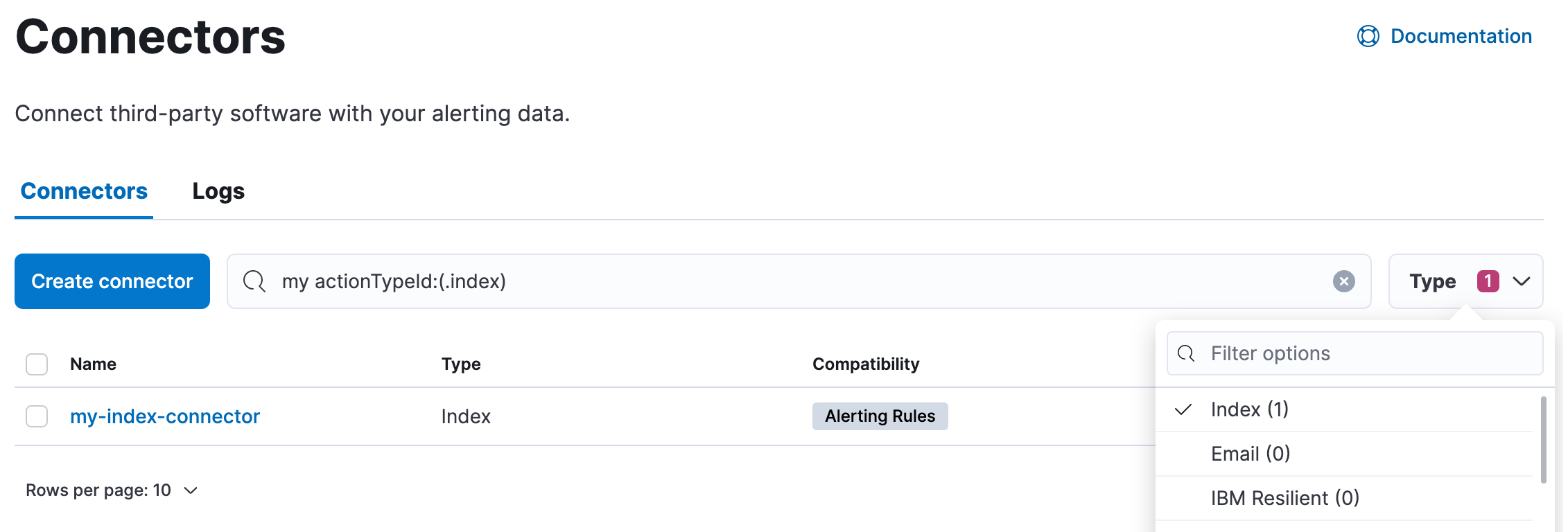
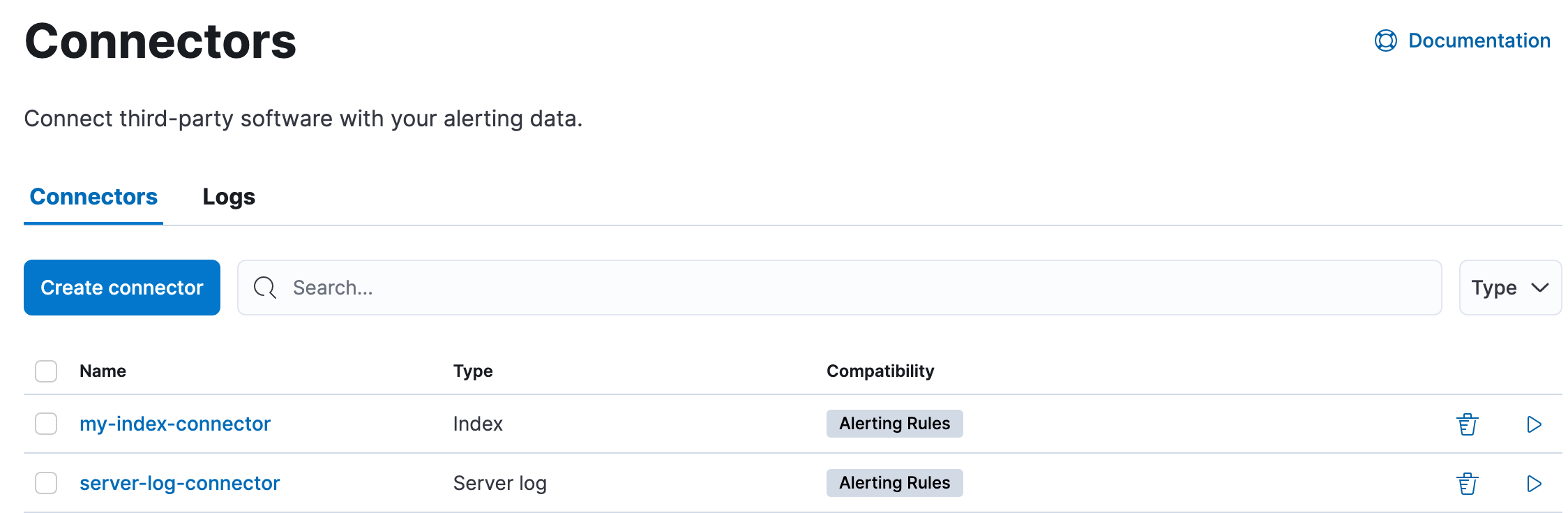
In Stack Management > Connectors, you can find a list of the connectors in the current space. You can use the search bar to find specific connectors by name and type. The Type dropdown also enables you to filter to a subset of connector types.
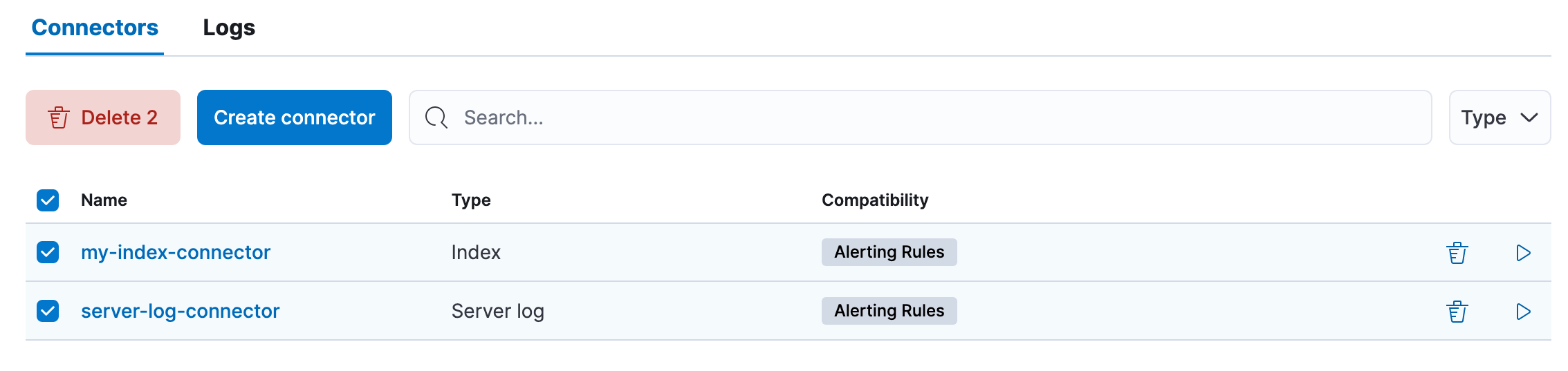
You can delete individual connectors using the trash icon. Alternatively, select multiple connectors and delete them in bulk using the Delete button.
You can delete a connector even if there are still actions referencing it. When this happens the action will fail to run and errors appear in the Kibana logs.
New connectors can be created with the Create connector button, which guides you to select the type of connector and configure its properties.
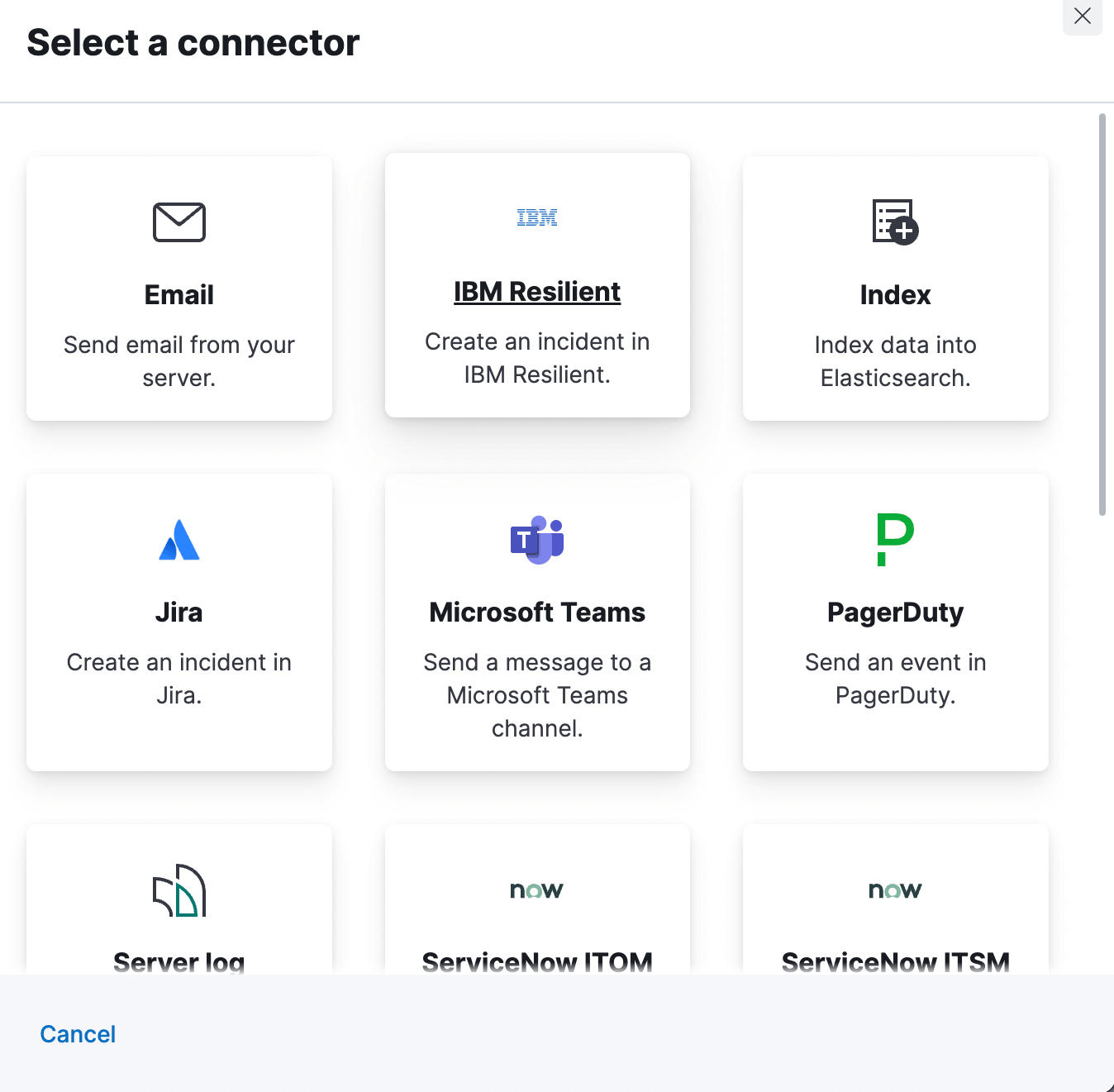
After you create a connector, it is available for use any time you set up an action in the current space.
For out-of-the-box and standardized connectors, refer to preconfigured connectors.
You can also manage connectors as resources with the Elasticstack provider for Terraform. For more details, refer to the elasticstack_kibana_action_connector resource.
When you create a connector, you set a Connector name (the display name in Kibana) and a Connector ID (the stable identifier used by APIs and integrations). Kibana suggests a connector ID by slugifying the connector name. It produces a value that uses only lowercase letters, numbers, and hyphens, then truncates it to at most 36 characters if needed. Spaces and most other characters become hyphens. You can edit that suggestion before you save.
The Connector ID must be unique among connectors available in the current Kibana space, including preconfigured connectors. After you save the connector, the connector ID cannot be changed. To use a different ID, create a new connector with the same type and configuration, choose the new ID, then update rules and other integrations to reference that connector.
To create a connector with the API, use Create a connector. Send POST /api/actions/connector (or POST /s/<space_id>/api/actions/connector outside the default space) to let Kibana generate an ID, or include the desired ID in the path: POST /api/actions/connector/<connector_id>. Custom IDs must follow the same rules as in the UI. They can only be 1–36 characters, and must use lowercase letters, numbers, and hyphens only.
Rules use connectors to route actions to different destinations like log files, ticketing systems, and messaging tools. While each Kibana app can offer their own types of rules, they typically share connectors. Stack Management > Connectors offers a central place to view and manage all the connectors in the current space.
If you are running Kibana on-prem, you can preconfigure a connector to have all the information it needs prior to startup by adding it to the kibana.yml file. Refer to preconfigured connectors for more information.
Use the action configuration settings to customize connector networking configurations, such as proxies, certificates, or TLS settings. You can set configurations that apply to all your connectors or use xpack.actions.customHostSettings to set per-host configurations.
To import and export connectors, use the Saved Objects Management UI.
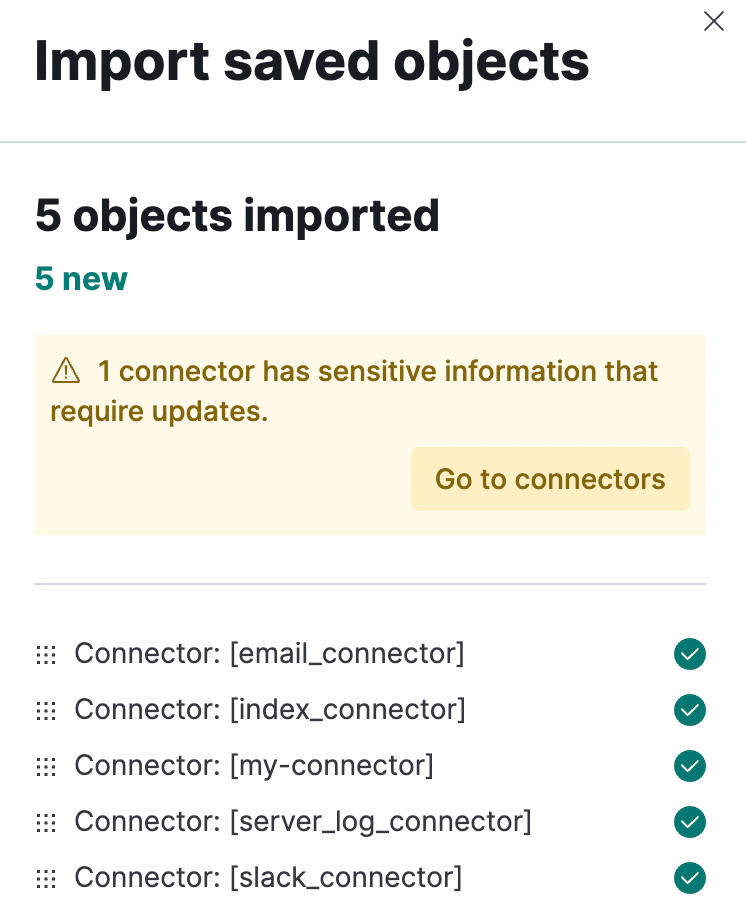
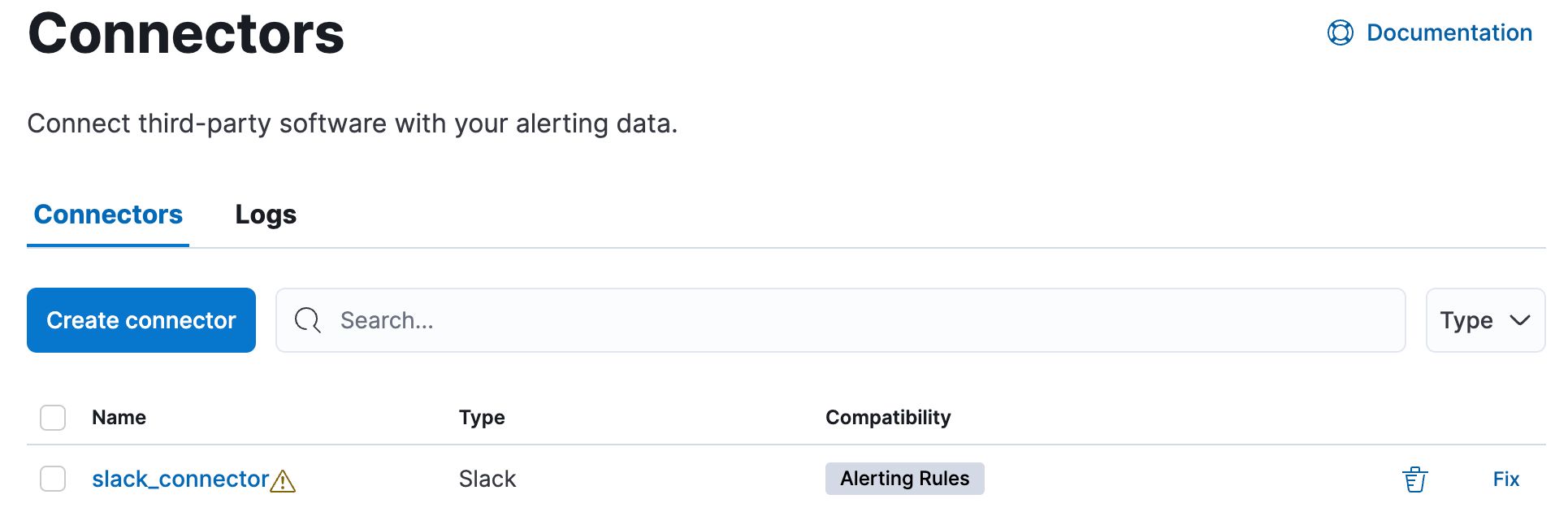
If a connector is missing sensitive information after the import, a Fix button appears in Connectors.
When cloud deployment or project metadata is available, outbound connector HTTP requests include a deployment or project identifier in the User-Agent header. When that metadata is not available, connector requests do not add this fragment. The User-Agent stays at the default HTTP client value (for example, axios/1.7.2).
IT and information security teams can match outbound connector traffic in third-party audit or access logs to the originating deployment or project—for example, during incident response or when a vendor contacts Elastic about suspicious activity.
For every outbound HTTP request made by a connector (for example, to Slack, Google Workspace, or PagerDuty), Kibana sets a User-Agent header that includes an identifier for the deployment or project that originated the traffic. This is automatic and does not require connector configuration, networking settings, or other administrator actions.
The header starts with the underlying HTTP client name and version (for example, axios/1.7.2). When cloud metadata is available, an additional Elastic fragment is appended.
| Environment | Example suffix in User-Agent |
Meaning |
|---|---|---|
| Elastic Cloud Hosted | elastic (deployment:<deployment_id>) |
<deployment_id> is the deployment ID. |
| Elastic Cloud Serverless | elastic (project:<project_id>) |
<project_id> is the serverless project ID. |
Elastic Cloud organization administrators can look up deployment and Elastic Cloud Serverless project identifiers across their organization. Users with other roles can look them up only for deployments and projects they have access to.
Kibana does not provide a UI or API to resolve the deployment or project values shown in connector User-Agent headers. Use the following steps instead:
- Copy the identifier from the header. The identifier is the substring after
deployment:orproject:. - Open the Elastic Cloud console and sign in.
- Go to the Hosted (for Elastic Cloud Hosted deployments) or Serverless (for Serverless projects) page, and enter the ID in the search field to find the matching deployment or project.
The Task Manager health API helps you understand the performance of all tasks in your environment. However, if connectors fail to run, they will report as successful to Task Manager. The failure stats will not accurately depict the performance of connectors.
For more information on connector successes and failures, refer to the Event log index.