Open and manage cases in Elastic Security
Serverless Security Stack
You can create and manage cases using the UI or the cases API.
Requirements
To access and send cases to external systems, you need the appropriate subscription or feature tier, and your role must have the required Kibana feature privileges. Refer to Cases requirements for more information.
Open a new case to keep track of security issues and share their details with colleagues.
Find Cases in the navigation menu or search for
Security/Casesby using the global search field, then click Create case. If no cases exist, the Cases table will be empty and you’ll be prompted to create one by clicking the Create case button inside the table.Stack Serverless If you defined templates, you can optionally select one to use its default field values.
Give the case a name, assign a severity level, and provide a description. You can use Markdown syntax in the case description.
NoteIf you do not assign your case a severity level, it will be assigned Low by default.
TipYou can insert a Timeline link in the case description by clicking the Timeline icon (
 ).
).Optionally, add a category, assignees and relevant tags. You can add users only if they meet the necessary prerequisites.
Stack Serverless If you defined custom fields, they appear in the Additional fields section.
Choose if you want alert statuses to sync with the case’s status after they are added to the case. This option is turned on by default, but you can turn it off after creating the case.
Stack With the appropriate Elastic Stack subscription or Serverless project feature tier, you can choose to automatically extract observables from alerts that you're adding to the case. This option is turned on by default. You can turn it off after creating the case by toggling Auto-extract observables on the case's Observables tab.
(Optional) Under External Connector Fields, you can select a connector to send cases to an external system. If you’ve created any connectors previously, they will be listed here. If there are no connectors listed, you can create one. For more information, refer to External incident management systems
Note StackWhen specifying Additional fields for an IBM Resilient connector, fields that are set when an incident is created or changed (for example, an incident is closed) won't display as an option.
Click Create case.
NoteIf you’ve selected a connector for the case, the case is automatically pushed to the third-party system it’s connected to.
You can configure email notifications that occur when users are assigned to cases.
For Kibana on Elastic Cloud:
Add the email domains to the notifications domain allowlist.
You do not need to take any more steps to configure an email connector or update Kibana user settings, since the preconfigured Elastic-Cloud-SMTP connector is used by default.
For self-managed Kibana:
Create a preconfigured email connector.
NoteAt this time, email notifications support only preconfigured email connectors, which are defined in the
kibana.ymlfile.Set the
notifications.connectors.default.emailKibana setting to the name of your email connector.If you want the email notifications to contain links back to the case, you must configure the server.publicBaseUrl setting.
When you subsequently add assignees to cases, they receive an email.
From the Cases page, you can search existing cases and filter them by attributes such as assignees, categories, severity, status, and tags. You can also select multiple cases and use bulk actions to delete cases or change their attributes. General case metrics, including how long it takes to close cases, are provided above the table.
Stack To find cases that were created during a specific time range, use the date time picker above the Cases table. The default time selection is the last 30 days. Clicking Show all cases displays every Elastic Security case in your space. The action also adjusts the starting time range to the date of when the first case was created.
To explore a case, click on its name. You can then:
Modify the case’s description, assignees, category, severity, status, and tags.
Add and manage comments and lens visualization
TipComments can contain Markdown. For syntax help, click the Markdown icon (
 ) in the bottom right of the comment.
Manage connectors and send updates to external systems (if you’ve added a connector to the case)
Refresh the case to retrieve the latest updates
Click on an existing case to access its summary. The case summary, located under the case title, contains metrics that summarize alert information and response times. These metrics update when you attach additional unique alerts to the case, add connectors, or modify the case’s status:
- Total alerts: Total number of unique alerts attached to the case
- Associated users: Total number of unique users that are represented in the attached alerts
- Associated hosts: Total number of unique hosts that are represented in the attached alerts
- Total connectors: Total number of connectors that have been added to the case
- Case created: Date and time that the case was created
- Open duration: Time elapsed since the case was created
- In progress duration: How long the case has been in the
In progressstate - Duration from creation to close: Time elapsed from when the case was created to when it was closed
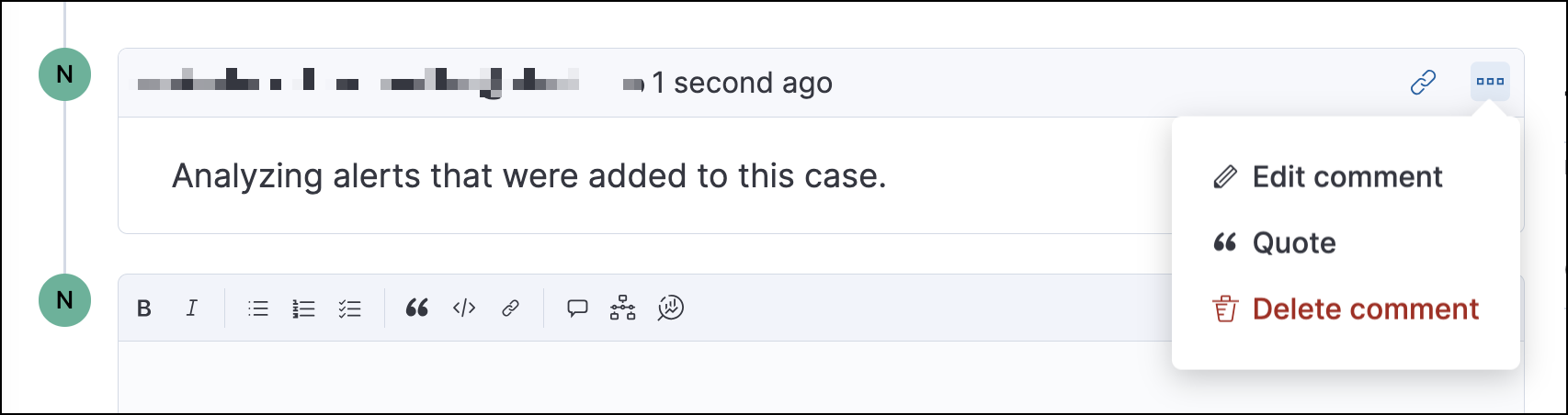
To edit, delete, or quote a comment, select the appropriate option from the More actions menu (…).
Provide additional context and resources by adding the following to the case:
- Alerts
- Indicators
- Stack Events
- Files
- Observables
From the Attachments tab, you can search for specific observable values, alert and event IDs, and file names.
Escalate alerts and track them in a single place by attaching them to cases. To examine the alerts, click the Alerts tab in the case. In the table, alerts are organized from oldest to newest. To view alert details, click the View details button.
You can find the Alerts tab in the following places:
- Stack : Go to the case's details page, then select the Attachments tab.
- Stack : Go to the case's details page.
Each case can have a maximum of 1,000 alerts.
Add alerts to new and existing cases from Timeline or the Alerts page.
Stack
Escalate events and track them in a single place by attaching them to cases. You can add events from an investigation that you've opened in Timeline, or from the Events tab on the Hosts, Network, or Users pages.
After adding events to a case, go to the Events tab to examine them. Within the tab, events are organized from newest to oldest. Click the View details button to find out more about the event.
You can find the Events tab in the following places:
- Stack : Go to the case's details page, then select the Attachments tab.
- Stack : Go to the case's details page.
After you create a case, you can upload and manage files on the Files tab. To find the tab:
- Stack : Go to the case's details page, then select the Attachments tab.
- Stack : Go to the case's details page.
To download or delete the file or copy the file hash to your clipboard, open the action menu . The available hash functions are MD5, SHA-1, and SHA-256.
When you upload a file, a comment is added to the case activity log. To view an image, click its name in the activity or file list.
Uploaded files are also accessible from the Files management page, which you can find using the navigation menu or entering Files into the global search field.
When you export cases as saved objects, the attached case files are not exported.
An observable is a piece of information about an investigation, for example, a suspicious URL or a file hash. Use observables to identify correlated events and better understand the severity and scope of a case.
View and manage observables from the Observables tab. You can find the tab in the following places:
- Stack : Go to the case's details page, then select the Attachments tab.
- Stack : Go to the case's details page.
Each case can have a maximum of 50 observables.
To create an observable:
Click Add observable from the Observables tab.
Provide the necessary details:
- Type: Select a type for the observable. You can choose a preset type or a custom one.
- Value: Enter a value for the observable. The value must align with the type you select.
- Description (Optional): Provide additional information about the observable.
Click Add observable.
After adding an observable to a case, you can remove or edit it by using the Actions menu (…).
Go to the Similar cases tab to access other cases with the same observables.
Stack With the appropriate Elastic Stack subscription or Serverless project feature tier, you can use Auto-extract observables to instantly extract observables from alerts that you're adding to the case. After creating a new case, you have the option to turn it off by toggling Auto-extract observables on the case's Observables tab.
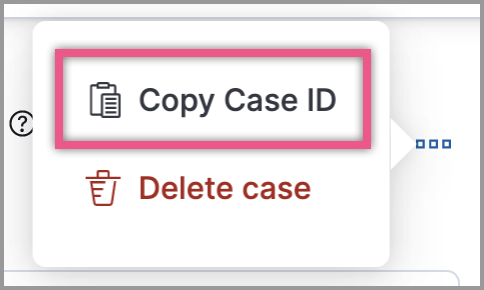
Each case has a universally unique identifier (UUID) that you can copy and share. To copy a case’s UUID to a clipboard, go to the Cases page and select Actions → Copy Case ID for the case you want to share. Alternatively, go to a case’s details page, then from the More actions menu (…), select Copy Case ID.
This functionality is in beta and is subject to change. The design and code is less mature than official GA features and is being provided as-is with no warranties. Beta features are not subject to the support SLA of official GA features.
Add a Lens visualization to your case to portray event and alert data through charts and graphs.
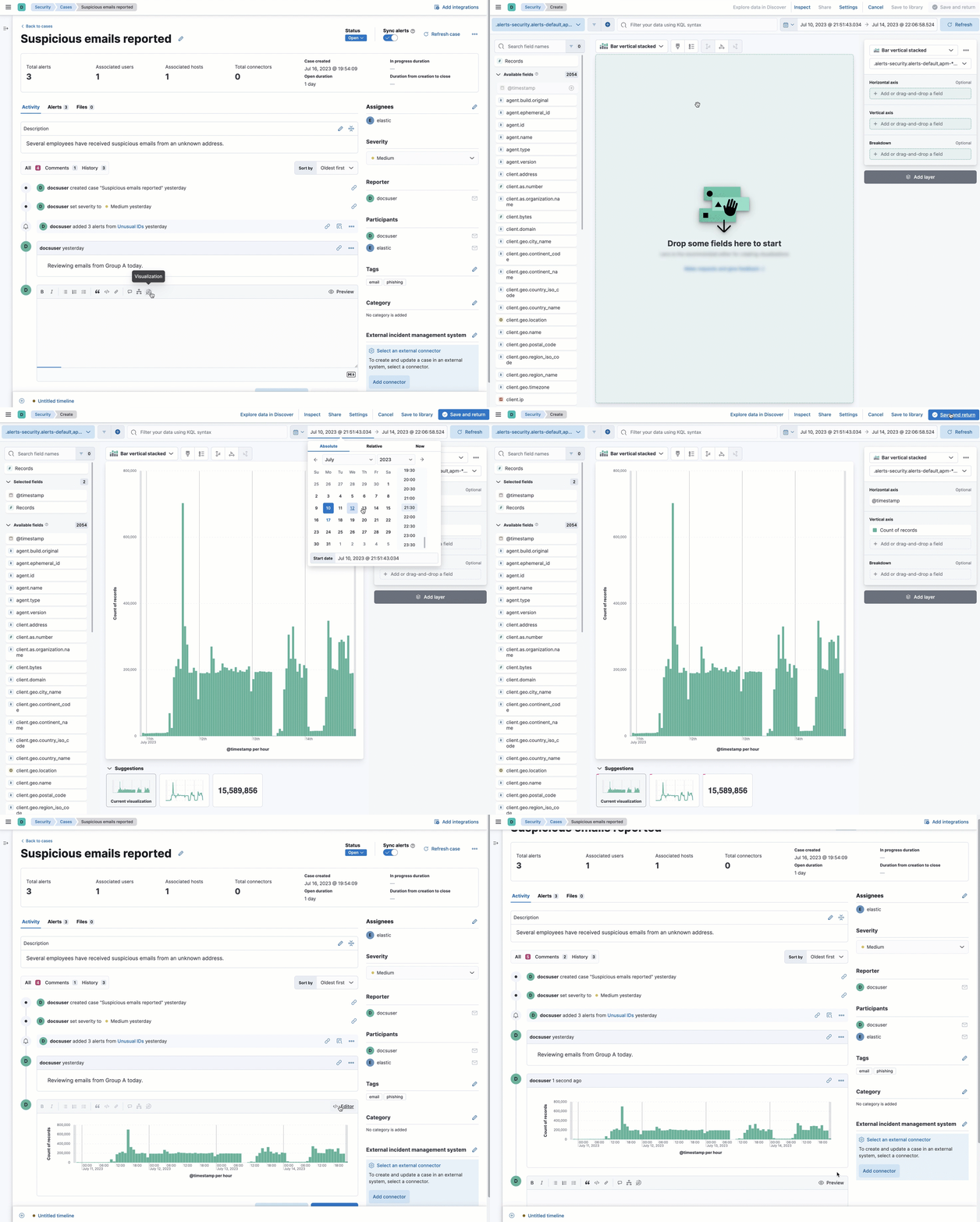
To add a Lens visualization to a comment within your case:
Click the Visualization button. The Add visualization dialog appears.
Select an existing visualization from your Visualize Library or create a new visualization.
ImportantSet an absolute time range for your visualization. This ensures your visualization doesn’t change over time after you save it to your case, and provides important context for others managing the case.
Save the visualization to your Visualize Library by clicking the Save to library button (optional).
- Enter a title and description for the visualization.
- Choose if you want to keep the Update panel on Security activated. This option is activated by default and automatically adds the visualization to your Visualize Library.
After you’ve finished creating your visualization, click Save and return to go back to your case.
Click Preview to show how the visualization will appear in the case comment.
Click Add Comment to add the visualization to your case.
Alternatively, while viewing a dashboard you can open a panel’s menu then click More actions (…) → Add to existing case or More actions (…) → Add to new case.
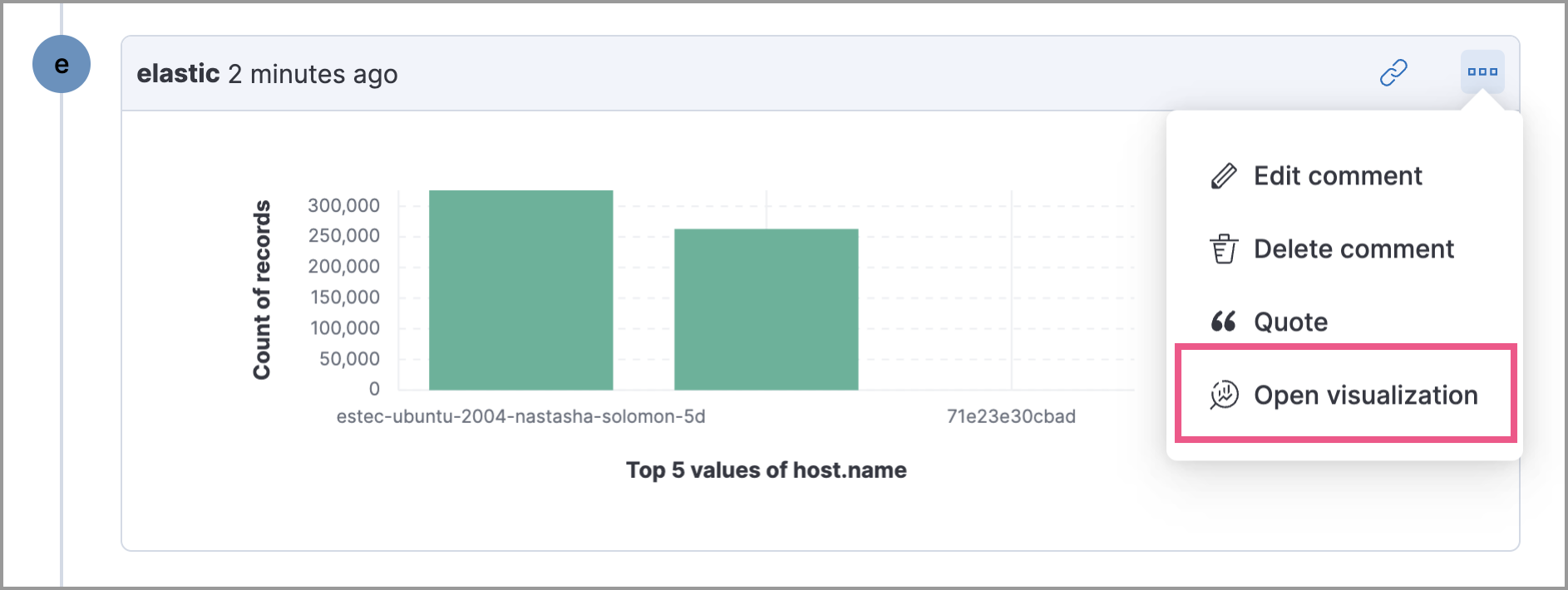
After a visualization has been added to a case, you can modify or interact with it by clicking the Open Visualization option in the case’s comment menu.
Cases can be exported and imported as saved objects using the Kibana Saved Objects UI.
Before importing Lens visualizations, Timelines, or alerts into a space, ensure their data is present. Without it, they won’t work after being imported.
Use the Export option to move cases between different Elastic Security instances. When you export a case, the following data is exported to a newline-delimited JSON (.ndjson) file:
- Case details
- User actions
- Text string comments
- Case alerts
- Lens visualizations (exported as JSON blobs).
The following attachments are not exported:
- Case files: Case files are not exported. However, they are accessible from Files (find Files in the navigation menu or by using the global search field) to download and re-add.
- Alerts: Alerts attached to cases are not exported. You must re-add them after importing cases.
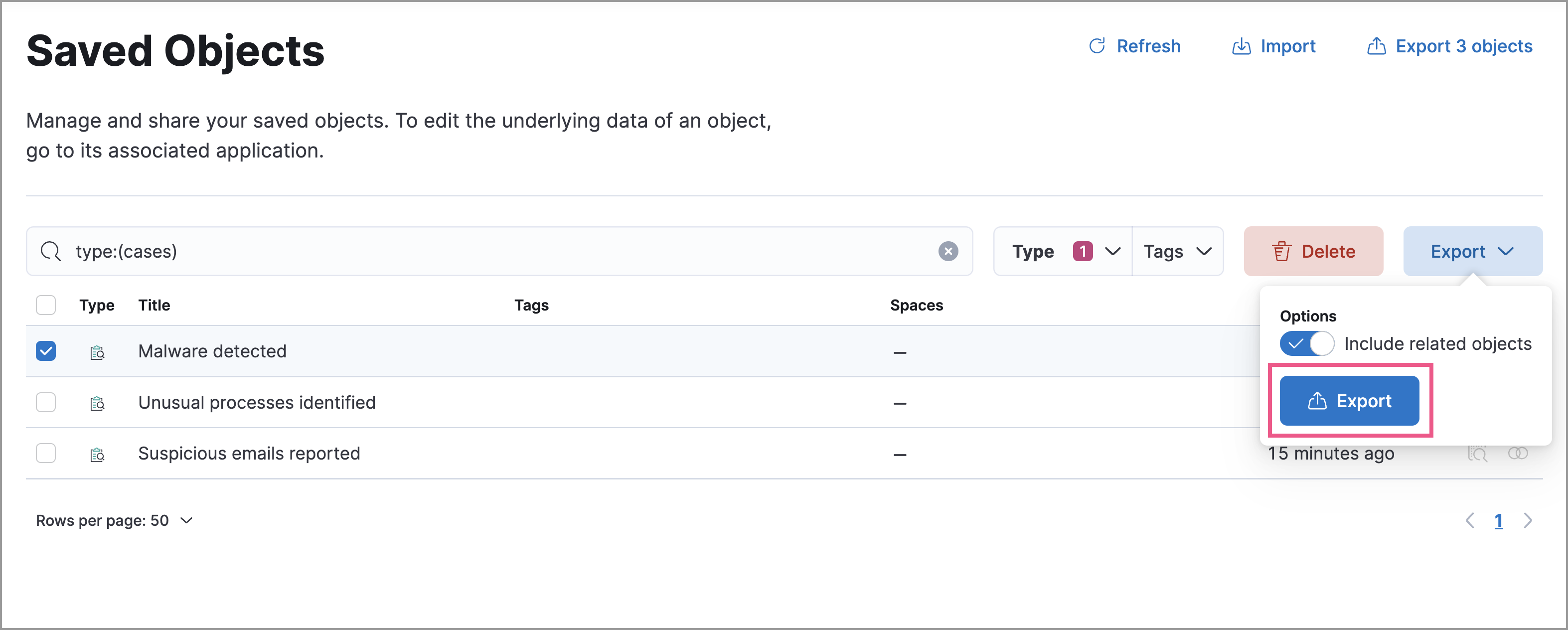
To export a case:
Find Saved Objects in the navigation menu or by using the global search field.
Search for the case by choosing a saved object type or entering the case title in the search bar.
Select one or more cases, then click the Export button.
Click Export. A confirmation message that your file is downloading displays.
TipKeep the Include related objects option enabled to ensure connectors are exported too.
To import a case:
Find Saved Objects in the navigation menu or by using the global search field.
Click Import.
Select the NDJSON file containing the exported case and configure the import options.
Click Import.
Review the import log and click Done.
ImportantBe mindful of the following:
- If the imported case had connectors attached to it, you’ll be prompted to re-authenticate the connectors. To do so, click Go to connectors on the Import saved objects flyout and complete the necessary steps. You can also access connectors from the Connectors page (find Connectors in the navigation menu or by using the global search field).
- If the imported case had attached alerts, verify that the alerts' source documents exist in the environment. Case features that interact with alerts (such as the Alert details flyout and rule details page) rely on the alerts' source documents to function.
The Cases page has a search bar for quickly finding cases and case data. You can search for case titles, descriptions, and IDs using keywords and text. Note the following rules for search:
- Keywords: Searches for keywords (like case and alert IDs) must be exact.
- Text: Text searches (such as case titles and descriptions) are case-insensitive.
- Syntax: No special syntax is required when entering your search criteria.
Stack You can also search for alert and event IDs, observable values, case comments, and custom fields (text type only). For example, you can search for a specific IP address that's been specified as an observable, a colleague's comment, or the ID of an alert that's attached to the case.