Add variable controls with ES|QL
Variable controls let you bind interactive controls to variables in your ES|QL visualization queries. Unlike standard dashboard controls that filter using data view fields, variable controls work directly with ES|QL queries to enable dynamic filtering, grouping, and function selection.
In versions 9.0 and 9.1, variable controls are called ES|QL controls.
- All privilege for the Dashboard feature in Kibana
- An existing dashboard open in Edit mode
- An ES|QL visualization on your dashboard, or the intent to create one
You can bind controls to your ES|QL visualizations in dashboards. When creating an ES|QL visualization, the autocomplete suggestions prompt control insertion for field values, field names, function configuration, and function names. ES|QL controls act as variables in your ES|QL visualization queries.
Only Options lists are supported for ES|QL-based controls. Options can be:
- values or fields that can be static or defined by a query
-
functions
While you edit your ES|QL query, the autocomplete menu suggests adding a control when relevant or when you type
?in the query. Select Create control.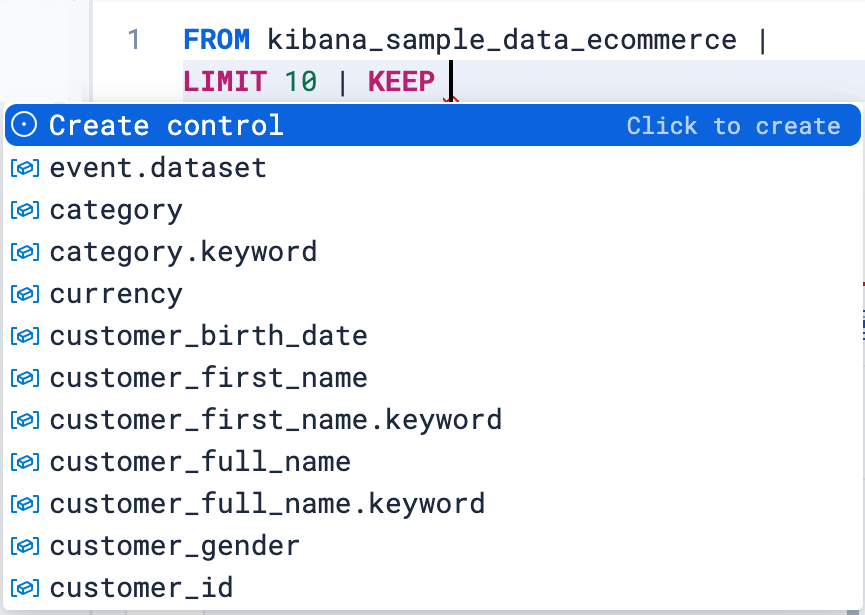
A menu opens to let you configure the control. This is where you can specify:
- The type of the control.
- For controls with Static values, enter available controls manually or select them from the dropdown list.
- For controls with Values from a query, write an ES|QL query to populate the list of options. This option is useful for dynamically retrieving control values or perform advanced actions such as defining chaining controls.
Tip - Only display values available for the selected time range
By linking the control to the global time range, the control only shows values that exist within the time range selected in the dashboard or Discover session. You can do that by specifying
WHERE @timestamp <= ?_tend AND @timestamp > ?_tstartin the control's query, or custom time parameters if your indices don't have a@timestampfield.
- The name of the control. You use this name to reference the control in ES|QL queries.
- Start the name with
?if you want the options to be simple static values. -
Start the name with ??if you want the options to be fields or functions.
- Start the name with
- The values users can select for this control. You can add multiple values from suggested fields, or type in custom values. If you selected Values from a query, you must instead write an ES|QL query at this step.
- The label of the control. This is the label displayed in Discover or in the dashboard.
-
Whether the control should allow selecting a single value or multiple values. This requires using the MV_CONTAINSfunction in your query.
- The type of the control.
Save the control.
The variable is inserted into your query, and the control appears.
If you added it by starting from a query, the control is directly inserted in that query and you can continue editing it. You can then insert it in any other ES|QL visualization queries by typing the control's name.
You can also create variable controls to add later to any query by selecting Add > Controls > Variable control in the dashboard's toolbar.
Examples
Integrate filtering into your ES|QL experience
| WHERE field == ?valueFields in controls for dynamic group by
| STATS count=COUNT(*) BY ??fieldVariable time ranges? Bind function configuration settings to a control
| BUCKET(@timestamp, ?interval),Make the function itself dynamic
| STATS metric = ??function
You can create controls that let users select multiple values. To do that:
Add the
MV_CONTAINSfunction to your query, and create a variable as one of its parameters. For example:FROM logs-* | WHERE MV_CONTAINS(?values, field)NoteMulti-selection is only available for
?valuesvariables. It is not available for??fieldsand??functionsvariables.When defining the control, select the Allow multiple selections option.
Save the control.
The newly configured control becomes available and allows users to select multiple values.
You can set up variable controls in such a way that the selection of one control determines the options available for another control.
This allows you to narrow down control selections dynamically without affecting the entire dashboard, which is especially useful when working with data from multiple indices or when you need hierarchical filtering.
To chain variable controls, you reference one control's variable in another control's ES|QL query using the ?variable_name syntax.
Example: You create a dashboard that analyzes web traffic by region and IP address. Next, you want to see only the IP addresses that are active in a selected region, and then analyze traffic patterns for a specific IP, all without filtering the entire dashboard by region.
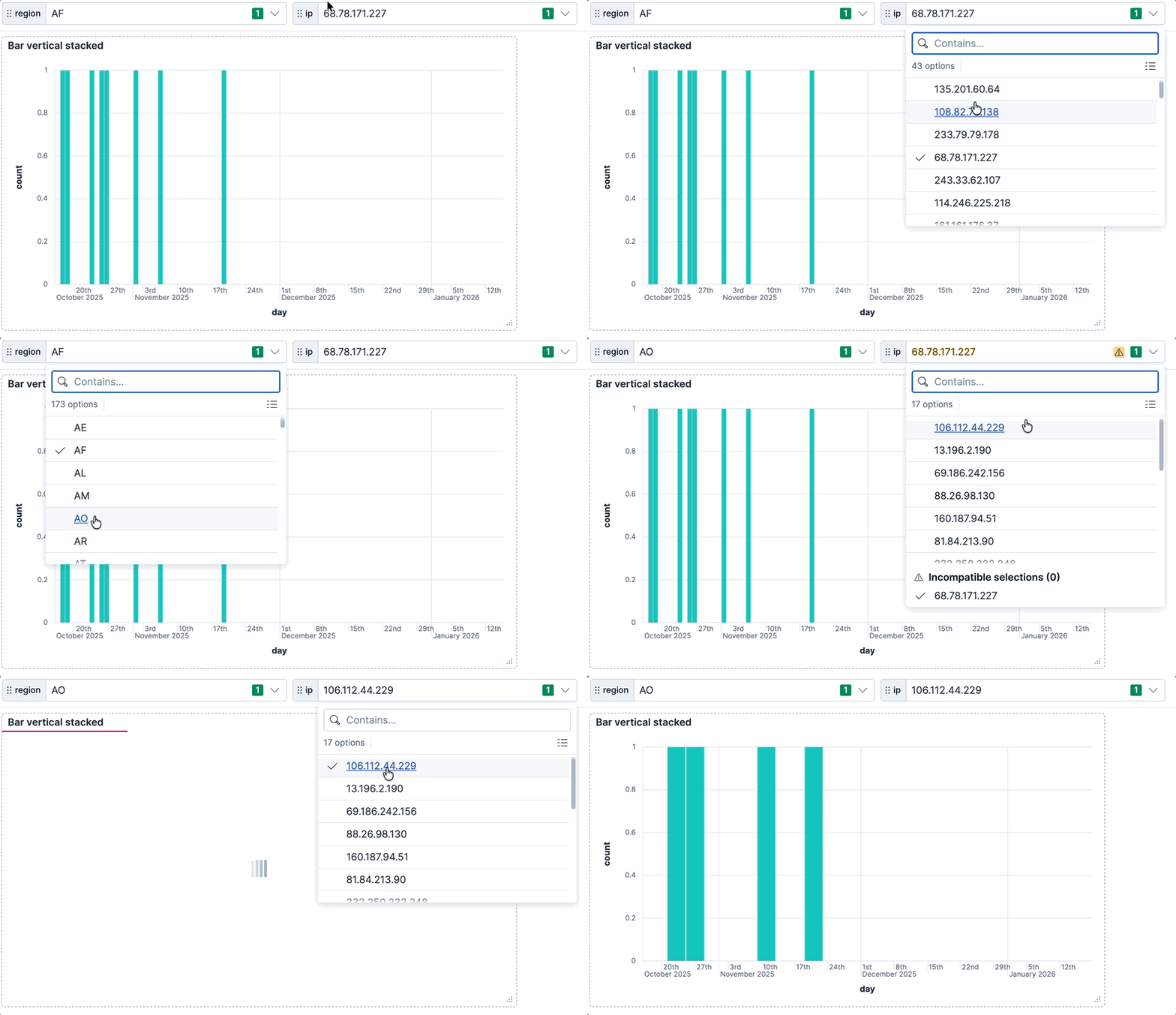
Create the first control that will be referenced in other controls.
TipCreate the controls that will be referenced in other controls first. This allows the ES|QL editor to provide proper autocomplete suggestions.
In Edit mode, select Add > Controls > Variable control in the toolbar, then define the control:
- Type: Values from a query
- Query:
FROM kibana_sample_data_logs | WHERE @timestamp <= ?_tend AND @timestamp > ?_tstart | STATS BY geo.dest - Variable name:
?region - Label: Region
This control extracts all unique destination regions from your logs.
Create the second control that depends on the first control.
Add another variable control:
- Type: Values from a query
- Query:
FROM kibana_sample_data_logs | WHERE @timestamp <= ?_tend AND @timestamp > ?_tstart AND geo.dest == ?region | STATS BY ip - Variable name:
?ip - Label: IP address
This control references the
?regionvariable and the built-in time range variables (?_tstartand?_tend). The available IP addresses will be only those associated with the selected region.Test the chained controls. Both controls are now visible on your dashboard. Select different values in the Region control and observe how the available IP addresses in the IP address control change to show only IPs from that region.
Create an ES|QL visualization that uses the
?ipcontrol to filter data. For example:FROM kibana_sample_data_logs | WHERE ip == ?ip | STATS count = COUNT(*) BY day = DATE_TRUNC(1 day, @timestamp) | SORT dayThis visualization filters data based on the selected IP address, while the IP address options themselves are filtered by the selected region.
When you select a value in a parent control, the child control's query reruns automatically. If the currently selected value in the child control is no longer available in the new result set, it is marked as invalid or incompatible.
To add the results of your Discover explorations to a dashboard in a way that preserves the controls created from Discover and also adds them to the dashboard, you have two methods:
Method 1: Adding the Discover session's results
This method allows you to add the result table of your Discover ES|QL query to any dashboard.
Save the ES|QL query containing the variable control into a Discover session. If your Discover session contains several tabs, only the first tab will be imported to the dashboard.
Go to Dashboards and open or create one.
Select Add, then From library.
Find and select the Discover session you saved earlier.
A new panel appears on the dashboard with the results of the query along with any attached controls.
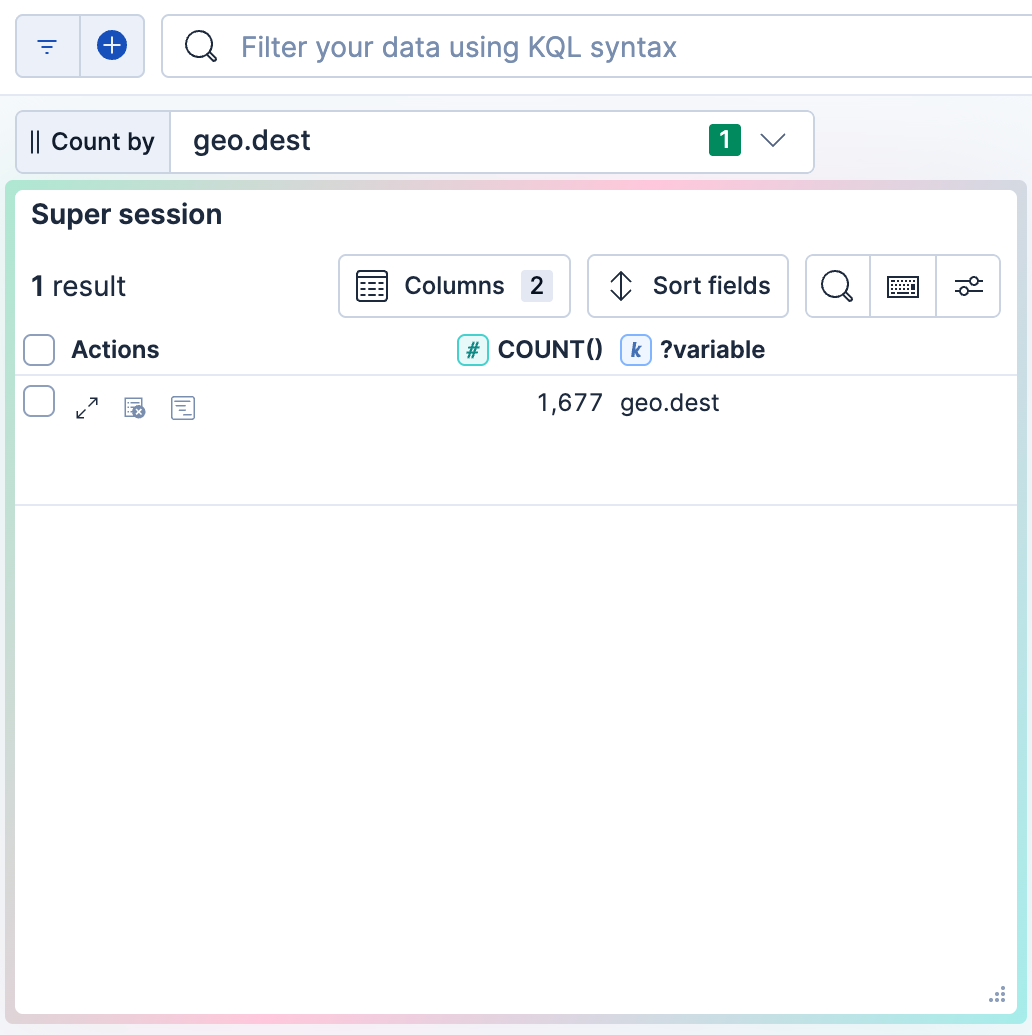
Method 2: Adding the Discover visualization
This method allows you to add the visualization of your Discover ES|QL query to any dashboard.
Next to the Discover visualization, select Save visualization.
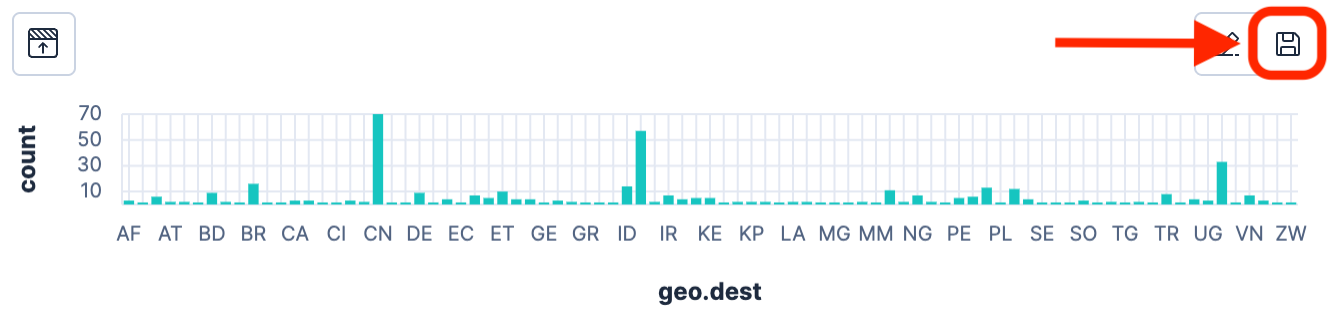
Select the dashboard to add the visualization to. You can choose an existing dashboard or create one.
The selected dashboard opens. It now includes a new panel that shows the visualization imported from Discover. Existing controls from the initial query in Discover are also added. You can find them at the top of the dashboard.