Dashboard controls
Controls are interactive panels that you add to your dashboards to help viewers filter and display only the data they want to explore. Controls apply filters to relevant panels to focus on specific data segments without writing filtering queries.
Controls can be pinned to the dashboard header, where they apply to all panels, or unpinned and placed anywhere in the dashboard body. When an unpinned control is inside a collapsible section, its filters apply only to panels within that section. Refer to Organize dashboard panels for how section placement affects filter scope.
Up until version 9.3, controls are always pinned to the dashboard header and some settings such as chaining and validation apply to all controls at once. Refer to Dashboard control settings to manage these shared settings.
To add controls to a dashboard, you need:
- All privilege for the Dashboard feature in Kibana
- An existing dashboard open in Edit mode
- A data view configured with fields available for filtering
There are four types of controls:
Options list — A dropdown that allows to filter data by selecting one or more values. For example, if you are using the [Logs] Web Traffic dashboard from the sample web logs data, you can add an options list for the
machine.os.keywordfield that allows you to display only the logs generated fromosxandiosoperating systems.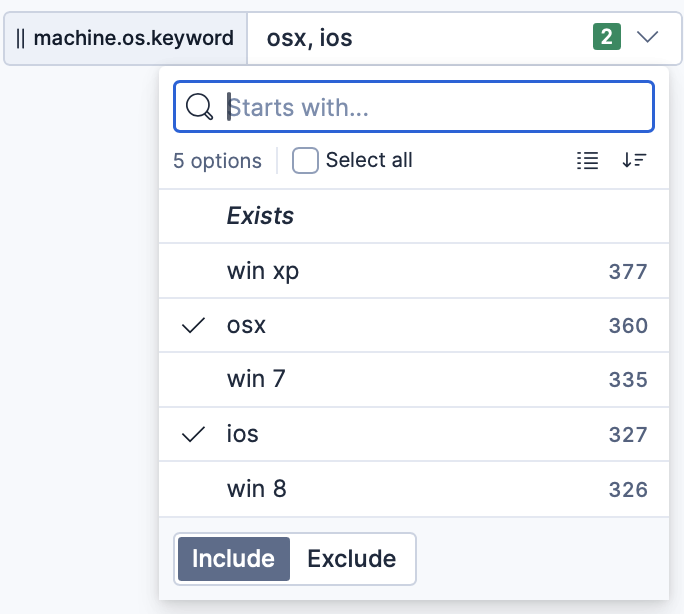
Range slider — A slider that allows to filter the data within a specified range of values. This type of control only works with numeric fields. For example, if you are using the [Logs] Web Traffic dashboard from the sample web logs data, you can add a range slider for the
hour_of_dayfield that allows you to display only the log data from 9:00AM to 5:00PM.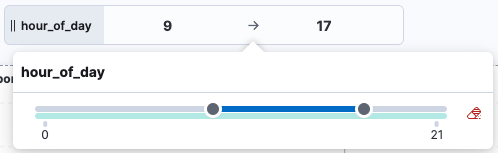
Time slider — A time range slider that allows to filter the data within a specified range of time, advance the time range backward and forward, and animate your change in data over the specified time range.
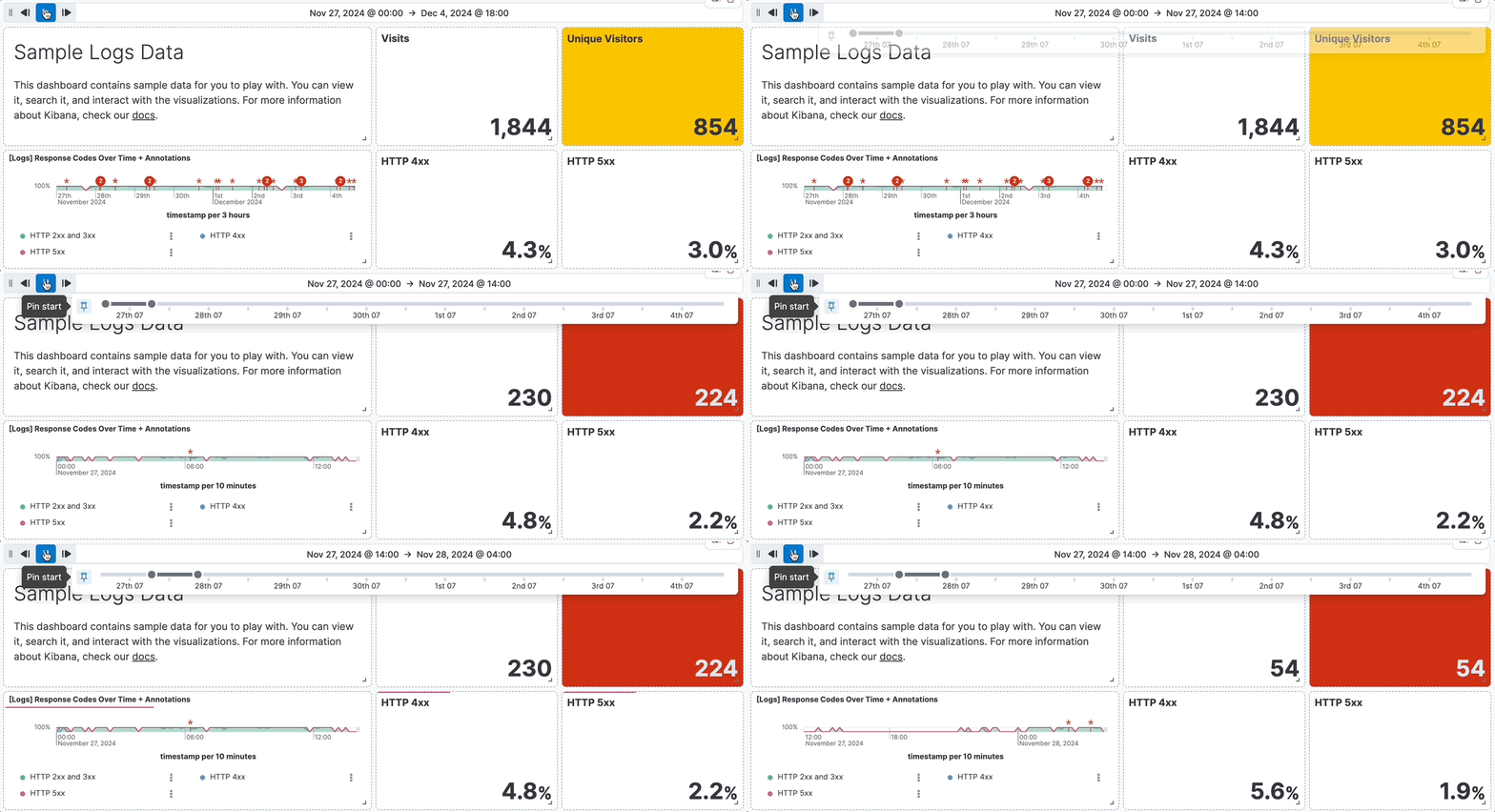
Variable control — An ES|QL-powered control that binds to variables in ES|QL visualization queries, enabling dynamic filtering, grouping, and function selection.
- Add controls to dashboards: Add options list, range slider, and time slider controls to your dashboards.
- Add variable controls with ES|QL: Create ES|QL-powered controls for dynamic filtering and chaining.
- Dashboard control settings: Reference for all available control settings per type and version.