Select and switch Kibana spaces
The spaces you can access depend on your roles. Switching spaces does not change your permissions.
From the global header, select your current space, then select the space you want to open.
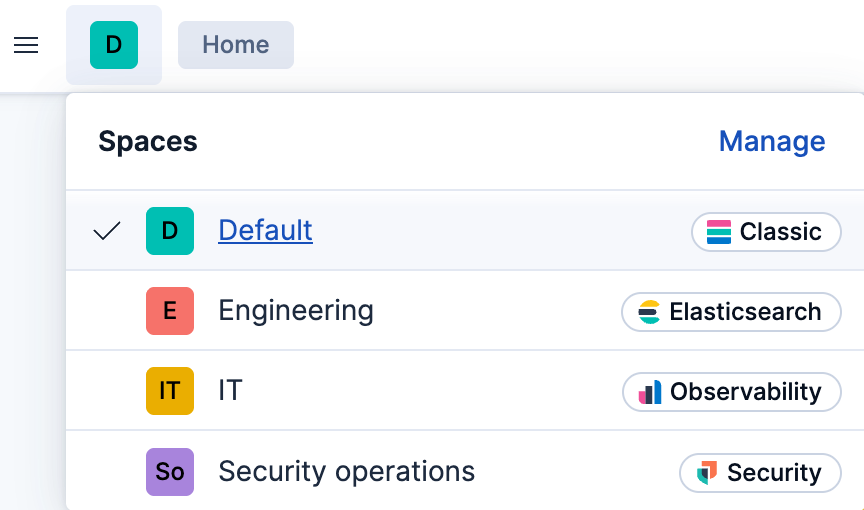
-
Kibana can remember the space you use and return you to it. If Kibana has no remembered space or you no longer have access to it, Kibana asks you to select a space. A direct link continues to open the linked Kibana app or object instead of redirecting you to the remembered space. -
If you can access more than one space, Kibana asks you to select a space.
This personal preference controls whether Kibana returns you to your last space or shows the space selector when you log in and can access multiple spaces.
- From the global header's user menu, select Edit profile.
- In Space Configuration, turn Remember last selected space on or off.
- Select Save changes.
When you turn off Remember last selected space, Kibana shows the space selector the next time you log in and can access more than one space.
To create, configure, or delete spaces, refer to Manage spaces.