MITRE coverage
Use the MITRE coverage page to find gaps in your detection coverage and close them. The page shows how your installed detection rules, both Elastic prebuilt and custom, cover the adversary tactics and techniques of these frameworks:
- MITRE ATT&CK®: Attacks on enterprise IT systems.
- MITRE ATLAS™: Attacks on AI and machine learning systems, such as prompt injection.
Find MITRE coverage in the navigation menu or by using the global search field.
To view the MITRE coverage page, you need at least read access to detection rules. To enable rules from the coverage grid, you also need privileges to enable and disable rules. For details, refer to Detections privileges.
From 9.0-9.5, the page is named MITRE ATT&CK® coverage.
The coverage grid is the main part of the MITRE coverage page. It arranges MITRE tactics, such as Initial Access and Persistence, as columns, and lists each tactic's techniques as cells in its column. Each column's header shows how many of the tactic's techniques have enabled rules, followed by the tactic's disabled and enabled rule counts.
In the following example, Installed rule status includes disabled rules, and the deployment has no enabled rules yet. Every column header shows 0 covered techniques, while the shaded cells show where enabling installed rules adds coverage.
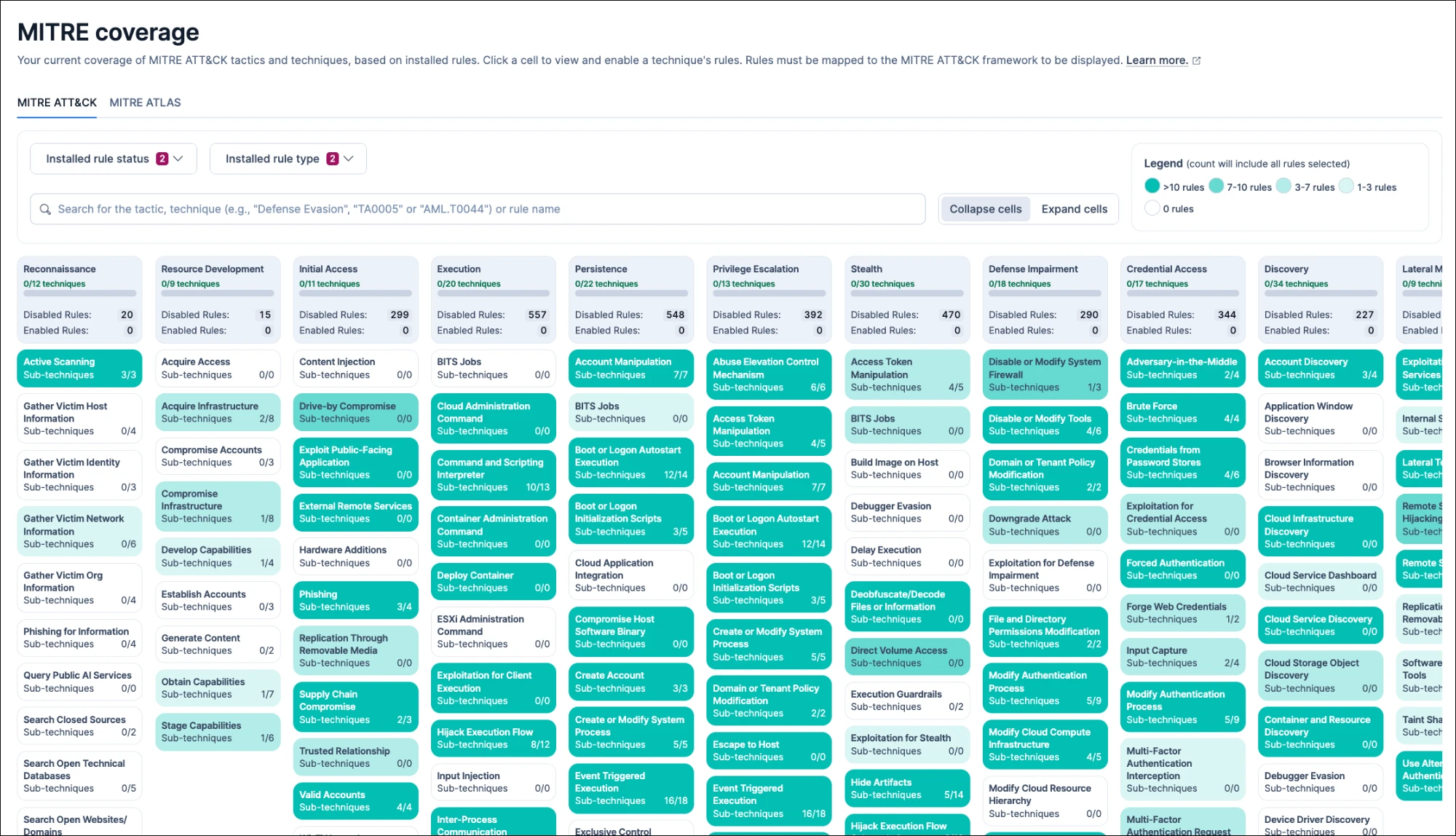
Cells are darker when a technique has more rules matching the current filters, as indicated in the Legend at the top. By default, the grid counts only enabled rules, so light or empty cells mark the techniques where your detection coverage is thin. To close those gaps, enable rules you've already installed, install more prebuilt rules, or create custom rules mapped to those techniques.
The grid counts only installed rules that are mapped to the framework you're viewing. If a rule you expect is missing, check that it's installed and that its MITRE mappings are set in the rule's Advanced settings.
To view the coverage grid for MITRE ATLAS v2026.08, select the MITRE ATLAS tab. The grid works the same way as on the MITRE ATT&CK tab, with MITRE ATLAS tactics, such as AI Model Access, as columns. If a rule is mapped to both frameworks, it counts toward coverage on both tabs.
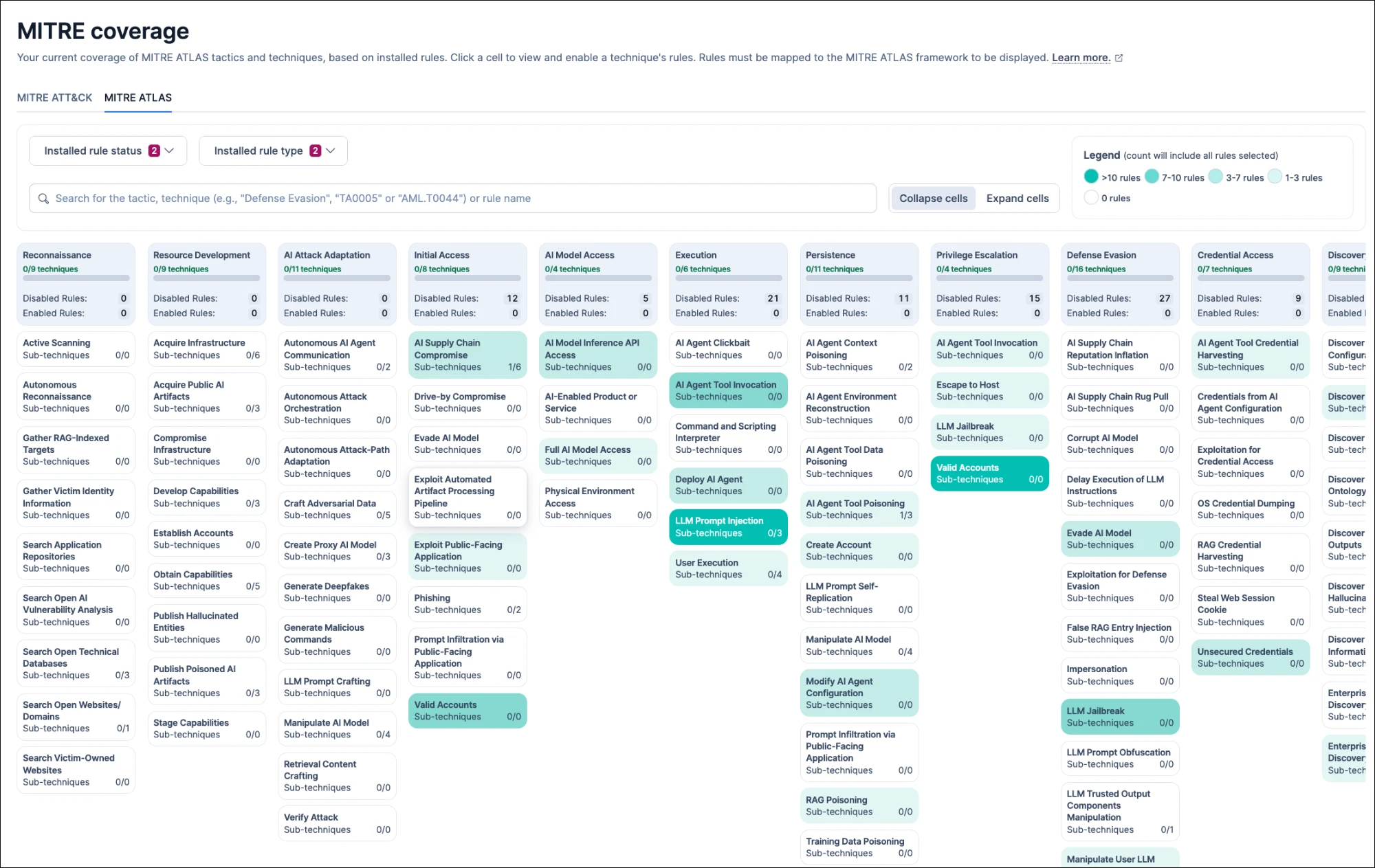
After you install them, some Elastic prebuilt rules that detect generative AI threats count toward MITRE ATLAS coverage. To map a custom rule, add MITRE ATLAS in the rule's Threat mappings setting.
Use the drop-down filters at the top of the MITRE coverage page to change which rules count toward coverage, depending on what you want to know.
- Installed rule status: Select only Disabled rules to find techniques where enabling rules you've already installed adds coverage. By default, only Enabled rules is selected, so the grid shows the coverage your enabled rules provide.
- Installed rule type: Select only Custom rules to see what your own rules cover, or only Elastic rules to see prebuilt coverage. By default, both are selected.
To focus the grid on specific rules, search for a rule name, or for a tactic, technique, or sub-technique by name or ID. The grid then counts only the matching rules.
For example, search for T1059 to see only rules mapped to Command and Scripting Interpreter. Enter tactic and technique names and IDs exactly as they appear in the grid, including capitalization.
Cells always show the technique's name and how many of its sub-techniques have rules that match the current filters. Select Expand cells to also see how many enabled and disabled rules each technique has, or Collapse cells to hide those counts.
With the default filter, which includes only Enabled rules, every disabled count is 0. To see disabled counts, add Disabled rules to Installed rule status.
Select a technique's cell to open a popup with details about that technique. The popup lists the Enabled rules and Disabled rules that match the current filters, and you can select a rule's name to open its details page.
To read about the technique and its sub-techniques on the MITRE ATT&CK or MITRE ATLAS website, select the technique's name at the top of the popup. The documentation opens in a new browser tab.
You can quickly enable all the rules for a specific technique that you've installed but not yet enabled. If Installed rule status includes only Enabled rules, first add Disabled rules to the filter. Then select the technique's cell, and select Enable all disabled.
Each Elastic Security version supports a specific MITRE ATT&CK version, which determines the tactics and techniques the grid shows. If a tactic or technique you expect is missing or renamed, check which MITRE ATT&CK version your Elastic Security version uses.
| Elastic Security version | MITRE ATT&CK version |
|---|---|
| 9.0.0 | v15.1 |
| 9.0.1-9.0.6 | v16.1 |
| 9.0.7-9.0.8 | v17.1 |
| 9.1.0-9.1.3 | v16.1 |
| 9.1.4-9.1.9 | v17.1 |
| 9.1.10 | v18.1 |
| 9.2.0-9.2.3 | v17.1 |
| 9.2.4-9.4.3 | v18.1 |
| 9.5.x | v19.1 |
| 9.6.0+ | v19.2 |
| Serverless | v19.2 |
MITRE ATT&CK v19 retires the Defense Evasion tactic and replaces it with Stealth and Defense Impairment. If you have custom rules mapped to MITRE ATT&CK, check Remap detection rules to MITRE ATT&CK® v19 to find and update mappings that changed in v19.