Elastic Inference Service
Elastic Inference Service (EIS) enables you to leverage AI-powered search as a service without deploying a model in your environment. With EIS, you don't need to manage the infrastructure and resources required for machine learning inference by adding, configuring, and scaling machine learning nodes. Instead, you can use machine learning models for ingest, search, and chat independently of your Elasticsearch infrastructure.
Your Elastic deployment or project comes with Elastic Managed LLMs by default. These can be used in Agent Builder, the AI Assistant, Attack Discovery, and Automatic Import. For the list of available models, refer to Supported models.
Search Playground also uses Elastic Managed LLMs.
You can use ELSER to perform semantic search as a service (ELSER on EIS).
You can use the
jina-embeddings-v3multilingual dense vector embedding model to perform semantic search through the Elastic Inference Service.
Kibana provides interfaces for managing EIS models and endpoints.
Go to the Elastic inference page by using the navigation menu or the global search field.
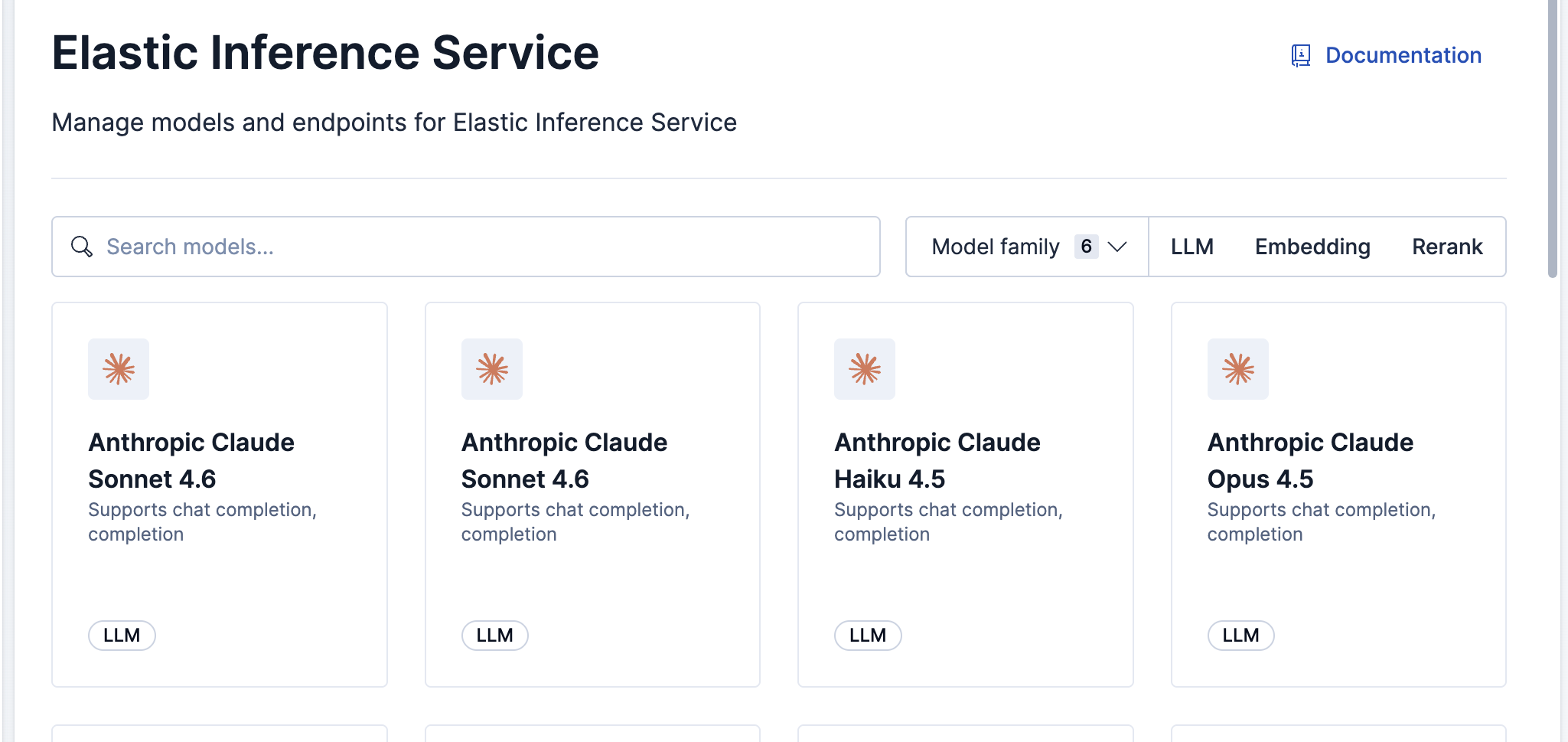
To access Elastic inference, you need the Inference Endpoints: all and Advanced Settings: read Kibana privileges.
Go to the Inference endpoints page by using the navigation menu or the global search field.
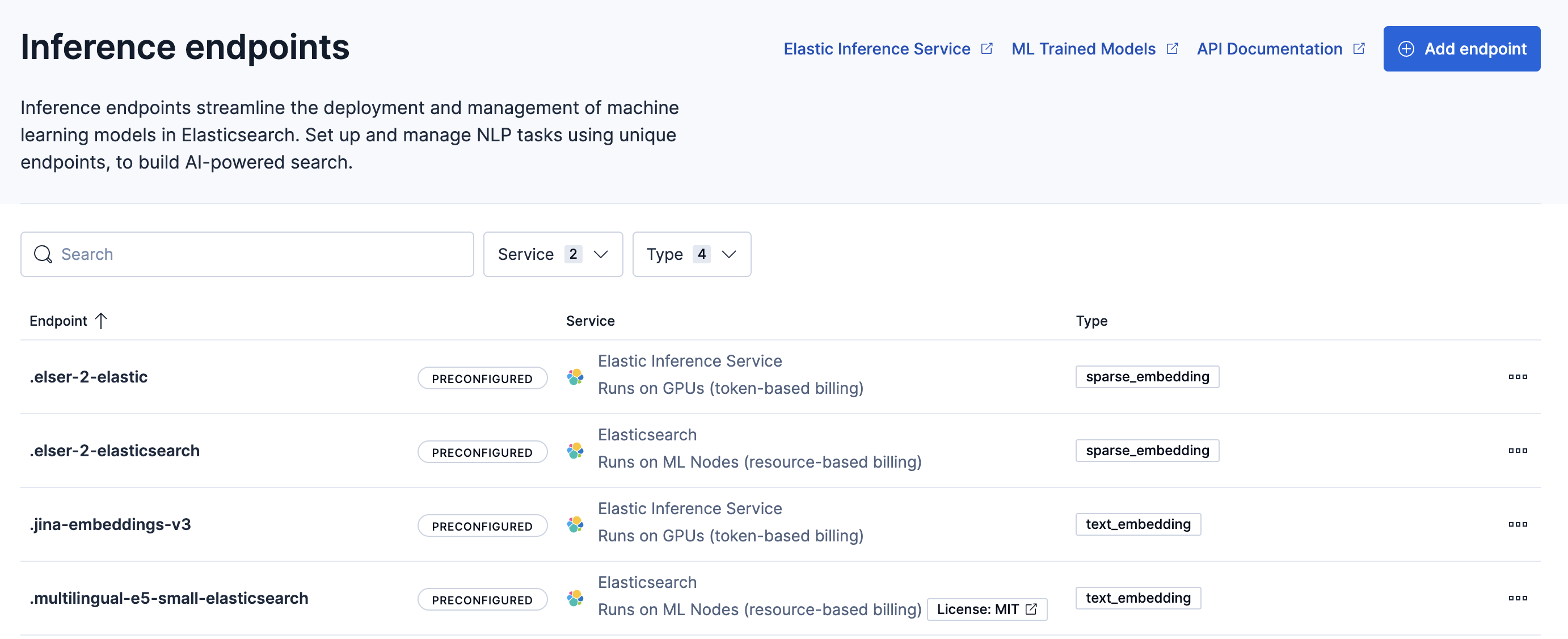
Available actions include:
- Add endpoints
- View endpoint details
- Copy the inference endpoint ID
- Delete endpoints
-
Region preferences for where EIS processes inference requests -
Show or hide models that are in preview, past end of life, or outside your region preferences -
Find models available in specific geographies or regions with the Region filter on the toolbar. The filter doesn't change where EIS processes inference requests, which region preferences control. Models that are hidden by default stay hidden unless you show them. -
Find models by what they do with the Model type filter on the toolbar.
To find a model faster, filter the list by model type or region, sort the model cards by name or release date, or show models that are hidden by default.
If a model you expect is missing from the list, it might be hidden. By default, Kibana leaves out three groups of models:
- Models outside your region preferences: Models that you can't use until you update your region preferences. If you can edit region preferences, open the model's details, expand the banner with View details, and select Edit Region preferences.
- End-of-life models: Models that have already reached their end-of-life date, which you can't use. Models that are close to that date stay in the list.
- Preview models: Models in preview, which aren't recommended for production use.
To show or hide any of these groups:
- On the toolbar, select Display options.
- In Model display options, set each group to Show or Hide.
- Select Apply.
The list now includes the groups you set to Show. In card view, Kibana shows how many models match, for example Showing 12 of 20. The second number also counts hidden models, so a lower first number doesn't always mean that your search or filters removed a model.
Kibana doesn't save your selection. After you reload Kibana, all three groups are hidden again.
Your deployment includes default inference endpoints which are preconfigured and ready to use. In most cases, you should use these default endpoints. However, you can choose to create custom EIS endpoints if you need to instantiate a specific model version or configuration that is not covered by the defaults.
- Go to the Elastic inference page by using the navigation menu or the global search field.
- Select the model you want the new endpoint to use.
- Click Add endpoint.
- Enter a unique Model ID. For a complete list of valid Model IDs and their corresponding task types, refer to the Supported models.
- Select Save.
- Go to the Inference endpoints page by using the navigation menu or the global search field.
- In the Service dropdown, select Elastic Inference Service.
- In the Settings section, enter the specific Model ID. For a complete list of valid Model IDs and their corresponding task types, refer to the Elastic Inference Service supported models.
- (Optional) Under More options, set the Maximum Input Tokens. This limits the number of tokens processed per request. If left blank, the model's default limit is used.
- Expand Additional settings and select the Task type that corresponds to your model.
- Select Save.
Alternatively, you can use inference APIs, as described in the following section.
The following sections describe how to get started with specific models available through Elastic Inference Service, including creating inference endpoints and using them for search and ingest.
The Jina v5 omni models availability and the support for the semantic_text field type depend on your Elastic Stack version:
-
In Elastic Stack 9.3 and later, you can create endpoints and run multimodal embeddinginference requests. You cannot use these models with thesemantic_textfield type. -
In Elastic Stack 9.4 and later, you can use semantic_textmappings for text-only embeddings at ingest and search time. -
In Elastic Stack 9.5 and later, the semanticfield type supports all modalities, such as text, images, video, audio, and documents.
There are two Jina v5 omni embedding models available through Elastic Inference Service, jina-embeddings-v5-omni-small and jina-embeddings-v5-omni-nano. Both models support multimodal embeddings for text, images, video, audio, and documents such as PDF in one shared vector space.
- Use
jina-embeddings-v5-omni-smallfor larger context windows and higher-capacity retrieval workloads. - Use
jina-embeddings-v5-omni-nanofor lower cost and lower resource usage.
Create an inference endpoint that references the jina-embeddings-v5-omni-small model in the model_id field. Use the embedding task type so the endpoint can accept multimodal input.
				PUT _inference/embedding/eis-jina-embeddings-v5-omni-small
					{
  "service": "elastic",
  "service_settings": {
    "model_id": "jina-embeddings-v5-omni-small"
  }
}
You can reference the inference_id in embedding inference tasks and search queries on any supported version.
For examples of ingesting different media types and generating embeddings for text, images, audio, and video, refer to Getting started with Jina v5 omni embedding models through Elastic Inference Service. Select the jina-embeddings-v5-omni-small tab in each example.
Create an inference endpoint that references the jina-embeddings-v5-omni-nano model in the model_id field. Use the embedding task type so the endpoint can accept multimodal input.
				PUT _inference/embedding/eis-jina-embeddings-v5-omni-nano
					{
  "service": "elastic",
  "service_settings": {
    "model_id": "jina-embeddings-v5-omni-nano"
  }
}
You can reference the inference_id in embedding inference tasks and search queries on any supported version.
For examples of ingesting different media types and generating embeddings for text, images, audio, and video, refer to Getting started with Jina v5 omni embedding models through Elastic Inference Service. Select the jina-embeddings-v5-omni-nano tab in each example.
You can use the jina-embeddings-v5-text-small model through Elastic Inference Service. Running the model on EIS means that you use the model on GPUs, without the need of managing infrastructure and model resources.
Create an inference endpoint that references the jina-embeddings-v5-text-small model in the model_id field.
				PUT _inference/text_embedding/eis-jina-embeddings-v5-text-small
					{
  "service": "elastic",
  "service_settings": {
    "model_id": "jina-embeddings-v5-text-small"
  }
}
The created inference endpoint uses the model for inference operations on the Elastic Inference Service. You can reference the inference_id of the endpoint in index mappings for the semantic_text field type, text_embedding inference tasks, or search queries.
You can use the jina-embeddings-v3 model through Elastic Inference Service. Running the model on EIS means that you use the model on GPUs, without the need of managing infrastructure and model resources.
Create an inference endpoint that references the jina-embeddings-v3 model in the model_id field.
				PUT _inference/text_embedding/eis-jina-embeddings-v3
					{
  "service": "elastic",
  "service_settings": {
    "model_id": "jina-embeddings-v3"
  }
}
The created inference endpoint uses the model for inference operations on the Elastic Inference Service. You can reference the inference_id of the endpoint in index mappings for the semantic_text field type, text_embedding inference tasks, or search queries.
The document_extraction task type converts PDFs, images, and web pages into Markdown. On EIS, the jina-reader model runs document extraction with Jina Reader. Use it to prepare documents for indexing and retrieval-augmented generation (RAG).
Document extraction returns Markdown but doesn't index it. To make the extracted content searchable, index it yourself. Refer to Elastic Inference Service > Index the extracted content.
Use the preconfigured .jina-reader endpoint to extract content without creating an endpoint first. It handles every supported document type, so one endpoint covers PDFs, images, and web pages.
Send one or more documents in the input array. Each item has a content object with the following fields:
type- The document type. Supported values are
pdf,image, andhtml. format- How you provide the document. Use
urlto pass a link that Jina Reader fetches, orbase64to pass the document as a base64-encoded data URL. Thehtmltype supportsurlonly. Defaults tobase64forpdfandimage, andurlforhtml. value- The URL or the base64-encoded data URL.
The following example extracts a PDF from a URL:
				POST _inference/document_extraction/.jina-reader
					{
  "input": [
    {
      "content": {
        "type": "pdf",
        "format": "url",
        "value": "https://example.com/annual-report.pdf"
      }
    }
  ]
}
- The document type:
pdf,image, orhtml. - With
url, Jina Reader downloads the document directly. - The document's URL. Jina Reader must be able to reach it.
The following example extracts a PDF from a base64-encoded data URL:
				POST _inference/document_extraction/.jina-reader
					{
  "input": [
    {
      "content": {
        "type": "pdf",
        "format": "base64",
        "value": "data:application/pdf;base64,JVBERi0xLjQK..."
      }
    }
  ]
}
- With
base64, you send the document in the request body. Use this for files that aren't available at a URL. - A data URL:
data:, the document's media type,;base64,, and then the base64-encoded file.
The response contains one result for each document, in the same order as the input array:
{
  "document_extraction": [
    {
      "content": "# Annual Report 2025\n\nRevenue grew by 12% year over year...",
      "format": "markdown"
    }
  ]
}
- The extracted content. Index this value to make the document searchable.
- The format of
content. It's alwaysmarkdown.
A result can also include a metadata object. Its fields can change, so don't rely on them in your application.
There's no limit on the number of documents in a request. The request size is limited by the http.max_content_length setting, which defaults to 100 MB. Base64 encoding adds overhead, so the largest base64-encoded PDF you can send is about 75 MB.
Each document type uses a different extraction method by default:
- PDFs: Converts the PDF's text layer to Markdown. Scanned PDFs have no text layer, so use OCR to extract their content. Refer to Elastic Inference Service > Change how documents are extracted.
- Images: Extracts text with optical character recognition (OCR).
- Web pages: Converts the page content to Markdown.
Use the parameters task setting to pass Jina Reader options to Jina Reader. Options you set are combined with the defaults, and setting preset replaces the default extraction method. The output_format task setting supports markdown only.
Use the preset option to choose how Jina Reader extracts content. For example:
ocr: Extracts text with thejina-ocr-v1OCR model. Use it for scanned PDFs.pdf+: Reads the PDF's text layer, adds support for images in the PDF, and usesjina-ocr-v1for tables, formulas, and pages without text. Use it for PDFs with tables or formulas, or with a mix of text and scanned pages.
OCR and layout presets extract pages 1 to 35 by default. To extract other pages, set the page option, such as 36-70. A page range can include at most 35 pages. A wider range returns an error.
The following example extracts the first three pages of a PDF with the pdf+ preset:
				POST _inference/document_extraction/.jina-reader
					{
  "input": [
    {
      "content": {
        "type": "pdf",
        "format": "url",
        "value": "https://example.com/research-paper.pdf"
      }
    }
  ],
  "task_settings": {
    "parameters": {
      "preset": "pdf+",
      "page": "1-3"
    }
  }
}
- Jina Reader options for this request only. Each option here overrides the same option in the endpoint's
parameters. - Reads the PDF's text layer and uses OCR for tables, formulas, and pages without text.
- The pages to extract.
To apply the same parameters to every request, create your own inference endpoint and set them in task_settings:
				PUT _inference/document_extraction/my-jina-reader
					{
  "service": "elastic",
  "service_settings": {
    "model_id": "jina-reader"
  },
  "task_settings": {
    "parameters": {
      "preset": "pdf+"
    }
  }
}
- The
elasticservice runs the endpoint on EIS. - The Jina Reader model.
- Every request to this endpoint uses the
pdf+preset, unless the request sets its ownpreset.
Your application sends each document to the extraction endpoint and then indexes the content value from the response. To search the content semantically, index it into a semantic_text field:
Create an index with a
semantic_textfield for the extracted content:PUT annual-reports{ "mappings": { "properties": { "source_url": { "type": "keyword" }, "content": { "type": "semantic_text" } } } }- The URL of the original document, so search results can link back to it.
- Splits the content into chunks and generates embeddings for them when you index a document.
Extract the content from the document, as shown in Elastic Inference Service > Extract content from documents.
Index the
contentvalue from the response:POST annual-reports/_doc{ "source_url": "https://example.com/annual-report.pdf", "content": "# Annual Report 2025\n\nRevenue grew by 12% year over year..." }
ELSER on EIS enables you to use the ELSER model on GPUs, without having to manage your own ML nodes. We expect better performance for ingest throughput than ML nodes and equivalent performance for search latency. We will continue to benchmark, remove limitations and address concerns.
You can now use semantic_text with the new ELSER endpoint on EIS. To learn how to use the .elser-2-elastic inference endpoint, refer to Using ELSER on EIS.
Semantic Search with semantic_text has a detailed tutorial on using the semantic_text field and using the ELSER endpoint on EIS instead of the default endpoint. This is a great way to get started and try the new endpoint.
If you ran a kNN search and it failed or returned no results, check whether your vectors are searchable and compatible with kNN search.
All models on EIS incur a charge per million tokens. Certain LLM providers charge different prices depending on the prompt size. The pricing details are available on our Pricing page.
This pricing model differs from the existing Machine Learning Nodes, which is billed through VCUs consumed.
EIS is billed per million tokens used:
- For chat models, input and output tokens are billed. Longer conversations with extensive context or detailed responses will consume more tokens.
- For embeddings models, only input tokens are billed.
Tokens are the fundamental units that language models process for both input and output. Tokenizers convert text into numerical data by segmenting it into subword units. A token can be a complete word, part of a word, or a punctuation mark, depending on the model's trained tokenizer and the frequency patterns in its training data.
For example, the sentence It was the best of times, it was the worst of times. contains 52 characters but would tokenize into approximately 14 tokens with a typical word-based approach, though the exact count varies by tokenizer.
To track your token consumption:
- Navigate to Billing → Usage in the Elastic Cloud Console.
- Look for line items where the Billing dimension is set to "Inference".
Elastic Inference Service (EIS) is a global service on Elastic Cloud. Like any service, it might undergo availability changes from time to time. When availability changes, Elastic posts updates on the Cloud Status page.
EIS incidents and maintenance affect features that rely on EIS, such as semantic search, embeddings, reranking, and AI-powered assistants.
To check current and past EIS availability, go to the Cloud Status page. EIS is listed under Global services as Elastic Inference Service.
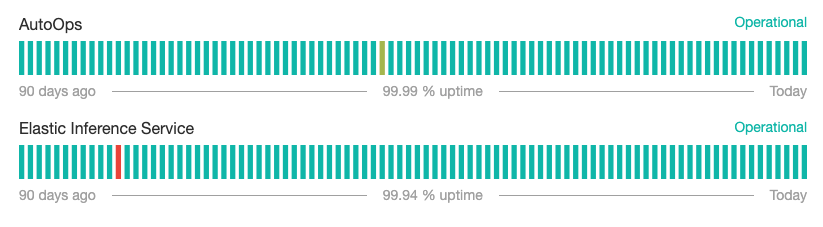
Learn how to subscribe to updates on the Service status page.