Common rule settings
All detection rules share a common set of settings for describing the rule, controlling its schedule, configuring actions, and setting up response actions. These settings apply regardless of the rule type you select.
For rule-type-specific settings (query definitions, index patterns, machine learning jobs, and so on), refer to Using the rule builder.
Configure these settings in the About rule pane.
- Name
- The rule's name.
- Description
- A description of what the rule does.
- Default severity
-
The severity level of alerts created by the rule:
- Low: Alerts that are of interest but generally are not considered to be security incidents. Sometimes a combination of low severity alerts can indicate suspicious activity.
- Medium: Alerts that require investigation.
- High: Alerts that require an immediate investigation.
- Critical: Alerts that indicate it is highly likely a security incident has occurred.
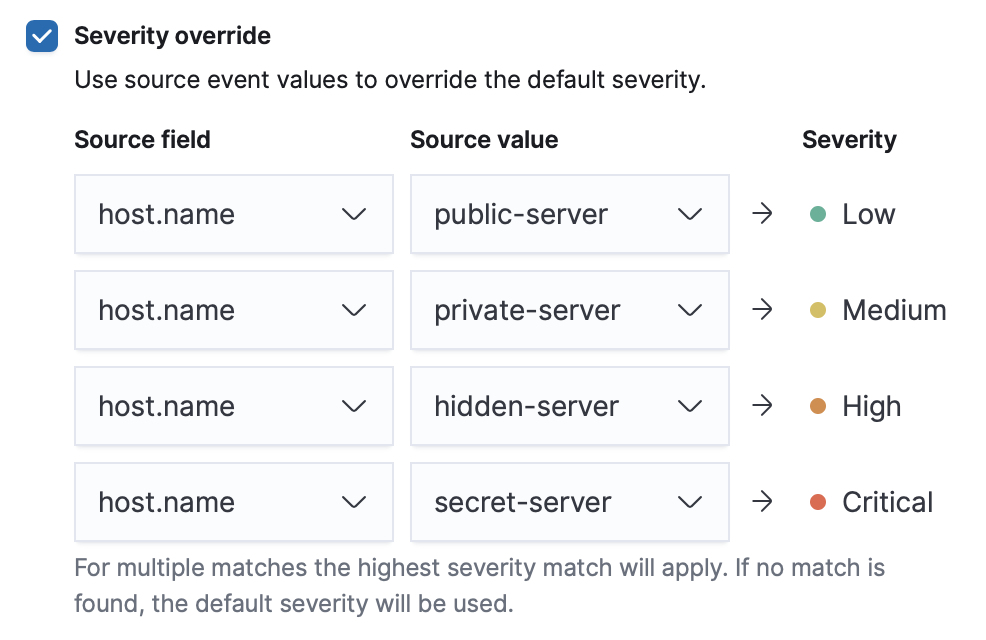
- Severity override (optional)
-
Select to use source event values to override the Default severity in generated alerts. When selected, a UI component is displayed where you can map the source event field values to severity levels.
 Note
NoteFor threshold rules, not all source event values can be used for overrides; only the fields that were aggregated over (the
Group byfields) will contain data. Overrides are not supported for event correlation rules. - Default risk score
-
A numerical value between 0 and 100 that indicates the risk of events detected by the rule. This setting changes to a default value when you change the Severity level, but you can adjust the risk score as needed. General guidelines are:
0-21represents low severity.22-47represents medium severity.48-73represents high severity.74-100represents critical severity.
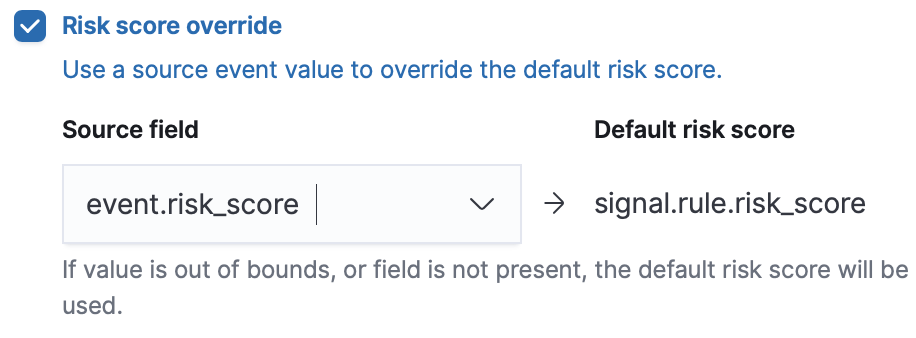
- Risk score override (optional)
-
Select to use a source event value to override the Default risk score in generated alerts. When selected, a UI component is displayed to select the source field used for the risk score.
 Note
NoteFor threshold rules, not all source event values can be used for overrides; only the fields that were aggregated over (the
Group byfields) will contain data. - Tags (optional)
- Words and phrases used to categorize, filter, and search the rule.
Configure these settings by clicking Advanced settings in the About rule pane.
- Author (optional)
- The rule's authors.
- Building block (optional)
- Select to create a building-block rule. By default, alerts generated from a building-block rule are not displayed in the UI. See About building block rules for more information.
- Custom highlighted fields (optional)
-
Specify highlighted fields for unique alert investigation flows. You can select any fields that are available in the indices you selected for the rule's data source.
After you create the rule, you can find all custom highlighted fields in the About section of the rule details page. If the rule has alerts, you can find custom highlighted fields in the Highlighted fields section of the alert details flyout.
- Elastic endpoint exceptions (optional)
-
Adds all Elastic Endpoint exceptions to this rule.
NoteIf you select this option, you can add Elastic Endpoint exceptions on the Rule details page. Additionally, all future exceptions added to endpoint protection rules will also affect this rule.
- False positive examples (optional)
- List of common scenarios that may produce false-positive alerts.
- Indicator prefix override (indicator match rules only)
-
Define the location of indicator data within the structure of indicator documents. When the indicator match rule executes, it queries specified indicator indices and references this setting to locate fields with indicator data. This data is used to enrich indicator match alerts with metadata about matched threat indicators. The default value for this setting is
threat.indicator.ImportantIf your threat indicator data is at a different location, update this setting accordingly to ensure alert enrichment can still be performed.
- Investigation guide (optional)
- Information for analysts investigating alerts created by the rule. You can also add action buttons to run Osquery or start Timeline investigations using alert data.
- License (optional)
- The rule's license.
- Max alerts per run (optional)
-
Specify the maximum number of alerts the rule can create each time it executes. Default is 100.
System-level alert limitThe
xpack.alerting.rules.run.alerts.maxKibana setting acts as a system-level limit on alerts per rule execution, and can supersede a security rule's Max alerts per run setting. If a rule's Max alerts per run value exceedsxpack.alerting.rules.run.alerts.max, the lower system setting takes precedence and the rule will not generate more alerts than it allows.Although it is technically possible to increase
xpack.alerting.rules.run.alerts.maxabove its default of1000, doing so is not recommended and not supported. Carefully evaluate the potential performance impact on your deployment before making this change. :::: - MITRE ATT&CK threats (optional)
- Add relevant MITRE framework tactics, techniques, and subtechniques.
- Reference URLs (optional)
- References to information that is relevant to the rule. For example, links to background information.
- Rule name override (optional)
-
Select a source event field to use as the rule name in the UI (Alerts table). This is useful for exposing, at a glance, more information about an alert. For example, if the rule generates alerts from Suricata, selecting
event.actionlets you see what action (Suricata category) caused the event directly in the Alerts table.NoteFor threshold rules, not all source event values can be used for overrides; only the fields that were aggregated over (the
Group byfields) will contain data. - Setup guide (optional)
- Instructions on rule prerequisites such as required integrations, configuration steps, and anything else needed for the rule to work correctly.
- Timestamp override (optional)
-
Select a source event timestamp field. When selected, the rule's query uses the selected field, instead of the default
@timestampfield, to search for alerts. This can help reduce missing alerts due to network or server outages. Specifically, if your ingest pipeline adds a timestamp when events are sent to Elasticsearch, this can prevent missing alerts from ingestion delays.If the selected field is unavailable, the rule query will use the
@timestampfield instead. If you don't want to use the@timestampfield because your data source has an inaccurate@timestampvalue, select the Do not use @timestamp as a fallback timestamp field option instead. This ensures the rule query ignores the@timestampfield entirely.TipThe Microsoft and Google Workspace Filebeat modules have an
event.ingestedtimestamp field that can be used instead of the default@timestampfield.
- Runs every
- How often the rule runs.
- Additional look-back time (optional)
-
When defined, the rule searches indices with the additional time.
For example, if you set a rule to run every 5 minutes with an additional look-back time of 1 minute, the rule runs every 5 minutes but analyzes the documents added to indices during the last 6 minutes.
It is recommended to set the Additional look-back time to at least 1 minute. This ensures there are no missing alerts when a rule does not run exactly at its scheduled time.
Elastic Security prevents duplication. Any duplicate alerts that are discovered during the Additional look-back time are not created.
Use rule actions to set up notifications sent through other systems when alerts are generated. Rule actions let you send Slack messages, create Jira tickets, trigger PagerDuty incidents, and more.
To use rule actions for alert notifications, you need the appropriate license. For more information, see Control access to cases.
You can automate alert responses using either rule actions or workflows. Rule actions are simpler to set up and work well for individual rules with specific notification needs. Workflows offer more flexibility for complex, multi-step processes that you want to standardize across multiple rules.
| Use case | Rule actions | Workflows |
|---|---|---|
| Send notifications for a specific rule | Yes | Yes |
| Apply the same response process to multiple rules | Configure separately on each rule | Define once, trigger from any rule |
| Include complex conditional logic | Basic conditions only | Advanced conditions and branching |
| Chain multiple actions together | Limited | Yes |
| Centralized management | No (per-rule configuration) | Yes |
To set up a workflow as a rule action, refer to Trigger a workflow from an alert.
- Connector type
- Determines how notifications are sent. For example, if you select the Jira connector, notifications are sent to your Jira system. You can configure connectors while creating the rule or from the Connectors page. For available connector types, refer to Action and connector types.
- Action frequency
-
Defines when notifications are sent:
- Summary of alerts: Sends a report that summarizes generated alerts at the specified time intervals. When setting a custom notification frequency, do not select a time that is shorter than the rule's execution schedule.
- For each alert: Sends notifications every time new alerts are generated.
- Conditional actions (optional)
-
Specify additional conditions that need to be met for notifications to send:
- If alert matches query: Enter a KQL query that defines field-value pairs or query conditions that must be met for notifications to send. The query only searches alert documents in the indices specified for the rule.
- If alert is generated during timeframe: Set timeframe details. Notifications are only sent if alerts are generated within the timeframe you define.
- Notification message
- Use the default notification message or customize it. You can add more context to the message by clicking the icon above the message text box and selecting from a list of available alert notification variables.
After you activate a rule, you can check if it is executing as expected using the Monitoring tab on the Rules page. If you see values in the Gap column, you can Troubleshoot missing alerts.
When a rule fails to execute, the Elastic Security app tries to rerun it at its next scheduled time.
Use response actions to set up additional functionality that executes whenever a rule triggers:
- Osquery: Include live Osquery queries with a custom query rule. When an alert is generated, Osquery automatically collects data on the system related to the alert. Refer to Add Osquery Response Actions to learn more.
- Elastic Defend: Automatically execute response actions on an endpoint when rule conditions are met. For example, you can automatically isolate a host or end a process when specific activities or events are detected on the host. Refer to Automated response actions to learn more.
Host isolation involves quarantining a host from the network to prevent further proliferation of threats and limit potential damage. Be aware that automatic host isolation can cause unintended consequences, such as disrupting legitimate user activities or blocking critical business processes.
You can use mustache syntax to add variables to notification messages. The action frequency you select determines the available variables.
Refer to Action frequency: Summary of alerts to learn about additional variables that can be passed if the rule's action frequency is Summary of alerts.
{{context.alerts}}: Array of detected alerts{{{context.results_link}}}: URL to the alerts in Kibana{{context.rule.anomaly_threshold}}: Anomaly threshold score above which alerts are generated (machine learning rules only){{context.rule.description}}: Rule description{{context.rule.false_positives}}: Rule false positives{{context.rule.filters}}: Rule filters (query rules only){{context.rule.id}}: Unique rule ID returned after creating the rule{{context.rule.index}}: Indices rule runs on (query rules only){{context.rule.language}}: Rule query language (query rules only){{context.rule.machine_learning_job_id}}: ID of associated machine learning job (machine learning rules only){{context.rule.max_signals}}: Maximum allowed number of alerts per rule execution{{context.rule.name}}: Rule name{{context.rule.query}}: Rule query (query rules only){{context.rule.references}}: Rule references{{context.rule.risk_score}}: Default rule risk scoreNoteThis placeholder contains the rule's default values even when the Risk score override option is used.
{{context.rule.rule_id}}: Generated or user-defined rule ID that can be used as an identifier across systems{{context.rule.saved_id}}: Saved search ID{{context.rule.severity}}: Default rule severityNoteThis placeholder contains the rule's default values even when the Severity override option is used.
{{context.rule.threat}}: Rule threat framework{{context.rule.threshold}}: Rule threshold values (threshold rules only){{context.rule.timeline_id}}: Associated Timeline ID{{context.rule.timeline_title}}: Associated Timeline name{{context.rule.type}}: Rule type{{context.rule.version}}: Rule version{{date}}: Date the rule scheduled the action{{kibanaBaseUrl}}: Configuredserver.publicBaseUrlvalue, or empty string if not configured{{rule.id}}: ID of the rule{{rule.name}}: Name of the rule{{rule.spaceId}}: Space ID of the rule{{rule.tags}}: Tags of the rule{{rule.type}}: Type of rule{{state.signals_count}}: Number of alerts detected
The following variables can only be passed if the rule's action frequency is For each alert:
{{alert.actionGroup}}: Action group of the alert that scheduled actions for the rule{{alert.actionGroupName}}: Human-readable name of the action group of the alert that scheduled actions for the rule{{alert.actionSubgroup}}: Action subgroup of the alert that scheduled actions for the rule{{alert.id}}: ID of the alert that scheduled actions for the rule{{alert.flapping}}: A flag on the alert that indicates whether the alert status is changing repeatedly
To understand which fields to parse, see the Detections API to view the JSON representation of rules.
Example using {{context.rule.filters}} to output a list of filters:
{{#context.rule.filters}}
{{^meta.disabled}}{{meta.key}} {{#meta.negate}}NOT {{/meta.negate}}{{meta.type}} {{^exists}}{{meta.value}}{{meta.params.query}}{{/exists}}{{/meta.disabled}}
{{/context.rule.filters}}
Example using {{context.alerts}} as an array, which contains each alert generated since the last time the action was executed:
{{#context.alerts}}
Detection alert for user: {{user.name}}
{{/context.alerts}}
Example using the mustache "current element" notation {{.}} to output all the rule references in the signal.rule.references array:
{{#signal.rule.references}} {{.}} {{/signal.rule.references}}