Install Elastic prebuilt rules
Elastic provides hundreds of prebuilt detection rules that cover common attack techniques across multiple platforms. This page explains how to install and enable prebuilt rules so they start generating alerts.
Your subscription determines which prebuilt rule features are available:
| Capability | Basic–Platinum | Enterprise |
|---|---|---|
| Install and enable rules | ✓ | ✓ |
| View prerequisites and tags | ✓ | ✓ |
| Add exceptions | ✓ | ✓ |
| Configure rule actions | ✓ | ✓ |
| Update rules (accept Elastic version) | ✓ | ✓ |
| Duplicate and customize | ✓ | ✓ |
| Edit prebuilt rules directly | — | ✓ |
| Review field-level update changes | — | ✓ |
| Resolve update conflicts | — | ✓ |
| Revert to Elastic version | — | ✓ (9.1+) |
For Serverless, Security Analytics Essentials corresponds to Basic–Platinum, and Security Analytics Complete corresponds to Enterprise.
Most prebuilt rules don't start running by default. Use Install and enable to start rules immediately, or install first and enable later.
Find Detection rules (SIEM) in the navigation menu or by using the global search field, then go to the Rules table.
The badge next to Add Elastic rules shows the number of prebuilt rules available for installation.

Select Add Elastic rules.
TipTo examine the details of a rule before you install it, select the rule name. This opens the rule details flyout.
Do one of the following:
- Install all available rules: Select Install all at the top of the page. (This doesn't enable the rules; you still need to do that manually.)
- Install a single rule: In the rules table, either select Install to install a rule without enabling it, or select
 → Install and enable to start running the rule once it's installed.
 - Install multiple rules: Select the rules, and then at the top of the page either select Install x selected rule(s) to install without enabling the rules, or select
 → Install and enable to install and start running the rules.
TipUse the search bar and Tags filter to find the rules you want to install. For example, filter by
OS: Windowsif your environment only includes Windows endpoints. For more on tag categories, refer to Prebuilt rule tags.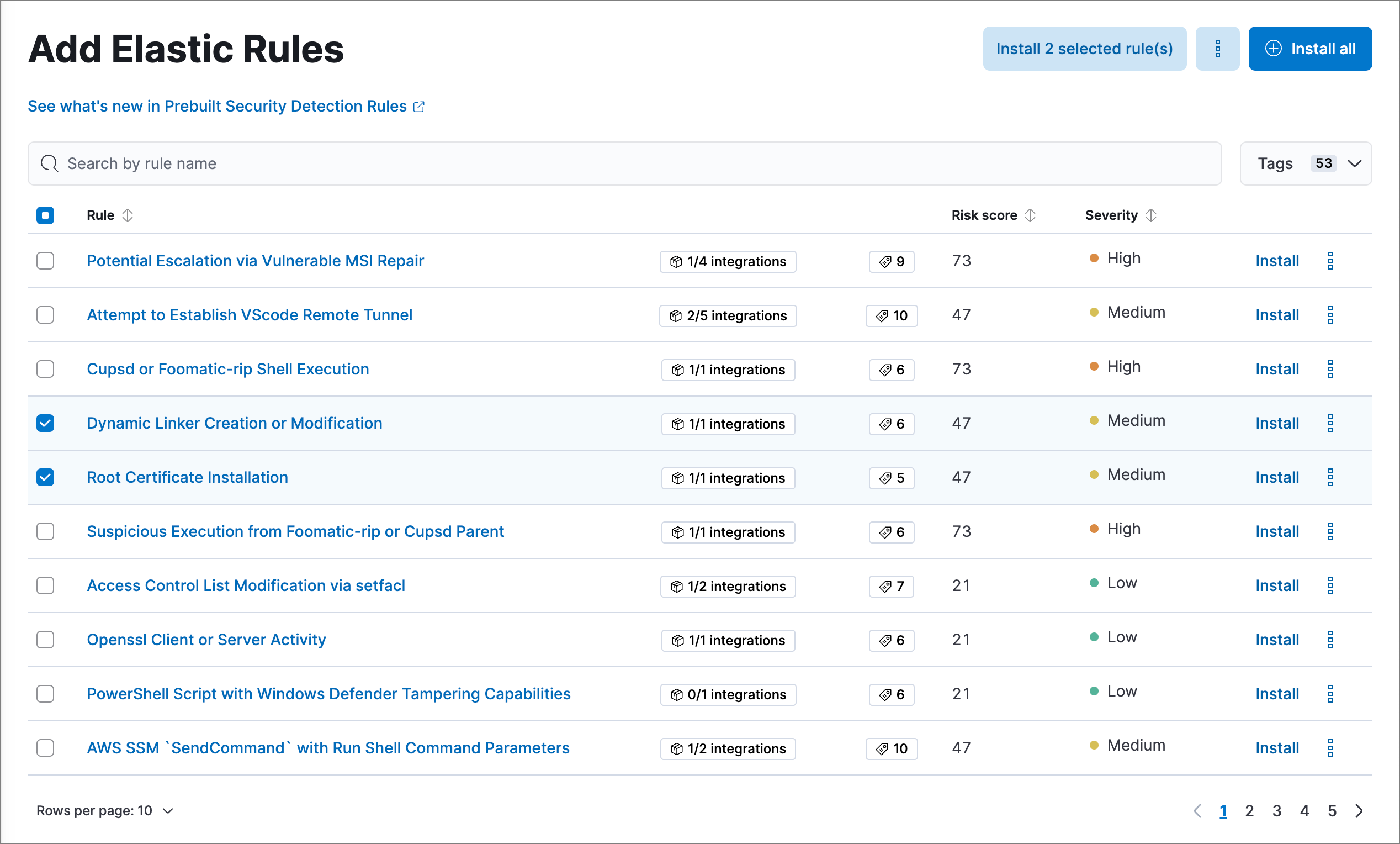
For any rules you haven't already enabled, go back to the Rules page, search or filter for the rules you want to run, and do either of the following:
- Enable a single rule: Turn on the rule's Enabled switch.
- Enable multiple rules: Select the rules, then select Bulk actions → Enable.
Once you enable a rule, it starts running on its configured schedule. To confirm that it's running successfully, check its Last response status in the rules table, or open the rule's details page and check the Execution results tab.
Some prebuilt rules serve special purposes: Endpoint protection rules generate alerts from Elastic Defend's threat monitoring and prevention, while the External Alerts rule creates alerts for incoming third-party system alerts (for example, Suricata alerts).
After installing prebuilt rules:
- Keep rules current: Elastic regularly updates prebuilt rules to detect new threats. Refer to Update Elastic prebuilt rules to learn how to apply updates.
- Customize rules: Adapt prebuilt rules to your environment by editing them directly (Enterprise) or duplicating and modifying copies. Refer to Customize Elastic prebuilt rules.
- Build custom rules: Create detection logic tailored to your infrastructure. Refer to Author rules.