Explore Security data in Discover
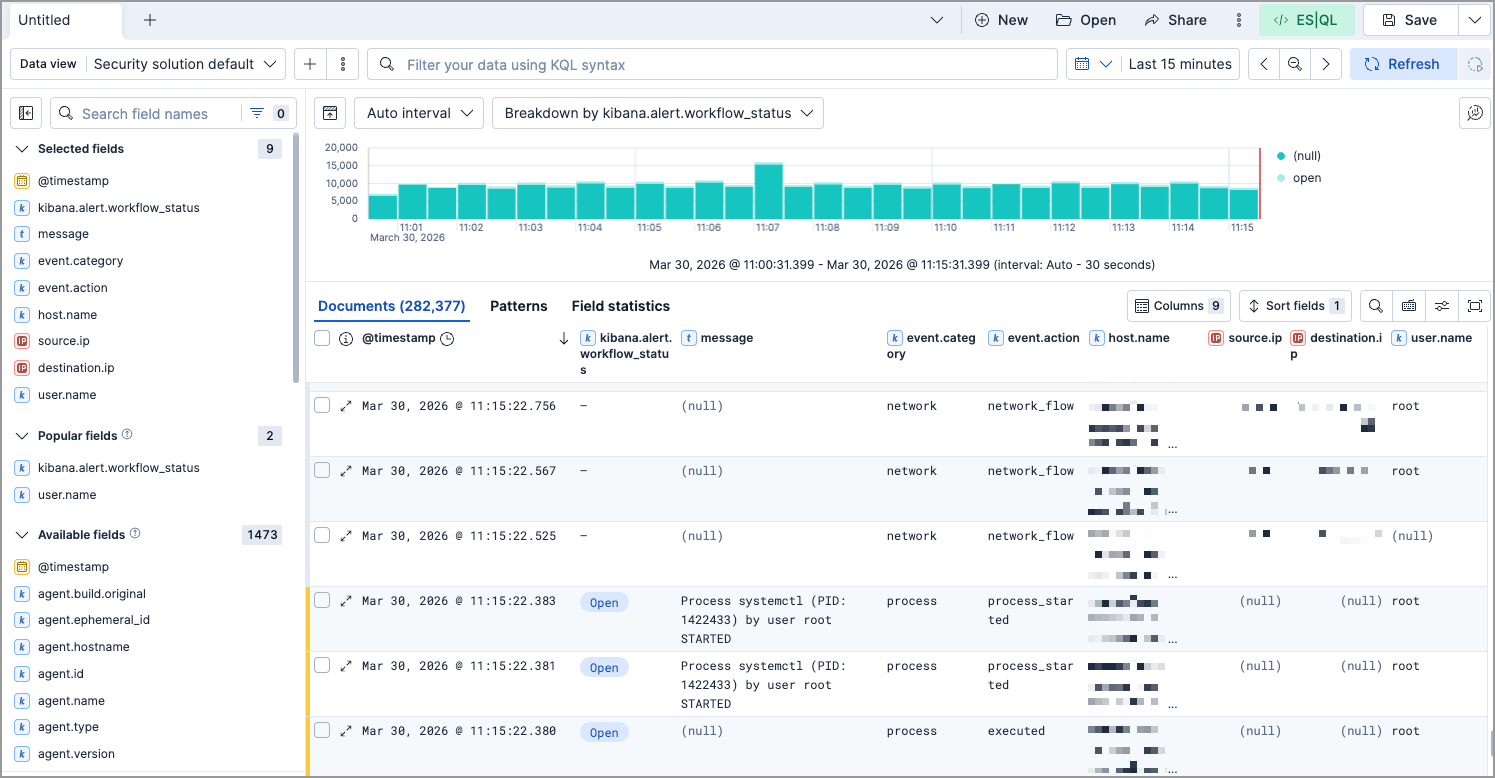
Discover provides a Security-specific experience for exploring alert and event data. When the Security experience is active, Discover adds color-coded row indicators, security-focused default columns, and contextual alert and event details when you expand a document.
For general Discover concepts and features, refer to Discover.
How the Security experience activates depends on your deployment type:
-
The Security experience activates automatically when you open Discover from your Elastic Security Serverless project. -
The Security experience activates when you open Discover from the Elastic Security solution view.
With the Security experience active, Discover adds the following features to help you triage and investigate alerts and events.
Color-coded indicators appear on the left side of each row in the data table, helping you distinguish between alerts and events at a glance:
- Alerts: Yellow indicator
- Events: Gray indicator
When you use a data view that includes security alerts data, such as the default Elastic Security data view, Discover displays pre-configured columns optimized for alert triage.
When you expand an alert or event row in Discover, a details flyout opens. The flyout experience varies by version.
The document flyout includes an overview tab, plus Table and JSON tabs. The Take action button at the bottom lets you interact with the document.
For alerts, the header also displays the status, risk score, assignees, and attached notes.
The overview tab includes the following sections:
- About
- A description of the document. For alerts, shows the rule description and the reason the alert was generated. For events, shows the ECS event category description.
- Investigation
- Highlighted fields relevant to the document. For alerts, also includes a link to the investigation guide if one is defined for the rule.
- Visualizations
- Session view and analyzer previews showing process activity. Click either preview to open a dedicated panel with a full view.
- Insights
-
Correlated alerts and host and user prevalence data. For alerts, also includes threat intelligence matches. Click any subsection to open a dedicated panel with a full view.
The document flyout includes an overview tab, plus Table and JSON tabs. The overview tab surfaces key information to help you quickly understand the document and decide on next steps.
The overview tab includes the following sections:
- About
- An ECS-based description of the event category, helping you understand the type of activity the document represents.
- Description
- The detection rule description. Appears for alert documents.
- Reason
- The reason the alert was generated. Appears for alert documents.
- Explore in Alerts or Explore in Timeline
-
For alerts, links directly to the alert in the Elastic Security app Alerts page. For events, opens the event in Timeline for further investigation.