External systems and apps steps
External systems actions allow your workflows to communicate with third-party services and custom endpoints. You can interact with external systems in the following ways:
- Connector-based actions: Use pre-configured connectors to integrate with services such as Slack and Jira
- HTTP actions: Make HTTP requests to APIs directly or through a configured HTTP connector
Connector-based actions use Kibana's centralized Connectors framework. Before using them, you must first configure a connector.
The step type is a keyword for the service (for example, slack or jira). You must also provide a connector-id at the same level as type.
To view the available connectors, click Actions menu and select External Systems & Apps.
The connector-id field accepts one of the following:
- The unique name you gave the connector (for example,
"my-slack-connector"). This is the recommended method for readability. - The connector's raw ID (for example,
"d6b62e80-ff9b-11ee-8678-0f2b2c0c3c68").
This example uses a pre-configured Slack connector named "security-alerts-channel".
steps:
  - name: notify_security_channel
    type: slack
    connector-id: "security-alerts-channel"
    with:
      message: "High-priority alert: {{ event.name }}. Please investigate immediately."
This example uses a Jira connector named "engineering-project".
steps:
  - name: create_jira_ticket
    type: jira
    connector-id: "engineering-project"
    with:
      projectKey: "ENG"
      issueType: "Task"
      summary: "Automated Task: Review '{{ event.name }}'"
      description: "Workflow '{{ workflow.name }}' requires manual review for a potential issue."
The native http action is a built-in HTTP client for calling external APIs. It supports two modes:
- Configured HTTP connector: For authenticated requests, first configure an HTTP connector. Then reference it from the workflow step with
connector-id. The connector stores the base URL, authentication settings, and secrets using Kibana's centralized Connectors framework. - Direct URL: For simple requests that don't require connector-managed secrets, omit
connector-idand provide the fullurldirectly in the step. Avoid placing secrets directly in workflow YAML.
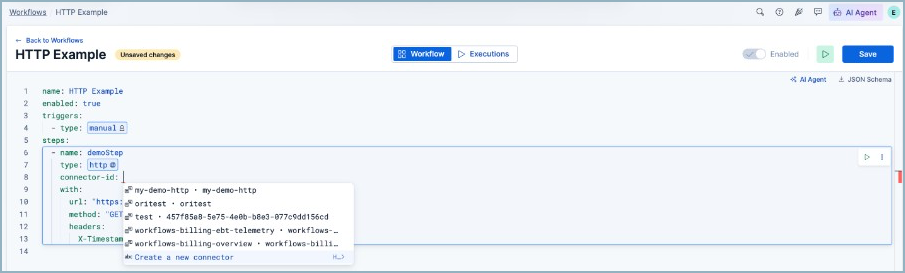
You can create or select a connector without leaving the workflow editor. Enter connector-id: in an HTTP step and select Create a new connector.
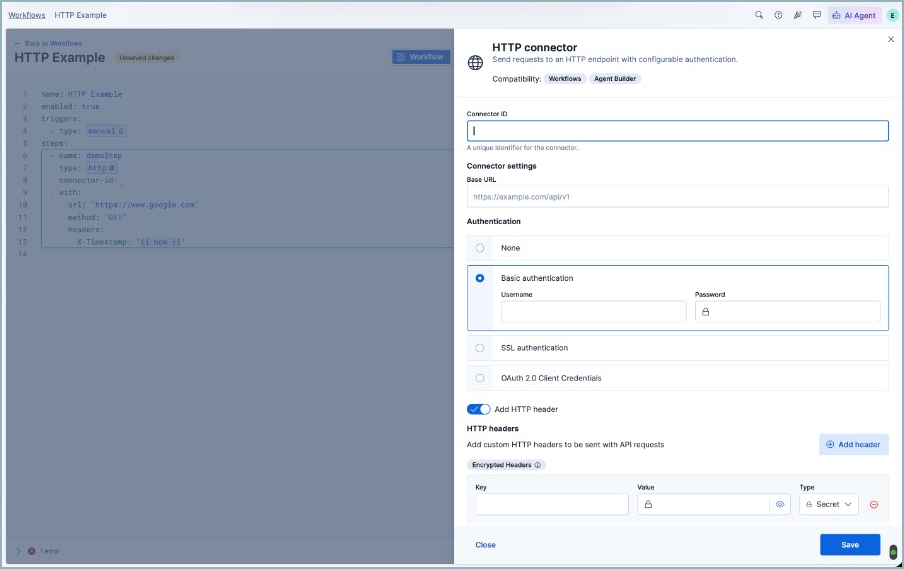
In the connector flyout, set the connector ID, base URL, authentication, and any encrypted headers that should be stored with the connector. After you save the connector, its connector ID is added to the workflow YAML.
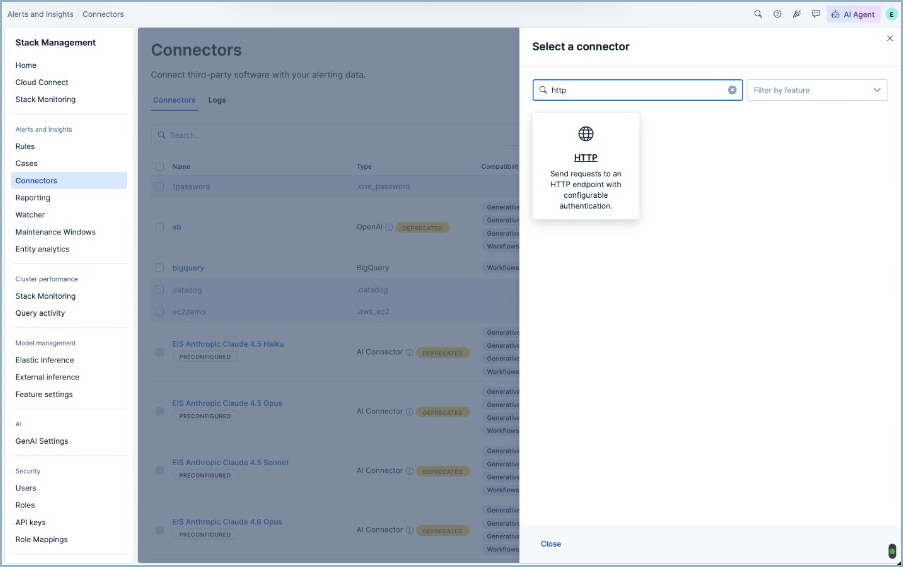
You can also create an HTTP connector from Stack Management → Connectors by selecting the HTTP connector type.
Use the following parameters in the with block to configure the request:
| Parameter | Required | Description |
|---|---|---|
url |
Yes, when connector-id is not provided |
The full URL of the endpoint to call. |
path |
No | The path appended to the configured connector's base URL. Use this with connector-id. |
method |
No (defaults to GET) |
The HTTP method (GET, POST, PUT, PATCH, or DELETE). |
headers |
No | An object with key-value pairs for additional HTTP headers. Request headers take precedence over connector headers. |
query |
No | An object with key-value pairs for query string parameters. |
body |
No | The request body (typically a JSON object). |
Click to show syntax example
Use a configured HTTP connector:
steps:
  - name: trigger_response_action
    type: http
    connector-id: "security-response-api"
    with:
      path: "/v1/response-actions/isolate"
      method: "POST"
      headers:
        Content-Type: "application/json"
      body:
        endpoint_id: "{{ event.agent.id }}"
        reason: "Triggered by workflow '{{ workflow.name }}'"
Call a URL directly without a connector:
steps:
  - name: trigger_custom_automation
    type: http
    with:
      url: "https://hooks.example.com/services/T00000000/B00000000/XXXXXXXXXXXXXXXXXXXXXXXX"
      method: "POST"
      headers:
        Content-Type: "application/json"
      body:
        event_id: "{{ event.id }}"
        message: "Workflow action triggered by '{{ workflow.name }}'"