Triage threshold breaches
A threshold breach occurs when the conditions of a custom threshold rule are met and an alert is generated. Use the alert details page to investigate the breach (understand when it occurred, how severe it is, and what data the rule evaluated) then take action directly from the page.
Open the alert details page to begin your investigation. The page shows when the alert was triggered, its duration, the source (if the rule uses a group by field), and links to the rule definition.
The page includes several charts to help you investigate the breach:
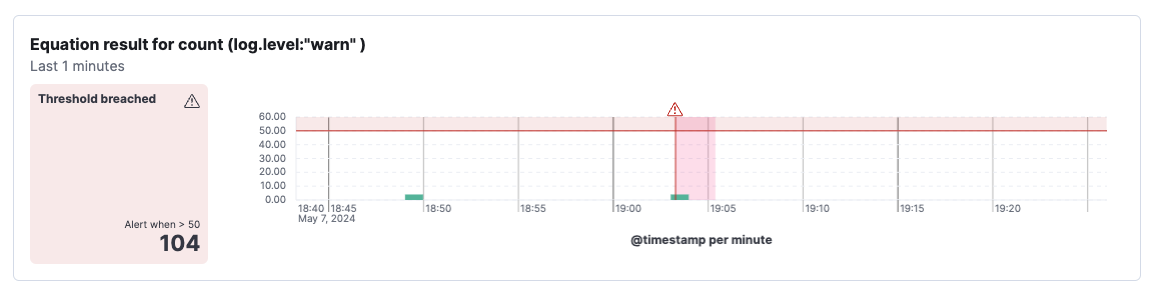
Charts for each condition. A chart is shown for each condition defined in the rule. Look for where the metric crosses the threshold line to pinpoint when the breach began and whether conditions are improving or worsening. The timeline is annotated to mark when the threshold was breached. Hover over an alert icon to see the exact timestamp.
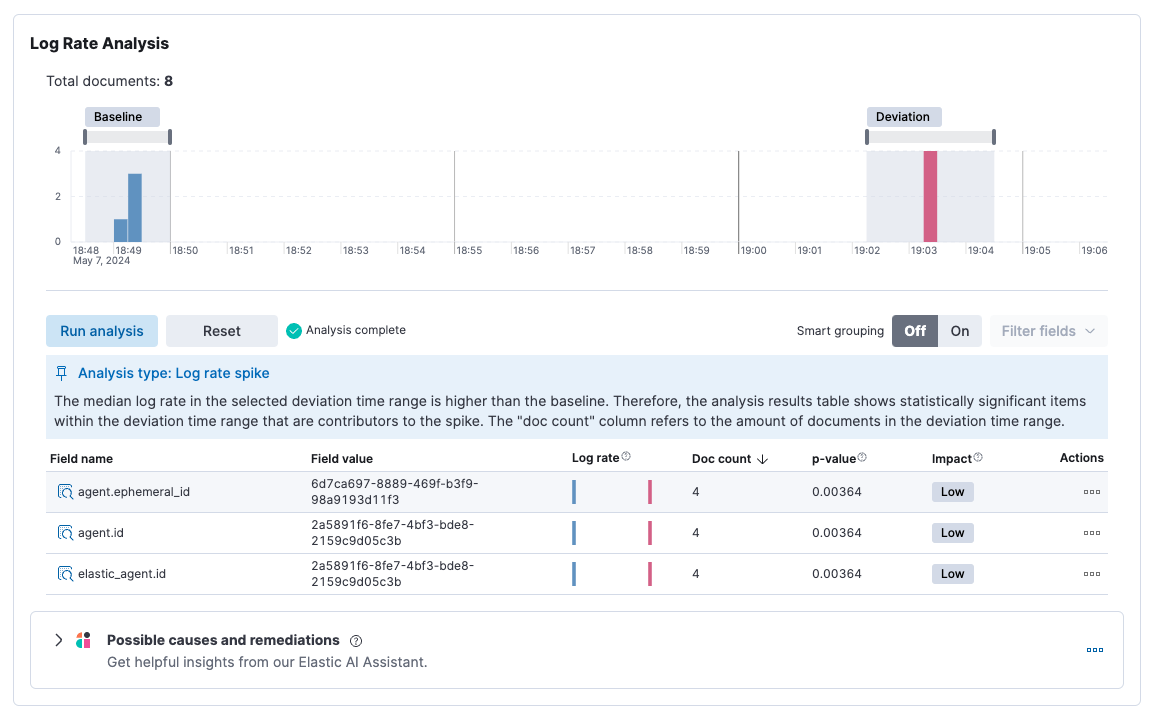
Log rate analysis chart. Available for rules with a single count-based condition. Use log rate analysis to identify what changed in your logs at the time of the breach — significant dips or spikes often point to the root cause. You can adjust the baseline and deviation to refine the analysis. For more information, refer to the AIOps Labs documentation.
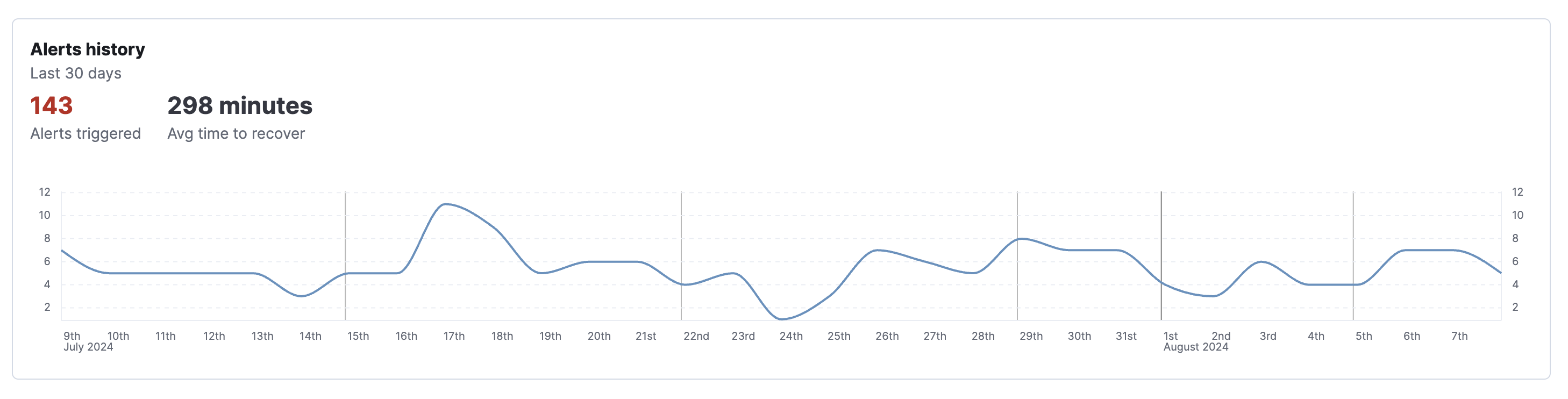
Alerts history chart. Shows alerts for the same rule and group over the last 30 days, including how many triggered per day, the total count, and average recovery time. Use this chart to assess whether the breach is a recurring issue or an isolated event.
If the rule behaved unexpectedly (for example, it ran when it shouldn't have, stayed silent, or evaluated the wrong data) click Rule query inspector from the alert details page to find the exact Elasticsearch query and data the rule used. For more information, refer to Troubleshoot rule behavior with the rule query inspector.
After investigating the alert, you can take the following actions from the alert details page:
- Snooze the rule: Click Snooze the rule to pause notifications for a specific time period or indefinitely. Use this when you're aware of the issue and don't need further notifications while you address it.
- Add to a case: Click the
 icon and select Add to case to attach the alert to a new or existing case. For more information, refer to Cases.
 - Mark as untracked: Click the icon and select Mark as untracked to stop generating actions for the alert. Use this when a rule is disabled or deleted and you want to move its active alerts out of an open state.