View and manage alerts in Elastic Observability
The Alerts page provides a central view of all alerts across your Elastic Observability applications and SLOs. Use it to investigate why an alert fired, review related alerts, manage alert statuses, and take action, from muting or acknowledging individual alerts to organizing them with tags and cases.
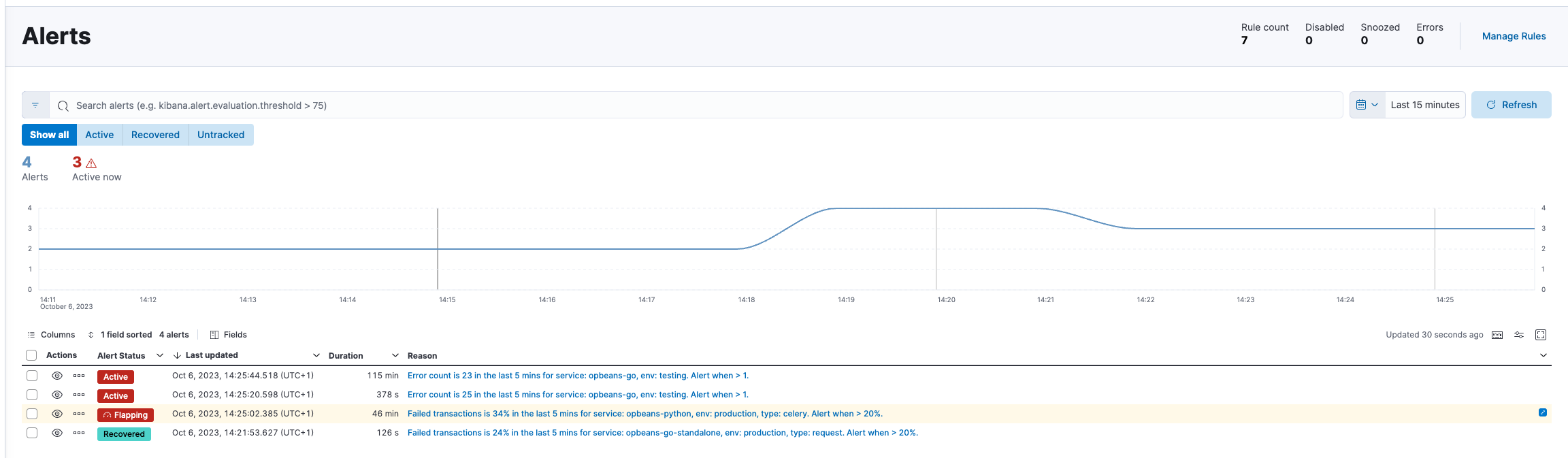
Use the KQL bar to search for specific alerts using Kibana Query Language, or use the time range picker and status filter buttons below it to narrow alerts by time period or status (active, recovered, or untracked).
Use the toolbar buttons in the upper-left to control which columns appear and how the table is sorted:
- Columns: Reorder the columns.
- x fields sorted: Sort the table by one or more columns.
- Fields: Select the fields to display in the table.
You can also use the toolbar buttons in the upper-right to customize the display options or view the table in full-screen mode.
If a rule generated unexpected alerts or failed to generate alerts when you expected it to, use the rule query inspector to examine the underlying Elasticsearch query and the data the rule evaluated. For more details, refer to Troubleshoot rule behavior with the rule query inspector.
There are a few ways to inspect the details for a specific alert.
From the Alerts table, you can click on a specific alert to open the alert detail flyout to view a summary of the alert without leaving the page. There you’ll see the current status of the alert, its duration, and when it was last updated. To help you determine what caused the alert, you can view the expected and actual threshold values, and the rule that produced the alert.
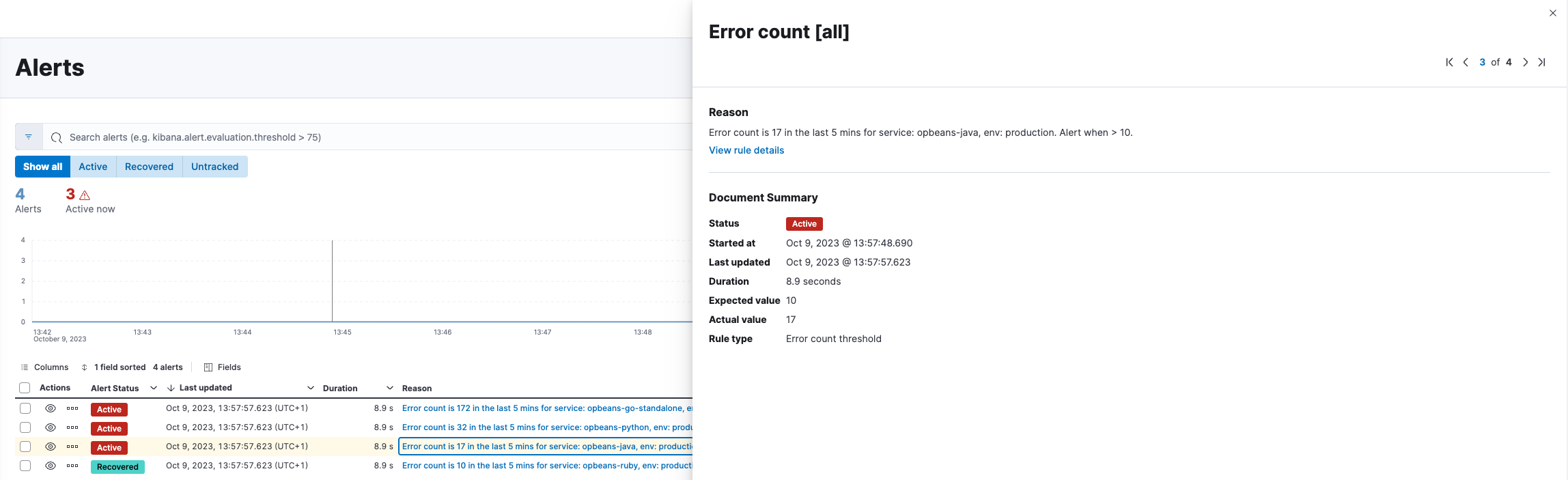
To further inspect the rule:
- From the alert detail flyout, click View rule details.
- From the Alerts table, click the icon and select View rule details.
To view the alert in the app that triggered it:
- From the alert detail flyout, click View in app.
- From the Alerts table, click the icon.
Check related alerts to find other alerts that might be related to the same incident. You can add these alerts to a case and investigate them as a group instead of analyzing them individually.
To find related alerts, go to the Related alerts tab from an alert's details page. Within the table, alerts are ordered from most to least relevant. To only view alerts that were created around the same time as the current alert (+/- 30 minutes), apply the Triggered around the same time filter.
Alerts are ranked by how closely they match the current alert based on timing, tags, group values, and other shared attributes.
There are four common alert statuses:
active- The conditions for the rule are met. If the rule has actions, Kibana generates notifications based on the actions' notification settings.
flapping- The alert switched repeatedly between active and recovered states. If actions are configured to run when its status changes, they are suppressed. Refer to Configure alert flapping to learn more about configuring alert flapping for rules.
recovered-
The conditions for the rule are no longer met. If the rule has recovery actions, Kibana generates notifications based on the actions' notification settings. Recovery actions only run if the rule's conditions aren't met during the current rule execution, but were in the previous one.
An active alert changes to recovered if the conditions for the rule that generated it are no longer met.
A flapping alert changes to recovered when the rule's conditions are unmet for a specific number of consecutive runs. This number is determined by the Alert status change threshold setting, which you can configure under the Alert flapping detection settings.
For example, if the threshold requires an alert to change status at least 6 times in the last 10 runs to be considered flapping, then to recover, the rule's conditions must remain unmet for 6 consecutive runs. If the rule's conditions are met at any point during this recovery period, the count of consecutive unmet runs will reset, requiring the alert to remain unmet for an additional 6 consecutive runs to finally be reported as recovered.
Once a flapping alert is recovered, it cannot be changed to flapping again. Only new alerts with repeated status changes are candidates for the flapping status.
untracked- The rule is disabled, or you’ve marked the alert as untracked. To mark the alert as untracked, go to the Alerts table, click the action menu ( ) to expand the More actions menu, and click Mark as untracked. When an alert is marked as untracked, actions are no longer generated and the alert's status can no longer be changed. You can choose to move active alerts to this state when you disable or delete rules.
Acknowledge an alert to explicitly indicate that someone is investigating it. Acknowledged alerts have their kibana.alert.workflow_status set to acknowledged, which displays a badge in the alert lifecycle status cell.
Acknowledging an alert does not suppress future notifications or affect rule recovery. The alert continues to update its status normally.
To acknowledge an alert, go to the Alerts table, click the action menu for the appropriate alert, then select Acknowledge. To revert the acknowledgment, from the action menu, select Unacknowledge.
To filter for acknowledged alerts in the Alerts table, enter kibana.alert.workflow_status : "acknowledged" in the KQL bar.
If an alert is active or flapping, you can mute it to temporarily suppress future actions. While muted, the alert's status will continue to update but rule actions won't run. All future alerts with the same alert ID will also be muted. You can mute alerts in the following ways:
You can mute individual alerts or multiple ones:
- Mute individual alerts: Find the Alerts management page using the navigation menu or the global search field, open the action menu ( ) for the appropriate alert, then select Mute.
- Bulk-mute alerts: Select one or more alerts from the Alerts management page, click Selected x alerts at the upper-left above the table, then select Mute selected. Select the Unmute selected option to unmute alerts. Muted alerts display the icon in the Alerts table.
You can only mute individual alerts. To mute an alert, find the Alerts management page using the navigation menu or the global search field, click the action menu icon for the appropriate alert, then select Mute.
To permanently suppress an alert's actions, open the actions menu for the appropriate alert, then select Mark as untracked. In this case, the alert's status is no longer updated and actions are no longer run. These changes are only applied to the alert that you untracked and cannot be reverted. Future alerts with the same alert ID are unaffected.
To affect the behavior of the rule rather than individual alerts, check out Snooze and disable rules.
Use alert tags to organize related alerts into categories that you can filter and group. For example, use the Production alert tag to label a group of alerts as notifications from your production environment. Then, to find alerts with the Production tag, enter the kibana.alert.workflow_tags : "Production" query into the Alert's table KQL bar.
To display alert tags in the Alerts table, click Fields, then add the kibana.alert.workflow_tags field.
To apply or remove alert tags on individual alerts:
Go to the Alerts table, click the More actions menu ( ) in an alert’s row, then click Edit tags.
In the flyout, do one of the following:
Apply a new tag: Enter a new tag into the search bar, then select the Add tag name as a tag or click enter on your keyboard to apply your changes.
Remove existing tags: Click the tag that you want to remove. To remove all tags from the alert, click Select none.
ImportantRemoving tags from an alert permanently deletes them.
Click Save selection to apply your changes to the alert.
To apply or remove alert tags on multiple alerts, select the alerts you want to change, then click Selected x alerts at the upper-left above the table. Click Edit alert tags, select or unselect tags, then click Save selection.
To add one or more alerts to a case for tracking and collaboration, refer to Attach objects to cases.
Manage the size of alert indices in your space by clearing out alerts that are older or infrequently accessed. You can do this by running an alert cleanup task, which deletes alerts according to the criteria that you define.