Create and manage datasets in the Kibana UI
This feature is experimental. It is not intended for production use and there are no guarantees around performance, scale, or stability in this release.
In the Kibana UI, you create and manage datasets from the Datasets tab under Data management > ES|QL Data Federation.
To use the UI, enable it in Kibana first. Every dataset reads from a data source. If you haven't connected one yet, you can connect it from the Add dataset wizard: select Connect new data source in the Data source menu.
The Datasets tab lists each dataset with its data source, data source type, resource, and description. You can search your datasets, filter them by data source, and add new ones. Each row has the following actions:
- Open in Discover (
): Opens Discover with a
FROM <dataset>query. - Edit and Delete: Click More actions ( ) at the end of the row, then select an action.
The following example shows two datasets that read from the same data source:
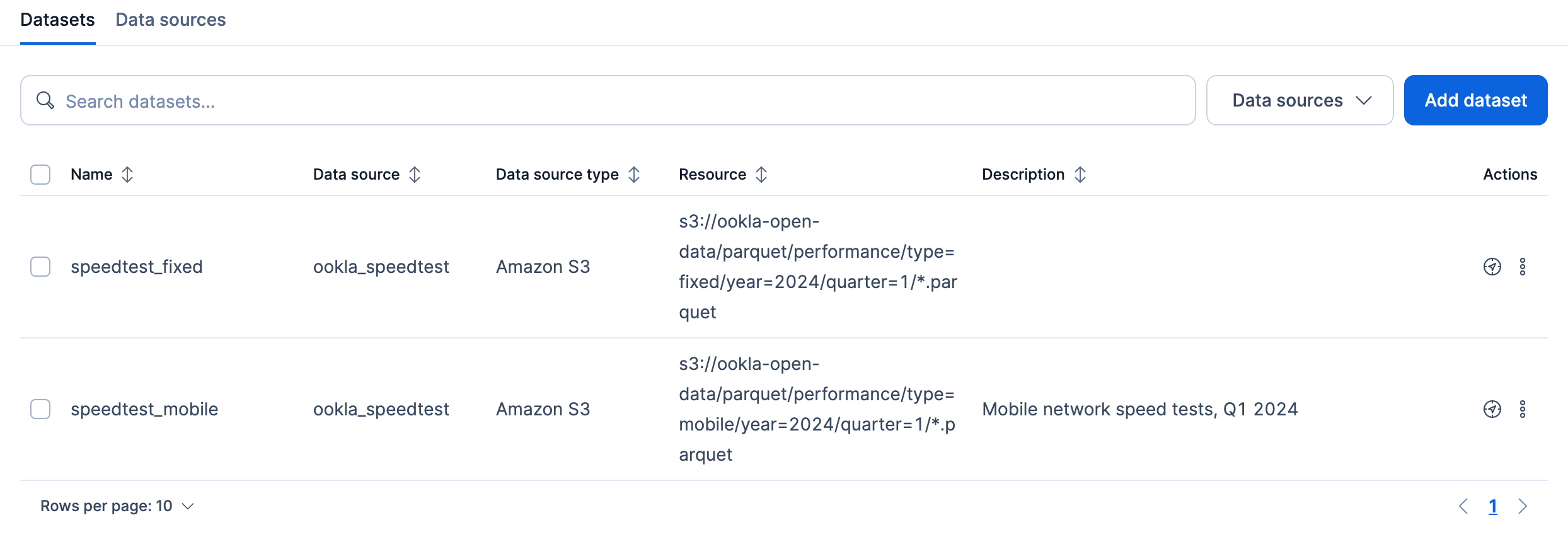
Click Add dataset to open a four-step wizard. A progress bar at the top of the page shows each step:

After you complete a step, you can return to it by clicking it in the progress bar.
The first step sets what the dataset reads:
- Data source: The connected data source to read from. To connect a new one without leaving the wizard, select Connect new data source.
- Dataset name: A unique name for use in queries. Names must be lowercase and cannot begin with
-,_, or+. A dataset cannot share a name with any existing index, data stream, alias, or view. - Description (optional): Up to 1,000 characters.
- Resource: The URI and glob pattern that selects the files to read. Refer to resource patterns for the pattern language.
- Format: Detected from the file extension in Resource. Select a format yourself when the pattern has no extension or matches more than one format. Detection never replaces a format you select. Refer to supported file formats.
Creating a dataset doesn't test whether the data source can read the files. Before you query the dataset, grant read access in your cloud provider.
The second step controls how the files are read. If your files match the defaults for their format, skip it. Hidden files, temporary files, and Delta Lake logs are already excluded, and Hive-style folder paths such as year=2024/ are read as columns automatically.
Change settings in these cases:
- Your CSV or TSV files don't use the default layout:
- For a separator other than a comma, set Delimiter.
- For files without a header row, turn off Header row. Columns are then named by position, such as
col0andcol1. - For files that mark missing values with a string such as
NA, set Null value.
- Your dates in CSV, TSV, or NDJSON files aren't in ISO 8601 format: set Date and time format.
- Your folder paths encode values in a pattern other than
key=value: set Partition detection to Template and describe the pattern. - Some rows are malformed: by default, one bad row fails the query. To skip bad rows or read their bad fields as null, change Error mode.
For CSV and TSV files, the settings you're most likely to change are grouped under Commonly adjusted settings, with each field's default shown below it:
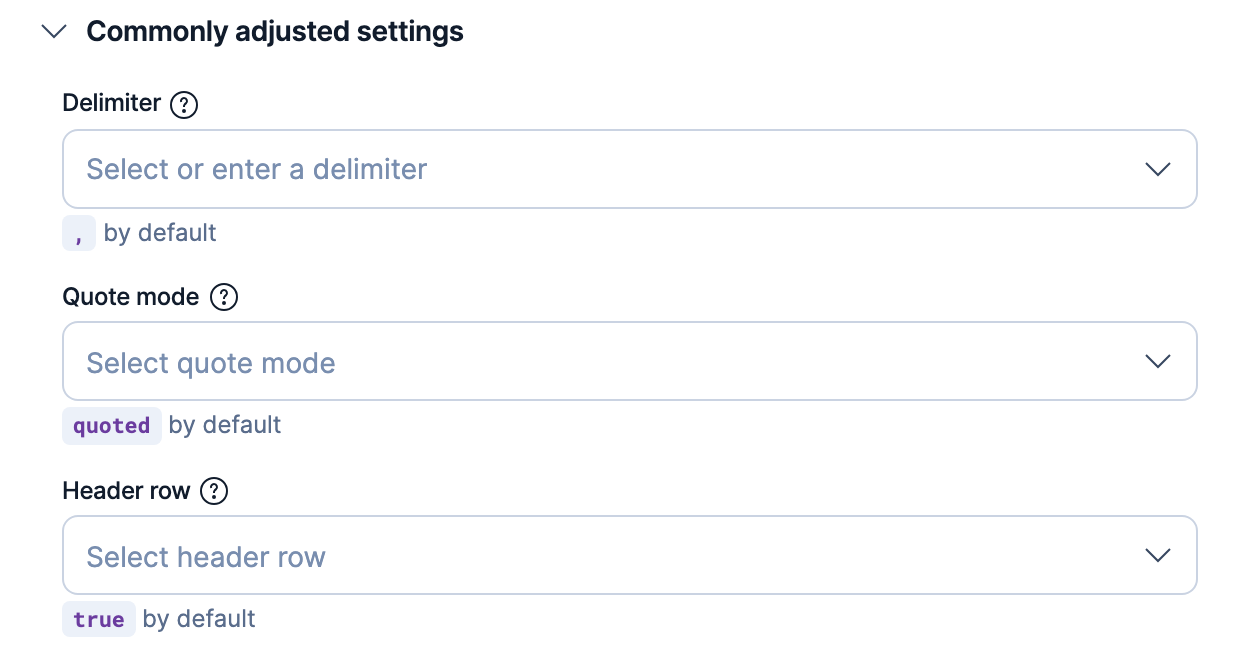
To learn what each setting does, refer to dataset settings.
The third step sets the dataset's schema. To learn how declared and inferred columns combine, refer to Schema inference for datasets in ES|QL Data Federation > Declare a schema explicitly.
- Enable time-based filtering: On by default. In Field name, enter the date column to map to
@timestamp, so queries and dashboards can filter the dataset by time. - Infer unmapped fields: The default. Fields you don't map are inferred from the files. To choose how schemas from different files are combined, select Configure schema resolution.
- Use mapped fields only: Only the fields you map are available to query. You must map at least one field other than
@timestamp. - Add field: Maps a column. Set its Field type and the Field name to use in queries. If the column has a different name in your files, enter that name in Original field name.
If your files have no date column, turn off Enable time-based filtering. Otherwise, you can't move to the next step without entering a Field name.
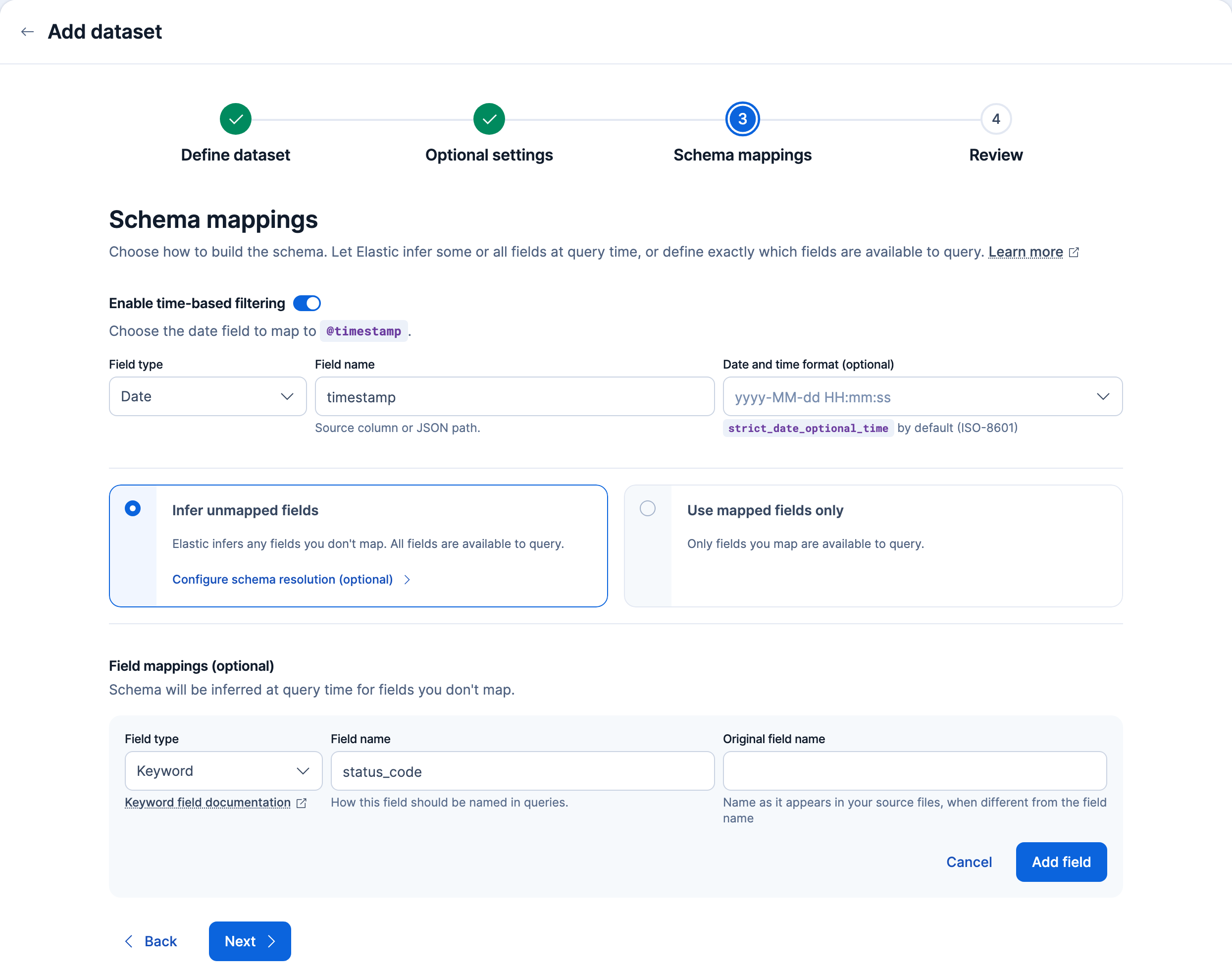
The following example maps two columns and infers the rest:
- The
timestampcolumn is mapped to@timestamp. - The Add field form declares
status_codeas a Keyword field. Because Infer unmapped fields is selected, this overrides the type inferred forstatus_code. - Every other column is still inferred from the files.
The last step summarizes the dataset on the Summary tab. The Request tab shows the equivalent create request, which you can copy and run in the Dev Tools Console to create the same dataset with the API:
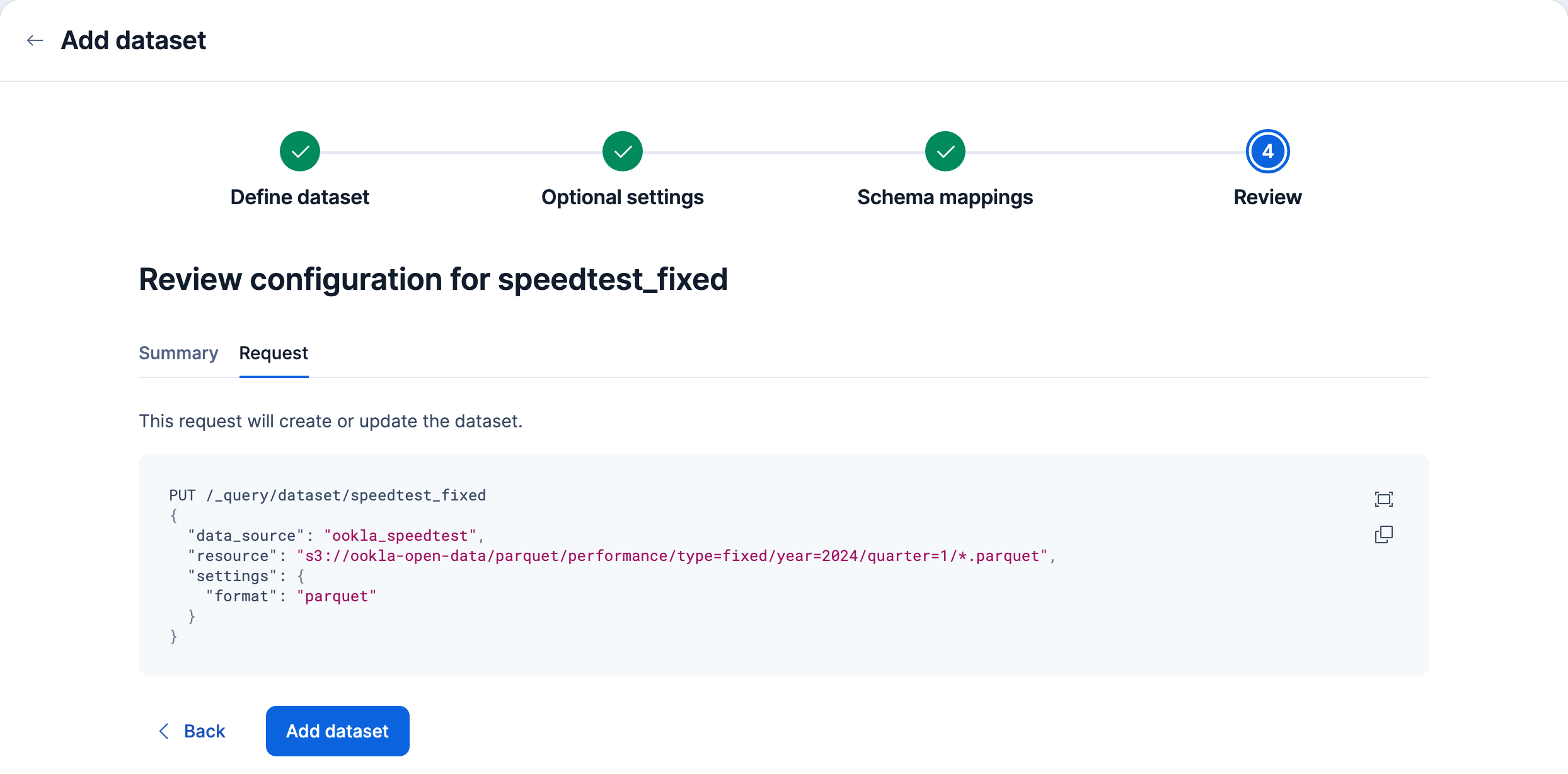
Click Add dataset to create the dataset.
To change a dataset:
- Click More actions ( ) at the end of the dataset's row.
- Select Edit. The wizard opens with the dataset's current configuration.
- Update the settings in any step.
- On the Review step, click Save.
Changing the Dataset name saves the dataset under the new name and then deletes the dataset with the old name. Queries that use the old name stop working.
After creating a dataset, query it with ES|QL. To change how the dataset selects or interprets files, return to define a dataset.