Deployment or Cluster view in AutoOps
The Deployment view (for Elastic Cloud Hosted deployments) or Cluster view (for ECE, ECK, and self-managed clusters), is the event control panel that gives you an overview of the events, resource usage, and performance of your deployments or clusters.
To get to this view, go to AutoOps in your deployment or cluster and select Deployment or Cluster from the side navigation.
Use the Deployment or Cluster dropdown at the top of the screen to select which deployment or cluster you want to view, and use the date and time picker to select a time period for the data shown.
The Deployment or Cluster view shows the following information.
The Events over time panel shows events triggered in the selected deployment or cluster charted across the selected time period. The information is displayed in a color-coded heat map to help you understand when and how often a particular event occurred.
Click on any tile to view a flyout with additional details about the particular event it represents. Refer to AutoOps events for more details.
The Open events tab shows open events in the selected deployment or cluster. Select an event to view a flyout with additional details.
When the conditions that triggered the event no longer exist, the event is automatically set to close and appear in the Event history tab.
The Event history tab shows events in the selected deployment or cluster that were triggered in the past but are now closed because of changed conditions.
Let's say your cluster experiences a peak in search rate, triggering a "Too many tasks on queue" event. When your cluster comes down from that peak, your search rate relaxes and the event is no longer an issue, but it will appear in the Event history tab for your record.
A closed event doesn't necessarily mean that the issue has been resolved. It means that AutoOps does not currently detect it.
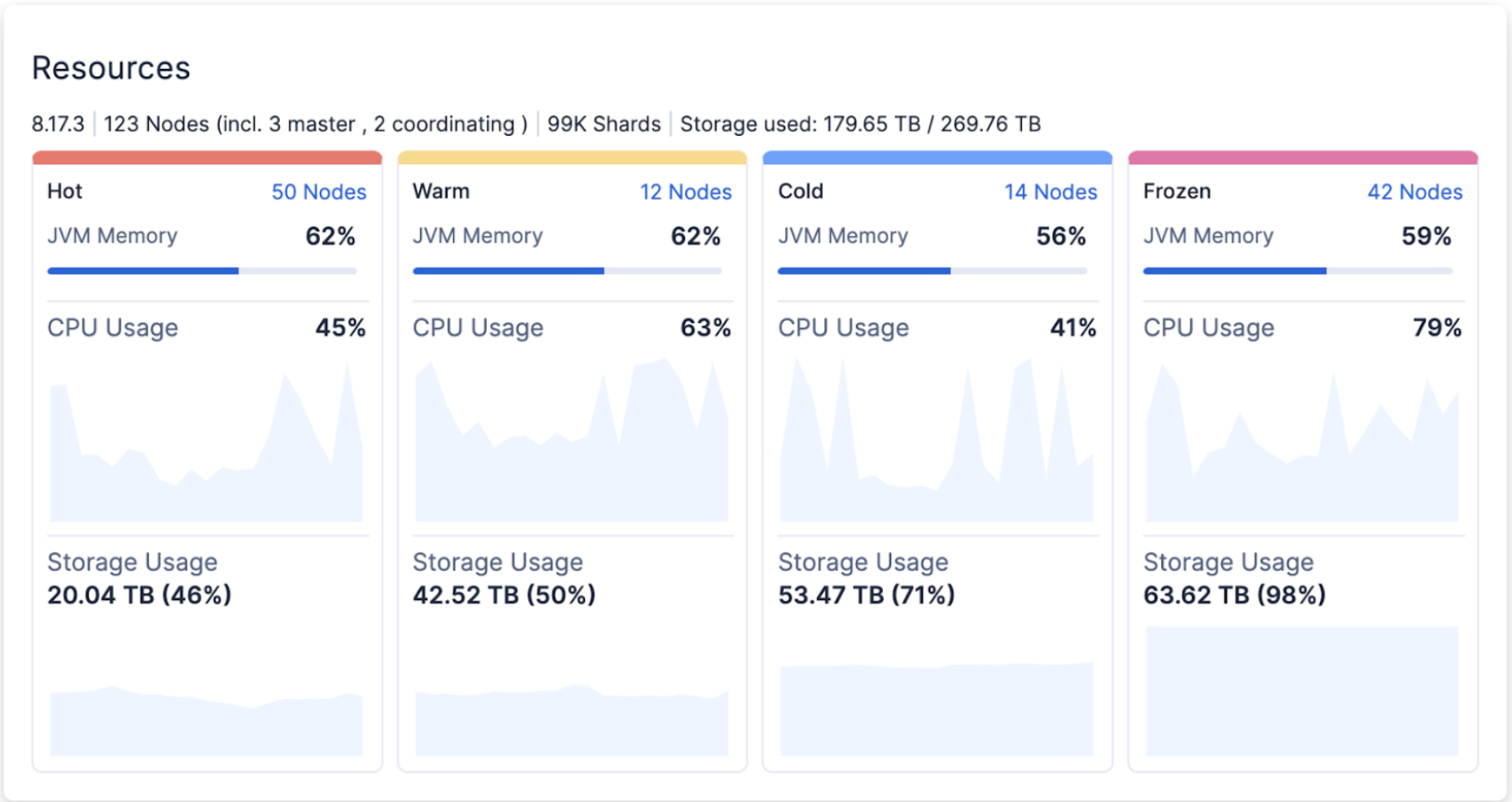
The Resources panel provides a quick overview of Elasticsearch cluster resource usage. The resources are presented based on their respective data tiers and include usage of JVM memory, system memory, CPU, and storage over the selected time period. This panel also offers essential cluster information such as the Elasticsearch version, total number of nodes, total number of shards, and total volume of used storage.
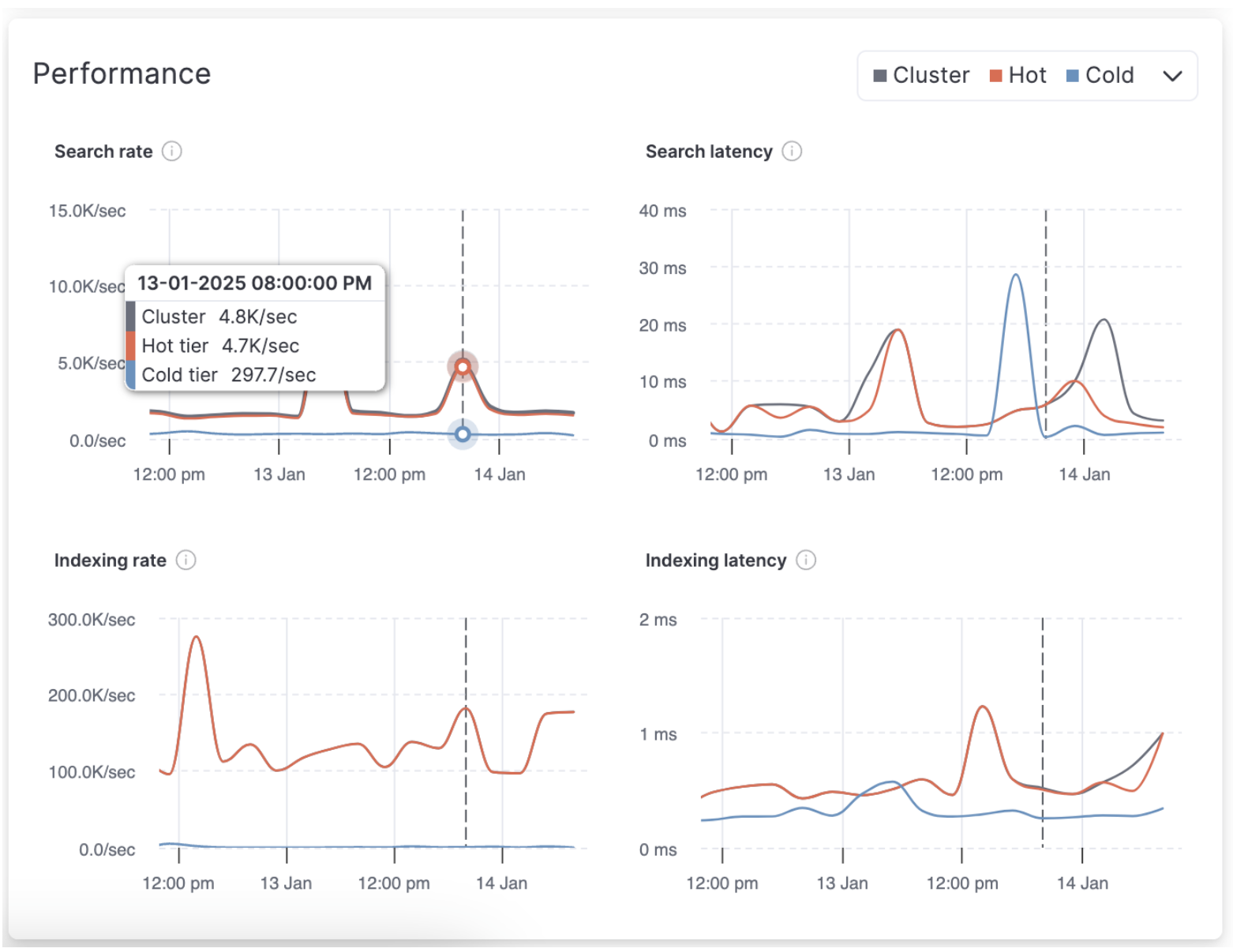
The Performance panel shows the following key performance metrics across all shards in the deployment or cluster, and within the selected data tiers:
- Search rate: The number of search requests executed per second.
- Search latency: The average latency of search operations.
- Indexing rate: The number of documents indexed per second.
- Indexing latency: The average latency of indexing operations.