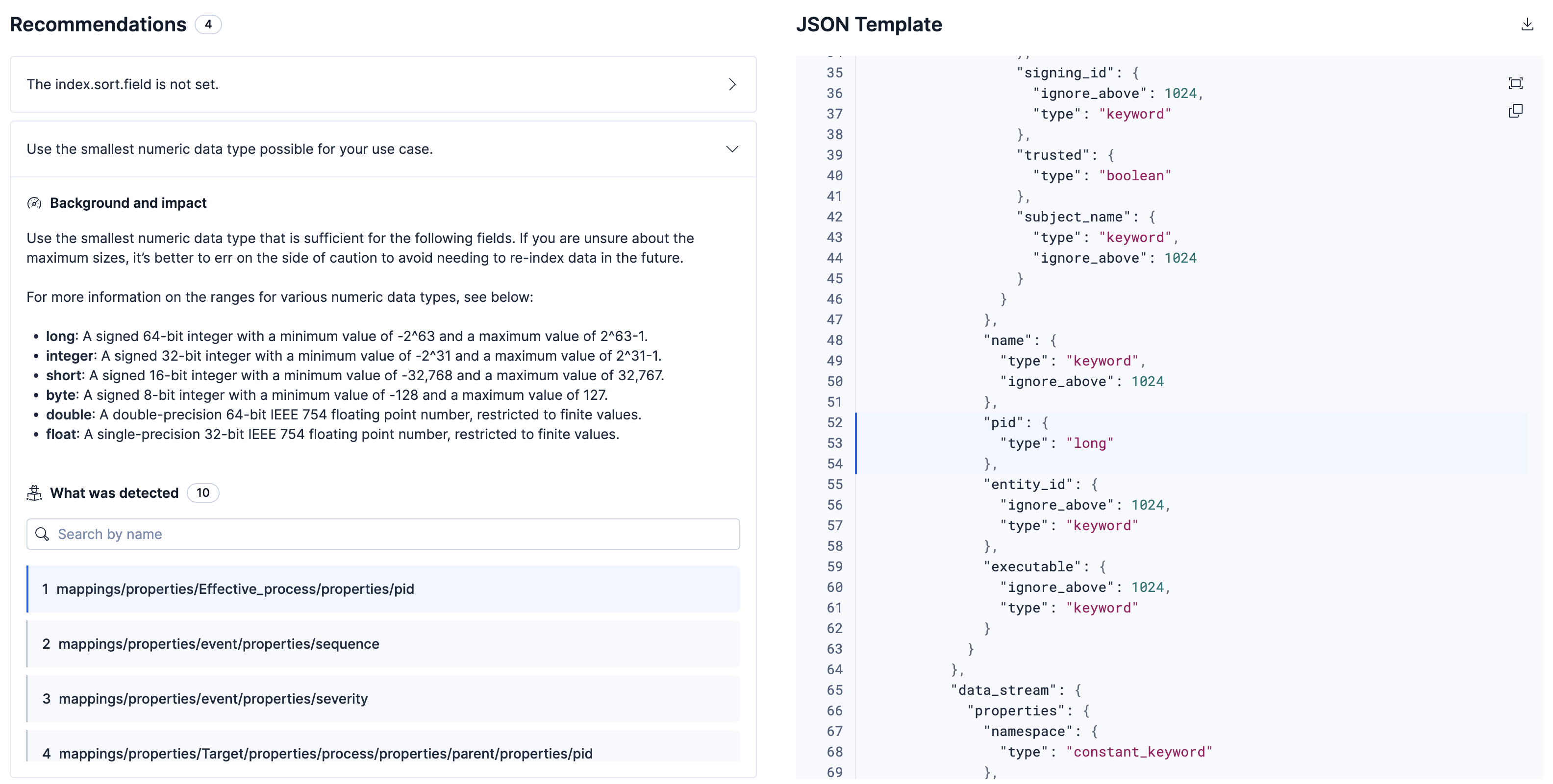
Template Optimizer view in AutoOps
The Template Optimizer view offers detailed recommendations for optimizing templates. When AutoOps identifies a recommended change, it logs the template sorted by when the related event was opened, so you can prioritize recent issues. Select a template to review recommendations and inspect its JSON definition.
Use the Deployment or Cluster dropdown at the top of the screen to select the deployment or cluster for which you want to view recommendations.
To get to the Template Optimizer view, go to AutoOps in your deployment or cluster and select Template Optimizer from the side navigation.
The main view shows a list of templates that AutoOps has identified for optimization. Select a template to view the following information.
Recommendations are grouped by the issue detected. Expand each ribbon to view the background and impact of the issue, recommended next steps to fix it, and every instance of where it was detected.
This section shows the full JSON of the selected template. When you expand a recommendation, the page automatically jumps to the relevant area in the JSON. You can also download, expand, or copy the JSON as needed.