Create and manage custom skills
Custom skills let you package domain-specific knowledge and tools into reusable instruction sets that can be assigned to any agent. For an overview of how skills work, refer to Skills in Elastic Agent Builder.
Create a custom skill when you have domain-specific knowledge or procedures that are not covered by the built-in skills. Custom skills are particularly useful when you need to:
- Standardize a workflow: Encode a repeatable process (such as a triage runbook or an onboarding checklist) so that every agent follows the same steps.
- Share expertise across agents: Write instructions once and assign them to multiple agents instead of duplicating the same guidance in each agent's system prompt.
- Scope tools to a task: Bundle specific tools with the instructions that explain how and when to use them, so the agent only has access to relevant tools for the task at hand.
- Keep agent prompts clean: Move detailed, task-specific instructions out of the system prompt and into a skill that loads only when needed.
You can create a custom skill in three ways:
- Use the Elastic Agent Builder UI.
- Use the Kibana REST API.
- Ask an agent to create it from Agent Chat.
Follow these steps to create a custom skill and add it to your skill library. Once saved, you need to add the skill to an agent before the agent can use it.
You can create a skill from Manage components → Skills, or inline when adding skills to an agent from Customize → Skills.
For guidance on writing effective descriptions and instructions, refer to Skill creation guidelines.
-
Open the Create skill dialog
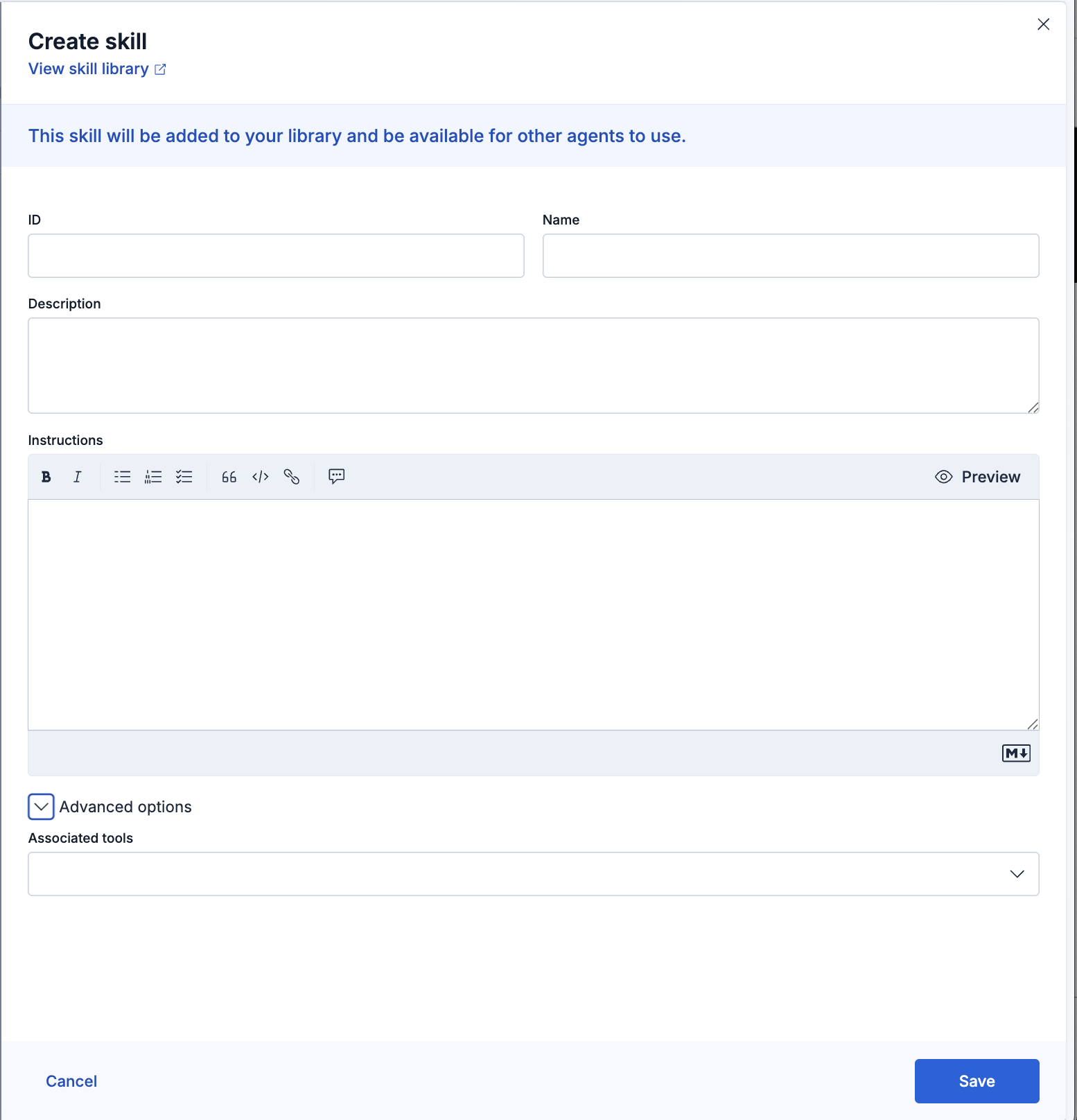
Go to Manage components → Skills, then select Create a skill.
-
Fill in the skill fields
Complete the fields in the Create skill dialog:
- ID: A unique identifier for the skill.
- Name: A human-readable name (64-character limit).
- Description: A short description of when the agent should use the skill (1024-character limit). This field is always included in the agent's context, so it should be specific and semantically distinct from other skill descriptions.
- Instructions: The skill content in Markdown. Include trigger conditions, step-by-step instructions, examples, and edge cases. Corresponds to
contentin the API. - Referenced content
: Named content blocks that give the agent supplementary knowledge such as runbooks, playbooks, or reference material it can read selectively when the skill is triggered. Available under Advanced options in the UI. Corresponds to referenced_contentin the API. - Associated tools: The tools the skill should have access to (up to 100). Available under Advanced options in the UI. Corresponds to
tool_idsin the API.
-
Save the skill
Select Save. The skill is added to your library and becomes available to assign to any agent.
-
Add the skill to an agent
Custom skills in your library are not available to your agents until you explicitly add them. To add a skill, go to Customize → Skills on the agent you want to configure and select Add skills. From here you can:
- Import from skill library: Select an existing skill from Manage components → Skills. After importing, make sure the skill is turned on in the agent's skill list.
- Create a skill: Build a new skill and add it to this agent in one step. The skill is enabled for the agent automatically and also saved to your library.
Built-in skill availability depends on your deployment type. Refer to Built-in skills reference for details.
-
Test the skill
Send the agent realistic queries that should trigger the skill. Check that the agent selects the skill when expected, follows your instructions correctly, and handles the edge cases you documented. Revise the description or instructions based on what you observe.
For guidance on writing effective instructions, refer to Skill creation guidelines.
Create and manage skills programmatically using the Kibana REST API. The API supports all the same fields as the UI, including referenced_content for additional named content blocks the agent can read selectively. For request examples, refer to Skills APIs.
- List skills
GET /api/agent_builder/skills - Create a skill
POST /api/agent_builder/skills - Get a skill by ID
GET /api/agent_builder/skills/{skillId} - Update a skill
PUT /api/agent_builder/skills/{skillId} - Delete a skill
DELETE /api/agent_builder/skills/{skillId}
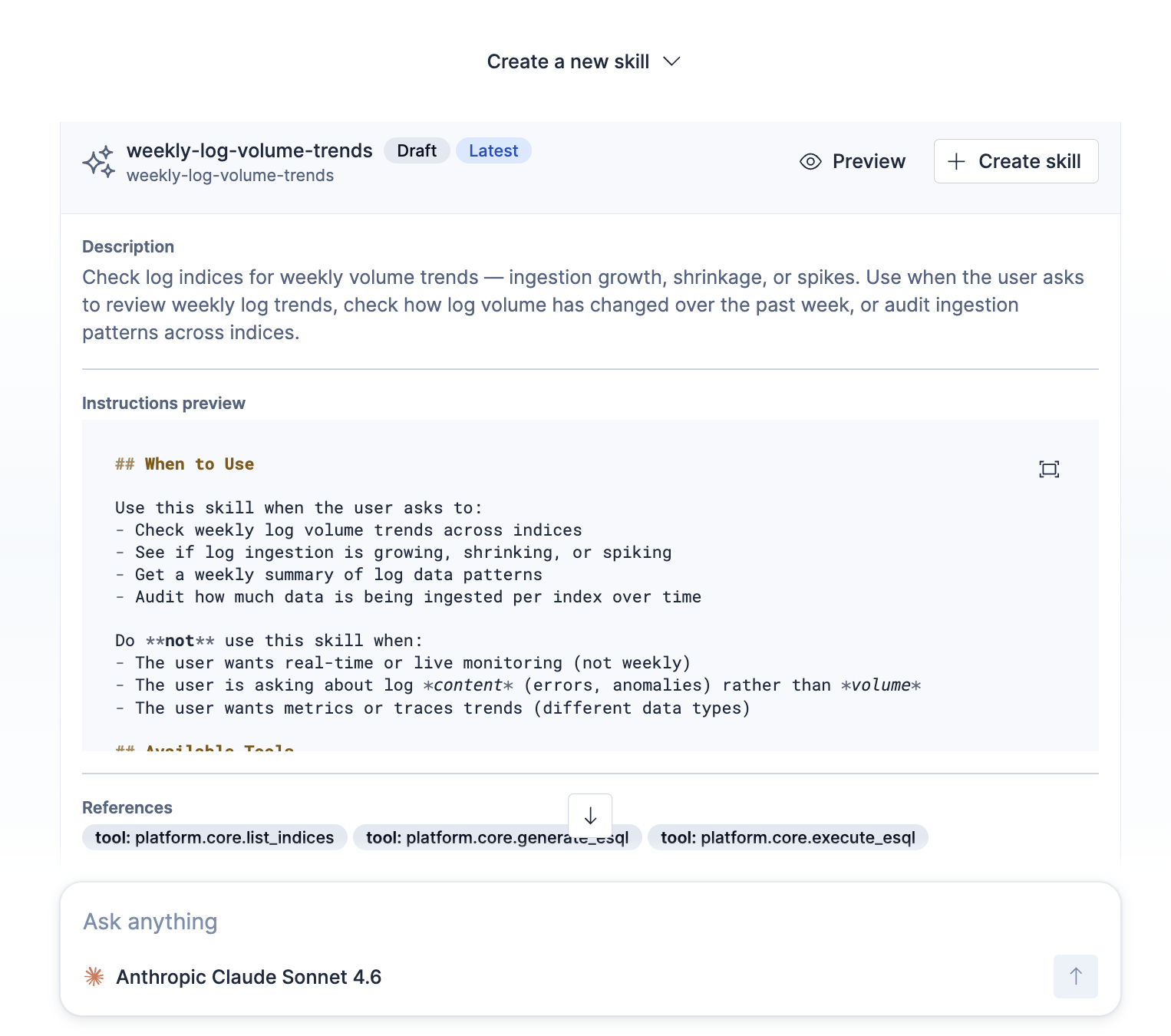
Open a conversation with any agent and ask it to create a skill. For example, "Create a skill that handles production alerts using our incident runbook." The agent asks clarifying questions when it needs more information, then presents the generated skill as a draft.
Review the description, instructions, associated tools, and references, and ask the agent to edit anything that needs changing. When the draft is ready, select Create skill. The skill is not added to your library until you select Create skill.