Add and manage exceptions
Exceptions prevent a rule from generating alerts when specific conditions are met. You can add exceptions to individual rules, or create shared exception lists that apply to multiple rules.
To use exceptions, your role must have the appropriate access. To learn how to access other detection features, refer to Turn on detections.
- View only access: To view exceptions for individual and multiple rules, your role needs at least
ReadKibana privileges for theSecurity > Rules, Alerts, and ExceptionsKibana feature and deselect Manage Exceptions for theExceptionssub-feature. - Manage access: To create and manage exceptions for individual and multiple rules, your role needs at least
ReadKibana privileges for theSecurity > Rules, Alerts, and ExceptionsKibana feature and ensure Manage Exceptions remains selected for theExceptionssub-feature.
- View only access: To view exceptions for individual and multiple rules, your role needs at least
ReadKibana privileges for theSecurity > Rules, Alerts, and ExceptionsKibana feature. - Manage access: To create and manage exceptions for individual and multiple rules, your role needs
AllKibana privileges for theSecurity > Rules, Alerts, and ExceptionsKibana feature.
Manage access: To create and manage exceptions for individual and multiple rules, your role needs All Kibana privileges for the Security > Security feature.
For required privileges to view and manage Elastic Endpoint exceptions, refer to Elastic Defend feature privileges.
You can add exceptions from several places in the UI:
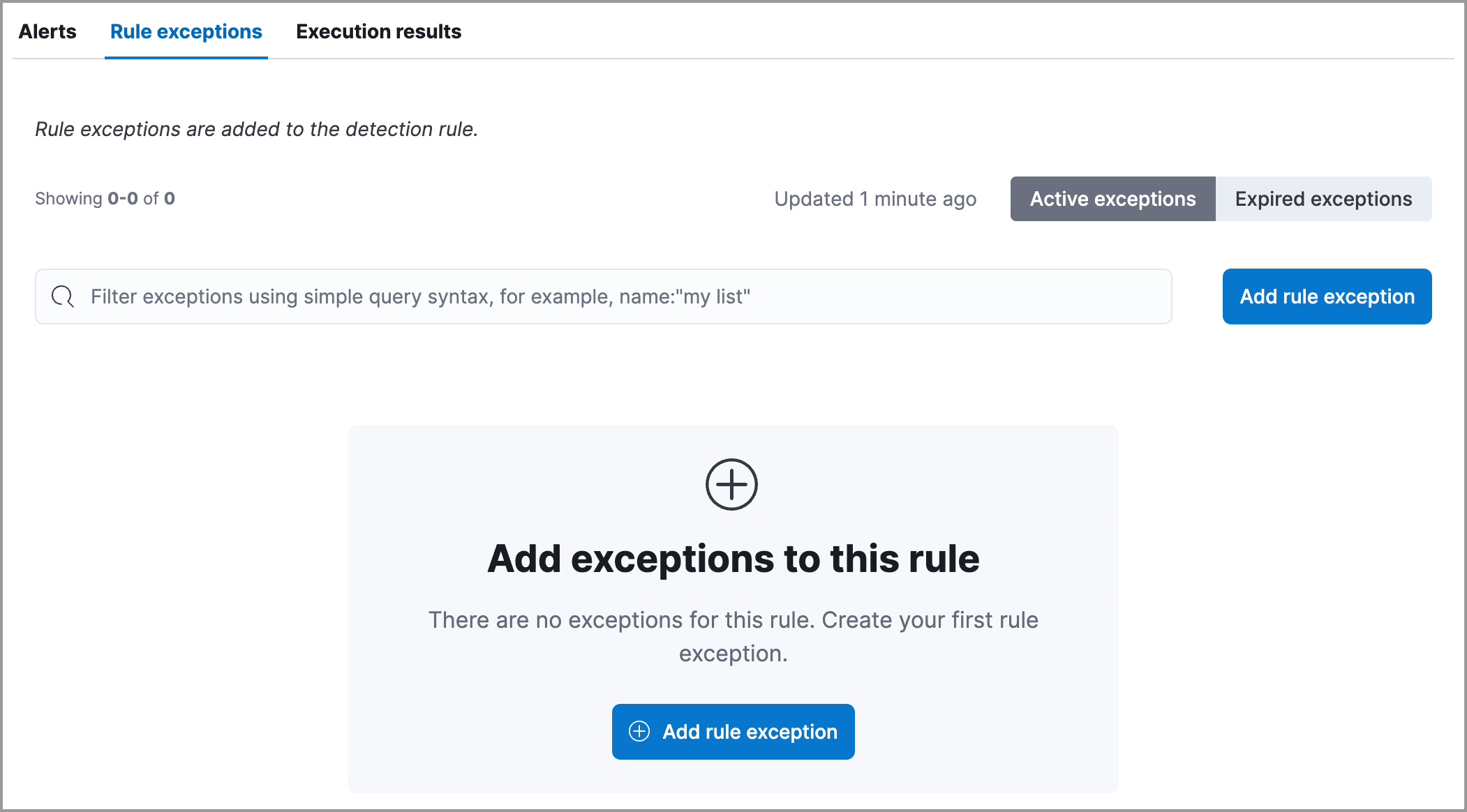
Rule details page: Find Detection rules (SIEM) in the navigation menu, select a rule, scroll to the Rule exceptions tab, and click Add rule exception.
Alerts table: Find Alerts in the navigation menu, go to the alert, click the More Actions menu , and select Add rule exception.
Alert details flyout: Click View details on an alert, then click Take action > Add rule exception.
Shared Exception Lists page: Find Shared exception lists in the navigation menu, click Create shared exception list > Create exception item.
After selecting one of the entry points above, the Add rule exception flyout opens. Follow these steps:
Name the exception.
Add conditions that define when the exception applies. When the exception's query evaluates to
true, the rule does not generate alerts even when its other criteria are met.NoteWhen you create an exception from an alert, conditions are auto-populated with relevant alert data. Data from custom highlighted fields is listed first.
Field: Select a field to identify the event being filtered.
NoteA warning displays for fields with conflicts. Using these fields might cause unexpected exceptions behavior. Refer to Troubleshooting type conflicts and unmapped fields for more information.
Operator: Select an operator to define the condition:
is|is not— Must be an exact match of the defined value.is one of|is not one of— Matches any of the defined values.exists|does not exist— The field exists.is in list|is not in list— Matches values in a value list.Note- An exception defined by a value list must use
is in listoris not in listin all conditions. - Wildcards are not supported in value lists.
- If a value list can't be used due to size or data type, it'll be unavailable in the Value menu.
- An exception defined by a value list must use
matches|does not match— Allows you to use wildcards in Value, such asC:\\path\\*\\app.exe. Available wildcards are?(match one character) and*(match zero or more characters). The selected Field data type must be keyword, text, or wildcard.NoteSome characters must be escaped with a backslash, such as
\\for a literal backslash,\*for an asterisk, and\?for a question mark. Windows paths must be divided with double backslashes (for example,C:\\Windows\\explorer.exe), and paths that already include double backslashes might require four backslashes for each divider.ImportantUsing wildcards can impact performance. To create a more efficient exception using wildcards, use multiple conditions and make them as specific as possible. For example, adding conditions using
process.nameorfile.namecan help limit the scope of wildcard matching.
Value: Enter the value associated with the Field. To enter multiple values (when using
is one oforis not one of), enter each value, then press Return.NoteThe
is one ofandis not one ofoperators support identical, case-sensitive values. For example, if you want to match the valuesWindowsandwindows, add both values to the Value field.In the following example, the exception prevents the rule from generating alerts when the
svchost.exeprocess runs on hostnamesiem-kibana.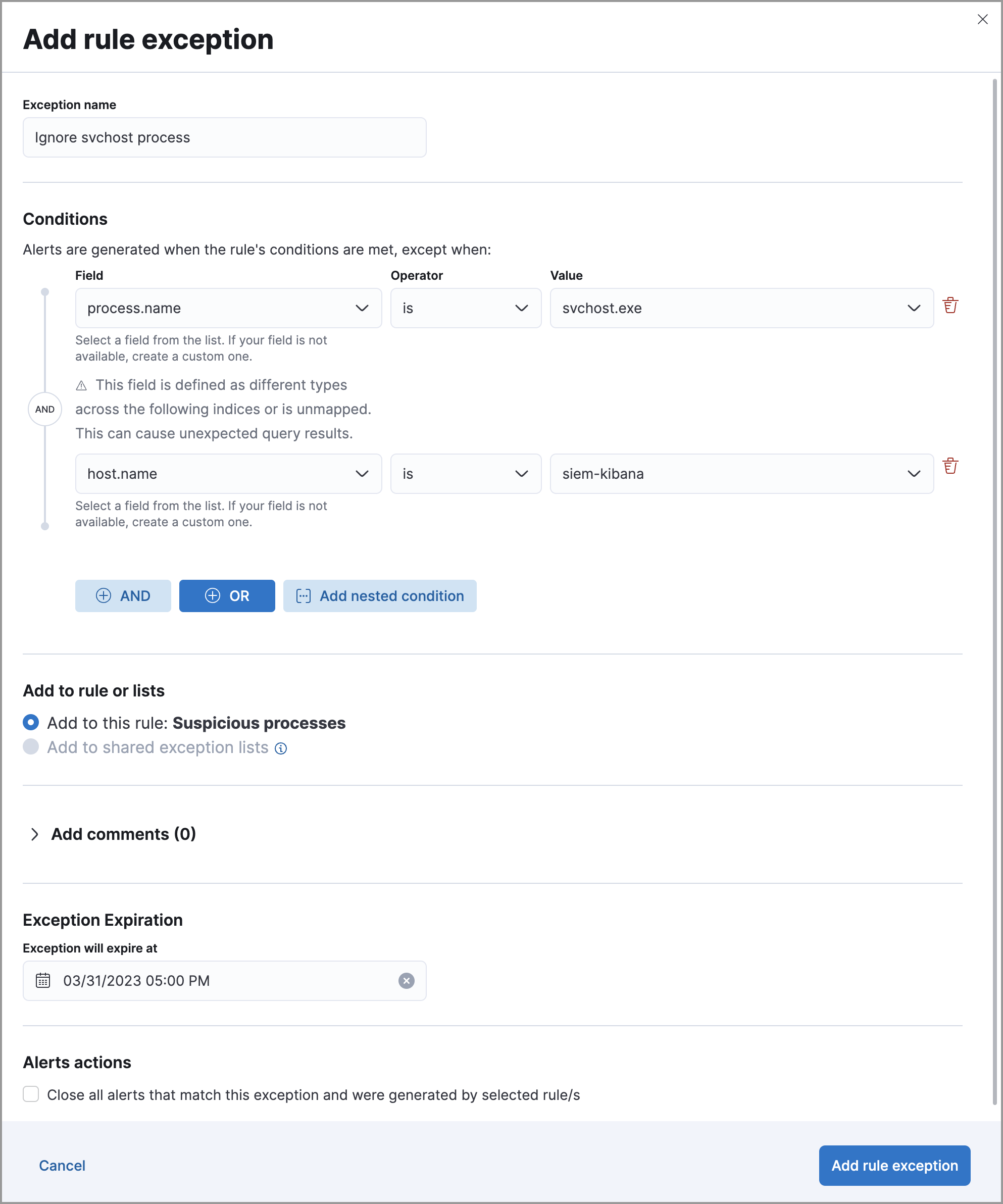
Click AND or OR to create multiple conditions and define their relationships.
Click Add nested condition to create conditions using nested fields. This is only required for these nested fields. For all other fields, nested conditions should not be used.
Choose to add the exception to a rule or a shared exception list.
TipIf a shared exception list doesn't exist, you can create one from the Shared Exception Lists page.
(Optional) Enter a comment describing the exception.
(Optional) Enter a future expiration date and time for the exception.
Select one of the following alert actions:
- Close this alert: Closes the alert when the exception is added. This option is only available when adding exceptions from the Alerts table.
- Close all alerts that match this exception and were generated by this rule: Closes all alerts that match the exception's conditions and were generated only by the current rule.
Click Add rule exception.
Rule exceptions are case-sensitive. Any character entered as an uppercase or lowercase letter will be treated as such. If you don't want a field evaluated as case-sensitive, some ECS fields have a .caseless version that you can use.
When using ES|QL, you can append new fields with commands such as EVAL, but you can't apply exceptions to these appended fields. Exceptions are only applied to the index source fields.
Event correlation (EQL) rules: Exceptions are evaluated against every event in the sequence. If an exception matches any event necessary to complete the sequence, alerts are not created. To exclude values from a specific event in the sequence, update the rule's EQL statement instead. For example:
`sequence
  [file where file.extension == "exe"
  and file.name != "app-name.exe"]
  [process where true
  and process.name != "process-name.exe"]`
Indicator match rules: Exceptions are evaluated against both source and indicator indices. If the exception matches events in either index, alerts are not generated.
Elastic Endpoint exceptions apply to endpoint protection rules and to any rules with the Elastic Endpoint exceptions option selected. These exceptions are applied to both the detection rule and the Elastic Endpoint on your hosts.
- Exceptions added to endpoint protection rules affect all alerts sent from Elastic Endpoint. Be careful not to unintentionally prevent useful Endpoint alerts.
- To add an Endpoint exception to an endpoint protection rule, there must be at least one Elastic Endpoint alert generated in the system. For non-production use, if no alerts exist, you can trigger a test alert using malware emulation techniques or tools such as the Anti Malware Testfile from the European Institute for Computer Anti-Virus Research (EICAR).
- Binary fields are not supported in detection rule exceptions.
You can add Endpoint exceptions from the following places:
Rule details page: Find Detection rules (SIEM) in the navigation menu, select an endpoint protection rule, scroll to the Endpoint exceptions tab, and click Add endpoint exception.
Alerts table: Find Alerts in the navigation menu, go to an Elastic Endpoint alert, click the More actions menu , and select Add Endpoint exception.
Shared Exception Lists page: Find Shared exception lists in the navigation menu, expand the Endpoint Security Exception List (or click its name), and click Add endpoint exception.
NoteThe Endpoint Security Exception List is automatically created. By default, it's associated with endpoint protection rules and any rules with the Elastic Endpoint exceptions option selected.
The Add Endpoint Exception flyout opens.
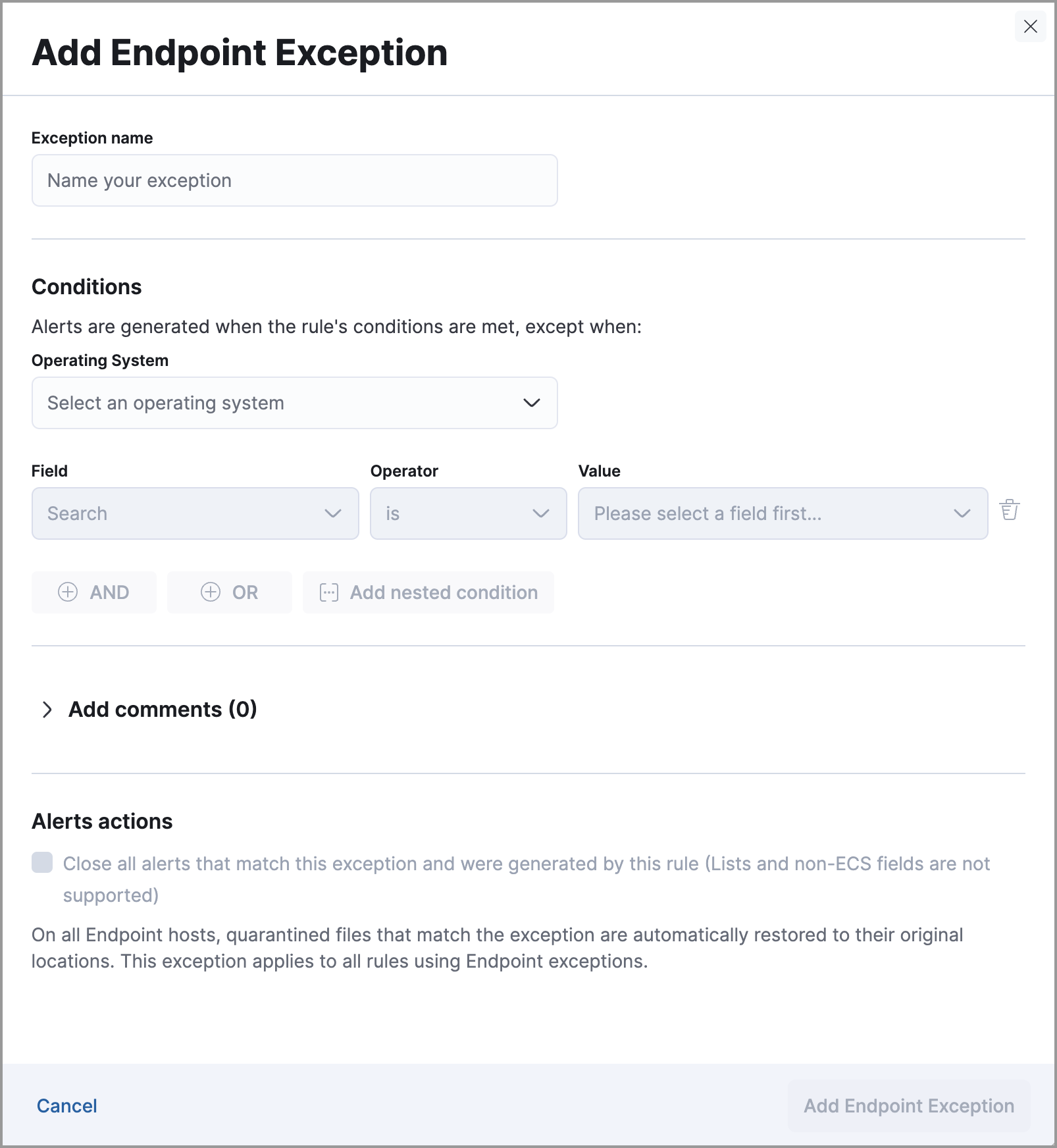
Modify the conditions as needed. The same operators apply, with these differences:
- Fields with conflicts are marked with a warning icon . For more information, refer to Troubleshooting type conflicts and unmapped fields.
- Unlike detection rule exceptions, Elastic Endpoint exceptions do not require escaping special characters.
(Optional) Add a comment to the exception.
Select any applicable alert actions:
- Close this alert: Closes the alert when the exception is added. This option is only available when adding exceptions from the Alerts table.
- Close all alerts that match this exception and were generated by this rule: Closes all alerts that match the exception's conditions.
Click Add Endpoint Exception.
It might take longer for exceptions to be applied to hosts within larger deployments.
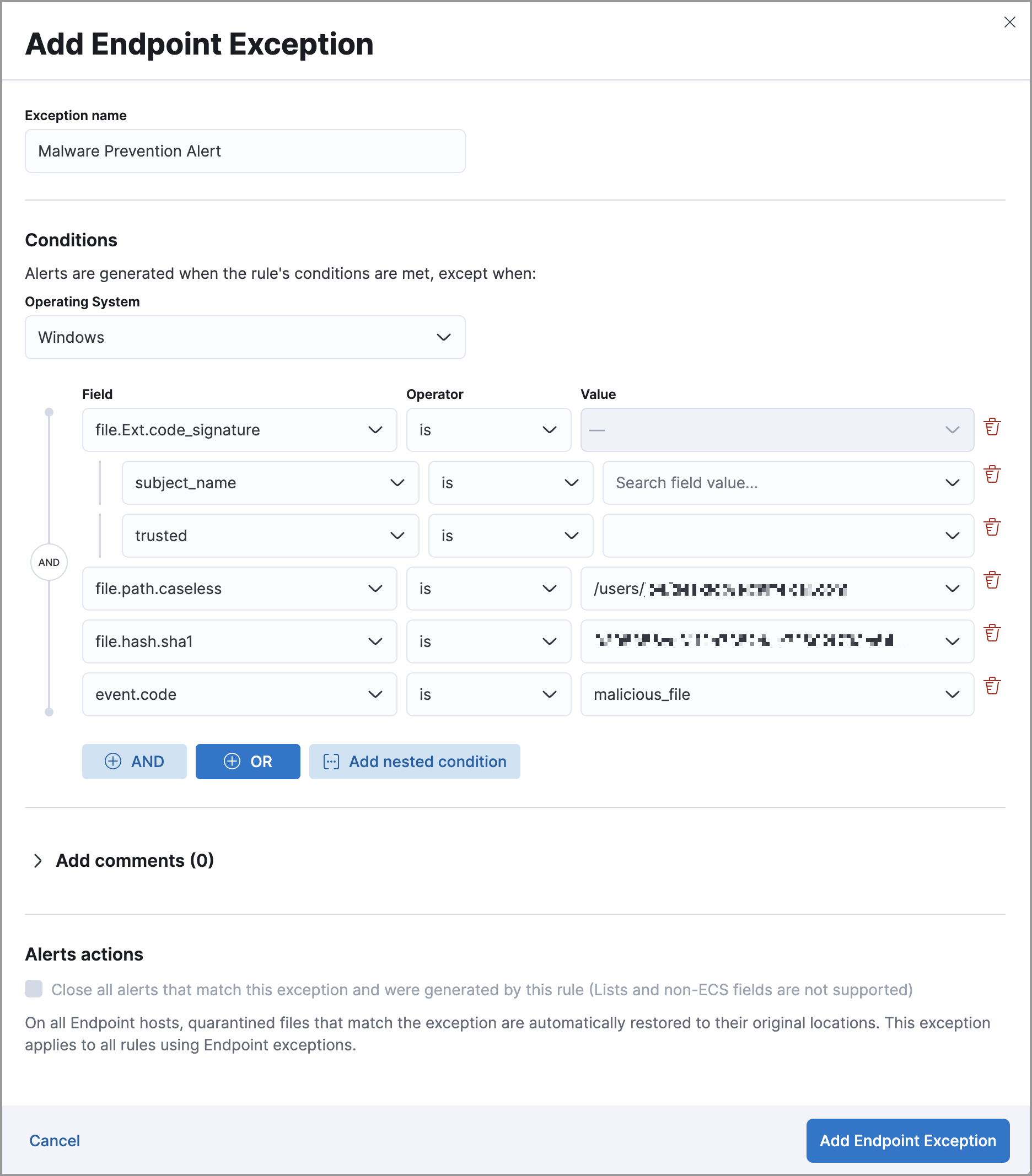
Some Endpoint objects contain nested fields, and the only way to ensure you are excluding the correct fields is with nested conditions. One example is the process.Ext object:
{
  "ancestry": [],
  "code_signature": {
    "trusted": true,
    "subject_name": "LFC",
    "exists": true,
    "status": "trusted"
  },
  "user": "WDAGUtilityAccount",
  "token": {
    "elevation": true,
    "integrity_level_name": "high",
    "domain": "27FB305D-3838-4",
    "user": "WDAGUtilityAccount",
    "elevation_type": "default",
    "sid": "S-1-5-21-2047949552-857980807-821054962-504"
  }
}
Only these objects require nested conditions to ensure the exception functions correctly:
Endpoint.policy.applied.artifacts.global.identifiersEndpoint.policy.applied.artifacts.user.identifiersTarget.dll.Ext.code_signatureTarget.process.Ext.code_signatureTarget.process.Ext.token.privilegesTarget.process.parent.Ext.code_signatureTarget.process.thread.Ext.token.privilegesdll.Ext.code_signaturefile.Ext.code_signaturefile.Ext.macro.errorsfile.Ext.macro.streamprocess.Ext.code_signatureprocess.Ext.token.privilegesprocess.parent.Ext.code_signatureprocess.thread.Ext.token.privileges
Creates an exception that excludes all LFC-signed trusted processes:
To view a rule's exceptions:
Open the rule's details page. To do this, find Detection rules (SIEM) in the navigation menu or using the global search field, search for the rule that you want to examine, then click the rule's name to open its details.
Scroll down and select the Rule exceptions or Endpoint exceptions tab. All exceptions that belong to the rule will display in a list.
From the list, you can filter, edit, and delete exceptions. You can also toggle between Active exceptions and Expired exceptions.
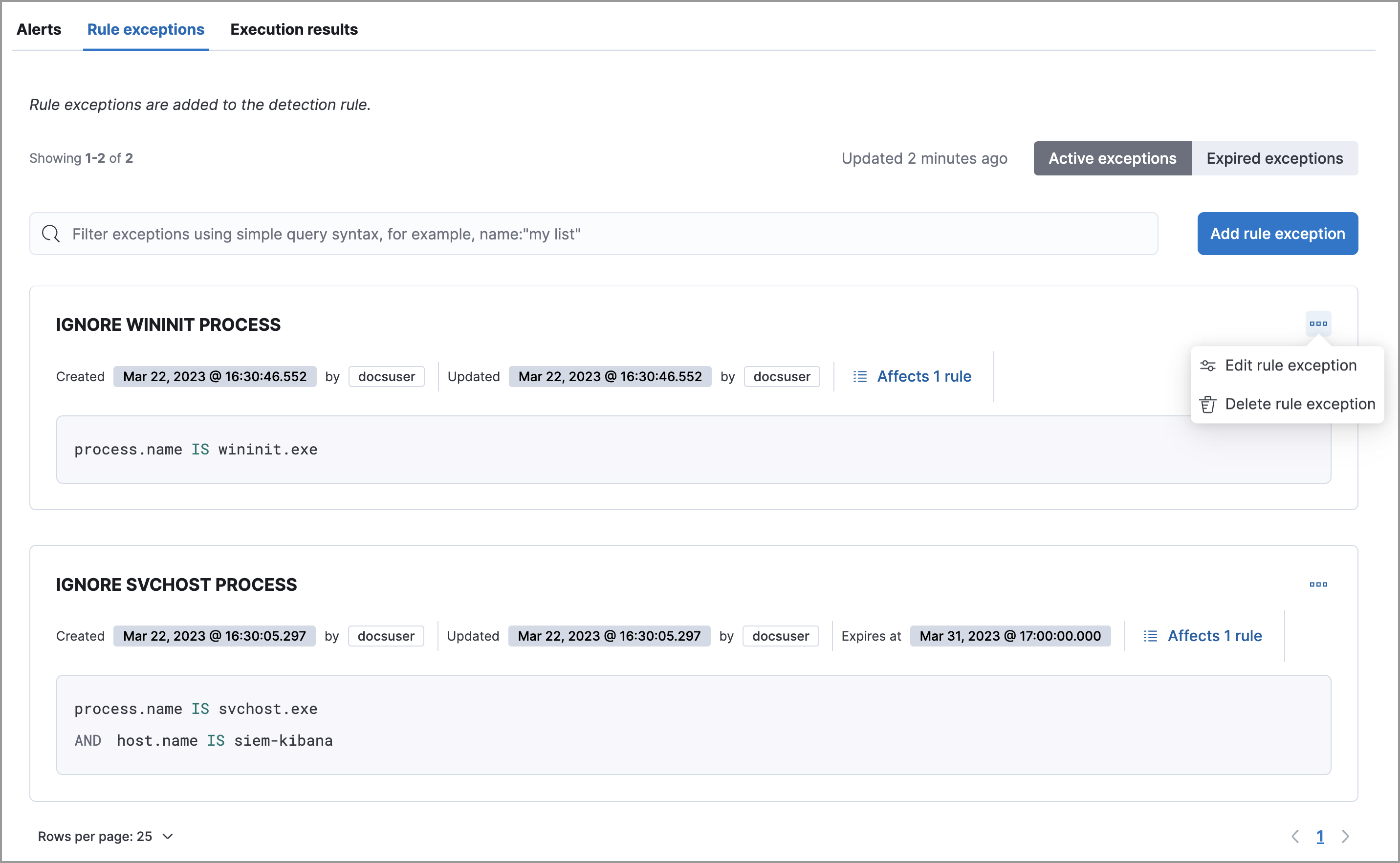
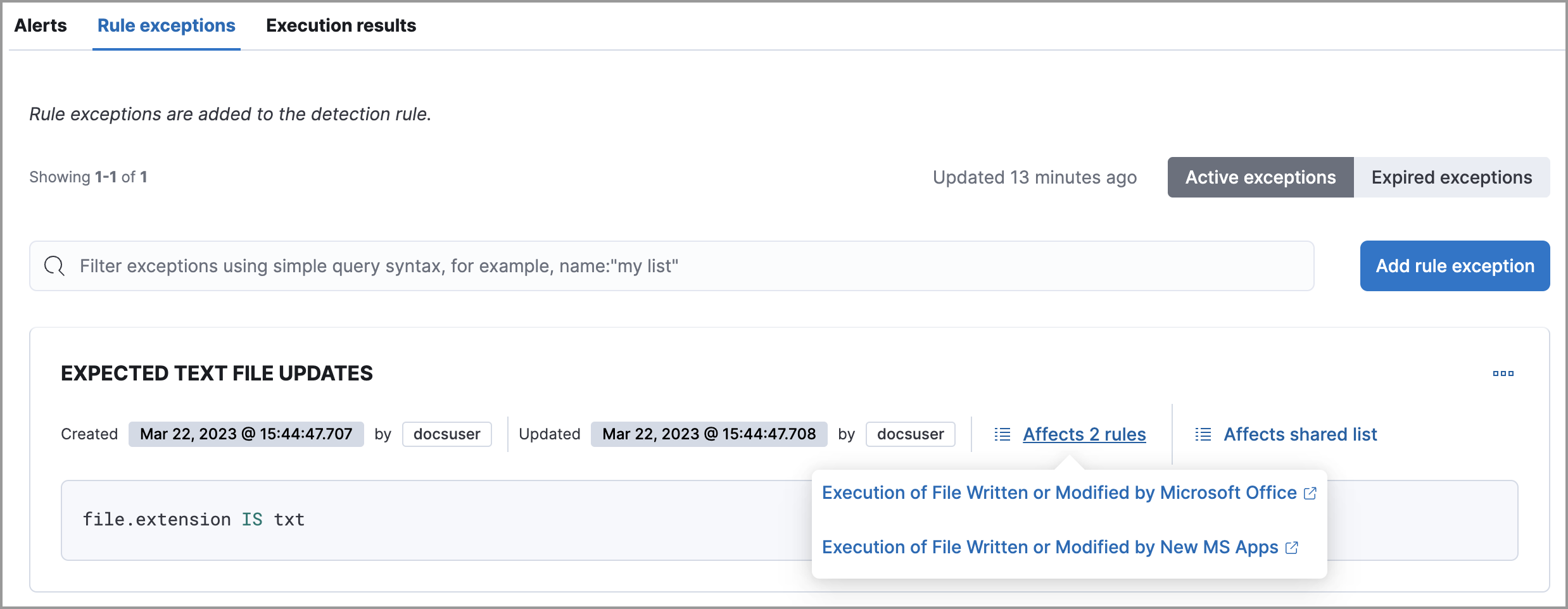
To find out if an exception is used by other rules, select the Rule exceptions or Endpoint exceptions tab, navigate to an exception list item, then click Affects X rules.
Changes that you make to the exception also apply to other rules that use the exception.