View detection alert details
To learn more about an alert, click View details from the Alerts table. This opens the alert details flyout, which helps you understand and manage the alert.
Use the alert details flyout to begin an investigation, open a case, or plan a response. Click Take action at the bottom of the flyout to find more options for interacting with the alert.
The alert details flyout has a right panel, a preview panel, and a left panel. Each panel provides different information about the alert.
The right panel provides an overview of the alert. Expand collapsed sections to see more details, or hover over fields on the Overview and Table tabs to access inline actions.
If you've enabled grouping on the Alerts page, expand a group and select an individual alert to open the flyout.
| Icon | Name | Action |
|---|---|---|
| Expand details | Open the left panel for deeper investigation of each section. | |
| History | View up to 10 recently visited flyouts (alerts, users, etc.) and click to navigate back. | |
| Chat | Open AI Assistant. | |
| Share alert | Get a shareable URL. Don't copy from the browser address bar. It might include filters or relative time ranges that produce inconsistent results. | |
| Flyout settings | Choose Overlay (flyout over table) or Push (flyout beside table). You can resize panels and click Reset size to restore defaults. |
If you've configured server.publicBaseUrl in kibana.yml, the shareable URL also appears in the kibana.alert.url field on the Table tab.
The header displays key alert information:
- Rule: The rule that generated the alert
- Status: Current alert status and creation time
- Severity and risk score: Inherited from the rule
- Assignees: Users assigned to the alert (click to add more)
- Notes: Attached notes (click to add a note)
Switch between tabs to view alert data in different formats:
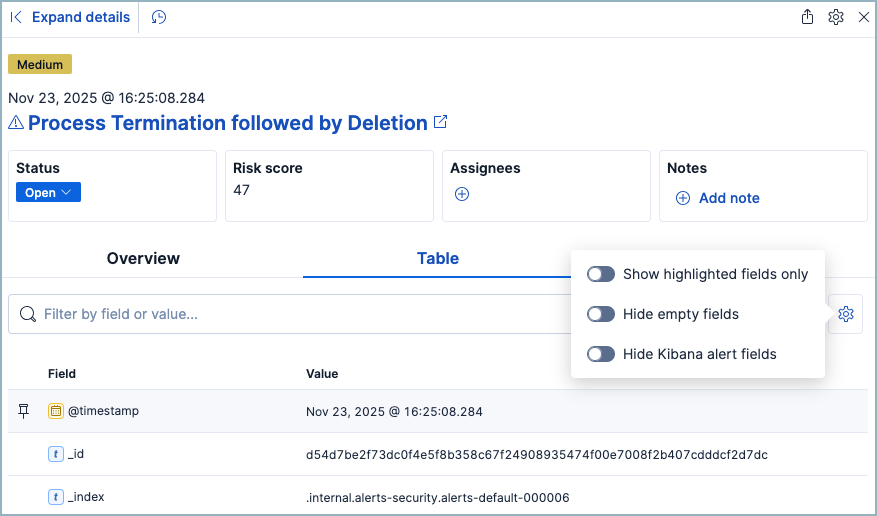
Table tab
Shows alert fields as name-value pairs.
Click Table settings for additional options:
| Setting | Description |
|---|---|
| Show highlighted fields only | Display only highlighted fields. |
| Hide empty fields | Hide fields without values. |
| Hide Kibana alert fields | Hide kibana.alert and signal fields to focus on investigation-relevant data. |
JSON tab
Shows raw JSON. Click Copy to clipboard to export.
Some areas in the flyout provide previews when you click on them. For example, clicking Show rule summary in the rule description displays a preview of the rule’s details. To close the preview, click Back or x.
The left panel provides an expanded view of what’s shown in the right panel. To open the left panel, do one of the following:
- Click Expand details at the top of the right panel.
- Click one of the section titles on the Overview tab within the right panel.
The About section appears on the Overview tab in the right panel. It provides a brief description of the rule that’s related to the alert and an explanation of what generated the alert.
The About section has the following information:
Rule description: Describes the rule’s purpose or detection goals. Click Show rule summary to display a preview of the rule’s details. From the preview, click Show rule details to view the rule’s details page.
Alert reason: Describes the source event that generated the alert. Event details are displayed in plain text and ordered logically to provide context for the alert. Click Show full reason to display the alert reason in the event rendered format within the preview panel.
NoteThe event renderer only displays if an event renderer exists for the alert type. Fields are interactive; hover over them to access the available actions.
Last alert status change: Shows the last time the alert’s status was changed, along with the user who changed it.
The Investigation section (on the Overview tab) provides starting points for investigating the alert.
| Section | What it provides | How to use it |
|---|---|---|
| Investigation guide | Step-by-step instructions written for this rule type. Only appears if the rule has an investigation guide. | Click Show investigation guide to open the guide in the left panel. Follow the steps to investigate systematically. |
| Highlighted fields | Key fields relevant to the alert, plus any custom highlighted fields defined in the rule. | Review these fields first to quickly understand what triggered the alert. Fields without values are hidden. |
The Visualizations section (on the Overview tab) shows processes that led to the alert and what happened after. Use these previews to understand the attack chain without leaving the alert flyout.
| Section | What it shows | How to use it |
|---|---|---|
| Session view preview | Process activity during the Linux session | See commands executed before and after the alert. Click to open Session View in Timeline for the full session history. |
| Analyzer preview | Process tree (up to 3 ancestor and 3 descendant levels) | Trace how the process was spawned and what it launched. The icon indicates more levels exist. Click to open Event Analyzer in Timeline. |
Click either preview to open the Visualize tab, which provides a detailed view while keeping the Alerts table visible. From here you can:
- Examine related processes and their associated alerts or events
- Click Show full alert details on any related item to investigate it further
The Insights section is located on the Overview tab in the right panel. It offers different perspectives from which you can assess the alert. Click Insights to display overviews for related entities, threat intelligence, correlated data, and host and user prevalence.
The Entities overview provides high-level details about the user and host that are related to the alert. Host and user risk classifications are also available with a Platinum subscription](https://www.elastic.co/pricing) or higher in Elastic Stack or the Security Analytics Complete project feature tier in Serverless.
From the right panel, click Entities to open a detailed view of the host and user associated with the alert. The expanded view also includes risk scores and classifications and activity on related hosts and users. Access to these features requires a Platinum subscription or higher in Elastic Stack or the Security Analytics Complete project feature tier in Serverless
The Threat intelligence overview shows matched indicators, which provide threat intelligence relevant to the alert. It provides the following information:
- Threat match detected: Only available when examining an alert generated from an indicator match rule. Shows the number of matched indicators that are present in the alert document. Shows zero if there are no matched indicators or you’re examining an alert generated by another type of rule.
- Fields enriched with threat intelligence: Shows the number of matched indicators that are present on an alert that wasn’t generated from an indicator match rule. If none exist, the total number of matched indicators is zero.
Click Threat intelligence in the right panel to open the expanded view, which shows details for each matched indicator. Indicators are listed with the most recent first, and you can expand any indicator to see all its mapped fields.
The view organizes matches into two sections:
| Section | What it shows | How to use it |
|---|---|---|
| Threat match detected | Indicators that triggered an indicator match rule. Only appears for alerts from indicator match rules. | Review which specific indicators matched to confirm the threat and assess severity. |
| Fields enriched with threat intelligence | Indicators found by scanning alert fields against your threat intelligence indices. Applies to any rule type. | Check if known malicious IPs, hashes, or URLs appear in the alert. Use the date picker to adjust the search time frame, or click Inspect to view the query. |
This view queries the threat intelligence indices defined in securitySolution:defaultThreatIndex.
Elastic Security checks the following alert fields for matches against your threat intelligence data:
file.hash.md5: The MD5 hashfile.hash.sha1: The SHA1 hashfile.hash.sha256: The SHA256 hashfile.pe.imphash: Imports in a PE filefile.elf.telfhash: Imports in an ELF filefile.hash.ssdeep: The SSDEEP hashsource.ip: The IP address of the source (IPv4 or IPv6)destination.ip: The event’s destination IP addressurl.full: The full URL of the event sourceregistry.path: The full registry path, including the hive, key, and value
The Correlations section reveals connections between alerts, helping you identify attack patterns and scope the impact of a threat. Use correlations to answer questions like: Is this alert part of a larger attack? What other suspicious activity occurred during the same session? Has this alert already been investigated?
The overview displays counts for each correlation type. Click Correlations to open the expanded view with full details.
| Correlation type | What it tells you | How to use it |
|---|---|---|
| Suppressed alerts | The rule uses alert suppression, and this alert represents multiple duplicate detections. | Check the suppression count to understand the true volume of matching events. A high count may indicate an ongoing attack or a noisy rule that needs tuning. |
| Alerts related by source event | Multiple rules triggered on the same underlying event. | Review related alerts to see if different rules detected complementary aspects of the same threat. This helps you understand the full context of a single suspicious event. |
| Cases related to the alert | This alert has been added to one or more cases. | Click a case name to see prior investigation work. Avoid duplicating effort if the alert is already being tracked. |
| Alerts related by session ID | Other alerts occurred during the same Linux session. | Examine the session timeline to trace an attacker's actions from initial access through their objectives. Requires Session View data to be enabled. |
| Alerts related by process ancestry | Alerts share a parent-child process relationship. | Trace execution chains to understand how a threat propagated. Click Investigate in timeline to visualize the process tree. |
Alerts related by process ancestry requires a Platinum or higher subscription in Elastic Stack or the appropriate Serverless project feature tier.
The Prevalence overview shows whether data from the alert was frequently observed on other host events from the last 30 days. Prevalence calculations use values from the alert’s highlighted fields. Highlighted field values that are observed on less than 10% of hosts in your environment are considered uncommon (not prevalent) and are listed individually in the Prevalence overview. Highlighted field values that are observed on more than 10% of hosts in your environment are considered common (prevalent) and are described as frequently observed in the Prevalence overview.
From the right panel, click Prevalence to open the expanded Prevalence view within the left panel. Examine the table to understand the alert’s relationship with other alerts, events, users, and hosts.
Update the date time picker for the table to show data from a different time range.
The expanded Prevalence view displays a table with the following columns:
| Column | What it shows | How to use it |
|---|---|---|
| Field | Highlighted fields and custom highlighted fields from the rule. | Identify which fields are being evaluated for prevalence. |
| Value | The actual values for each highlighted field. | See the specific data being compared across your environment. |
| Alert count | Number of alerts with identical field values (including this alert). | High counts suggest a widespread issue or a noisy detection. Low counts may indicate targeted activity. |
| Document count | Number of non-alert events with identical field values. A dash (——) means no matches. |
Compare alert volume against normal event volume to assess signal-to-noise ratio. |
| Host prevalence | Percentage of hosts with identical field values. Requires Platinum subscription or higher. | Low percentages (uncommon values) may indicate suspicious activity. |
| User prevalence | Percentage of users with identical field values. Requires Platinum subscription or higher. | Uncommon user activity patterns can reveal compromised accounts. |
The Response section is located on the Overview tab in the right panel. It shows response actions that were added to the rule associated with the alert. Click Response to display the response action’s results in the left panel.
The Notes tab (located in the left panel) shows all notes attached to the alert, in addition to the user who created them and when they were created. When you add a new note, the alert’s summary also updates and shows how many notes are attached to the alert.
Go to the Notes page to find notes that were added to other alerts.