Prebuilt rules
Elastic maintains a library of prebuilt detection rules mapped to the MITRE ATT&CK framework. Enabling prebuilt rules is the fastest path to detection coverage and the recommended starting point before building custom rules.
- Prebuilt rule catalog
- Browse the full library of prebuilt rules organized by MITRE ATT&CK tactic. Find rules by threat, technique, or rule type and link out to the full rule source on GitHub.
- Install prebuilt rules
- Start here to install and enable prebuilt rules. Includes a subscription capability matrix showing which features are available at each tier.
- Update prebuilt rules
- Apply Elastic's rule updates to keep your detection coverage current. Explains how to review updates, handle modified rules, and resolve conflicts (Enterprise only).
- Prebuilt rules in air-gapped environments
- Install and update prebuilt rules in air-gapped environments without internet access.
- Customize prebuilt rules
- Adapt prebuilt rules to your environment. Edit rules directly (Enterprise), duplicate and modify copies (all subscriptions), add exceptions, configure actions, or revert to the original Elastic version.
- MITRE ATT&CK coverage
- Visualize which MITRE ATT&CK tactics and techniques your installed rules cover. Identify gaps in your detection posture and prioritize which rules to enable or where to build custom rules.
Each prebuilt rule includes several tags identifying the rule's purpose, detection method, associated resources, and other information to help categorize your rules. These tags are category-value pairs; for example, OS: Windows indicates rules designed for Windows endpoints. Categories include:
Data Source: The application, cloud provider, data shipper, or Elastic integration providing data for the rule.Domain: A general category of data source types (such as cloud, endpoint, or network).OS: The host operating system, which could be considered another data source type.Resources: Additional rule resources such as investigation guides.Rule Type: Identifies if the rule depends on specialized resources (such as machine learning jobs or threat intelligence indicators), or if it's a higher-order rule built from other rules' alerts.Tactic: MITRE ATT&CK tactics that the rule addresses.Threat: Specific threats the rule detects (such as Cobalt Strike or BPFDoor).Use Case: The type of activity the rule detects and its purpose. Use cases include:Active Directory Monitoring: Detects changes related to Active Directory.Asset Visibility: Detects changes to specified asset types.Configuration Audit: Detects undesirable configuration changes.Guided Onboarding: Example rule, used for Elastic Security's guided onboarding tour.Identity and Access Audit: Detects activity related to identity and access management (IAM).Log Auditing: Detects activity on log configurations or storage.Network Security Monitoring: Detects network security configuration activity.Threat Detection: Detects threats.Vulnerability: Detects exploitation of specific vulnerabilities.
Each prebuilt rule queries specific index patterns or a data view, which determines the data the rule searches at runtime. You can see a rule's index patterns on its details page under Definition.
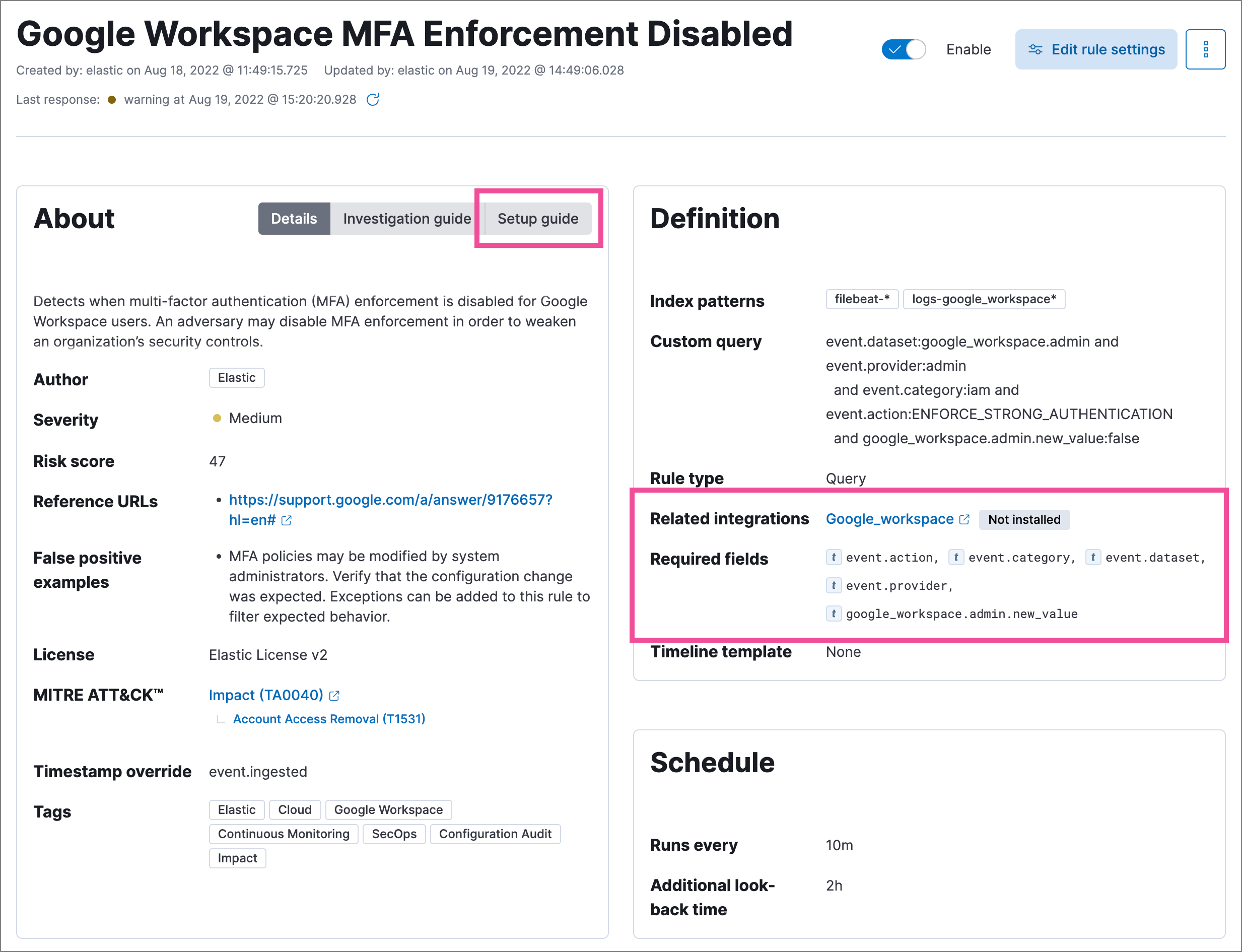
To help you set up the right data sources, rule details pages include:
- Related integrations: Elastic integrations that can provide compatible data. You don't need to install all listed integrations. Installing any of the integrations that matches your environment is typically sufficient. Some rules also work with data from legacy beats (such as Filebeat or Winlogbeat) without requiring a Fleet integration. This field also displays each integration's installation status and includes links for installing and configuring the listed integrations.
- Required fields: Data fields the rule expects to find. This is informational; rules will still run if fields are missing, but may not generate expected alerts.
- Setup guide: Step-by-step guidance for configuring the rule's data requirements.
You can also check rules' related integrations in the Installed Rules and Rule Monitoring tables. Select the integrations badge to display the related integrations in a popup. The badge shows how many of the rule's related integrations are currently installed and enabled — for example, 1/2 means one of two related integrations is installed and actively collecting data. An integration is counted as enabled only if it has been added to an agent policy and that policy is deployed to at least one agent. Installing an integration package without adding it to a policy does not increment the enabled count.
To view related integration status in the Rules table, your role needs at least Read privileges for the following features under Management:
IntegrationsFleetSaved Objects Management
Without these privileges, the integrations badge may not appear or may not reflect accurate installation status.
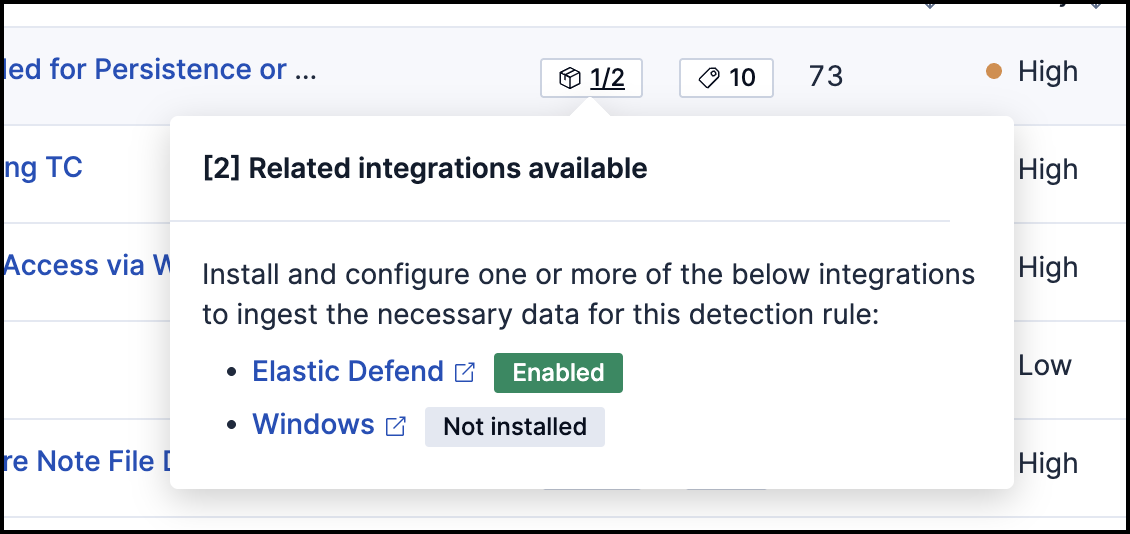
You can hide the integrations badge in the Rules tables by turning off the securitySolution:showRelatedIntegrations advanced setting.
Prebuilt rules cover common threats, but your environment has unique risks. When you need detection logic tailored to your infrastructure, applications, or threat model, refer to Author rules for guidance on selecting a rule type, writing queries, and configuring rule settings.