Monitor rule executions
Detection rules only protect your environment when they run reliably. This page helps you confirm rules are running and troubleshoot when they're not.
| You want to | Where to go |
|---|---|
| Check if a rule succeeded, failed, or has warnings | Rule execution status (Rules table) |
| Compare status across all rules | Rule Monitoring tab |
| Review a specific rule's run history | Execution results (rule details page) |
| Fill gaps from missed rule runs | Fill rule execution gaps |
| Run a rule manually for a specific time range | Run rules manually |
| View rule performance metrics in a dashboard | Detection rule monitoring dashboard |
| Investigate missing alerts | Troubleshoot missing alerts |
The Last response column in the Rules table displays the current status of each rule, based on the most recent attempt to run:
- Succeeded: The rule completed its defined search. This doesn't necessarily mean it generated an alert, just that it ran without error.
- Failed: The rule encountered an error that prevented it from running. For example, a machine learning rule whose corresponding machine learning job wasn't running.
- Warning: Nothing prevented the rule from running, but it might have returned unexpected results. For example, a custom query rule tried to search an index pattern that couldn't be found in Elasticsearch.
For machine learning rules, an indicator icon also appears in this column if a required machine learning job isn't running. Select the icon to list the affected jobs, then select Visit rule details page to investigate to open the rule's details page, where you can start the machine learning job.
To view a summary of all rule executions (including the most recent failures, execution times, and gaps), select the Rule Monitoring tab on the Rules page. To access the tab, find Detection rules (SIEM) in the navigation menu or by using the global search field, then go to the Rule Monitoring tab.
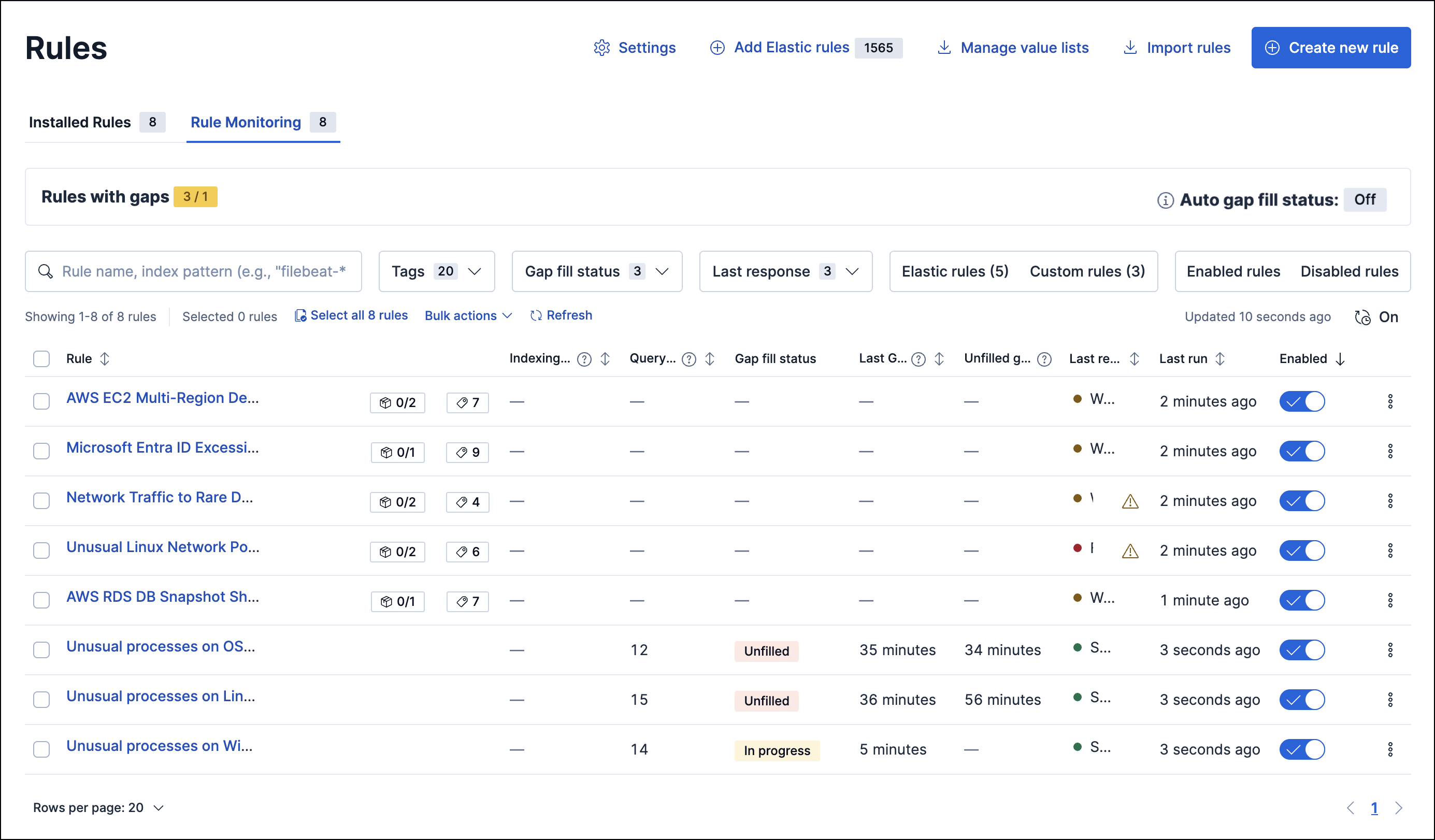
On the Rule Monitoring tab, you can sort and filter rules just like you can on the Installed Rules tab.
To sort the rules list, select any column header. To sort in descending order, select the column header again.
For detailed information on a rule, the alerts it generated, and associated errors, select its name in the table. This also allows you to perform the same actions available on the Installed Rules tab, such as modifying or deleting rules, activating or deactivating rules, exporting or importing rules, and duplicating prebuilt rules.
The Rule Monitoring tab also displays information about gaps in rule executions. Gaps are periods when a rule didn't run as scheduled.
Several columns provide gap data:
- Last Gap (if any): How long the most recent gap lasted.
- Unfilled gaps duration: Total duration of remaining unfilled or partially filled gaps. If a rule has no gaps, the column displays a dash (
––). -
Gap fill status: The status of the rule's gaps ( Unfilled,In progress, orFilled).
To learn how to find and fill gaps, refer to Fill rule execution gaps.
From the Execution results tab on a rule's details page, you can access the rule's execution log, monitor gaps, and check manual runs. To find this tab, select the rule's name to open its details, then scroll down.
Each detection rule execution is logged, including the execution type, success or failure status, any warning or error messages, how long it took to search for data, create alerts, and complete. This can help you identify and troubleshoot a rule if it isn't behaving as expected (for example, if it isn't creating alerts or takes a long time to run).
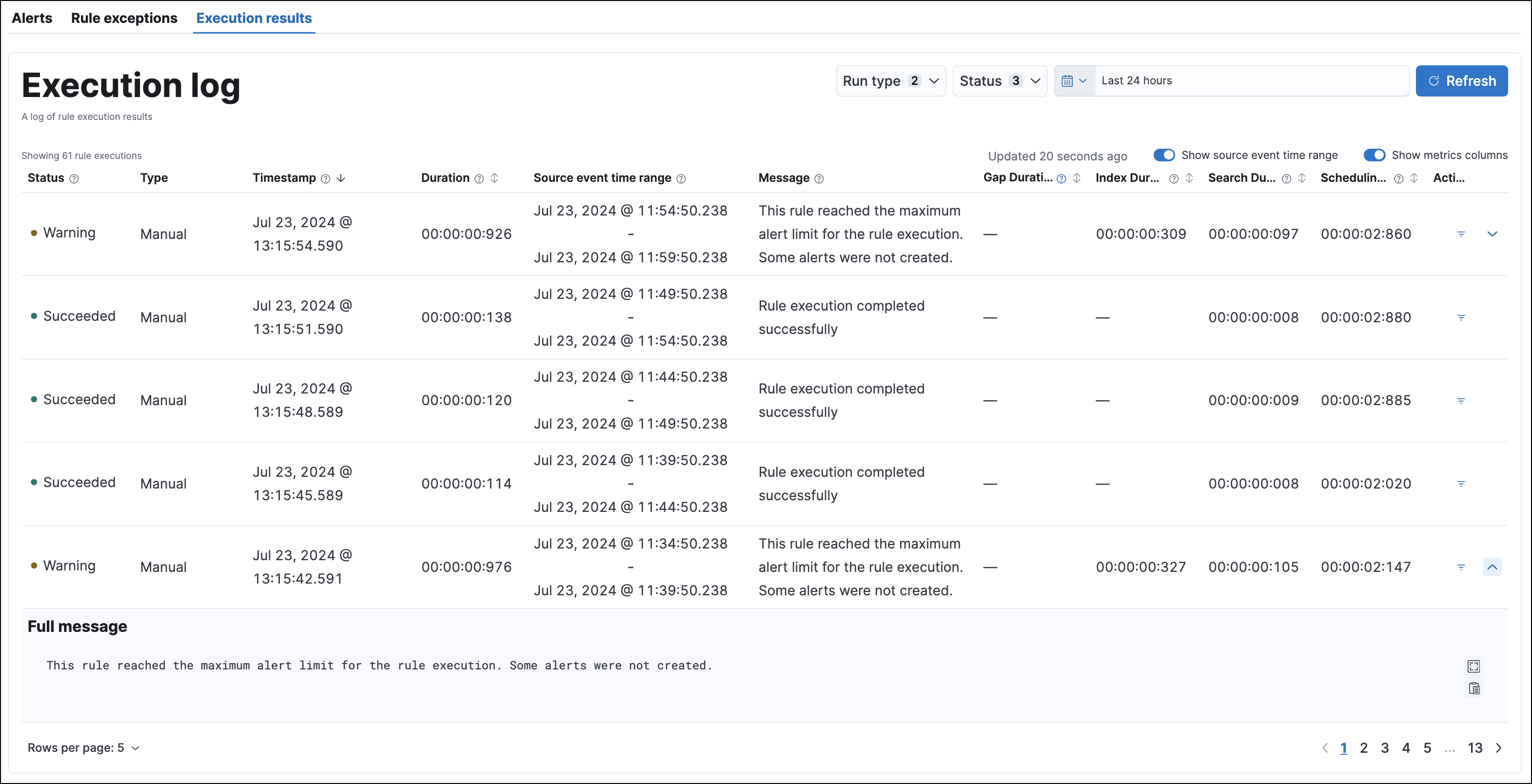
You can hover over each column heading to display a tooltip about that column's data. Select a column heading to sort the table by that column. Within the Execution log table, you can select the arrow at the end of a row to expand a long warning or error message.
Use these controls to filter what's included in the logs table:
The Run type drop-down filters by rule execution type:
- Scheduled: Automatic, scheduled rule executions.
- Manual: Rule executions that were started manually.
The Status drop-down filters by rule execution status:
- Succeeded: The rule completed its defined search.
- Failed: The rule encountered an error that prevented it from running.
- Warning: The rule ran but might have returned unexpected results.
The date and time picker sets the time range of rule executions included in the table. This is separate from the global date and time picker at the top of the rule details page.
The Source event time range button toggles the display of data pertaining to the time range of manual runs.
The Show metrics columns toggle includes more or less data in the table, pertaining to the timing of each rule execution.
The Actions column allows you to show alerts generated from a given rule execution. Select the filter icon to create a global search filter based on the rule execution's ID value. This replaces any previously applied filters, changes the global date and time range to 24 hours before and after the rule execution, and displays a confirmation notification. You can revert this action by selecting Restore previous filters in the notification.
The Execution results tab also includes a Gaps table that shows detailed gap information for the specific rule. To learn how to use the Gaps table to find and fill gaps, refer to Fill rule execution gaps.
The Execution results tab includes a Manual runs table that tracks manual rule executions. To learn more about running rules manually and monitoring manual runs, refer to Run rules manually.