Update Elastic prebuilt rules
Elastic regularly updates prebuilt rules to optimize their performance and ensure they detect the latest threats and techniques. This page explains how to review and apply updates to your installed prebuilt rules.
For deployments without internet access, refer to Prebuilt rules in air-gapped environments.
When updated versions are available for your installed prebuilt rules, the Rule Updates tab appears on the Rules page.
On Elastic Stack, automatic updates are supported for the current Elastic Security version and the latest three previous minor releases. For example, if you're on version 9.0, you can use the Rules UI to update prebuilt rules until version 9.4 is released. After that, you can still manually download and install updates, but must upgrade Elastic Security to receive automatic updates again.
Before applying updates, you can examine what's changing in each rule.
Find Detection rules (SIEM) in the navigation menu or by using the global search field.
In the Rules table, select the Rule Updates tab.
NoteThe Rule Updates tab doesn't appear if all your installed prebuilt rules are up to date.
Select a rule name to open the rule update flyout and review the changes.
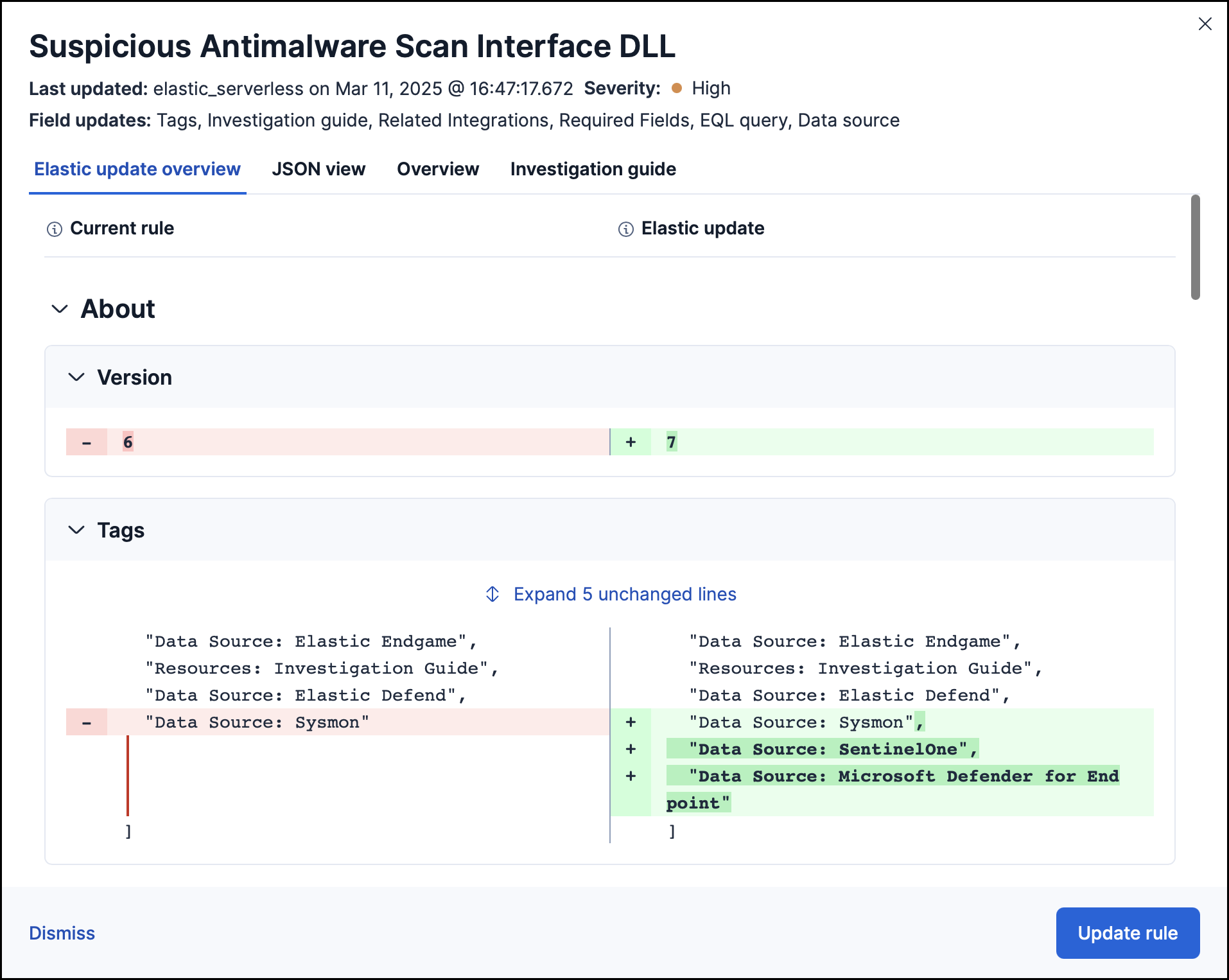
All subscriptions can preview incoming updates by selecting the Elastic update overview tab (field-by-field view) or the JSON view tab (full rule comparison). Both tabs display side-by-side comparisons of the Current rule (what you have installed) and the Elastic update version (what you can install). Deleted characters are highlighted in red; added characters are highlighted in green.
Additional options with Enterprise subscription
With an Enterprise subscription on Elastic Stack or a Security Analytics Complete project on Serverless, you also have access to:
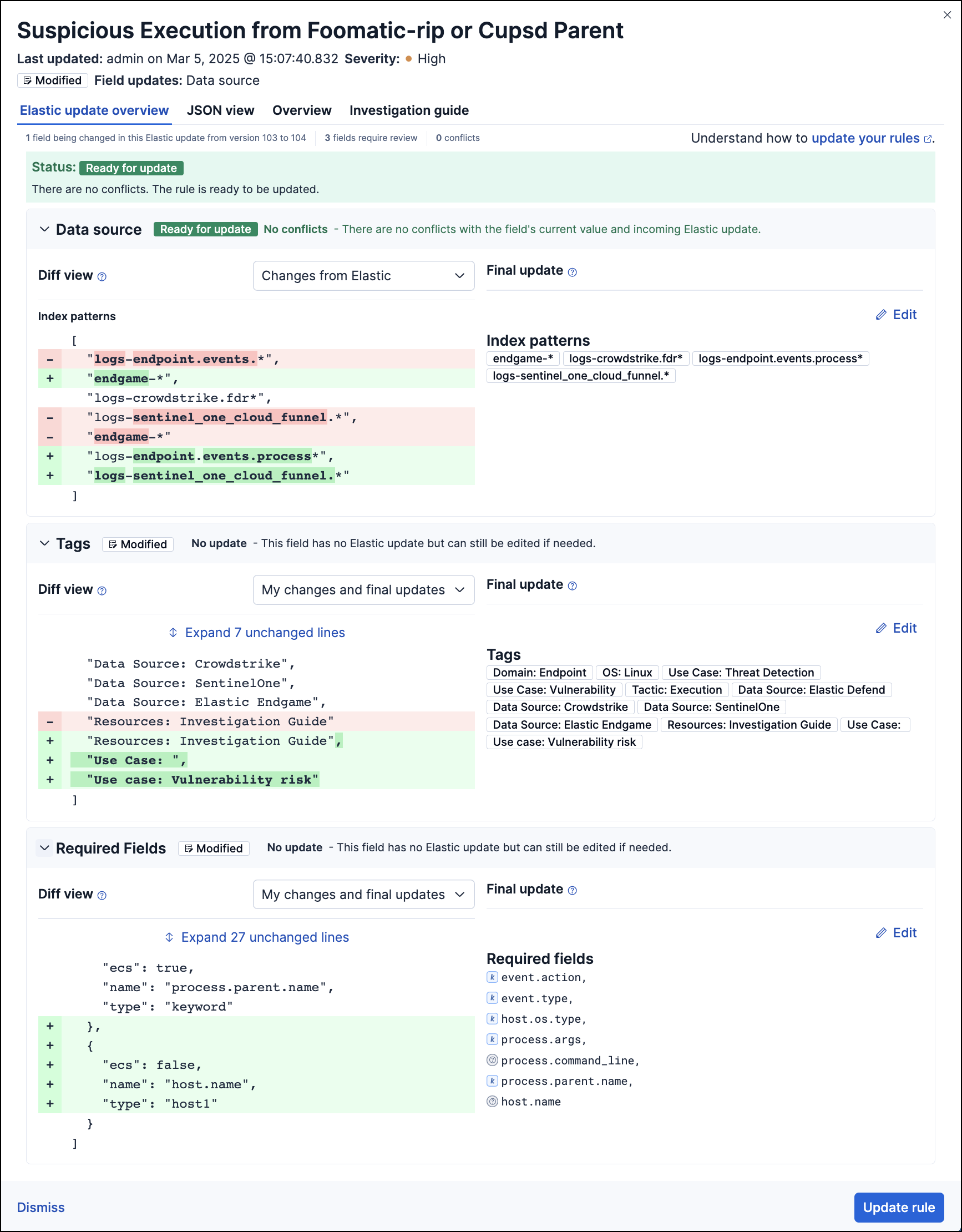
Compare different versions: Use the Diff view drop-down menu to compare different versions of a rule field. For example, compare changes you made to the current version with changes from the incoming Elastic update.
NoteIf you haven't updated the rule in a while, its original version might be unavailable for comparison. You can avoid this by updating prebuilt rules regularly.
Check update status: View the status of the entire rule update and for each field being changed. Refer to Field update statuses for status definitions.
Edit the final update: Change the update that will be applied to any field. Go to the Final update section, make your changes, and save them.
ImportantElastic updates containing a rule type change cannot be edited. Duplicate the rule before updating if you need to preserve your modifications.
If you've customized prebuilt rules and want to preserve your changes when applying updates, review the guidance for your subscription level below. The update process differs based on your subscription.
Enterprise / Security Analytics Complete
With an Enterprise subscription on Elastic Stack or a Security Analytics Complete project on Serverless, Elastic Security attempts to merge your changes with the Elastic update. If conflicts arise:
- Auto-resolved conflicts: Elastic Security suggests a resolution for your review. The field displays a
Review requiredstatus. - Unresolved conflicts: You must manually select how to resolve the conflict. The field displays an
Action requiredstatus.
Refer to Resolve update conflicts for guidance on handling conflicts.
Use the Modified/Unmodified drop-down menu in the Rule Updates tab to filter for modified rules that may need attention.
Basic–Platinum / Security Analytics Essentials
With a Basic–Platinum subscription on Elastic Stack or a Security Analytics Essentials project on Serverless, updates overwrite your modifications with the Elastic version. To preserve your changes:
- Duplicate the rule before updating.
- Apply the update to the original prebuilt rule.
- Continue using your duplicated rule with your customizations.
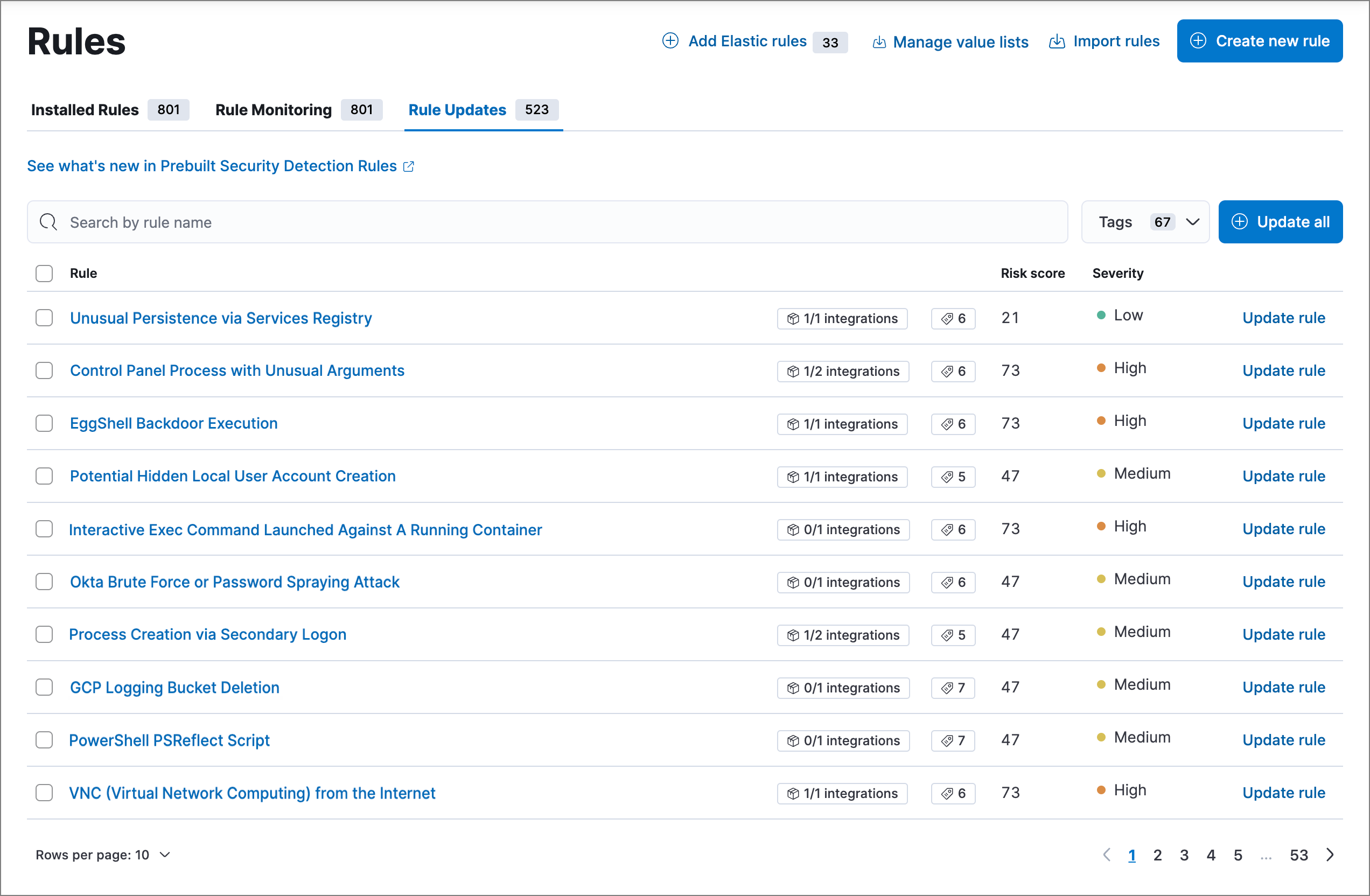
From the Rule Updates tab, do one of the following:
- Update all available rules: Select Update all. If any rules have conflicts (Enterprise only), you are prompted to resolve them first.
- Update a single rule: Select Update rule for that rule.
- Update multiple rules: Select the rules and select Update x selected rule(s).
Use the search bar and Tags filter to find specific rules. For example, filter by OS: Windows if your environment only includes Windows endpoints. For more on tag categories, refer to Prebuilt rule tags.
With an Enterprise subscription on Elastic Stack or a Security Analytics Complete project on Serverless, you can edit prebuilt rules directly. When you update a rule you've customized, each field displays a status indicating whether conflicts exist between your changes and the incoming Elastic update:
| Status | Description | Action required |
|---|---|---|
| Ready for update | No conflicts. The field can be updated. | None |
| No update | The field isn't being updated by Elastic, but your current value differs from the original. | None (you can still edit the final value if needed) |
| Review required | Elastic auto-resolved a conflict between your changes and the Elastic update. | Review the suggested resolution and accept or edit it. |
| Action required | Elastic couldn't auto-resolve the conflict. | Manually set the field's final value. |
When you edit prebuilt rules directly (available with an Enterprise subscription on Elastic Stack or a Security Analytics Complete project on Serverless), conflicts can arise if Elastic updates the same fields you modified. Keeping prebuilt rules up to date helps minimize the frequency and complexity of these conflicts.
When Elastic Security can suggest a resolution, the field displays Review required. You can still update rules with auto-resolved conflicts, but review each rule individually rather than bulk-updating to avoid unintended changes.
When Elastic Security can't resolve a conflict, the field displays Action required. To fix unresolved conflicts:
From the Rule Updates tab, select the rule name or select Review to open the rule update flyout.
TipFields with unresolved conflicts have the
Action requiredstatus.Go to the Final update section and do any of the following:
- Keep your current value instead of accepting the Elastic update.
- Accept the Elastic update and overwrite your current value.
- Combine your changes with the Elastic update.
Select Save and accept to apply your changes. The field's status changes to
Ready for update.
After resolving all conflicts, select Update rule to apply the update.