Suppress detection alerts
When a detection rule runs, it can generate many alerts for similar events—sometimes hundreds of near-identical alerts for the same threat. Alert suppression helps you cut through this noise by grouping related events and creating a single representative alert instead of one alert per event.
- Alert suppression requires the appropriate subscription for Elastic Stack and Serverless.
- Machine learning rules have additional requirements for alert suppression.
Alert suppression is useful when:
- A rule generates too many alerts for the same activity (for example, repeated failed login attempts from the same IP address)
- You want to focus analyst attention on unique threats rather than duplicates
- You need to reduce alert volume without weakening your detection coverage
Alert suppression doesn't ignore events—it groups them. You can still investigate all the original events associated with a suppressed alert.
Without suppression, a rule creates one alert for every event that matches its criteria. With suppression enabled:
- You specify one or more fields to group events by (for example,
host.nameorsource.ip). - When multiple events share the same field values, they're grouped together.
- Instead of creating separate alerts for each event, the rule creates one alert per group.
- For some rule types, you can also control how often alerts are created:
- Per rule execution: A new alert is created each time the rule runs (if matching events exist).
- Per time period: One alert is created for all matching events within a time window you specify.
You can configure alert suppression when creating or editing a rule.
-
Choose fields to group by
When configuring the rule (the Define rule step for a new rule, or the Definition tab for an existing rule), specify how you want to group alerts:
For all rule types except threshold rulesIn Suppress alerts by, enter one or more field names to group alerts by. Events with the same values for these fields are grouped together.
-
You can enter up to 5 fields. -
You can enter up to 3 fields.
For ES|QL rules, fields created in the ES|QL query (for example, with the
EVALcommand) are available to select in Suppress alerts by.For threshold rules onlyIn Group by, enter up to 5 field names to group events by, or leave the setting empty to group all qualifying events together.
TipIf you're suppressing by fields that contain arrays, refer to Suppression for fields with an array of values for details on how different rule types handle them.
-
-
Choose suppression frequency
Choose how often to create alerts for qualifying events:
Per rule execution: Create an alert each time the rule runs and finds matching events.
Per time period: Create one alert for all matching events that occur within a specified time window. The window starts when an event first matches and creates an alert.
For example, if a rule runs every 5 minutes but you don't need alerts that frequently, you can set the suppression time period to 1 hour. The rule creates an alert when it first matches, then suppresses any subsequent matching events for the next hour.
NotePer time period is the only option available for threshold rules.
-
Handle missing fields
Under If a suppression field is missing, choose how to handle events where one or more suppression fields don't exist:
- Suppress and group alerts for events with missing fields: Treat missing fields as having a
nullvalue. Events with missing fields are grouped together and suppressed. - Do not suppress alerts for events with missing fields: Create a separate alert for each event with missing fields. This falls back to normal alert behavior for those events.
NoteThese options are available for all rule types except threshold rules.
- Suppress and group alerts for events with missing fields: Treat missing fields as having a
-
Save and enable the rule
Configure any other rule settings, then save and enable the rule.
Tip- Use the Rule preview before saving to visualize how alert suppression will affect alerts based on historical data.
- If a rule times out while suppression is enabled, try shortening the rule's look-back time or turning off suppression to improve performance.
When you suppress alerts by fields that contain multiple values (arrays), the behavior depends on the rule type:
| Rule type | Behavior |
|---|---|
| Custom query or threshold | Alerts are grouped by each unique value separately. For example, if destination.ip contains [127.0.0.1, 127.0.0.2, 127.0.0.3], three separate alert groups are created—one for each IP address. |
| Indicator match, event correlation (non-sequence), new terms, ES|QL, or machine learning | Alerts with identical arrays are grouped together. The entire array must match exactly. |
| Event correlation (sequence queries) | Alerts are grouped only if arrays are an exact match and in the same order. For example, [1.1.1.1, 0.0.0.0] and [1.1.1.1, 192.168.0.1] are not grouped together, even though they share an element. |
The Elastic Security app shows several indicators when an alert was created with suppression enabled.
Closing a suppressed alert can affect suppression behavior. Refer to Impact of closing suppressed alerts for details.
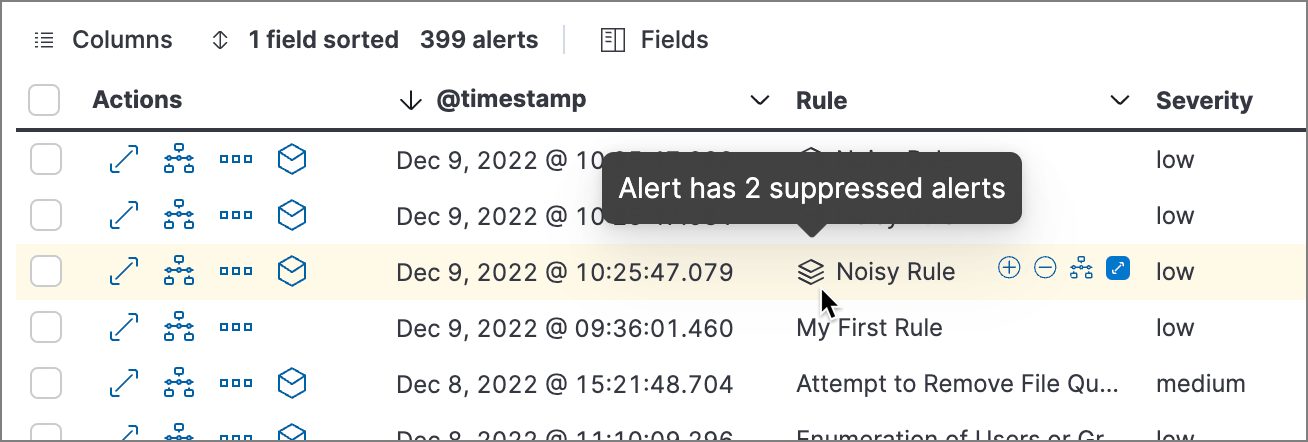
Icon in the Rule column: Hover over the icon to see the number of suppressed alerts.
Suppressed alerts count column: Select Fields to open the fields browser, then add
kibana.alert.suppression.docs_countto the table.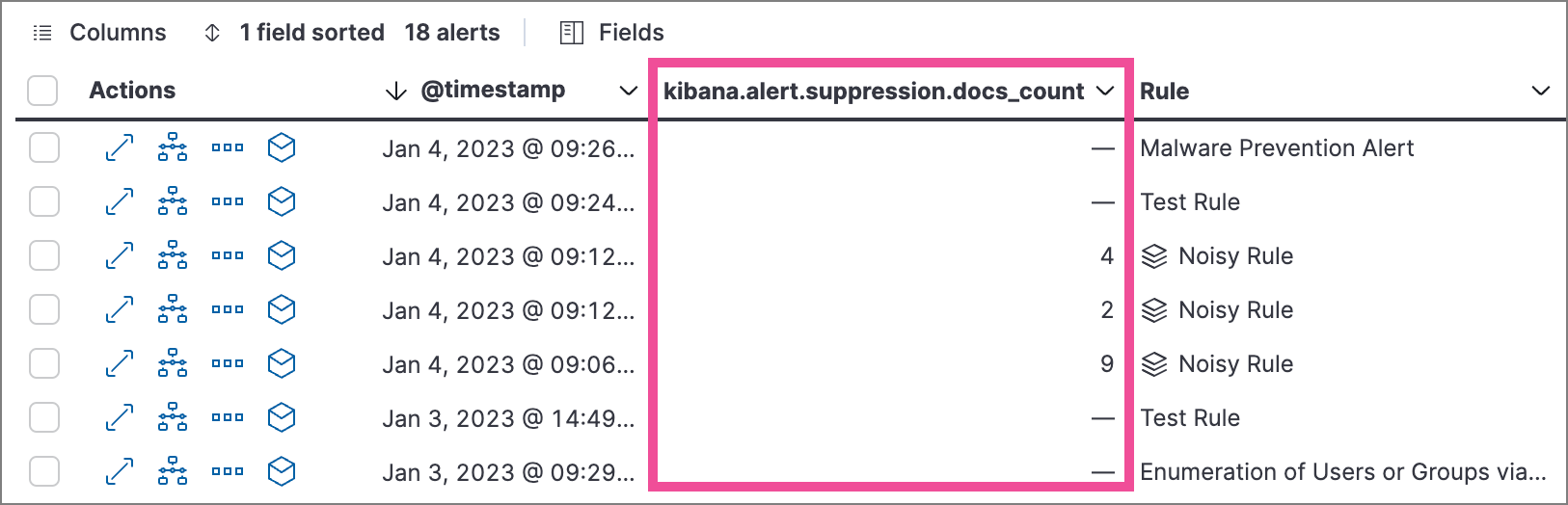
Open the Insights > Correlations section to see suppression details.
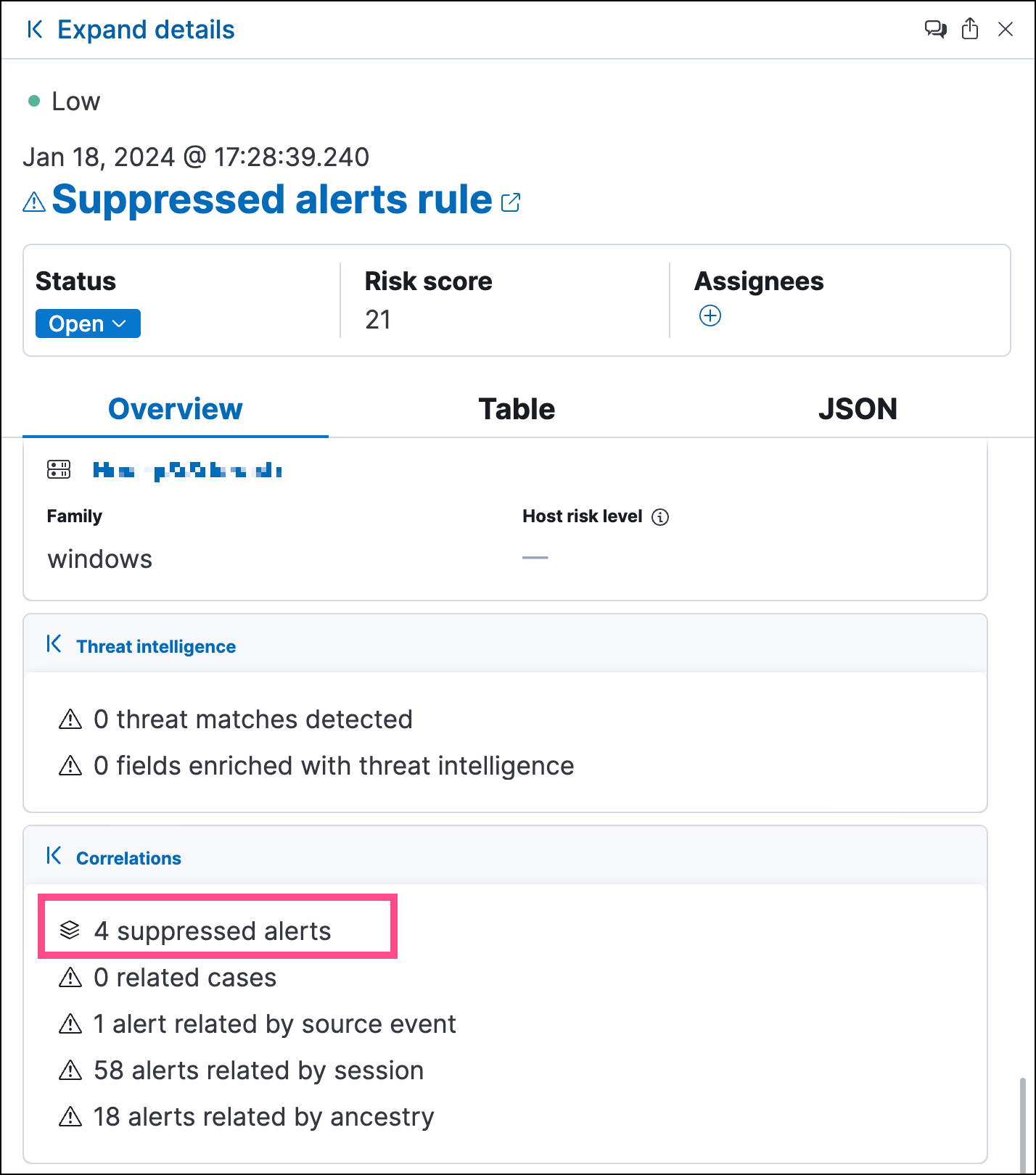
Even though suppressed events don't generate their own alerts, you can still access the original events for analysis. Open Timeline with all the events associated with a suppressed alert using one of these methods:
- Alerts table— select Investigate in timeline in the Actions column.
- Alert details flyout— select Take action > Investigate in timeline.
The events visible in Timeline depend on the rule type:
- Custom query rules: Timeline shows all source events that were suppressed, including the additional events grouped under the alert. This is unique to custom query rules due to how query-based suppression works.
- All other rule types: Timeline shows only the events tied to the generated alert, not the additional events counted in the suppression total. This is expected behavior.
By default, closing a suppressed alert while the suppression window is still active resets suppression. The next qualifying event starts a new suppression window and creates a new alert.
For example, say you set suppression to 5 minutes, grouped by host.name. When an event matches, an alert is created. For the next 5 minutes, matching events are suppressed and grouped with that alert. If you close the alert before the 5-minute window ends, suppression stops. The next matching event creates a new alert and starts a new 5-minute window.
securitySolution:suppressionBehaviorOnAlertClosure advanced setting to Continue until suppression window ends.
Some rule types limit the number of alerts that can be suppressed. Custom query rules have no suppression limit.
| Rule type | Maximum suppressed alerts |
|---|---|
| Threshold, event correlation, ES|QL, and machine learning | Equal to the rule's Max alerts per run advanced setting (default: 100) |
| Indicator match and new terms | Five times the rule's Max alerts per run setting (default: 500) |
Suppressed alerts count toward this maximum, even if they are not individually created as alert documents. Additionally, the xpack.alerting.rules.run.alerts.max Kibana setting acts as a system-level ceiling and can further limit the total number of alerts per rule execution.
You can apply or remove alert suppression from multiple rules at once using the Bulk actions menu in the Rules table.
- For most rule types, use the Apply alert suppression option.
- For threshold rules, use the bulk menu option labeled specifically for threshold rules.