Manage detection rules
After you install prebuilt rules or create custom rules, use the Rules page to manage them. The Rules page is your central hub for viewing rule status, editing configurations, controlling rule execution, and performing bulk operations. To perform these tasks, you need the appropriate privileges. To open the Rules page, find Detection rules (SIEM) in the navigation menu or by using the global search field.
The following sections explain how to filter rules, edit settings, control execution, export and import rules, and perform bulk operations.
To sort the rules list, click any column header. To sort in descending order, click the column header again.
To filter the rules list, enter a search term in the search bar and press Return. You can search by:
- Rule name: Partial matches work. Enter any word or phrase from a rule's name.
- Index pattern: Exact match required. Enter the full pattern (for example,
filebeat-*works, butfilebeatdoes not). - MITRE ATT&CK tactic or technique: Exact, case-sensitive match required. Enter the full tactic name (
Defense Evasion) or technique number (TA0005). Partial matches likeDefenseordefense evasiondo not work.
You can also filter the rules list by selecting the Tags, Last response, Elastic rules, Custom rules, Enabled rules, and Disabled rules filters next to the search bar.
The rules list retains your sorting and filtering settings when you navigate away and return to the page. These settings are also preserved when you copy the page’s URL and paste into another browser. Select Clear filters above the table to revert to the default view.
Edit rule settings to modify detection logic, notifications, schedules, and other rule configurations. You can edit a single rule or use bulk actions to update multiple rules at once.
- Custom rules: You can edit and bulk-modify custom rules with any Elastic Stack subscription or Serverless project tier.
- Prebuilt rules: You can edit rule notifications with any subscription or project tier. Editing all other prebuilt rule settings (except Author and License) or bulk-modifying prebuilt rules requires an Enterprise subscription or Security Analytics Complete project.
- Find Detection rules (SIEM) in the navigation menu or by using the global search field.
- Do one of the following:
- In the Rules table, select the All actions menu on a rule, then select Edit rule settings.
- Click on a rule's name to open its details page, then click Edit rule settings.
- The Edit rule settings view opens, where you can modify the rule's settings. To snooze rule actions, go to the Actions tab and click the bell icon .
- Click Save changes.
Use bulk editing to update settings on multiple rules simultaneously. Rules that can't be modified are automatically skipped, for example, if you try to apply a tag to rules that already have that tag, or apply an index pattern to rules that use data views.
Find Detection rules (SIEM) in the navigation menu or by using the global search field.
In the Rules table, select the rules you want to edit.
From the Bulk actions menu, select one of the following:
- Index patterns: Add or delete the index patterns used by all selected rules.
- Tags: Add or delete tags on all selected rules.
- Custom highlighted fields: Add custom highlighted fields on all selected rules. You can choose any fields that are available in the default Elastic Security indices, or enter field names from other indices. To overwrite a rule's current set of custom highlighted fields, select the Overwrite all selected rules' custom highlighted fields option, then click Save.
- Add rule actions: Add rule actions on all selected rules. If you add multiple rule actions, you can specify an action frequency for each of them. To overwrite the frequency of existing rule actions, select the option to Overwrite all selected rules actions. Keep in mind that rule actions won't run during a maintenance window; they'll resume after the maintenance window ends.
- Update rule schedules: Update the schedules and look-back times on all selected rules.
- Apply Timeline template: Apply a specified Timeline template to the selected rules. You can also choose None to remove Timeline templates from the selected rules.
On the page or flyout that opens, update the rule settings.
If available, select Overwrite all selected x to overwrite the settings on the rules. For example, if you're adding tags to multiple rules, selecting Overwrite all selected rules tags removes all the rules' original tags and replaces them with the tags you specify.
Click Save.
Enable rules to activate them so they run on their defined schedules and generate alerts. Disable rules to stop them from running without deleting them.
- Find Detection rules (SIEM) in the navigation menu or by using the global search field.
- In the Rules table, do one of the following:
- Switch the rule's Enabled toggle on or off.
- Select the All actions menu on a rule, then select Enable or Disable.
- Click on a rule's name to open its details page, then select All actions > Enable or Disable.
- Find Detection rules (SIEM) in the navigation menu or by using the global search field.
- In the Rules table, select the rules you want to enable or disable.
- From the Bulk actions menu, select Enable or Disable.
Duplicate rules to create copies that you can modify independently. This is useful for creating variations of existing rules or testing changes without affecting the original rule.
- Find Detection rules (SIEM) in the navigation menu or by using the global search field.
- Do one of the following:
- In the Rules table, select the All actions menu on a rule, then select Duplicate.
- Click on a rule's name to open its details page, then select All actions > Duplicate.
- If the rule has exceptions, choose how to handle them:
- Duplicate the rule and its exceptions (active and expired)
- Duplicate the rule and active exceptions only
- Duplicate only the rule
If you duplicate the rule and its exceptions, copies of the exceptions are created and added to the duplicated rule's default rule list. If the original rule used exceptions from a shared exception list, the duplicated rule will reference the same shared exception list.
- Find Detection rules (SIEM) in the navigation menu or by using the global search field.
- In the Rules table, select the rules you want to duplicate.
- From the Bulk actions menu, select Duplicate.
- If any selected rules have exceptions, choose how to handle them.
Delete rules to permanently remove them from your system. This action cannot be undone.
- Find Detection rules (SIEM) in the navigation menu or by using the global search field.
- Do one of the following:
- In the Rules table, select the All actions menu on a rule, then select Delete.
- Click on a rule's name to open its details page, then select All actions > Delete.
- Confirm the deletion.
- Find Detection rules (SIEM) in the navigation menu or by using the global search field.
- In the Rules table, select the rules you want to delete.
- From the Bulk actions menu, select Delete.
- Confirm the deletion.
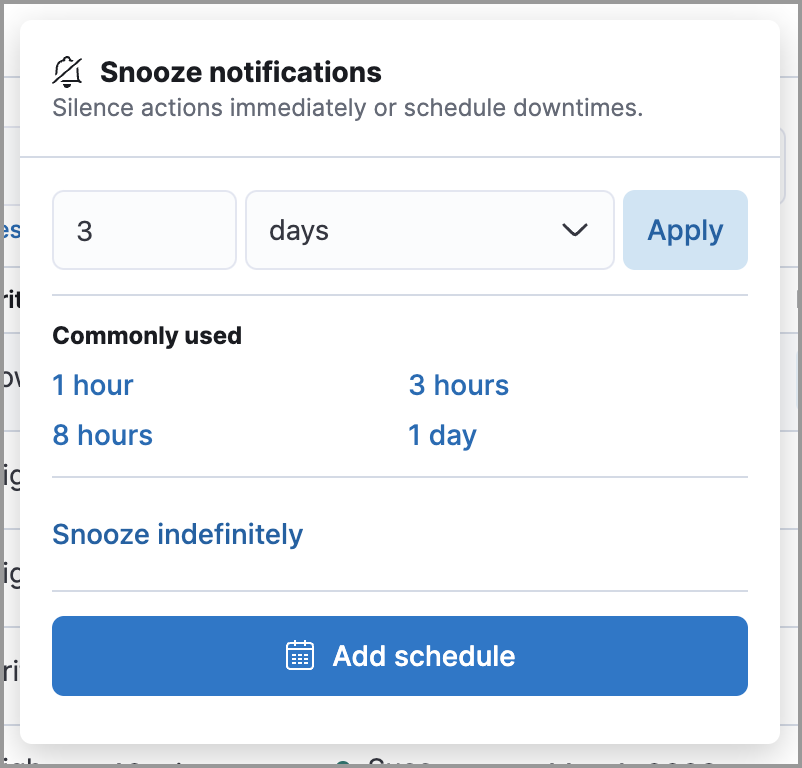
Snoozing pauses a rule's actions (notifications, ticket creation, and other integrations) without stopping the rule itself. The rule keeps running on schedule and continues generating alerts, but notifications are suppressed until the snooze period ends.
Use snoozing for planned maintenance windows, expected alert spikes, or any time you want to silence notifications temporarily while still capturing alerts for later review.
You can snooze rule actions from the Installed Rules tab, the rule details page, or the Actions tab when editing a rule. Snooze options include temporary periods, indefinite snoozing, and recurring schedules.
Manually run enabled rules for a specified time period to deliberately test them, provide additional rule coverage, or fill gaps in rule executions.
Before manually running rules, make sure you properly understand and plan for rule dependencies. Incorrect scheduling can lead to inconsistent rule results.
Find Detection rules (SIEM) in the navigation menu or by using the global search field.
In the Rules table, do one of the following:
- Select the All actions menu on a rule, then select Manual run.
- Select all the rules you want to manually run, select the Bulk actions menu, then select Manual run.
Specify when the manual run starts and ends. The default selection is the current day starting three hours in the past. The rule searches for events during the selected time range.
Select Run to manually run the rule.
The rule runs over the time range that you selected. All rule actions are also activated, except for Summary of alerts actions that run at a custom frequency.
Be mindful of the following:
- Any changes that you make to the manual run or rule settings display in the Manual runs table after the current run completes.
- Except for threshold rules, duplicate alerts aren't created if you manually run a rule during a time range that was already covered by a scheduled run.
- Manually running a custom query rule with suppression may incorrectly inflate the number of suppressed alerts.
Each manual run can produce multiple rule executions, depending on the time range of the run and the rule's execution schedule.
Manual runs are executed with low priority and limited concurrency, meaning they might take longer to complete. This can be especially apparent for rules requiring multiple executions.
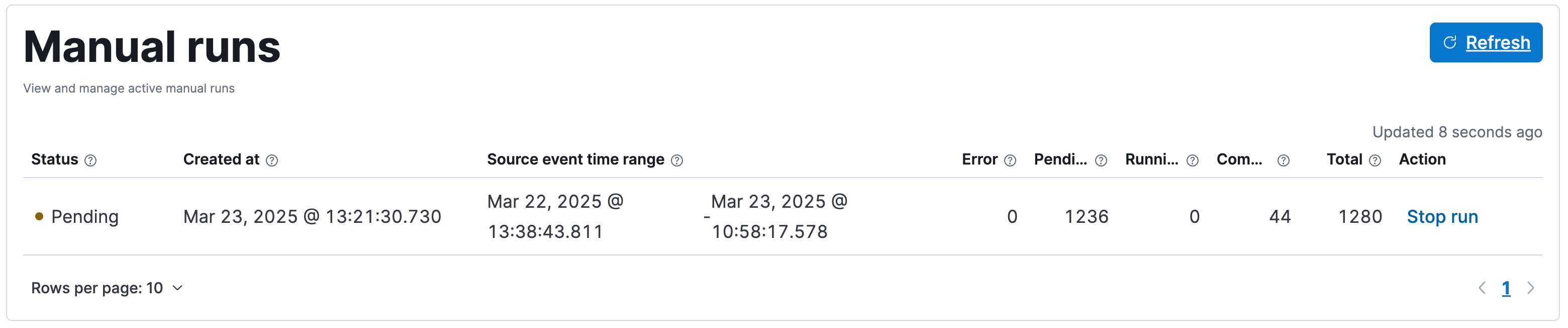
The Manual runs table (found on a rule's Execution results tab) tracks manual rule executions and provides important details such as:
The total number of rule executions that the manual run will produce and how many are failing, pending, running, and completed.
When the manual run started and the time range that it will cover.
NoteTo stop an active run, go to the appropriate row in the table and select Stop run in the Actions column. Completed rule executions for each manual run are logged in the Execution log table.
The status of each manual run:
Pending: The rule is not yet running.Running: The rule is executing during the time range you specified. Some rule types, such as indicator match rules, can take longer to run.Error: The rule's configuration is preventing it from running correctly. For example, the rule's conditions cannot be validated.
- You can export and import custom rules and prebuilt rules (modified and unmodified) with any Elastic Stack subscription or Serverless project feature tier.
- At minimum, your role needs
Readprivileges for the Action and Connectors feature to import rules with actions. To overwrite or add new connectors, you needAllprivileges. Refer to Turn on detections to learn more about the required privileges for managing rules.
You can export custom detection rules to an .ndjson file, which you can then import into another Elastic Security environment.
The .ndjson file also includes any actions, connectors, and exception lists related to the exported rules. However, other configuration items require additional handling when exporting and importing rules:
Data views: For rules that use a Kibana data view as a data source, the exported file contains the associated
data_view_id, but does not include any other data view configuration. To export/import between Kibana spaces, first use the Saved Objects UI to share the data view with the destination space.To import into a different Elastic Stack deployment, the destination cluster must include a data view with a matching data view ID (configured in the data view’s advanced settings). Alternatively, after importing, you can manually reconfigure the rule to use an appropriate data view in the destination system.
Actions and connectors: Rule actions and connectors are included in the exported file, but sensitive information about the connector (such as authentication credentials) is not included. You must re-add missing connector details after importing detection rules.
TipYou can also use the Saved Objects UI to export and import necessary connectors before importing detection rules.
Value lists: Any value lists used for rule exceptions are not included in rule exports or imports. Use the Manage value lists UI to export and import value lists separately.
Find Detection rules (SIEM) in the navigation menu or by using the global search field.
Do one of the following:
- Export a single rule: Find the rule in the Rules table, then select All actions > Export. Alternatively, export the rule from its details page (click on the rule name to open its details, then click All actions > Export).
- Export multiple rules: In the Rules table, select the rules you want to export, then click Bulk actions > Export.
The rules are exported to an .ndjson file.
Above the Rules table, click Import rules.
In the Import rules modal:
Drag and drop the
.ndjsonfile that contains the exported rules.(Optional) Select the appropriate options to overwrite existing data:
- Overwrite existing detection rules with conflicting "rule_id": Updates existing rules if they match the
rule_idvalue of any rules in the import file. Configuration data included with the rules, such as actions, is also overwritten. - Overwrite existing exception lists with conflicting "list_id": Replaces existing exception lists with exception lists from the import file if they have a matching
list_idvalue. - Overwrite existing connectors with conflicting action "id": Updates existing connectors if they match the
action idvalue of any rule actions in the import file. Configuration data included with the actions is also overwritten.
- Overwrite existing detection rules with conflicting "rule_id": Updates existing rules if they match the
The imported rules are added to the Rules table.
The following table summarizes bulk actions that are available from the Bulk actions menu in the Rules table.
| Bulk action | Description |
|---|---|
| Enable | Activate selected rules so they run on their defined schedules. Refer to Enable and disable rules. |
| Disable | Deactivate selected rules to stop them from running. Refer to Enable and disable rules. |
| Duplicate | Create copies of selected rules. Refer to Duplicate rules. |
| Delete | Permanently remove selected rules. Refer to Delete rules. |
| Export | Export selected rules to an .ndjson file. Refer to Export rules. |
| Manual run | Run selected rules for a specified time period. Refer to Run rules manually. |
| Fill gaps | Fill gaps for selected rules. Refer to Fill gaps for multiple rules. |
| Index patterns | Add or delete index patterns on selected rules. Refer to Bulk edit rule settings. |
| Tags | Add or delete tags on selected rules. Refer to Bulk edit rule settings. |
| Custom highlighted fields | Add custom highlighted fields on selected rules. Refer to Bulk edit rule settings. |
| Add rule actions | Add rule actions on selected rules. Refer to Bulk edit rule settings. |
| Update rule schedules | Update schedules and look-back times on selected rules. Refer to Bulk edit rule settings. |
| Apply Timeline template | Apply a Timeline template to selected rules. Refer to Bulk edit rule settings. |