Create and manage shared exception lists
Shared exception lists let you group exception items and apply them to multiple rules at once. Instead of adding the same exception to each rule individually, create a shared list and associate it with any rules that need it.
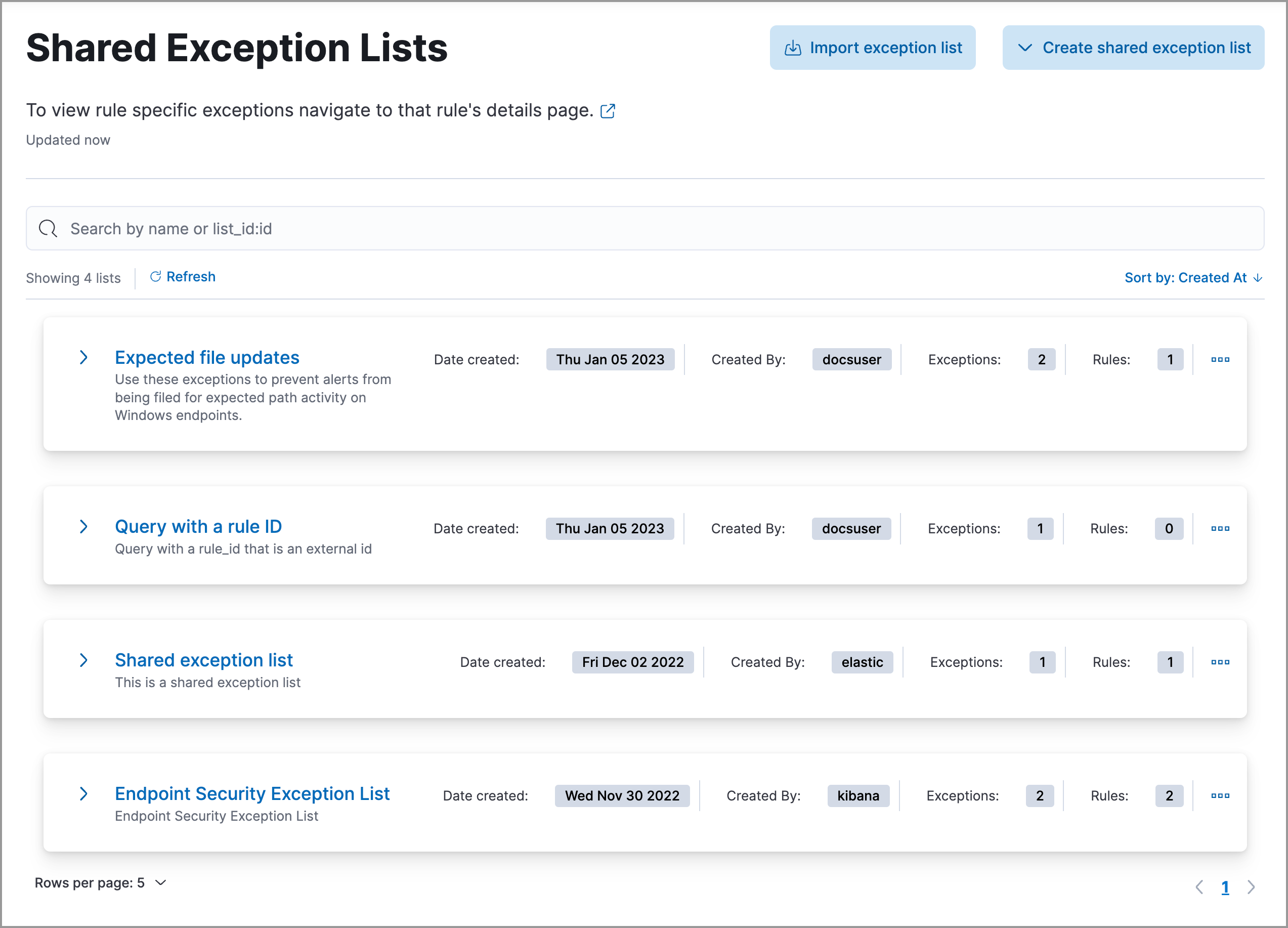
- Find the Shared exception lists page in the navigation menu or by using the global search field.
- Click Create shared exception list > Create shared list.
- Give the shared exception list a name.
- (Optional) Provide a description.
- Click Create shared exception list.
After creating a shared exception list, add exception items to it:
Find the Shared exception lists page in the navigation menu or by using the global search field.
Click Create shared exception list > Create exception item.
TipYou can also add exceptions to an empty shared exception list by expanding the list or viewing its details page and clicking Create rule exception.
In the Add rule exception flyout, name the exception item and add conditions that define when the exception prevents alerts. For details on configuring conditions, operators, and values, refer to Configure exception conditions.
Click AND or OR to create multiple conditions and define their relationships.
Click Add nested condition to create conditions using nested fields. This is only required for these nested fields. For all other fields, nested conditions should not be used.
Choose one or more shared exception lists to add the exception to.
NoteThis option is unavailable if no shared exception list exists. You also can't add an endpoint exception item to the Endpoint Security Exception List from this UI. Refer to Add Elastic Endpoint exceptions for instructions.
(Optional) Enter a comment describing the exception.
(Optional) Enter a future expiration date and time for the exception.
(Optional) Select Close all alerts that match this exception and were generated by this rule to close matching alerts.
Click Add rule exception.
After creating a shared exception list, associate it with the rules that should use it:
Find the Shared exception lists page in the navigation menu or by using the global search field.
Do one of the following:
- Click a shared exception list's name to open its details page, then click Link rules.
- Find the shared exception list, then from the More actions menu , select Link rules.
Click the toggles in the Link column to select the rules you want to link.
TipIf you know a rule's name, enter it into the search bar.
Click Save.
(Optional) To verify the association:
Open a rule's details page (Rules > Detection rules (SIEM) > Rule name).
Scroll down and select the Rule exceptions tab.
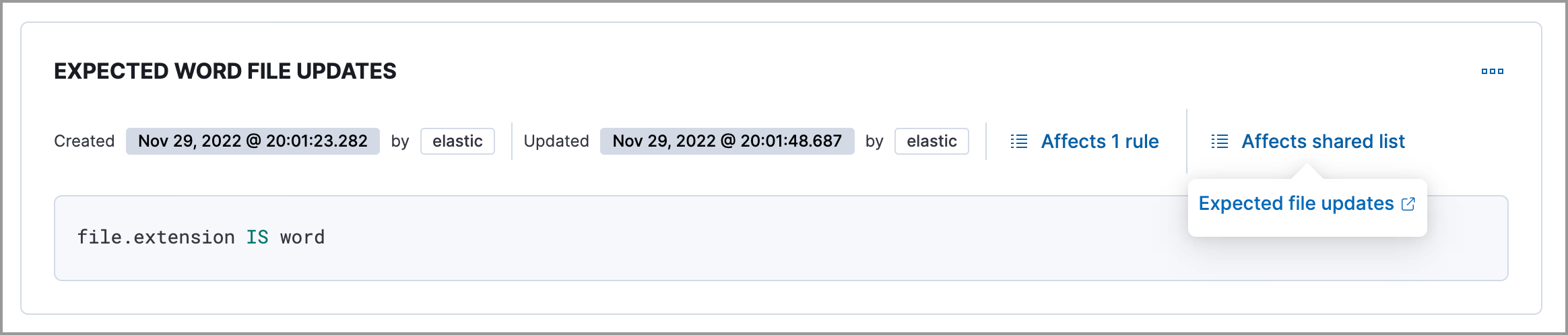
Navigate to the exception items from the shared list. Click the Affects shared list link to view the associated shared exception lists.
The Shared Exception Lists page displays each list on an individual row, with the most recently created list at the top. Each row shows:
- List name
- Date created
- Username of the creator
- Number of exception items
- Number of rules linked to the list
To view the details of an exception item, expand a row.
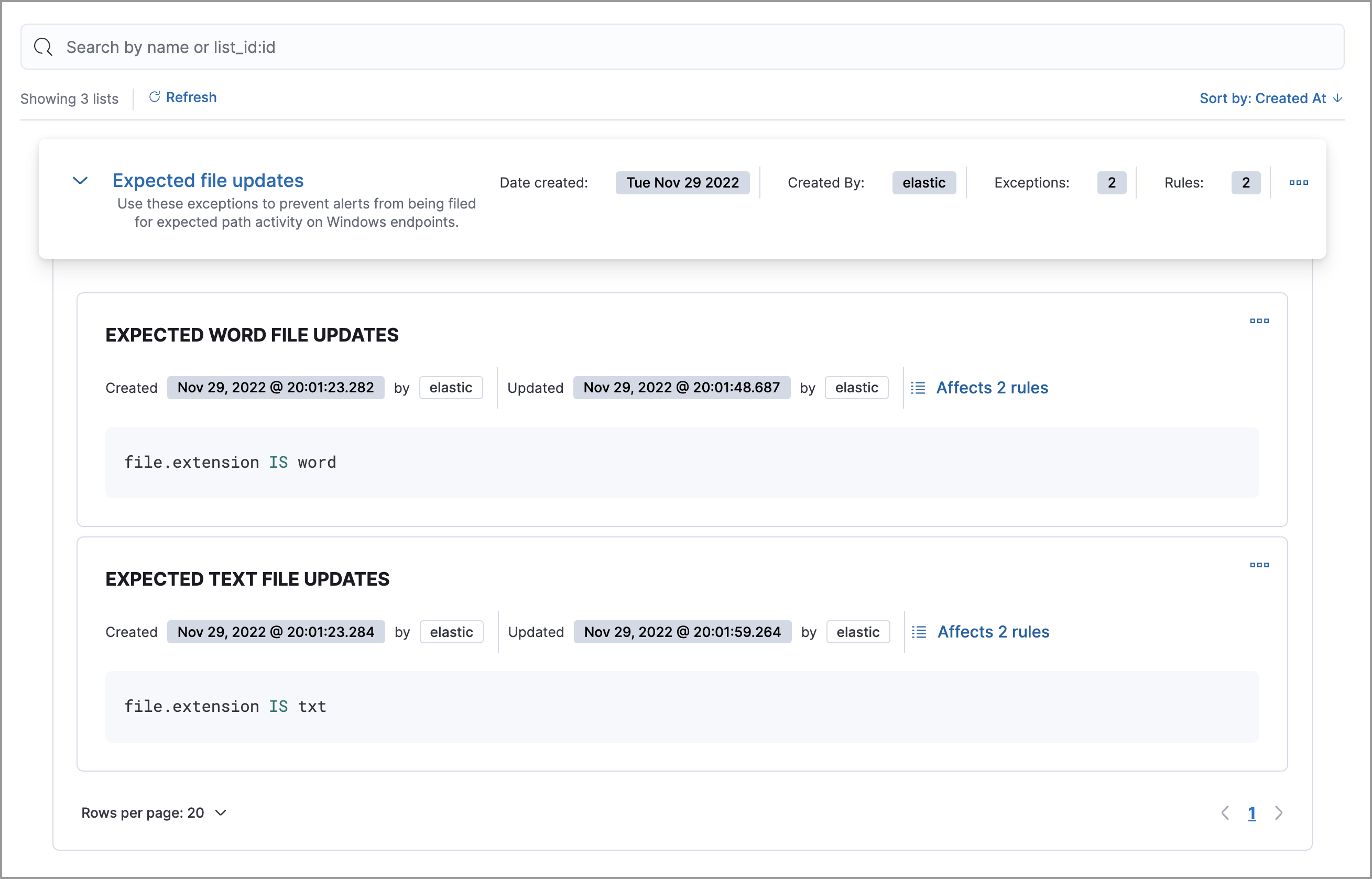
To filter exception lists by a specific value, enter a value in the search bar. You can search the following attributes:
namelist_idcreated_by
If no attribute is selected, the app searches the list name by default.
From the Shared Exception Lists page, you can edit, export, import, duplicate, and delete shared exception lists.
To export or delete an exception list, select the required action button on the appropriate list. Note the following:
- Exception lists are exported to
.ndjsonfiles. - Exception lists are also exported as part of any exported detection rules configured with exceptions. Refer to Export and import rules.
- If an exception list is linked to any rules, you'll get a warning asking you to confirm the deletion.
- If an exception list contains expired exceptions, you can choose whether to include them in the exported file.
