Google Threat Intelligence
| Version | 1.3.0 (View all) |
| Managed integration release status | GA |
| Subscription level What's this? |
Basic |
| Developed by What's this? |
Partner |
| Ingestion method(s) | API |
| Minimum Kibana version(s) | 9.0.0 8.16.0 |
You can use this integration as an Elastic Managed integration on Elastic Cloud Hosted deployments running this version or later.
Google Threat Intelligence is a security solution that helps organizations detect, analyze, and mitigate threats. It leverages Google's global telemetry, advanced analytics, and vast infrastructure to provide actionable insights. Key features include threat detection, malware and phishing analysis, and real-time threat alerts.
Google Threat Intelligence integration offers support for three APIs:
- Threat List API to deliver hourly data chunks. The Threat Lists feature allows customers to consume Indicators of Compromise (IOCs) categorized by various threat types.
- IOC Stream API to deliver various types of Indicators of Compromise (IOCs) originating from multiple sources. Depending on the source of the notification, different context-specific attributes are added to the IOCs.
- Vulnerability API to deliver Vulnerability objects enriched with GTI's assessment data, such as CVSS scores, EPSS, exploitation status, and CISA Known Exploited Vulnerabilities (KEV) information. Requires an Enterprise Plus subscription.
The Threat List API provides the following types of threat feeds:
- Cryptominers
- Daily Top Trending
- First Stage Delivery Vectors
- Infostealers
- Internet of Things (IoT)
- Linux
- Malicious Network Infrastructure
- Malware
- Mobile
- OS X
- Phishing
- Ransomware
- Threat Actor
- Vulnerability Weaponization
Customers can access a subset of the available threat lists based on their Google Threat Intelligence (GTI) tier:
- GTI Standard: Ransomware, Malicious Network Infrastructure
- GTI Enterprise: Ransomware, Malicious Network Infrastructure, Malware, Threat Actor, Daily Top Trending
- GTI Enterprise+: Access to all available threat lists
The Vulnerability data stream is a separate API from the Threat List API above and requires an Enterprise Plus subscription.
Data collection is available for all threat feeds and IOC Stream, each with a separate data stream. By default, Ransomware and Malicious Network Infrastructure is enabled. Users can enable additional data streams based on their GTI subscription tier. If a user enables data collection for a data stream they do not have access to, it will result in an error log on the Discover page.
Agentless integrations allow you to collect data without having to manage Elastic Agent in your cloud. They make manual agent deployment unnecessary, so you can focus on your data instead of the agent that collects it. For more information, refer to Agentless integrations and the Agentless integrations FAQ.
Agentless deployments are only supported in Elastic Serverless and Elastic Cloud environments. This functionality is in beta and is subject to change. Beta features are not subject to the support SLA of official GA features.
Elastic Agent must be installed. For more details, check the Elastic Agent installation instructions.
- VirusTotal URL will work as the base URL for this integration: https://www.virustotal.com
- An API key will be used to authenticate your request.
- Time Selection of Initial Interval and Interval:
- Users need to specify the initial interval and interval in an hourly format, such as 2h, 3h, etc.
Note: Threat-list packages are published hourly with a configurable availability delay (default
2h). Setinitial_intervalandintervalusing hour units (for example2h,3h). The collector clamps requests to the latest available package hour.
- Users need to specify the initial interval and interval in an hourly format, such as 2h, 3h, etc.
Note: Threat-list packages are published hourly with a configurable availability delay (default
- In Kibana, go to Management > Integrations.
- In the "Search for integrations" search bar, type Google Threat Intelligence.
- Click on the Google Threat Intelligence integration from the search results.
- Click on the Add Google Threat Intelligence button to add the integration.
- While adding the integration, to collect logs via REST API, provide the following details:
- Enable the type of data stream you have access to.
- Access Token
- Initial Interval
- Interval
- (Optional) Query to add custom query filtering on relationship, GTI score, and positives. (not applicable to IOC Stream)
- (Optional, Vulnerability only) Filter to add custom query filtering on the collected vulnerabilities. By default, this is set to
origin:"Google Threat Intelligence" cvss_3x_base_score:5+, which limits collection to vulnerabilities curated by Google Threat Intelligence with a CVSS v3 base score of at least 5. Clear this setting to collect all vulnerabilities instead.
- Click on Save and Continue to save the integration. Note: Please make only the threat feed types you have the privilege to access are enabled.
To keep the collected data up to date, Transforms are used.
Users can view the transforms by navigating to Management > Stack Management > Transforms.
Here, users can see continuously running transforms and also view the latest transformed GTI data in the Discover section.
Currently, 12 transforms are available across all GTI integration data streams.
The following list contains the transforms and their associated pipelines:
| Transform Name | Description |
|---|---|
IP Transform (ID: logs-ti_google_threat_intelligence.ip_ioc, Pipeline: ti_google_threat_intelligence-latest_ip_ioc-transform-pipeline) |
Keeps IP entity type data up to date. |
URL Transform (ID: logs-ti_google_threat_intelligence.url_ioc, Pipeline: ti_google_threat_intelligence-latest_url_ioc-transform-pipeline) |
Keeps URL entity type data up to date. |
Domain Transform (ID: logs-ti_google_threat_intelligence.domain_ioc, Pipeline: ti_google_threat_intelligence-latest_domain_ioc-transform-pipeline) |
Keeps Domain entity type data up to date. |
File Transform (ID: logs-ti_google_threat_intelligence.file_ioc, Pipeline: ti_google_threat_intelligence-latest_file_ioc-transform-pipeline) |
Keeps File entity type data up to date. |
IP IOC Stream Transform (ID: logs-ti_google_threat_intelligence.ip_ioc_st, Pipeline: ti_google_threat_intelligence-latest_ip_ioc_st-transform-pipeline) |
Keeps IP entity type data up to date for IOC Stream. |
URL IOC Stream Transform (ID: logs-ti_google_threat_intelligence.url_ioc_st, Pipeline: ti_google_threat_intelligence-latest_url_ioc_st-transform-pipeline) |
Keeps URL entity type data up to date for IOC Stream. |
Domain IOC Stream Transform (ID: logs-ti_google_threat_intelligence.domain_ioc_st, Pipeline: ti_google_threat_intelligence-latest_domain_ioc_st-transform-pipeline) |
Keeps Domain entity type data up to date for IOC Stream. |
File IOC Stream Transform (ID: logs-ti_google_threat_intelligence.file_ioc_st, Pipeline: ti_google_threat_intelligence-latest_file_ioc_st-transform-pipeline) |
Keeps File entity type data up to date for IOC Stream. |
Vulnerability Transform (ID: logs-ti_google_threat_intelligence.vulnerability) |
Keeps Vulnerability data up to date. |
Detected IOC Transform (ID: logs-ti_google_threat_intelligence.rule, Pipeline: ti_google_threat_intelligence-correlation_detection_rule-pipeline) |
Filters and extracts necessary information from Detected IOCs from threat feed. |
Detected IOC from IOC stream Transform (ID: logs-ti_google_threat_intelligence.rule_ioc_st, Pipeline: ti_google_threat_intelligence-correlation_detection_rule_ioc_st-pipeline) |
Filters and extracts necessary information from Detected IOCs from IOC stream. |
Detected Vulnerability Transform (ID: logs-ti_google_threat_intelligence.rule_vuln, Pipeline: ti_google_threat_intelligence-correlation_detection_rule_vulnerability-pipeline) |
Filters and extracts necessary information from Detected Vulnerabilities. |
All the GTI transforms are automatically started and the dashboards Threat Feed Overview, IOC Stream Overview, and Vulnerability Overview are populated.
The labels.is_transform_source field indicates log origin:
- False for transformed index
- True for source index
For example:
- The query
event.module: ti_google_threat_intelligence and labels.is_transform_source: trueindicates that the logs originate from the source index. - The query
event.module: ti_google_threat_intelligence and labels.is_transform_source: falseindicates that the logs originate from the transformed index.
A retention policy is used to remove data older than the default retention period. For more details, refer to the Retention Policy Documentation.
In this integration, all data streams have a retention period of 30 days.
Detection Rules match the user's data with GTI data, generating an alert if a match is found. To access detection rules:
- Navigate to Security > Rules > Detection Rules and click on Add Elastic Rules.
- Search for Google Threat Intelligence to find prebuilt Elastic detection rules.
- Detection rules are available for IP, URL, File, and Domain, each with a Threat List and an IOC Stream variant. A separate detection rule is also available for Vulnerability. Users can install one or more rules as needed.
To customize a rule for your Elastic environment:
- Click the three dots on the right side of any detection rule.
- Select Duplicate Rule.
- Modify the duplicated rule to tailor it to your Elastic environment:
- Index Pattern: Add the index pattern relevant to your data. Keeping this specific ensures optimal performance.
- Custom Query: Further refine rule conditions.
- Indicator Mapping: Map relevant fields from your Elastic environment to GTI fields. Do not modify the indicator index field.
- Schedule Rules:
- Set Runs Every - Defines how frequently the rule runs.
- Additional Lookback Time - Specifies how far back to check for matches.
Once saved, successfully executed rules will generate alerts. Users can view these alerts in the Alerts section.
The following are the names of the nine sample rules:
| Sample Rule Name | Description |
|---|---|
| Google Threat Intelligence URL IOC Correlation | Detects and alerts on matches between URL IOCs collected by GTI data with user's selected Elastic environment data. |
| Google Threat Intelligence Domain IOC Correlation | Detects and alerts on matches between Domain IOCs collected by GTI data with user's selected Elastic environment data. |
| Google Threat Intelligence File IOC Correlation | Detects and alerts on matches between File IOCs collected by GTI data with user's selected Elastic environment data. |
| Google Threat Intelligence IP Address IOC Correlation | Detects and alerts on matches between IP Address IOCs collected by GTI data with user's selected Elastic environment data. |
| Google Threat Intelligence URL IOC Stream Correlation | Detects and alerts on matches between URL IOCs collected by GTI IOC Stream data with user's selected Elastic environment data. |
| Google Threat Intelligence Domain IOC Stream Correlation | Detects and alerts on matches between Domain IOCs collected by GTI IOC Stream data with user's selected Elastic environment data. |
| Google Threat Intelligence File IOC Stream Correlation | Detects and alerts on matches between File IOCs collected by GTI IOC Stream data with user's selected Elastic environment data. |
| Google Threat Intelligence IP Address IOC Stream Correlation | Detects and alerts on matches between IP Address IOCs collected by GTI IOC Stream data with user's selected Elastic environment data. |
| Google Threat Intelligence Vulnerability Correlation | Detects and alerts on matches between Vulnerabilities collected by GTI data with user's selected Elastic environment data. |
The following three transforms are available to filter relevant data from alerts.
- Detected IOC Transform (ID:
logs-ti_google_threat_intelligence.rule) - Detected IOC from IOC stream Transform (ID:
logs-ti_google_threat_intelligence.rule_ioc_st) - Detected Vulnerability Transform (ID:
logs-ti_google_threat_intelligence.rule_vuln)
These transforms are automatically started to populate Threat Intelligence, Adversary Intelligence, IOC Stream Threat Intelligence, and Vulnerability Intelligence dashboards. The data_stream.dataset: ti_google_threat_intelligence.enriched_ioc, data_stream.dataset: ti_google_threat_intelligence.enriched_ioc_stream, and data_stream.dataset: ti_google_threat_intelligence.enriched_vulnerability fields represent logs for current threat intelligence data, which can be analyzed in the Discover section.
- If an event contains multiple matching mappings (e.g., two file hash fields within the same event match GTI data), only one alert per detection rule will be generated for that event.
- If GTI information is ingested and processed by a transform, and the GTI source information is updated later, the changes are not reflected in the dashboards because the Elastic detection rules only run on the transformed (destination) data.
- If you see an error like
Package 2025031310 is not available until 2025-03-13 at 11:00 UTC because of privacy policy., ensure that your initial interval and interval are set in hours and the initial interval is greater than two hours. - If events are not appearing in the transformed index, check if transforms are running without errors. If you encounter issues, refer to Troubleshooting transforms.
- If detection rules take longer to run, ensure you have specified index patterns and applied queries to make your source events more specific. Note: More events in index patterns mean more time needed for detection rules to run.
- Ensure that relevant fields are correctly mapped in the Indicator Mapping section. Verify that fields in the specified index pattern are properly mapped, and ensure entity-specific fields (e.g., IP fields to IP fields, keyword fields like file hash SHA256 to corresponding file hash SHA256 fields) are accurately configured.
- If any transform is not in a Healthy state, try resetting it:
- Click the three dots next to the transform, then select Reset.
- After resetting, restart the transform if they are not automatically started.
This is the Cryptominer dataset.
Example
{
    "@timestamp": "2025-01-27T19:51:31.000Z",
    "agent": {
        "ephemeral_id": "4df7e827-0e86-458c-8ce4-750acbc29154",
        "id": "a9506a30-0a26-4a32-ae73-5ddde67eab3f",
        "name": "elastic-agent-56830",
        "type": "filebeat",
        "version": "8.16.0"
    },
    "data_stream": {
        "dataset": "ti_google_threat_intelligence.cryptominer",
        "namespace": "71400",
        "type": "logs"
    },
    "ecs": {
        "version": "8.17.0"
    },
    "elastic_agent": {
        "id": "a9506a30-0a26-4a32-ae73-5ddde67eab3f",
        "snapshot": false,
        "version": "8.16.0"
    },
    "event": {
        "agent_id_status": "verified",
        "category": [
            "threat"
        ],
        "dataset": "ti_google_threat_intelligence.cryptominer",
        "ingested": "2025-07-07T05:47:28Z",
        "kind": "enrichment",
        "original": "{\"data\":{\"attributes\":{\"first_submission_date\":1582817050,\"gti_assessment\":{\"severity\":{\"value\":\"SEVERITY_NONE\"},\"threat_score\":{\"value\":1},\"verdict\":{\"value\":\"VERDICT_UNDETECTED\"}},\"last_analysis_date\":1582817050,\"last_analysis_stats\":{\"harmless\":55,\"malicious\":8,\"undetected\":8},\"last_http_response_code\":200,\"last_modification_date\":1738007491,\"last_submission_date\":1582817050,\"positives\":8,\"times_submitted\":1,\"tld\":\"ru\",\"url\":\"http://securepasswel.ru/files/grapes_encrypted_87ed10f.bin\"},\"id\":\"0146b3be6e724b10e620e8090821a8253772af779a4996145cdf295c01e0900c\",\"relationships\":{},\"type\":\"url\"}}",
        "type": [
            "indicator"
        ]
    },
    "gti": {
        "cryptominer": {
            "attributes": {
                "first_submission_date": "2020-02-27T15:24:10.000Z",
                "gti_assessment": {
                    "severity": "SEVERITY_NONE",
                    "threat_score": 1,
                    "verdict": "VERDICT_UNDETECTED"
                },
                "last_analysis_date": "2020-02-27T15:24:10.000Z",
                "last_analysis_stats": {
                    "harmless": 55,
                    "malicious": 8,
                    "undetected": 8
                },
                "last_http_response_code": 200,
                "last_modification_date": "2025-01-27T19:51:31.000Z",
                "last_submission_date": "2020-02-27T15:24:10.000Z",
                "positives": 8,
                "times_submitted": 1,
                "top_level_domain": [
                    "ru"
                ],
                "url": "http://securepasswel.ru/files/grapes_encrypted_87ed10f.bin"
            },
            "id": "0146b3be6e724b10e620e8090821a8253772af779a4996145cdf295c01e0900c",
            "type": "url"
        }
    },
    "http": {
        "response": {
            "status_code": 200
        }
    },
    "input": {
        "type": "cel"
    },
    "observer": {
        "product": "Threat Intelligence",
        "vendor": "Google"
    },
    "related": {
        "hash": [
            "0146b3be6e724b10e620e8090821a8253772af779a4996145cdf295c01e0900c"
        ],
        "hosts": [
            "securepasswel.ru"
        ]
    },
    "tags": [
        "preserve_original_event",
        "forwarded",
        "google_threat_intelligence-cryptominer"
    ],
    "threat": {
        "feed": {
            "dashboard_id": [
                "ti_google_threat_intelligence-0b0fb6b4-d250-4e31-a56a-bb872e4c7c4a",
                "ti_google_threat_intelligence-9e8de699-a623-4a1b-9f63-7d641116f531",
                "ti_google_threat_intelligence-95187e5c-b4a2-45ad-b6a4-d6ce68e1f43e"
            ],
            "name": "GTI Cryptominer"
        },
        "indicator": {
            "id": [
                "0146b3be6e724b10e620e8090821a8253772af779a4996145cdf295c01e0900c"
            ],
            "last_seen": "2020-02-27T15:24:10.000Z",
            "modified_at": "2025-01-27T19:51:31.000Z",
            "name": "0146b3be6e724b10e620e8090821a8253772af779a4996145cdf295c01e0900c",
            "type": "url",
            "url": {
                "full": "http://securepasswel.ru/files/grapes_encrypted_87ed10f.bin",
                "original": "http://securepasswel.ru/files/grapes_encrypted_87ed10f.bin"
            }
        }
    },
    "url": {
        "domain": "securepasswel.ru",
        "extension": "bin",
        "original": "http://securepasswel.ru/files/grapes_encrypted_87ed10f.bin",
        "path": "/files/grapes_encrypted_87ed10f.bin",
        "scheme": "http"
    }
}
Exported fields
| Field | Description | Type |
|---|---|---|
| @timestamp | Event timestamp. | date |
| data_stream.dataset | Data stream dataset. | constant_keyword |
| data_stream.namespace | Data stream namespace. | constant_keyword |
| data_stream.type | Data stream type. | constant_keyword |
| event.dataset | Event dataset. | constant_keyword |
| event.module | Event module. | constant_keyword |
| gti.cryptominer.attributes.as_number | The autonomous system number to which the IP belongs. | long |
| gti.cryptominer.attributes.as_owner | The owner of the autonomous system to which the IP belongs. | keyword |
| gti.cryptominer.attributes.categories | Categories based on the predefined criteria. | keyword |
| gti.cryptominer.attributes.continent | The continent where the IP is placed (ISO-3166 continent code). | keyword |
| gti.cryptominer.attributes.country | The country where the IP is placed (ISO-3166 country code). | keyword |
| gti.cryptominer.attributes.creation_date | The date when the IOC was created. | date |
| gti.cryptominer.attributes.first_submission_date | The UTC timestamp of the date when the URL was first submitted to Google Threat Intelligence. | date |
| gti.cryptominer.attributes.gti_assessment.severity | The threat severity level. | keyword |
| gti.cryptominer.attributes.gti_assessment.threat_score | The Google Threat Intelligence score is a function of the verdict and severity, and leverages additional internal factors to generate the score. | long |
| gti.cryptominer.attributes.gti_assessment.verdict | Indicates the assessed threat verdict, which can be benign, undetected, suspicious, malicious, or unknown. | keyword |
| gti.cryptominer.attributes.jarm | A JARM hash representing the entity's TLS fingerprint, used for identifying and classifying servers. | keyword |
| gti.cryptominer.attributes.last_analysis_date | The most recent scan date. | date |
| gti.cryptominer.attributes.last_analysis_results.engine | The name of the security engine that performed the analysis. | keyword |
| gti.cryptominer.attributes.last_analysis_results.result | The outcome of the analysis performed by the security engine. | keyword |
| gti.cryptominer.attributes.last_analysis_stats.harmless | Number of reports saying that is harmless. | long |
| gti.cryptominer.attributes.last_analysis_stats.malicious | Number of reports saying that is malicious. | long |
| gti.cryptominer.attributes.last_analysis_stats.suspicious | Number of reports saying that is suspicious. | long |
| gti.cryptominer.attributes.last_analysis_stats.timeout | Number of reports saying that is timeout. | long |
| gti.cryptominer.attributes.last_analysis_stats.undetected | Number of reports saying that is undetected. | long |
| gti.cryptominer.attributes.last_final_url | The URL if the original URL redirects, where does it end. | keyword |
| gti.cryptominer.attributes.last_http_response_code | The HTTP response code of the last response. | long |
| gti.cryptominer.attributes.last_modification_date | The date when the object itself was last modified. | date |
| gti.cryptominer.attributes.last_submission_date | The most recent date the entity was submitted for analysis. | date |
| gti.cryptominer.attributes.md5 | The file's MD5 hash. | keyword |
| gti.cryptominer.attributes.meaningful_name | The most interesting name out of all file's names. | keyword |
| gti.cryptominer.attributes.names | All file names associated with the file. | keyword |
| gti.cryptominer.attributes.network | The IPv4 network range to which the IP belongs. | keyword |
| gti.cryptominer.attributes.outgoing_links | Containing links to different domains. | keyword |
| gti.cryptominer.attributes.positives | The number of security engines that flagged the entity as malicious. | long |
| gti.cryptominer.attributes.regional_internet_registry | One of the current RIRs. | keyword |
| gti.cryptominer.attributes.tags | A list of representative attributes. | keyword |
| gti.cryptominer.attributes.times_submitted | The number of times the entity has been submitted for analysis. | long |
| gti.cryptominer.attributes.title | The webpage title. | keyword |
| gti.cryptominer.attributes.top_level_domain | The highest level of the domain name (e.g., .com, .org). | keyword |
| gti.cryptominer.attributes.type_tags | The broader tags related to the specific file type. | keyword |
| gti.cryptominer.attributes.url | The original URL to be scanned. | keyword |
| gti.cryptominer.attributes.vhash | An in-house similarity clustering algorithm value, based on a simple structural feature hash allows you to find similar files. | keyword |
| gti.cryptominer.id | The unique ID associated with the entity. | keyword |
| gti.cryptominer.relationships.campaigns.attributes.collection_type | Identifies the type of the object. | keyword |
| gti.cryptominer.relationships.campaigns.attributes.name | Campaign's name. | keyword |
| gti.cryptominer.relationships.campaigns.id | The unique identifier associated with a specific relationship entry. | keyword |
| gti.cryptominer.relationships.campaigns.type | The category of relationship. | keyword |
| gti.cryptominer.relationships.collections.attributes.collection_type | Identifies the type of the object. | keyword |
| gti.cryptominer.relationships.collections.attributes.name | Collection's name. | keyword |
| gti.cryptominer.relationships.collections.id | Unique identifier for the collection grouping related entities. | keyword |
| gti.cryptominer.relationships.collections.type | The category of relationship. | keyword |
| gti.cryptominer.relationships.malware_families.attributes.collection_type | Identifies the type of the object. | keyword |
| gti.cryptominer.relationships.malware_families.attributes.name | Malware family's name. | keyword |
| gti.cryptominer.relationships.malware_families.id | Unique identifier for the malware family associated with the entity. | keyword |
| gti.cryptominer.relationships.malware_families.type | The category of relationship. | keyword |
| gti.cryptominer.relationships.reports.attributes.collection_type | Identifies the type of the object. | keyword |
| gti.cryptominer.relationships.reports.attributes.name | Report's title. | keyword |
| gti.cryptominer.relationships.reports.id | Unique identifier for the report detailing the entity's analysis. | keyword |
| gti.cryptominer.relationships.reports.type | The category of relationship. | keyword |
| gti.cryptominer.relationships.software_toolkits.attributes.collection_type | Identifies the type of the object. | keyword |
| gti.cryptominer.relationships.software_toolkits.attributes.name | Software or toolkit's name. | keyword |
| gti.cryptominer.relationships.software_toolkits.id | Unique identifier for the software or toolkit associated with the entity. | keyword |
| gti.cryptominer.relationships.software_toolkits.type | The category of relationship. | keyword |
| gti.cryptominer.relationships.threat_actors.attributes.collection_type | Identifies the type of the object. | keyword |
| gti.cryptominer.relationships.threat_actors.attributes.name | Threat actor's name. | keyword |
| gti.cryptominer.relationships.threat_actors.id | Unique identifier for the threat actor associated with the entity. | keyword |
| gti.cryptominer.relationships.threat_actors.type | The category of relationship. | keyword |
| gti.cryptominer.relationships.vulnerabilities.attributes.collection_type | Identifies the type of the object. | keyword |
| gti.cryptominer.relationships.vulnerabilities.attributes.name | Vulnerability's name. | keyword |
| gti.cryptominer.relationships.vulnerabilities.id | Unique identifier for the vulnerability associated with the entity. | keyword |
| gti.cryptominer.relationships.vulnerabilities.type | The category of relationship. | keyword |
| gti.cryptominer.type | Specifies the nature of the entity, such as file, domain, IP, or URL. | keyword |
| input.type | Type of filebeat input. | keyword |
| labels.is_transform_source | Distinguishes between documents that are a source for a transform and documents that are an output of a transform, to facilitate easier filtering. | constant_keyword |
| log.offset | Log offset. | long |
| threat.enrichments | A list of associated indicators objects enriching the event, and the context of that association/enrichment. | nested |
This is the First Stage Delivery Vectors dataset.
Example
{
    "@timestamp": "2025-01-27T19:51:31.000Z",
    "agent": {
        "ephemeral_id": "dbf9b140-abe3-4426-be73-00959e110f85",
        "id": "4e149935-09c2-48ff-8075-0fcf4e137d38",
        "name": "elastic-agent-66341",
        "type": "filebeat",
        "version": "8.16.0"
    },
    "data_stream": {
        "dataset": "ti_google_threat_intelligence.first_stage_delivery_vectors",
        "namespace": "45412",
        "type": "logs"
    },
    "ecs": {
        "version": "8.17.0"
    },
    "elastic_agent": {
        "id": "4e149935-09c2-48ff-8075-0fcf4e137d38",
        "snapshot": false,
        "version": "8.16.0"
    },
    "event": {
        "agent_id_status": "verified",
        "category": [
            "threat"
        ],
        "dataset": "ti_google_threat_intelligence.first_stage_delivery_vectors",
        "ingested": "2025-07-07T05:49:55Z",
        "kind": "enrichment",
        "original": "{\"data\":{\"attributes\":{\"first_submission_date\":1582817050,\"gti_assessment\":{\"severity\":{\"value\":\"SEVERITY_NONE\"},\"threat_score\":{\"value\":1},\"verdict\":{\"value\":\"VERDICT_UNDETECTED\"}},\"last_analysis_date\":1582817050,\"last_analysis_stats\":{\"harmless\":55,\"malicious\":8,\"undetected\":8},\"last_http_response_code\":200,\"last_modification_date\":1738007491,\"last_submission_date\":1582817050,\"positives\":8,\"times_submitted\":1,\"tld\":\"ru\",\"url\":\"http://securepasswel.ru/files/grapes_encrypted_87ed10f.bin\"},\"id\":\"0146b3be6e724b10e620e8090821a8253772af779a4996145cdf295c01e0900c\",\"relationships\":{},\"type\":\"url\"}}",
        "type": [
            "indicator"
        ]
    },
    "gti": {
        "first_stage_delivery_vectors": {
            "attributes": {
                "first_submission_date": "2020-02-27T15:24:10.000Z",
                "gti_assessment": {
                    "severity": "SEVERITY_NONE",
                    "threat_score": 1,
                    "verdict": "VERDICT_UNDETECTED"
                },
                "last_analysis_date": "2020-02-27T15:24:10.000Z",
                "last_analysis_stats": {
                    "harmless": 55,
                    "malicious": 8,
                    "undetected": 8
                },
                "last_http_response_code": 200,
                "last_modification_date": "2025-01-27T19:51:31.000Z",
                "last_submission_date": "2020-02-27T15:24:10.000Z",
                "positives": 8,
                "times_submitted": 1,
                "top_level_domain": [
                    "ru"
                ],
                "url": "http://securepasswel.ru/files/grapes_encrypted_87ed10f.bin"
            },
            "id": "0146b3be6e724b10e620e8090821a8253772af779a4996145cdf295c01e0900c",
            "type": "url"
        }
    },
    "http": {
        "response": {
            "status_code": 200
        }
    },
    "input": {
        "type": "cel"
    },
    "observer": {
        "product": "Threat Intelligence",
        "vendor": "Google"
    },
    "related": {
        "hash": [
            "0146b3be6e724b10e620e8090821a8253772af779a4996145cdf295c01e0900c"
        ],
        "hosts": [
            "securepasswel.ru"
        ]
    },
    "tags": [
        "preserve_original_event",
        "forwarded",
        "google_threat_intelligence-first_stage_delivery_vectors"
    ],
    "threat": {
        "feed": {
            "dashboard_id": [
                "ti_google_threat_intelligence-0b0fb6b4-d250-4e31-a56a-bb872e4c7c4a",
                "ti_google_threat_intelligence-9e8de699-a623-4a1b-9f63-7d641116f531",
                "ti_google_threat_intelligence-95187e5c-b4a2-45ad-b6a4-d6ce68e1f43e"
            ],
            "name": "GTI First Stage Delivery Vectors"
        },
        "indicator": {
            "id": [
                "0146b3be6e724b10e620e8090821a8253772af779a4996145cdf295c01e0900c"
            ],
            "last_seen": "2020-02-27T15:24:10.000Z",
            "modified_at": "2025-01-27T19:51:31.000Z",
            "name": "0146b3be6e724b10e620e8090821a8253772af779a4996145cdf295c01e0900c",
            "type": "url",
            "url": {
                "full": "http://securepasswel.ru/files/grapes_encrypted_87ed10f.bin",
                "original": "http://securepasswel.ru/files/grapes_encrypted_87ed10f.bin"
            }
        }
    },
    "url": {
        "domain": "securepasswel.ru",
        "extension": "bin",
        "original": "http://securepasswel.ru/files/grapes_encrypted_87ed10f.bin",
        "path": "/files/grapes_encrypted_87ed10f.bin",
        "scheme": "http"
    }
}
Exported fields
| Field | Description | Type |
|---|---|---|
| @timestamp | Event timestamp. | date |
| data_stream.dataset | Data stream dataset. | constant_keyword |
| data_stream.namespace | Data stream namespace. | constant_keyword |
| data_stream.type | Data stream type. | constant_keyword |
| event.dataset | Event dataset. | constant_keyword |
| event.module | Event module. | constant_keyword |
| gti.first_stage_delivery_vectors.attributes.as_number | The autonomous system number to which the IP belongs. | long |
| gti.first_stage_delivery_vectors.attributes.as_owner | The owner of the autonomous system to which the IP belongs. | keyword |
| gti.first_stage_delivery_vectors.attributes.categories | Categories based on the predefined criteria. | keyword |
| gti.first_stage_delivery_vectors.attributes.continent | The continent where the IP is placed (ISO-3166 continent code). | keyword |
| gti.first_stage_delivery_vectors.attributes.country | The country where the IP is placed (ISO-3166 country code). | keyword |
| gti.first_stage_delivery_vectors.attributes.creation_date | The date when the IOC was created. | date |
| gti.first_stage_delivery_vectors.attributes.first_submission_date | The UTC timestamp of the date when the URL was first submitted to Google Threat Intelligence. | date |
| gti.first_stage_delivery_vectors.attributes.gti_assessment.severity | The threat severity level. | keyword |
| gti.first_stage_delivery_vectors.attributes.gti_assessment.threat_score | The Google Threat Intelligence score is a function of the verdict and severity, and leverages additional internal factors to generate the score. | long |
| gti.first_stage_delivery_vectors.attributes.gti_assessment.verdict | Indicates the assessed threat verdict, which can be benign, undetected, suspicious, malicious, or unknown. | keyword |
| gti.first_stage_delivery_vectors.attributes.jarm | A JARM hash representing the entity's TLS fingerprint, used for identifying and classifying servers. | keyword |
| gti.first_stage_delivery_vectors.attributes.last_analysis_date | The most recent scan date. | date |
| gti.first_stage_delivery_vectors.attributes.last_analysis_results.engine | The name of the security engine that performed the analysis. | keyword |
| gti.first_stage_delivery_vectors.attributes.last_analysis_results.result | The outcome of the analysis performed by the security engine. | keyword |
| gti.first_stage_delivery_vectors.attributes.last_analysis_stats.harmless | Number of reports saying that is harmless. | long |
| gti.first_stage_delivery_vectors.attributes.last_analysis_stats.malicious | Number of reports saying that is malicious. | long |
| gti.first_stage_delivery_vectors.attributes.last_analysis_stats.suspicious | Number of reports saying that is suspicious. | long |
| gti.first_stage_delivery_vectors.attributes.last_analysis_stats.timeout | Number of reports saying that is timeout. | long |
| gti.first_stage_delivery_vectors.attributes.last_analysis_stats.undetected | Number of reports saying that is undetected. | long |
| gti.first_stage_delivery_vectors.attributes.last_final_url | The URL if the original URL redirects, where does it end. | keyword |
| gti.first_stage_delivery_vectors.attributes.last_http_response_code | The HTTP response code of the last response. | long |
| gti.first_stage_delivery_vectors.attributes.last_modification_date | The date when the object itself was last modified. | date |
| gti.first_stage_delivery_vectors.attributes.last_submission_date | The most recent date the entity was submitted for analysis. | date |
| gti.first_stage_delivery_vectors.attributes.md5 | The file's MD5 hash. | keyword |
| gti.first_stage_delivery_vectors.attributes.meaningful_name | The most interesting name out of all file's names. | keyword |
| gti.first_stage_delivery_vectors.attributes.names | All file names associated with the file. | keyword |
| gti.first_stage_delivery_vectors.attributes.network | The IPv4 network range to which the IP belongs. | keyword |
| gti.first_stage_delivery_vectors.attributes.outgoing_links | Containing links to different domains. | keyword |
| gti.first_stage_delivery_vectors.attributes.positives | The number of security engines that flagged the entity as malicious. | long |
| gti.first_stage_delivery_vectors.attributes.regional_internet_registry | One of the current RIRs. | keyword |
| gti.first_stage_delivery_vectors.attributes.tags | A list of representative attributes. | keyword |
| gti.first_stage_delivery_vectors.attributes.times_submitted | The number of times the entity has been submitted for analysis. | long |
| gti.first_stage_delivery_vectors.attributes.title | The webpage title. | keyword |
| gti.first_stage_delivery_vectors.attributes.top_level_domain | The highest level of the domain name (e.g., .com, .org). | keyword |
| gti.first_stage_delivery_vectors.attributes.type_tags | The broader tags related to the specific file type. | keyword |
| gti.first_stage_delivery_vectors.attributes.url | The original URL to be scanned. | keyword |
| gti.first_stage_delivery_vectors.attributes.vhash | An in-house similarity clustering algorithm value, based on a simple structural feature hash allows you to find similar files. | keyword |
| gti.first_stage_delivery_vectors.id | The unique ID associated with the entity. | keyword |
| gti.first_stage_delivery_vectors.relationships.campaigns.attributes.collection_type | Identifies the type of the object. | keyword |
| gti.first_stage_delivery_vectors.relationships.campaigns.attributes.name | Campaign's name. | keyword |
| gti.first_stage_delivery_vectors.relationships.campaigns.id | The unique identifier associated with a specific relationship entry. | keyword |
| gti.first_stage_delivery_vectors.relationships.campaigns.type | The category of relationship. | keyword |
| gti.first_stage_delivery_vectors.relationships.collections.attributes.collection_type | Identifies the type of the object. | keyword |
| gti.first_stage_delivery_vectors.relationships.collections.attributes.name | Collection's name. | keyword |
| gti.first_stage_delivery_vectors.relationships.collections.id | Unique identifier for the collection grouping related entities. | keyword |
| gti.first_stage_delivery_vectors.relationships.collections.type | The category of relationship. | keyword |
| gti.first_stage_delivery_vectors.relationships.malware_families.attributes.collection_type | Identifies the type of the object. | keyword |
| gti.first_stage_delivery_vectors.relationships.malware_families.attributes.name | Malware family's name. | keyword |
| gti.first_stage_delivery_vectors.relationships.malware_families.id | Unique identifier for the malware family associated with the entity. | keyword |
| gti.first_stage_delivery_vectors.relationships.malware_families.type | The category of relationship. | keyword |
| gti.first_stage_delivery_vectors.relationships.reports.attributes.collection_type | Identifies the type of the object. | keyword |
| gti.first_stage_delivery_vectors.relationships.reports.attributes.name | Report's title. | keyword |
| gti.first_stage_delivery_vectors.relationships.reports.id | Unique identifier for the report detailing the entity's analysis. | keyword |
| gti.first_stage_delivery_vectors.relationships.reports.type | The category of relationship. | keyword |
| gti.first_stage_delivery_vectors.relationships.software_toolkits.attributes.collection_type | Identifies the type of the object. | keyword |
| gti.first_stage_delivery_vectors.relationships.software_toolkits.attributes.name | Software or toolkit's name. | keyword |
| gti.first_stage_delivery_vectors.relationships.software_toolkits.id | Unique identifier for the software or toolkit associated with the entity. | keyword |
| gti.first_stage_delivery_vectors.relationships.software_toolkits.type | The category of relationship. | keyword |
| gti.first_stage_delivery_vectors.relationships.threat_actors.attributes.collection_type | Identifies the type of the object. | keyword |
| gti.first_stage_delivery_vectors.relationships.threat_actors.attributes.name | Threat actor's name. | keyword |
| gti.first_stage_delivery_vectors.relationships.threat_actors.id | Unique identifier for the threat actor associated with the entity. | keyword |
| gti.first_stage_delivery_vectors.relationships.threat_actors.type | The category of relationship. | keyword |
| gti.first_stage_delivery_vectors.relationships.vulnerabilities.attributes.collection_type | Identifies the type of the object. | keyword |
| gti.first_stage_delivery_vectors.relationships.vulnerabilities.attributes.name | Vulnerability's name. | keyword |
| gti.first_stage_delivery_vectors.relationships.vulnerabilities.id | Unique identifier for the vulnerability associated with the entity. | keyword |
| gti.first_stage_delivery_vectors.relationships.vulnerabilities.type | The category of relationship. | keyword |
| gti.first_stage_delivery_vectors.type | Specifies the nature of the entity, such as file, domain, IP, or URL. | keyword |
| input.type | Type of filebeat input. | keyword |
| labels.is_transform_source | Distinguishes between documents that are a source for a transform and documents that are an output of a transform, to facilitate easier filtering. | constant_keyword |
| log.offset | Log offset. | long |
| threat.enrichments | A list of associated indicators objects enriching the event, and the context of that association/enrichment. | nested |
This is the Infostealers dataset.
Example
{
    "@timestamp": "2025-01-27T19:51:31.000Z",
    "agent": {
        "ephemeral_id": "b02f0363-ff15-4dcd-a86c-e62ca61fb391",
        "id": "11ac410f-0bab-4240-8d08-4a0f8d52fdec",
        "name": "elastic-agent-78695",
        "type": "filebeat",
        "version": "8.16.0"
    },
    "data_stream": {
        "dataset": "ti_google_threat_intelligence.infostealer",
        "namespace": "41450",
        "type": "logs"
    },
    "ecs": {
        "version": "8.17.0"
    },
    "elastic_agent": {
        "id": "11ac410f-0bab-4240-8d08-4a0f8d52fdec",
        "snapshot": false,
        "version": "8.16.0"
    },
    "event": {
        "agent_id_status": "verified",
        "category": [
            "threat"
        ],
        "dataset": "ti_google_threat_intelligence.infostealer",
        "ingested": "2025-07-07T05:50:47Z",
        "kind": "enrichment",
        "original": "{\"data\":{\"attributes\":{\"first_submission_date\":1582817050,\"gti_assessment\":{\"severity\":{\"value\":\"SEVERITY_NONE\"},\"threat_score\":{\"value\":1},\"verdict\":{\"value\":\"VERDICT_UNDETECTED\"}},\"last_analysis_date\":1582817050,\"last_analysis_stats\":{\"harmless\":55,\"malicious\":8,\"undetected\":8},\"last_http_response_code\":200,\"last_modification_date\":1738007491,\"last_submission_date\":1582817050,\"positives\":8,\"times_submitted\":1,\"tld\":\"ru\",\"url\":\"http://securepasswel.ru/files/grapes_encrypted_87ed10f.bin\"},\"id\":\"0146b3be6e724b10e620e8090821a8253772af779a4996145cdf295c01e0900c\",\"relationships\":{},\"type\":\"url\"}}",
        "type": [
            "indicator"
        ]
    },
    "gti": {
        "infostealer": {
            "attributes": {
                "first_submission_date": "2020-02-27T15:24:10.000Z",
                "gti_assessment": {
                    "severity": "SEVERITY_NONE",
                    "threat_score": 1,
                    "verdict": "VERDICT_UNDETECTED"
                },
                "last_analysis_date": "2020-02-27T15:24:10.000Z",
                "last_analysis_stats": {
                    "harmless": 55,
                    "malicious": 8,
                    "undetected": 8
                },
                "last_http_response_code": 200,
                "last_modification_date": "2025-01-27T19:51:31.000Z",
                "last_submission_date": "2020-02-27T15:24:10.000Z",
                "positives": 8,
                "times_submitted": 1,
                "top_level_domain": [
                    "ru"
                ],
                "url": "http://securepasswel.ru/files/grapes_encrypted_87ed10f.bin"
            },
            "id": "0146b3be6e724b10e620e8090821a8253772af779a4996145cdf295c01e0900c",
            "type": "url"
        }
    },
    "http": {
        "response": {
            "status_code": 200
        }
    },
    "input": {
        "type": "cel"
    },
    "observer": {
        "product": "Threat Intelligence",
        "vendor": "Google"
    },
    "related": {
        "hash": [
            "0146b3be6e724b10e620e8090821a8253772af779a4996145cdf295c01e0900c"
        ],
        "hosts": [
            "securepasswel.ru"
        ]
    },
    "tags": [
        "preserve_original_event",
        "forwarded",
        "google_threat_intelligence-infostealer"
    ],
    "threat": {
        "feed": {
            "dashboard_id": [
                "ti_google_threat_intelligence-0b0fb6b4-d250-4e31-a56a-bb872e4c7c4a",
                "ti_google_threat_intelligence-9e8de699-a623-4a1b-9f63-7d641116f531",
                "ti_google_threat_intelligence-95187e5c-b4a2-45ad-b6a4-d6ce68e1f43e"
            ],
            "name": "GTI Infostealer"
        },
        "indicator": {
            "id": [
                "0146b3be6e724b10e620e8090821a8253772af779a4996145cdf295c01e0900c"
            ],
            "last_seen": "2020-02-27T15:24:10.000Z",
            "modified_at": "2025-01-27T19:51:31.000Z",
            "name": "0146b3be6e724b10e620e8090821a8253772af779a4996145cdf295c01e0900c",
            "type": "url",
            "url": {
                "full": "http://securepasswel.ru/files/grapes_encrypted_87ed10f.bin",
                "original": "http://securepasswel.ru/files/grapes_encrypted_87ed10f.bin"
            }
        }
    },
    "url": {
        "domain": "securepasswel.ru",
        "extension": "bin",
        "original": "http://securepasswel.ru/files/grapes_encrypted_87ed10f.bin",
        "path": "/files/grapes_encrypted_87ed10f.bin",
        "scheme": "http"
    }
}
Exported fields
| Field | Description | Type |
|---|---|---|
| @timestamp | Event timestamp. | date |
| data_stream.dataset | Data stream dataset. | constant_keyword |
| data_stream.namespace | Data stream namespace. | constant_keyword |
| data_stream.type | Data stream type. | constant_keyword |
| event.dataset | Event dataset. | constant_keyword |
| event.module | Event module. | constant_keyword |
| gti.infostealer.attributes.as_number | The autonomous system number to which the IP belongs. | long |
| gti.infostealer.attributes.as_owner | The owner of the autonomous system to which the IP belongs. | keyword |
| gti.infostealer.attributes.categories | Categories based on the predefined criteria. | keyword |
| gti.infostealer.attributes.continent | The continent where the IP is placed (ISO-3166 continent code). | keyword |
| gti.infostealer.attributes.country | The country where the IP is placed (ISO-3166 country code). | keyword |
| gti.infostealer.attributes.creation_date | The date when the IOC was created. | date |
| gti.infostealer.attributes.first_submission_date | The UTC timestamp of the date when the URL was first submitted to Google Threat Intelligence. | date |
| gti.infostealer.attributes.gti_assessment.severity | The threat severity level. | keyword |
| gti.infostealer.attributes.gti_assessment.threat_score | The Google Threat Intelligence score is a function of the verdict and severity, and leverages additional internal factors to generate the score. | long |
| gti.infostealer.attributes.gti_assessment.verdict | Indicates the assessed threat verdict, which can be benign, undetected, suspicious, malicious, or unknown. | keyword |
| gti.infostealer.attributes.jarm | A JARM hash representing the entity's TLS fingerprint, used for identifying and classifying servers. | keyword |
| gti.infostealer.attributes.last_analysis_date | The most recent scan date. | date |
| gti.infostealer.attributes.last_analysis_results.engine | The name of the security engine that performed the analysis. | keyword |
| gti.infostealer.attributes.last_analysis_results.result | The outcome of the analysis performed by the security engine. | keyword |
| gti.infostealer.attributes.last_analysis_stats.harmless | Number of reports saying that is harmless. | long |
| gti.infostealer.attributes.last_analysis_stats.malicious | Number of reports saying that is malicious. | long |
| gti.infostealer.attributes.last_analysis_stats.suspicious | Number of reports saying that is suspicious. | long |
| gti.infostealer.attributes.last_analysis_stats.timeout | Number of reports saying that is timeout. | long |
| gti.infostealer.attributes.last_analysis_stats.undetected | Number of reports saying that is undetected. | long |
| gti.infostealer.attributes.last_final_url | The URL if the original URL redirects, where does it end. | keyword |
| gti.infostealer.attributes.last_http_response_code | The HTTP response code of the last response. | long |
| gti.infostealer.attributes.last_modification_date | The date when the object itself was last modified. | date |
| gti.infostealer.attributes.last_submission_date | The most recent date the entity was submitted for analysis. | date |
| gti.infostealer.attributes.md5 | The file's MD5 hash. | keyword |
| gti.infostealer.attributes.meaningful_name | The most interesting name out of all file's names. | keyword |
| gti.infostealer.attributes.names | All file names associated with the file. | keyword |
| gti.infostealer.attributes.network | The IPv4 network range to which the IP belongs. | keyword |
| gti.infostealer.attributes.outgoing_links | Containing links to different domains. | keyword |
| gti.infostealer.attributes.positives | The number of security engines that flagged the entity as malicious. | long |
| gti.infostealer.attributes.regional_internet_registry | One of the current RIRs. | keyword |
| gti.infostealer.attributes.tags | A list of representative attributes. | keyword |
| gti.infostealer.attributes.times_submitted | The number of times the entity has been submitted for analysis. | long |
| gti.infostealer.attributes.title | The webpage title. | keyword |
| gti.infostealer.attributes.top_level_domain | The highest level of the domain name (e.g., .com, .org). | keyword |
| gti.infostealer.attributes.type_tags | The broader tags related to the specific file type. | keyword |
| gti.infostealer.attributes.url | The original URL to be scanned. | keyword |
| gti.infostealer.attributes.vhash | An in-house similarity clustering algorithm value, based on a simple structural feature hash allows you to find similar files. | keyword |
| gti.infostealer.id | The unique ID associated with the entity. | keyword |
| gti.infostealer.relationships.campaigns.attributes.collection_type | Identifies the type of the object. | keyword |
| gti.infostealer.relationships.campaigns.attributes.name | Campaign's name. | keyword |
| gti.infostealer.relationships.campaigns.id | The unique identifier associated with a specific relationship entry. | keyword |
| gti.infostealer.relationships.campaigns.type | The category of relationship. | keyword |
| gti.infostealer.relationships.collections.attributes.collection_type | Identifies the type of the object. | keyword |
| gti.infostealer.relationships.collections.attributes.name | Collection's name. | keyword |
| gti.infostealer.relationships.collections.id | Unique identifier for the collection grouping related entities. | keyword |
| gti.infostealer.relationships.collections.type | The category of relationship. | keyword |
| gti.infostealer.relationships.malware_families.attributes.collection_type | Identifies the type of the object. | keyword |
| gti.infostealer.relationships.malware_families.attributes.name | Malware family's name. | keyword |
| gti.infostealer.relationships.malware_families.id | Unique identifier for the malware family associated with the entity. | keyword |
| gti.infostealer.relationships.malware_families.type | The category of relationship. | keyword |
| gti.infostealer.relationships.reports.attributes.collection_type | Identifies the type of the object. | keyword |
| gti.infostealer.relationships.reports.attributes.name | Report's title. | keyword |
| gti.infostealer.relationships.reports.id | Unique identifier for the report detailing the entity's analysis. | keyword |
| gti.infostealer.relationships.reports.type | The category of relationship. | keyword |
| gti.infostealer.relationships.software_toolkits.attributes.collection_type | Identifies the type of the object. | keyword |
| gti.infostealer.relationships.software_toolkits.attributes.name | Software or toolkit's name. | keyword |
| gti.infostealer.relationships.software_toolkits.id | Unique identifier for the software or toolkit associated with the entity. | keyword |
| gti.infostealer.relationships.software_toolkits.type | The category of relationship. | keyword |
| gti.infostealer.relationships.threat_actors.attributes.collection_type | Identifies the type of the object. | keyword |
| gti.infostealer.relationships.threat_actors.attributes.name | Threat actor's name. | keyword |
| gti.infostealer.relationships.threat_actors.id | Unique identifier for the threat actor associated with the entity. | keyword |
| gti.infostealer.relationships.threat_actors.type | The category of relationship. | keyword |
| gti.infostealer.relationships.vulnerabilities.attributes.collection_type | Identifies the type of the object. | keyword |
| gti.infostealer.relationships.vulnerabilities.attributes.name | Vulnerability's name. | keyword |
| gti.infostealer.relationships.vulnerabilities.id | Unique identifier for the vulnerability associated with the entity. | keyword |
| gti.infostealer.relationships.vulnerabilities.type | The category of relationship. | keyword |
| gti.infostealer.type | Specifies the nature of the entity, such as file, domain, IP, or URL. | keyword |
| input.type | Type of filebeat input. | keyword |
| labels.is_transform_source | Distinguishes between documents that are a source for a transform and documents that are an output of a transform, to facilitate easier filtering. | constant_keyword |
| log.offset | Log offset. | long |
| threat.enrichments | A list of associated indicators objects enriching the event, and the context of that association/enrichment. | nested |
This is the IOC Stream dataset.
Example
{
    "@timestamp": "2024-12-16T07:54:23.000Z",
    "agent": {
        "ephemeral_id": "0ad00193-b257-4f2f-8806-bd1c3036f102",
        "id": "a9ed7bec-e243-4005-b683-7df84309f053",
        "name": "elastic-agent-92986",
        "type": "filebeat",
        "version": "8.16.0"
    },
    "data_stream": {
        "dataset": "ti_google_threat_intelligence.ioc_stream",
        "namespace": "92671",
        "type": "logs"
    },
    "ecs": {
        "version": "8.17.0"
    },
    "elastic_agent": {
        "id": "a9ed7bec-e243-4005-b683-7df84309f053",
        "snapshot": false,
        "version": "8.16.0"
    },
    "event": {
        "agent_id_status": "verified",
        "category": [
            "threat"
        ],
        "dataset": "ti_google_threat_intelligence.ioc_stream",
        "ingested": "2025-07-21T16:14:11Z",
        "kind": "enrichment",
        "original": "{\"attributes\":{\"available_tools\":[],\"downloadable\":true,\"exiftool\":{\"FileType\":\"TXT\",\"FileTypeExtension\":\"txt\",\"LineCount\":\"1\",\"MIMEEncoding\":\"us-ascii\",\"MIMEType\":\"text/plain\",\"Newlines\":\"(none)\",\"WordCount\":\"1\"},\"first_seen_itw_date\":1707511993,\"first_submission_date\":1648544390,\"gti_assessment\":{\"contributing_factors\":{\"associated_actor\":[\"source\",\"javascript\",\"js\"],\"mandiant_association_actor\":true,\"mandiant_confidence_score\":75},\"description\":\"This indicator did not match our detection criteria and there is currently no evidence of malicious activity.\",\"severity\":{\"value\":\"SEVERITY_NONE\"},\"threat_score\":{\"value\":1},\"verdict\":{\"value\":\"VERDICT_UNDETECTED\"}},\"last_analysis_date\":1648544390,\"last_analysis_stats\":{\"confirmed-timeout\":0,\"failure\":0,\"harmless\":0,\"malicious\":0,\"suspicious\":0,\"timeout\":0,\"type-unsupported\":16,\"undetected\":57},\"last_modification_date\":1734335663,\"last_seen_itw_date\":1707512002,\"last_submission_date\":1648544390,\"magic\":\"ASCII text, with no line terminators\",\"mandiant_ic_score\":75,\"md5\":\"1e1d23c4e7524bc15a0b3ced0caf9ffc\",\"meaningful_name\":\"Password[1].htm\",\"names\":[\"Password[1].htm\"],\"reputation\":0,\"sha1\":\"4e234b019b77a4f04c168734a60e0b1883989215\",\"sha256\":\"841d999a7a7f0b2cd8bc21e6550fedee985bf53a530fef1033d1c4810b0be5bc\",\"size\":11,\"ssdeep\":\"3:EsaM:t\",\"tags\":[\"javascript\"],\"times_submitted\":1,\"total_votes\":{\"harmless\":0,\"malicious\":0},\"type_description\":\"JavaScript\",\"type_extension\":\"js\",\"type_tag\":\"javascript\",\"type_tags\":[\"source\",\"javascript\",\"js\"],\"unique_sources\":1,\"vhash\":\"9eecb7db59d16c80417c72d1e1f4fbf1\"},\"context_attributes\":{\"hunting_info\":null,\"notification_date\":1742528463,\"notification_id\":\"21769600967\",\"origin\":\"subscriptions\",\"sources\":[{\"id\":\"threat-actor--bfd69ac3-0158-57d3-a101-42496712ddae\",\"label\":\"UNC4515\",\"type\":\"collection\"}],\"tags\":[]},\"id\":\"841d999a7a7f0b2cd8bc21e6550fedee985bf53a530fef1033d1c4810b0be5bc\",\"links\":{\"self\":\"https://www.virustotal.com/api/v3/files/841d999a7a7f0b2cd8bc21e6550fedee985bf53a530fef1033d1c4810b0be5bc\"},\"type\":\"file\"}",
        "type": [
            "indicator"
        ]
    },
    "file": {
        "attributes": [
            "Password[1].htm"
        ],
        "extension": "js",
        "hash": {
            "md5": "1e1d23c4e7524bc15a0b3ced0caf9ffc",
            "sha1": "4e234b019b77a4f04c168734a60e0b1883989215",
            "sha256": "841d999a7a7f0b2cd8bc21e6550fedee985bf53a530fef1033d1c4810b0be5bc"
        },
        "mime_type": "text/plain",
        "name": "Password[1].htm",
        "type": "JavaScript"
    },
    "gti": {
        "ioc_stream": {
            "attributes": {
                "assessment": {
                    "contributing_factors": {
                        "mandiant_confidence_score": 75
                    },
                    "description": "This indicator did not match our detection criteria and there is currently no evidence of malicious activity.",
                    "severity": "SEVERITY_NONE",
                    "threat_score": 1,
                    "verdict": "VERDICT_UNDETECTED"
                },
                "downloadable": true,
                "exiftool": {
                    "file": {
                        "type": "TXT",
                        "type_extension": "txt"
                    },
                    "line_count": 1,
                    "mime": {
                        "encoding": "us-ascii",
                        "type": "text/plain"
                    },
                    "newlines": "(none)",
                    "word_count": 1
                },
                "failure": 0,
                "first_seen_itw_date": "2024-02-09T20:53:13.000Z",
                "first_submission_date": "2022-03-29T08:59:50.000Z",
                "last_analysis_date": "2022-03-29T08:59:50.000Z",
                "last_analysis_stats": {
                    "confirmed_timeout": 0,
                    "harmless": 0,
                    "malicious": 0,
                    "suspicious": 0,
                    "timeout": 0,
                    "undetected": 57
                },
                "last_modification_date": "2024-12-16T07:54:23.000Z",
                "last_seen_itw_date": "2024-02-09T20:53:22.000Z",
                "last_submission_date": "2022-03-29T08:59:50.000Z",
                "magic": "ASCII text, with no line terminators",
                "mandiant_ic_score": 75,
                "md5": "1e1d23c4e7524bc15a0b3ced0caf9ffc",
                "meaningful_name": "Password[1].htm",
                "names": [
                    "Password[1].htm"
                ],
                "reputation": 0,
                "sha1": "4e234b019b77a4f04c168734a60e0b1883989215",
                "sha256": "841d999a7a7f0b2cd8bc21e6550fedee985bf53a530fef1033d1c4810b0be5bc",
                "size": 11,
                "ssdeep": "3:EsaM:t",
                "tags": [
                    "javascript"
                ],
                "times_submitted": 1,
                "total_votes": {
                    "harmless": 0,
                    "malicious": 0
                },
                "type_description": "JavaScript",
                "type_extension": "js",
                "type_tags": [
                    "source",
                    "javascript",
                    "js"
                ],
                "type_unsupported": 16,
                "unique_sources": 1
            },
            "context_attributes": {
                "notification_date": "2025-03-21T03:41:03.000Z",
                "notification_id": 21769600967,
                "origin": "subscriptions",
                "sources": [
                    {
                        "id": "threat-actor--bfd69ac3-0158-57d3-a101-42496712ddae",
                        "label": "UNC4515",
                        "type": "collection"
                    }
                ]
            },
            "id": "841d999a7a7f0b2cd8bc21e6550fedee985bf53a530fef1033d1c4810b0be5bc",
            "type": "file",
            "vhash": "9eecb7db59d16c80417c72d1e1f4fbf1"
        }
    },
    "input": {
        "type": "cel"
    },
    "observer": {
        "product": "Threat Intelligence",
        "vendor": "Google"
    },
    "related": {
        "hash": [
            "1e1d23c4e7524bc15a0b3ced0caf9ffc",
            "4e234b019b77a4f04c168734a60e0b1883989215",
            "841d999a7a7f0b2cd8bc21e6550fedee985bf53a530fef1033d1c4810b0be5bc",
            "3:EsaM:t",
            "9eecb7db59d16c80417c72d1e1f4fbf1"
        ]
    },
    "tags": [
        "preserve_original_event",
        "forwarded",
        "google_threat_intelligence-ioc_stream"
    ],
    "threat": {
        "feed": {
            "dashboard_id": [
                "ti_google_threat_intelligence-55f5f53b-343e-4095-b61f-1089a5273d84",
                "ti_google_threat_intelligence-fb3daf8e-b45b-4fd9-bf94-dbaf96fcfb67"
            ],
            "name": "GTI IOC Stream"
        },
        "indicator": {
            "file": {
                "hash": {
                    "sha256": "841d999a7a7f0b2cd8bc21e6550fedee985bf53a530fef1033d1c4810b0be5bc"
                }
            },
            "first_seen": "2024-02-09T20:53:13.000Z",
            "id": [
                "841d999a7a7f0b2cd8bc21e6550fedee985bf53a530fef1033d1c4810b0be5bc"
            ],
            "name": "841d999a7a7f0b2cd8bc21e6550fedee985bf53a530fef1033d1c4810b0be5bc",
            "type": "file"
        }
    }
}
Exported fields
| Field | Description | Type |
|---|---|---|
| @timestamp | Event timestamp. | date |
| data_stream.dataset | Data stream dataset. | constant_keyword |
| data_stream.namespace | Data stream namespace. | constant_keyword |
| data_stream.type | Data stream type. | constant_keyword |
| event.dataset | Event dataset. | constant_keyword |
| event.module | Event module. | constant_keyword |
| gti.ioc_stream.attributes.as_owner | The name of the Autonomous System (AS) owner that controls the IP address associated with the analyzed entity. | keyword |
| gti.ioc_stream.attributes.asn | The Autonomous System Number (ASN) associated with the IP address. | long |
| gti.ioc_stream.attributes.assessment.contributing_factors.gavs_detections | Indicates detections from the Global Anti-Virus System (GAVS). | long |
| gti.ioc_stream.attributes.assessment.contributing_factors.malicious_sandbox_verdict | This field represents a malicious verdict assigned by sandbox analysis as part of GTI (Global Threat Intelligence) assessment in VirusTotal. | boolean |
| gti.ioc_stream.attributes.assessment.contributing_factors.mandiant_analyst_malicious | Reflects assessments from Mandiant analysts deeming the artifact as malicious. | boolean |
| gti.ioc_stream.attributes.assessment.contributing_factors.mandiant_analyst_observed_recent | Indicates recent observations by Mandiant analysts, suggesting current relevance or activity of the artifact. | boolean |
| gti.ioc_stream.attributes.assessment.contributing_factors.mandiant_association_actor | Denotes associations made by Mandiant linking the artifact to specific threat actors. | keyword |
| gti.ioc_stream.attributes.assessment.contributing_factors.mandiant_association_report | References reports from Mandiant associating the artifact with particular threat actors or campaigns. | keyword |
| gti.ioc_stream.attributes.assessment.contributing_factors.mandiant_confidence_score | Provides a confidence score from Mandiant regarding the artifact's assessment. | long |
| gti.ioc_stream.attributes.assessment.contributing_factors.normalised_categories | Lists normalized threat categories applicable to the artifact. | keyword |
| gti.ioc_stream.attributes.assessment.contributing_factors.pervasive_indicator | Indicates whether the file, URL, or domain has been observed widely distributed or frequently encountered across multiple threat intelligence sources. | boolean |
| gti.ioc_stream.attributes.assessment.contributing_factors.safebrowsing_verdict | Represents the Google Safe Browsing verdict for the domain or URL. | keyword |
| gti.ioc_stream.attributes.assessment.description | Offers a textual description of the artifact's assessment, summarizing its characteristics, behavior, or threat level. | keyword |
| gti.ioc_stream.attributes.assessment.severity | Indicates the severity level assigned to the artifact. | keyword |
| gti.ioc_stream.attributes.assessment.threat_score | Provides a numerical threat score, quantifying the risk associated with the artifact based on various factors and analyses. | long |
| gti.ioc_stream.attributes.assessment.verdict | Presents the final verdict on the artifact's status. | keyword |
| gti.ioc_stream.attributes.authentihash | A cryptographic hash of the file's Authenticode signature. | keyword |
| gti.ioc_stream.attributes.autostart_locations.entry | Specifies the particular autostart entry associated with the file, indicating how the file is configured to execute automatically upon system startup. | keyword |
| gti.ioc_stream.attributes.autostart_locations.location | Denotes the specific system location or registry path where the autostart entry is configured. | keyword |
| gti.ioc_stream.attributes.available_tools | Lists tools or utilities available for further analysis or interaction with the file. | keyword |
| gti.ioc_stream.attributes.continent | The continent where the IP address or domain is geographically located. | keyword |
| gti.ioc_stream.attributes.country | The country where the IP address or domain is registered or hosted. | keyword |
| gti.ioc_stream.attributes.creation_date | The timestamp indicating when the artifact was originally created. | date |
| gti.ioc_stream.attributes.crowdsourced_ai_results.analysis | Contains the outcome of AI-driven analyses performed by the community. | keyword |
| gti.ioc_stream.attributes.crowdsourced_ai_results.category | Classifies the file based on the AI analysis. | keyword |
| gti.ioc_stream.attributes.crowdsourced_ai_results.id | A unique identifier for the specific AI analysis result. | keyword |
| gti.ioc_stream.attributes.crowdsourced_ai_results.source | Identifies the origin or contributor of the AI analysis. | keyword |
| gti.ioc_stream.attributes.crowdsourced_ids_results.alert_context.dest_ip | The destination IP address contacted by the file, which triggered ids alerts by its activity. | ip |
| gti.ioc_stream.attributes.crowdsourced_ids_results.alert_context.dest_port | The destination port number used in the connection. | long |
| gti.ioc_stream.attributes.crowdsourced_ids_results.alert_context.hostname | The hostname associated with the network activity. | keyword |
| gti.ioc_stream.attributes.crowdsourced_ids_results.alert_context.ja3 | Represents the JA3 TLS fingerprint hash. | keyword |
| gti.ioc_stream.attributes.crowdsourced_ids_results.alert_context.src_ip | The source IP address from which the connection originated. | ip |
| gti.ioc_stream.attributes.crowdsourced_ids_results.alert_context.src_port | The source port number used in the connection. | long |
| gti.ioc_stream.attributes.crowdsourced_ids_results.alert_context.url | The protocol used for the network communication. | keyword |
| gti.ioc_stream.attributes.crowdsourced_ids_results.alert_severity | Indicates the severity level of the IDS alerts. | keyword |
| gti.ioc_stream.attributes.crowdsourced_ids_results.rule_category | Categorizes the type of rule that was triggered by the IDS alerts. | keyword |
| gti.ioc_stream.attributes.crowdsourced_ids_results.rule_id | A unique identifier for the IDS rule that was matched. | keyword |
| gti.ioc_stream.attributes.crowdsourced_ids_results.rule_msg | A message or description associated with the triggered rule. | keyword |
| gti.ioc_stream.attributes.crowdsourced_ids_results.rule_raw | Specifies the origin or source of the IDS rule. | keyword |
| gti.ioc_stream.attributes.crowdsourced_ids_results.rule_references | An array of URLs or identifiers that offer additional information about the IDS rule that was triggered. . | keyword |
| gti.ioc_stream.attributes.crowdsourced_ids_results.rule_source | Indicates the origin or provider of the Intrusion Detection System (IDS) rule that was triggered. | keyword |
| gti.ioc_stream.attributes.crowdsourced_ids_results.rule_url | Provides a direct link to an external source containing additional details about the specific Intrusion Detection System (IDS) rule that was triggered. | keyword |
| gti.ioc_stream.attributes.crowdsourced_ids_stats.high | Number of IDS alerts categorized as high severity. | long |
| gti.ioc_stream.attributes.crowdsourced_ids_stats.info | Number of IDS alerts categorized as informational. | long |
| gti.ioc_stream.attributes.crowdsourced_ids_stats.low | Number of IDS alerts categorized as low severity. | long |
| gti.ioc_stream.attributes.crowdsourced_ids_stats.medium | Number of IDS alerts categorized as medium severity. | long |
| gti.ioc_stream.attributes.crowdsourced_yara_results.author | The name or identifier of the author who wrote the YARA rule that matched the file. | keyword |
| gti.ioc_stream.attributes.crowdsourced_yara_results.description | A brief explanation of what the YARA rule detects. | keyword |
| gti.ioc_stream.attributes.crowdsourced_yara_results.match_date | The timestamp indicating when the YARA rule matched the file. | date |
| gti.ioc_stream.attributes.crowdsourced_yara_results.match_in_subfile | Indicates whether a YARA rule match was found inside a subfile of the scanned object. | boolean |
| gti.ioc_stream.attributes.crowdsourced_yara_results.rule_name | The specific name of the YARA rule that was triggered by the file. | keyword |
| gti.ioc_stream.attributes.crowdsourced_yara_results.ruleset_id | A unique identifier for the ruleset to which the matched YARA rule belongs. | keyword |
| gti.ioc_stream.attributes.crowdsourced_yara_results.ruleset_name | The name of the YARA ruleset that contains the matched rule. | keyword |
| gti.ioc_stream.attributes.crowdsourced_yara_results.ruleset_version | The versionof the YARA ruleset that contains the matched rule. | keyword |
| gti.ioc_stream.attributes.crowdsourced_yara_results.source | The origin of the YARA rule, indicating who contributed the rule. | keyword |
| gti.ioc_stream.attributes.detectiteasy.filetype | Indicates the primary file type as determined by Detect It Easy. | keyword |
| gti.ioc_stream.attributes.detectiteasy.values.info | Provides additional details or comments about the detected attribute. | keyword |
| gti.ioc_stream.attributes.detectiteasy.values.name | Specifies the name of the detected attribute, such as the packer, compiler, or protector used. | keyword |
| gti.ioc_stream.attributes.detectiteasy.values.type | Categorizes the nature of the detected attribute, indicating whether it's a 'Compiler', 'Packer', 'Protector', or another classification. | keyword |
| gti.ioc_stream.attributes.detectiteasy.values.version | Denotes the version number of the detected attribute. | keyword |
| gti.ioc_stream.attributes.downloadable | This boolean attribute indicates whether the file is available for download from VirusTotal. | boolean |
| gti.ioc_stream.attributes.exiftool.character_set | This field specifies the character encoding used in the file's metadata. | keyword |
| gti.ioc_stream.attributes.exiftool.code_size | Represents the size of the code section within the executable file. | long |
| gti.ioc_stream.attributes.exiftool.company_name | Denotes the name of the company or entity that developed or owns the software, as specified in the file's metadata. | keyword |
| gti.ioc_stream.attributes.exiftool.entry_point | Indicates the memory address where the execution of the program begins. | keyword |
| gti.ioc_stream.attributes.exiftool.file.description | This field provides a brief description of the file's purpose or functionality. | keyword |
| gti.ioc_stream.attributes.exiftool.file.flags_mask | Represents a set of binary flags indicating specific attributes or behaviors of the file. | keyword |
| gti.ioc_stream.attributes.exiftool.file.os | Specifies the operating system for which the file was designed. | keyword |
| gti.ioc_stream.attributes.exiftool.file.subtype | Provides additional granularity about the file's type. | keyword |
| gti.ioc_stream.attributes.exiftool.file.type | Identifies the general category of the file.. | keyword |
| gti.ioc_stream.attributes.exiftool.file.type_extension | Indicates the standard file extension associated with the file type. | keyword |
| gti.ioc_stream.attributes.exiftool.file.version | Denotes the version of the file as specified in its metadata. | keyword |
| gti.ioc_stream.attributes.exiftool.file.version_number | Represents the numerical value of the file's version. | keyword |
| gti.ioc_stream.attributes.exiftool.image.file_characteristics | Indicates specific attributes or features of the image file. | keyword |
| gti.ioc_stream.attributes.exiftool.image.version | Specifies the version of the image file format or the software used to create or modify the image. | keyword |
| gti.ioc_stream.attributes.exiftool.initialized_data_size | Represents the size of the initialized data section within an executable file, typically measured in bytes. | long |
| gti.ioc_stream.attributes.exiftool.internal_name | Denotes the internal name of the file, as specified in its metadata. | keyword |
| gti.ioc_stream.attributes.exiftool.language_code | Indicates the language code associated with the file. | keyword |
| gti.ioc_stream.attributes.exiftool.legal_copyright | Provides the legal copyright information for the file. | keyword |
| gti.ioc_stream.attributes.exiftool.line_count | Specifies the number of lines in a text file, providing insight into the file's length and structure. | long |
| gti.ioc_stream.attributes.exiftool.linker_version | Denotes the version of the linker used to create the executable file. | keyword |
| gti.ioc_stream.attributes.exiftool.machine_type | Indicates the type of machine or architecture for which the file is intended. | keyword |
| gti.ioc_stream.attributes.exiftool.mime.encoding | Specifies the character encoding used in the file. | keyword |
| gti.ioc_stream.attributes.exiftool.mime.type | Identifies the file's media type. | keyword |
| gti.ioc_stream.attributes.exiftool.newlines | Indicates the type of newline characters used in a text file. | keyword |
| gti.ioc_stream.attributes.exiftool.object_file_type | Indicates the type of object file. | keyword |
| gti.ioc_stream.attributes.exiftool.original_file_name | Specifies the original name of the file as defined in its metadata. | keyword |
| gti.ioc_stream.attributes.exiftool.os_version | Denotes the version of the operating system for which the file was designed. | keyword |
| gti.ioc_stream.attributes.exiftool.pe_type | Identifies the type of Portable Executable (PE) file. | keyword |
| gti.ioc_stream.attributes.exiftool.product.name | Provides the name of the product with which the file is associated. | keyword |
| gti.ioc_stream.attributes.exiftool.product.version | Indicates the version of the product with which the file is associated. | keyword |
| gti.ioc_stream.attributes.exiftool.product.version_number | Represents the numerical version of the product, often in a 'major.minor.build.revision' format. | keyword |
| gti.ioc_stream.attributes.exiftool.subsystem | Specifies the subsystem required to execute the file, indicating the environment in which the executable expects to run. | keyword |
| gti.ioc_stream.attributes.exiftool.subsystem_version | Denotes the version of the subsystem that is required to execute the file. | keyword |
| gti.ioc_stream.attributes.exiftool.timestamp | Records the date and time when the file was created or last modified. | date |
| gti.ioc_stream.attributes.exiftool.uninitialized_data_size | Indicates the size of the uninitialized data section within the executable file. | long |
| gti.ioc_stream.attributes.exiftool.word_count | Indicates the total number of words in the file. | long |
| gti.ioc_stream.attributes.failure | Count of antivirus engines that encountered a failure when analyzing the file. | long |
| gti.ioc_stream.attributes.favicon.dhash | A perceptual hash (dhash) of the favicon image. | keyword |
| gti.ioc_stream.attributes.favicon.raw_md5 | An MD5 hash of the raw favicon artifact . | keyword |
| gti.ioc_stream.attributes.filecondis.dhash | Represents a perceptual hash (dHash) of the file. | keyword |
| gti.ioc_stream.attributes.filecondis.raw_md5 | Provides the raw MD5 hash of the file. | keyword |
| gti.ioc_stream.attributes.first_seen_itw_date | Denotes the date when the artifact was first observed in real-world environments. | date |
| gti.ioc_stream.attributes.first_submission_date | Specifies the date when the artifact was first submitted to VirusTotal for analysis. | date |
| gti.ioc_stream.attributes.has_content | The attributes.has_content field indicates whether the entity (file, URL, domain, or IP) has retrievable content in VirusTotal. | boolean |
| gti.ioc_stream.attributes.jarm | jarm is a fingerprint that uniquely identifies a TLS/SSL server based on how it responds to different encrypted handshake probes. | keyword |
| gti.ioc_stream.attributes.last_analysis_date | Specifies the date when the artifact was last analyzed by VirusTotal. | date |
| gti.ioc_stream.attributes.last_analysis_stats.confirmed_timeout | Number of antivirus engines that confirmed a timeout during analysis. | long |
| gti.ioc_stream.attributes.last_analysis_stats.harmless | Number of engines that determined the artifact to be harmless. | long |
| gti.ioc_stream.attributes.last_analysis_stats.malicious | Count of engines that flagged the artifact as malicious. | long |
| gti.ioc_stream.attributes.last_analysis_stats.suspicious | Number of engines that deemed the artifact suspicious. | long |
| gti.ioc_stream.attributes.last_analysis_stats.timeout | Count of engines that reached a timeout during analysis. | long |
| gti.ioc_stream.attributes.last_analysis_stats.undetected | Count of engines that did not detect any issues with the artifact. | long |
| gti.ioc_stream.attributes.last_dns_records.expire | last_dns_records array, the expire field specifies the duration (in seconds) that a secondary DNS server will cache the zone data before it must refresh it from the primary DNS server. | long |
| gti.ioc_stream.attributes.last_dns_records.minimum | This field represents the minimum TTL (Time-To-Live) value specified in the domain's DNS SOA (Start of Authority) record. | long |
| gti.ioc_stream.attributes.last_dns_records.priority | This field specifies the priority of the DNS record, primarily applicable to MX (Mail Exchange) records. | long |
| gti.ioc_stream.attributes.last_dns_records.refresh | This field indicates the interval (in seconds) that secondary DNS servers should wait before querying the primary DNS server to check for updates to the zone artifact. | long |
| gti.ioc_stream.attributes.last_dns_records.retry | This field specifies the interval (in seconds) that secondary DNS servers should wait before retrying to contact the primary DNS server after a failed attempt to refresh the zone artifact. | long |
| gti.ioc_stream.attributes.last_dns_records.rname | This field represents the "Responsible Name" (RNAME) in the SOA (Start of Authority) record. | keyword |
| gti.ioc_stream.attributes.last_dns_records.serial | This field holds the "Serial Number" from the domain's SOA record. | long |
| gti.ioc_stream.attributes.last_dns_records.ttl | Time-To-Live (TTL) value, specifying how long the DNS record should be cached by DNS resolvers before requesting an update. | long |
| gti.ioc_stream.attributes.last_dns_records.type | This field indicates the type of DNS record. | keyword |
| gti.ioc_stream.attributes.last_dns_records.value | The actual value associated with the DNS record. . | keyword |
| gti.ioc_stream.attributes.last_dns_records_date | This field represents the timestamp when VirusTotal last retrieved the DNS records for the domain. | date |
| gti.ioc_stream.attributes.last_final_url | The final URL after all redirections when the URL was last analyzed by VirusTotal. | keyword |
| gti.ioc_stream.attributes.last_http_response_code | The last HTTP response status code received when the URL was scanned by VirusTotal. | long |
| gti.ioc_stream.attributes.last_http_response_content_length | The size (in bytes) of the content returned in the last HTTP response when the URL was analyzed. | long |
| gti.ioc_stream.attributes.last_http_response_content_sha256 | The SHA-256 hash of the content retrieved from the URL during its last scan. | keyword |
| gti.ioc_stream.attributes.last_https_certificate.cert_signature.signature | The actual digital signature of the certificate, represented as a hexadecimal string. | keyword |
| gti.ioc_stream.attributes.last_https_certificate.cert_signature.signature_algorithm | The algorithm used to create the certificate's digital signature, such as "sha256RSA". | keyword |
| gti.ioc_stream.attributes.last_https_certificate.issuer.c | The country code (C) of the entity that issued the certificate. | keyword |
| gti.ioc_stream.attributes.last_https_certificate.issuer.cn | The Common Name (CN) of the certificate's issuer, typically the name of the Certificate Authority. | keyword |
| gti.ioc_stream.attributes.last_https_certificate.issuer.l | The locality (L) or city of the certificate's issuer. | keyword |
| gti.ioc_stream.attributes.last_https_certificate.issuer.o | The Organization (O) name of the certificate's issuer. | keyword |
| gti.ioc_stream.attributes.last_https_certificate.issuer.ou | The Organizational Unit (OU) within the issuing organization. | keyword |
| gti.ioc_stream.attributes.last_https_certificate.issuer.st | The state or province (ST) where the certificate's issuer is located. | keyword |
| gti.ioc_stream.attributes.last_https_certificate.public_key.algorithm | The algorithm used for the public key in the certificate, such as "RSA", "DSA", or "EC". | keyword |
| gti.ioc_stream.attributes.last_https_certificate.public_key.ec.oid | For Elliptic Curve (EC) public keys, this field specifies the object identifier (OID) of the elliptic curve used. | keyword |
| gti.ioc_stream.attributes.last_https_certificate.public_key.ec.pub | The public key for an Elliptic Curve (EC) certificate. | keyword |
| gti.ioc_stream.attributes.last_https_certificate.public_key.rsa.exponent | The exponent value of the RSA public key, typically 65537 (0x10001 in hexadecimal). | keyword |
| gti.ioc_stream.attributes.last_https_certificate.public_key.rsa.key_size | The size of the RSA public key in bits, commonly 2048 or 4096. | long |
| gti.ioc_stream.attributes.last_https_certificate.public_key.rsa.modulus | The modulus (n) of the RSA public key, a large integer used in the encryption process. | keyword |
| gti.ioc_stream.attributes.last_https_certificate.serial_number | The unique identifier assigned to the certificate by the Certificate Authority (CA). | keyword |
| gti.ioc_stream.attributes.last_https_certificate.signature_algorithm | The cryptographic algorithm used to sign the certificate, such as sha256RSA. | keyword |
| gti.ioc_stream.attributes.last_https_certificate.size | The size of the HTTPS certificate in bytes. | long |
| gti.ioc_stream.attributes.last_https_certificate.subject.cn | The Common Name (CN) of the certificate subject, which usually represents the domain name the certificate is issued for. | keyword |
| gti.ioc_stream.attributes.last_https_certificate.tags | A list of descriptive tags associated with the certificate, such as self-signed, wildcard, or Let's Encrypt. | keyword |
| gti.ioc_stream.attributes.last_https_certificate.thumbprint | The SHA-1 fingerprint (hash) of the certificate, used for quick identification. | keyword |
| gti.ioc_stream.attributes.last_https_certificate.thumbprint_sha256 | The SHA-256 fingerprint (hash) of the certificate, offering a more secure alternative to SHA-1. | keyword |
| gti.ioc_stream.attributes.last_https_certificate.validity.not_after | The expiration date of the certificate. | date |
| gti.ioc_stream.attributes.last_https_certificate.validity.not_before | The issue date of the certificate. | date |
| gti.ioc_stream.attributes.last_https_certificate.version | The X.509 version of the certificate (commonly 3 for modern certificates). | keyword |
| gti.ioc_stream.attributes.last_https_certificate_date | The timestamp indicating when VirusTotal last retrieved the HTTPS certificate for the domain. | date |
| gti.ioc_stream.attributes.last_modification_date | The date when the artifact was last modified, represented as a Unix epoch timestamp. | date |
| gti.ioc_stream.attributes.last_seen_itw_date | The most recent date the artifact was observed "in the wild," indicating its latest detection in real-world environments. | date |
| gti.ioc_stream.attributes.last_submission_date | The date when the artifact was last submitted to VirusTotal for analysis. | date |
| gti.ioc_stream.attributes.last_update_date | The timestamp of the last update for the given entity in VirusTotal’s dataset. | date |
| gti.ioc_stream.attributes.magic | A textual description of the file's format, derived from its magic number. | keyword |
| gti.ioc_stream.attributes.magika | Additional metadata about the file's format or structure, complementing the magic field. | keyword |
| gti.ioc_stream.attributes.main_icon.dhash | A perceptual hash of the file's main icon, used to identify visually similar icons. | keyword |
| gti.ioc_stream.attributes.main_icon.raw_md5 | The MD5 hash of the file's main icon, serving as a unique identifier for the icon's content. | keyword |
| gti.ioc_stream.attributes.mandiant_ic_score | A score assigned by Mandiant, reflecting the artifact's threat level based on their intelligence. | long |
| gti.ioc_stream.attributes.md5 | The MD5 hash of the file, providing a unique identifier based on its content. | keyword |
| gti.ioc_stream.attributes.meaningful_name | A human-readable name for the file, often derived from its metadata or content. | keyword |
| gti.ioc_stream.attributes.names | An array of names associated with the file, including aliases or detected names during analysis. | keyword |
| gti.ioc_stream.attributes.network | The network block (CIDR range) to which the analyzed IP address belongs. | keyword |
| gti.ioc_stream.attributes.outgoing_links | A list of URLs that were found as outgoing links from the analyzed page. | keyword |
| gti.ioc_stream.attributes.pe_info.compiler_product_versions | An array detailing the versions of compiler products used to build the file. | keyword |
| gti.ioc_stream.attributes.pe_info.debug.codeview.age | Represents the revision number of the debug information. | long |
| gti.ioc_stream.attributes.pe_info.debug.codeview.guid | A unique identifier that corresponds to the PDB (Program Database) file used during compilation. | keyword |
| gti.ioc_stream.attributes.pe_info.debug.codeview.name | The Program Database (PDB) file name. | keyword |
| gti.ioc_stream.attributes.pe_info.debug.codeview.signature | A unique identifier or hash used for verifying the debug information. | keyword |
| gti.ioc_stream.attributes.pe_info.debug.offset | The location of the debug information within the file. | long |
| gti.ioc_stream.attributes.pe_info.debug.reserved10.value | A reserved field in the debug structure that Represents a numerical placeholder value, often set to 0 or another integer. | keyword |
| gti.ioc_stream.attributes.pe_info.debug.size | The size of the debug information chunk. | long |
| gti.ioc_stream.attributes.pe_info.debug.timestamp | The date and time when the debug data was created. | keyword |
| gti.ioc_stream.attributes.pe_info.debug.type | An integer representing the format of the debugging information. | long |
| gti.ioc_stream.attributes.pe_info.debug.type_str | A human-readable string describing the debug type, corresponding to the type field. | keyword |
| gti.ioc_stream.attributes.pe_info.entry_point | The address of the executable's entry point, indicating where execution begins when the PE is loaded into memory. | long |
| gti.ioc_stream.attributes.pe_info.exports | A list of function names that the PE file exports, typically found in DLLs to provide functions for other modules. | keyword |
| gti.ioc_stream.attributes.pe_info.imphash | A hash value calculated based on the imported functions and libraries, used to identify similarities between different PE files. | keyword |
| gti.ioc_stream.attributes.pe_info.import_list.imported_functions | A list of function names imported from the specified library. | keyword |
| gti.ioc_stream.attributes.pe_info.import_list.library_name | The name of the DLL from which functions are imported. | keyword |
| gti.ioc_stream.attributes.pe_info.machine_type | An integer specifying the platform for which the executable is intended, such as IMAGE_FILE_MACHINE_I386 for Intel 386 or later processors. | long |
| gti.ioc_stream.attributes.pe_info.resource_details.chi2 | The chi-squared test value of the resource content, used to detect anomalies or non-standard data. | double |
| gti.ioc_stream.attributes.pe_info.resource_details.entropy | The entropy value of the resource content, indicating the randomness or complexity of the data. | double |
| gti.ioc_stream.attributes.pe_info.resource_details.filetype | The identified file format of the resource, if recognizable. | keyword |
| gti.ioc_stream.attributes.pe_info.resource_details.lang | The language of the resource, specified as a string. | keyword |
| gti.ioc_stream.attributes.pe_info.resource_details.sha256 | The SHA-256 hash of the resource's content, serving as a unique identifier for the specific resource data. | keyword |
| gti.ioc_stream.attributes.pe_info.resource_details.type | An integer indicating the type of the resource, corresponding to predefined resource types in the Windows API. | keyword |
| gti.ioc_stream.attributes.pe_info.resource_types.rt_group_icon | The count of 'group icon' resources in the PE file. | long |
| gti.ioc_stream.attributes.pe_info.resource_types.rt_icon | The count of 'icon' resources in the PE file. | long |
| gti.ioc_stream.attributes.pe_info.resource_types.rt_manifest | The count of 'manifest' resources in the PE file. | long |
| gti.ioc_stream.attributes.pe_info.resource_types.rt_version | The count of 'version' resources in the PE file. | long |
| gti.ioc_stream.attributes.pe_info.rich_pe_header_hash | A hash value calculated from the 'Rich' header of the PE file. | keyword |
| gti.ioc_stream.attributes.pe_info.sections.chi2 | The chi-squared test value of the section's content, used to detect anomalies or non-standard data distributions. | double |
| gti.ioc_stream.attributes.pe_info.sections.entropy | The entropy value of the section's content, indicating the randomness or complexity of the data. | double |
| gti.ioc_stream.attributes.pe_info.sections.flags | Characteristics of the section, represented as a bitmask. | keyword |
| gti.ioc_stream.attributes.pe_info.sections.md5 | The MD5 hash of the section's content, serving as a unique identifier for the specific data within the section. | keyword |
| gti.ioc_stream.attributes.pe_info.sections.name | The name of the section, typically limited to 8 characters. . | keyword |
| gti.ioc_stream.attributes.pe_info.sections.raw_size | The size of the section as it appears in the PE file on disk. | long |
| gti.ioc_stream.attributes.pe_info.sections.virtual_address | The address of the first byte of the section relative to the image base when the PE file is loaded into memory. | long |
| gti.ioc_stream.attributes.pe_info.sections.virtual_size | The total size of the section when loaded into memory. | long |
| gti.ioc_stream.attributes.pe_info.timestamp | This represents the compilation timestamp of the Portable Executable (PE) file. | date |
| gti.ioc_stream.attributes.popular_threat_classification.popular_threat_category.count | The number of times a specific threat category has been assigned to the file by various security vendors. | long |
| gti.ioc_stream.attributes.popular_threat_classification.popular_threat_category.value | The name of the threat category assigned to the file. | keyword |
| gti.ioc_stream.attributes.popular_threat_classification.popular_threat_name.count | The number of times a specific threat name has been assigned to the file by various security vendors. | long |
| gti.ioc_stream.attributes.popular_threat_classification.popular_threat_name.value | The specific threat name assigned to the file. | keyword |
| gti.ioc_stream.attributes.popular_threat_classification.suggested_threat_label | A recommended label for the threat based on the most commonly assigned categories and names. | keyword |
| gti.ioc_stream.attributes.redirection_chain | A list of URLs involved in redirections leading to the final destination. | keyword |
| gti.ioc_stream.attributes.regional_internet_registry | The name of the Regional Internet Registry (RIR) that assigned the IP address. | keyword |
| gti.ioc_stream.attributes.registrar | The name of the domain registrar responsible for managing the domain's registration. | keyword |
| gti.ioc_stream.attributes.reputation | A numerical score representing the artifact's reputation based on VirusTotal's internal scoring system. | long |
| gti.ioc_stream.attributes.severity_data.num_gav_detections | The number of Google antivirus detections, if available. | long |
| gti.ioc_stream.attributes.sha1 | The SHA-1 hash of the file, serving as a unique identifier for the file's content. | keyword |
| gti.ioc_stream.attributes.sha256 | The SHA-256 hash of the file, serving as a unique identifier for the file's content. | keyword |
| gti.ioc_stream.attributes.sigma_analysis_results.match_context.command_line | Captures command-line arguments from a detected process execution. | keyword |
| gti.ioc_stream.attributes.sigma_analysis_results.match_context.company | Contains the official company name that signed or developed the file, based on metadata. | keyword |
| gti.ioc_stream.attributes.sigma_analysis_results.match_context.creation_time | Represents the creation timestamp of the matched entity. | date |
| gti.ioc_stream.attributes.sigma_analysis_results.match_context.current_directory | Shows the working directory from which the detected file or process was executed. | keyword |
| gti.ioc_stream.attributes.sigma_analysis_results.match_context.description | Describes why the Sigma rule was triggered. | keyword |
| gti.ioc_stream.attributes.sigma_analysis_results.match_context.destination_hostname | The hostname of the destination system involved in the event. | keyword |
| gti.ioc_stream.attributes.sigma_analysis_results.match_context.destination_ip | The IP address of the destination system involved in the event. | ip |
| gti.ioc_stream.attributes.sigma_analysis_results.match_context.destination_is_ipv6 | A booleanean value indicating whether the destination IP address is an IPv6 address. | boolean |
| gti.ioc_stream.attributes.sigma_analysis_results.match_context.destination_port | The network port number on the destination system involved in the event. | long |
| gti.ioc_stream.attributes.sigma_analysis_results.match_context.destination_port_name | The name associated with the destination port number, typically representing the service running on that port. | keyword |
| gti.ioc_stream.attributes.sigma_analysis_results.match_context.details | This field typically contains additional information or context about the event that matched the Sigma rule. | keyword |
| gti.ioc_stream.attributes.sigma_analysis_results.match_context.event_id | This field represents the unique identifier for the event within the logging system. | long |
| gti.ioc_stream.attributes.sigma_analysis_results.match_context.event_type | This field indicates the type or category of the event. | keyword |
| gti.ioc_stream.attributes.sigma_analysis_results.match_context.file_version | Displays the version number of the file, extracted from its metadata. | keyword |
| gti.ioc_stream.attributes.sigma_analysis_results.match_context.hashes | Contains various cryptographic hashes of the detected file, such as MD5, SHA-1, and SHA-256. | keyword |
| gti.ioc_stream.attributes.sigma_analysis_results.match_context.image | This field typically contains the file path of the executable or script that was involved in the event. | keyword |
| gti.ioc_stream.attributes.sigma_analysis_results.match_context.image_loaded | Refers to a DLL or executable file that was loaded into memory during process execution. | keyword |
| gti.ioc_stream.attributes.sigma_analysis_results.match_context.initiated | This field indicates the timestamp or status of when the event was initiated. | boolean |
| gti.ioc_stream.attributes.sigma_analysis_results.match_context.integrity_level | Describes the security level assigned to the detected process by Windows. | keyword |
| gti.ioc_stream.attributes.sigma_analysis_results.match_context.logon_guid | A globally unique identifier (GUID) assigned to a specific user logon session in Windows. | keyword |
| gti.ioc_stream.attributes.sigma_analysis_results.match_context.original_file_name | Represents the original name of the file as specified in its metadata. | keyword |
| gti.ioc_stream.attributes.sigma_analysis_results.match_context.param1 | Represents an extracted parameter from the event logs, process execution, or command-line arguments that triggered the Sigma rule. | keyword |
| gti.ioc_stream.attributes.sigma_analysis_results.match_context.parent_command_line | Captures the command line arguments of the parent process that executed the detected file. | keyword |
| gti.ioc_stream.attributes.sigma_analysis_results.match_context.parent_image | The full path of the parent process that created or executed the detected process. | keyword |
| gti.ioc_stream.attributes.sigma_analysis_results.match_context.parent_process_guid | A globally unique identifier (GUID) assigned to the parent process of the detected activity. | keyword |
| gti.ioc_stream.attributes.sigma_analysis_results.match_context.process_guid | This field represents the globally unique identifier (GUID) assigned to the process involved in the event. | keyword |
| gti.ioc_stream.attributes.sigma_analysis_results.match_context.process_id | This field represents the unique identifier assigned by the operating system to the process involved in the event. . | long |
| gti.ioc_stream.attributes.sigma_analysis_results.match_context.product | Identifies the software product that the detected file belongs to, as extracted from its metadata. | keyword |
| gti.ioc_stream.attributes.sigma_analysis_results.match_context.protocol | This field indicates the network protocol used in the event, such as TCP, UDP, or ICMP. | keyword |
| gti.ioc_stream.attributes.sigma_analysis_results.match_context.query_name | Represents the type or name of the query executed as part of a suspicious detection. | keyword |
| gti.ioc_stream.attributes.sigma_analysis_results.match_context.query_results | Represents the output or result data from an executed query. | keyword |
| gti.ioc_stream.attributes.sigma_analysis_results.match_context.query_status | Represents the status or result of a query performed as part of Sigma rule detection. | keyword |
| gti.ioc_stream.attributes.sigma_analysis_results.match_context.rule_name | This field contains the name of the Sigma rule that matched the event. | keyword |
| gti.ioc_stream.attributes.sigma_analysis_results.match_context.signature | Contains the name of the digital certificate used to sign the file or process. | keyword |
| gti.ioc_stream.attributes.sigma_analysis_results.match_context.signature_status | Indicates whether a file or process has a valid digital signature. | keyword |
| gti.ioc_stream.attributes.sigma_analysis_results.match_context.signed | Indicates whether the file or process is digitally signed. | boolean |
| gti.ioc_stream.attributes.sigma_analysis_results.match_context.source_hostname | This field specifies the hostname of the source system involved in the event. | keyword |
| gti.ioc_stream.attributes.sigma_analysis_results.match_context.source_ip | This field specifies the IP address of the source system involved in the event. | ip |
| gti.ioc_stream.attributes.sigma_analysis_results.match_context.source_is_ipv6 | This field is a boolean value indicating whether the source IP address is an IPv6 address. | boolean |
| gti.ioc_stream.attributes.sigma_analysis_results.match_context.source_port | This field indicates the network port number on the source system involved in the event. | long |
| gti.ioc_stream.attributes.sigma_analysis_results.match_context.source_port_name | This field provides the name associated with the source port number, typically representing the service running on that port . | keyword |
| gti.ioc_stream.attributes.sigma_analysis_results.match_context.target_file_name | Represents the filename or full file path that triggered the Sigma rule match. | keyword |
| gti.ioc_stream.attributes.sigma_analysis_results.match_context.target_object | This field specifies the object targeted in the event, such as a file path, registry key, or other system resource. | keyword |
| gti.ioc_stream.attributes.sigma_analysis_results.match_context.terminal_session_id | Indicates the session number assigned to the process by the Windows Terminal Services. | long |
| gti.ioc_stream.attributes.sigma_analysis_results.match_context.user | This field identifies the user account associated with the event. | keyword |
| gti.ioc_stream.attributes.sigma_analysis_results.match_context.utc_time | This field records the date and time when the event occurred in Coordinated Universal Time. | date |
| gti.ioc_stream.attributes.sigma_analysis_results.rule_author | This field specifies the author of the Sigma rule, including their name and, optionally, contact information such as a Twitter handle or email address. | keyword |
| gti.ioc_stream.attributes.sigma_analysis_results.rule_description | This field provides a brief explanation of what the rule is detecting, offering insight into its purpose and the conditions under which it will trigger. | keyword |
| gti.ioc_stream.attributes.sigma_analysis_results.rule_id | This field contains a unique identifier for the Sigma rule, typically a randomly generated UUID (version 4), ensuring global uniqueness across all Sigma rules. | keyword |
| gti.ioc_stream.attributes.sigma_analysis_results.rule_level | This field indicates the severity level of the rule, which can be "low," "medium," "high," or "critical," reflecting the potential impact of the detected activity. | keyword |
| gti.ioc_stream.attributes.sigma_analysis_results.rule_source | This field specifies the origin or source of the rule, such as the ruleset or repository from which the rule was obtained. | keyword |
| gti.ioc_stream.attributes.sigma_analysis_results.rule_title | This field provides a concise title summarizing the rule's purpose, offering a quick reference to what the rule is designed to detect. | keyword |
| gti.ioc_stream.attributes.sigma_analysis_stats.critical | Indicates the number of Sigma rules with a "critical" severity level that matched the file's behavior or logs. | long |
| gti.ioc_stream.attributes.sigma_analysis_stats.high | Indicates the number of Sigma rules with a "high" severity level that matched the file's behavior or logs. | long |
| gti.ioc_stream.attributes.sigma_analysis_stats.low | Indicates the number of Sigma rules with a "low" severity level that matched the file's behavior or logs. | long |
| gti.ioc_stream.attributes.sigma_analysis_stats.medium | Indicates the number of Sigma rules with a "medium" severity level that matched the file's behavior or logs. | long |
| gti.ioc_stream.attributes.signature_info.copyright | Contains the copyright notice associated with the file. | keyword |
| gti.ioc_stream.attributes.signature_info.description | Provides a brief description of the file's purpose or functionality. | keyword |
| gti.ioc_stream.attributes.signature_info.product | Denotes the name of the product with which the file is associated. | keyword |
| gti.ioc_stream.attributes.size | Specifies the size of the file in bytes. | long |
| gti.ioc_stream.attributes.ssdeep | Contains the SSDEEP hash of the file, which is a context-triggered piecewise hash used to identify similar files. | keyword |
| gti.ioc_stream.attributes.tags | List of representative attributes or labels associated with the artifact, providing quick insights into its characteristics or behaviors. | keyword |
| gti.ioc_stream.attributes.threat_severity.last_analysis_date | The timestamp indicating when the threat severity was last assessed. | date |
| gti.ioc_stream.attributes.threat_severity.level_description | Description summarizing the factors contributing to the assigned threat severity level. | keyword |
| gti.ioc_stream.attributes.threat_severity.threat_severity_data.belongs_to_bad_collection | Boolean indicating if the artifact is part of a known malicious collection. | boolean |
| gti.ioc_stream.attributes.threat_severity.threat_severity_data.belongs_to_threat_actor | Boolean indicating if the artifact is associated with a known threat actor. | boolean |
| gti.ioc_stream.attributes.threat_severity.threat_severity_data.domain_rank | The ranking of the domain based on its global popularity and usage, which can be used as a trust indicator. | long |
| gti.ioc_stream.attributes.threat_severity.threat_severity_data.has_bad_communicating_files_high | Boolean flag indicating whether the domain or IP has been observed communicating with artifact that have a high confidence of being malicious. | boolean |
| gti.ioc_stream.attributes.threat_severity.threat_severity_data.has_bad_communicating_files_medium | Boolean flag indicating whether the domain or IP has been observed communicating with artifact that have a medium confidence of being malicious. | boolean |
| gti.ioc_stream.attributes.threat_severity.threat_severity_level | The assigned threat severity level. | keyword |
| gti.ioc_stream.attributes.threat_severity.version | The version number of the threat severity assessment model used. | keyword |
| gti.ioc_stream.attributes.threat_severity_data.has_references | Boolean indicating if there are external references or reports related to the file. | boolean |
| gti.ioc_stream.attributes.threat_severity_data.has_vulnerabilities | Boolean indicating if the file is associated with known vulnerabilities (CVEs). | boolean |
| gti.ioc_stream.attributes.threat_severity_data.num_av_detections | The number of antivirus engines that detected the file as malicious during analysis. | long |
| gti.ioc_stream.attributes.threat_severity_data.num_detections | The number of detections associated with the domain/IP, representing how many security vendors flagged it as malicious. | long |
| gti.ioc_stream.attributes.times_submitted | The number of times the artifact has been submitted to VirusTotal for analysis. | long |
| gti.ioc_stream.attributes.title | The title of the analyzed entity (typically applicable to URLs and web pages). | keyword |
| gti.ioc_stream.attributes.tld | The top-level domain (TLD) of the analyzed domain or URL. | keyword |
| gti.ioc_stream.attributes.tlsh | The TLSH (Trend Micro Locality Sensitive Hash) of the file, used to identify similar files based on content. | keyword |
| gti.ioc_stream.attributes.total_votes.harmless | The number of votes from the community indicating the artifact is harmless. | long |
| gti.ioc_stream.attributes.total_votes.malicious | The number of votes from the community indicating the artifact is malicious. | long |
| gti.ioc_stream.attributes.trid.file_type | Specifies the file type identified by the TRiD tool, which uses a database of definitions to determine the file's type based on its binary signatures. | keyword |
| gti.ioc_stream.attributes.trid.probability | Indicates the confidence level (as a percentage) that the identified file type is correct. | double |
| gti.ioc_stream.attributes.type_description | Provides a human-readable description of the file's type, offering a general understanding of its format or purpose. | keyword |
| gti.ioc_stream.attributes.type_extension | Specifies the standard file extension associated with the file, indicating its expected format or usage. | keyword |
| gti.ioc_stream.attributes.type_tags | A list of broader tags related to the specific file type, providing additional context about its characteristics or associated platforms. | keyword |
| gti.ioc_stream.attributes.type_unsupported | Number of engines that do not support the file type. | long |
| gti.ioc_stream.attributes.unique_sources | Indicates the number of distinct sources that have submitted the file to VirusTotal. | long |
| gti.ioc_stream.attributes.url | The full URL of the analyzed entity. | keyword |
| gti.ioc_stream.attributes.vendor_categories.bitdefender | Categorization of the entity as determined by BitDefender, a cybersecurity vendor. | keyword |
| gti.ioc_stream.attributes.vendor_categories.sophos | Classification by Sophos, a cybersecurity vendor providing endpoint protection and threat intelligence. | keyword |
| gti.ioc_stream.attributes.vendor_categories.webroot | Verdict assigned by Webroot, a cybersecurity firm specializing in cloud-based threat intelligence. | keyword |
| gti.ioc_stream.attributes.whois_date | The timestamp of the last WHOIS record update for the domain. | date |
| gti.ioc_stream.context_attributes.hunting_info.rule_name | Matched rule name. | keyword |
| gti.ioc_stream.context_attributes.hunting_info.rule_tags | Matched rule tags. | keyword |
| gti.ioc_stream.context_attributes.hunting_info.snippet | Additional context about surrounding bytes in the match. | keyword |
| gti.ioc_stream.context_attributes.hunting_info.source_country | Country where the matched file was uploaded from. | keyword |
| gti.ioc_stream.context_attributes.hunting_info.source_key | Unique identifier for the source in ciphered form. | keyword |
| gti.ioc_stream.context_attributes.notification_date | Timestamp (UTC) when the notification was generated. | date |
| gti.ioc_stream.context_attributes.notification_id | Unique identifier for the notification. | long |
| gti.ioc_stream.context_attributes.origin | Specifies the origin of the notification, such as "hunting" for Livehunt or Retrohunt matches. | keyword |
| gti.ioc_stream.context_attributes.sources.id | Identifier of the source object that triggered the notification. | keyword |
| gti.ioc_stream.context_attributes.sources.label | Label describing the source (if available). | keyword |
| gti.ioc_stream.context_attributes.sources.type | Type of the source object, e.g., "hunting_ruleset" or "collection". | keyword |
| gti.ioc_stream.context_attributes.tags | List of notification's tags. | keyword |
| gti.ioc_stream.id | A unique identifier assigned to the specific object in the stream. | keyword |
| gti.ioc_stream.type | Specifies the type of the object being reported in the stream. | keyword |
| gti.ioc_stream.vhash | Represents the VirusTotal hash, a hash-based signature uniquely identifying files with similar or identical content. | keyword |
| input.type | Type of filebeat input. | keyword |
| labels.is_transform_source | Distinguishes between documents that are a source for a transform and documents that are an output of a transform, to facilitate easier filtering. | constant_keyword |
| log.offset | Log offset. | long |
| threat.enrichments | A list of associated indicators objects enriching the event, and the context of that association/enrichment. | nested |
This is the Internet of Things dataset.
Example
{
    "@timestamp": "2025-01-27T19:51:31.000Z",
    "agent": {
        "ephemeral_id": "4e985f33-dfb9-441f-aa53-501c137ec960",
        "id": "cea9ed24-567b-404d-98bf-a1fa5a693431",
        "name": "elastic-agent-29340",
        "type": "filebeat",
        "version": "8.16.0"
    },
    "data_stream": {
        "dataset": "ti_google_threat_intelligence.iot",
        "namespace": "52289",
        "type": "logs"
    },
    "ecs": {
        "version": "8.17.0"
    },
    "elastic_agent": {
        "id": "cea9ed24-567b-404d-98bf-a1fa5a693431",
        "snapshot": false,
        "version": "8.16.0"
    },
    "event": {
        "agent_id_status": "verified",
        "category": [
            "threat"
        ],
        "dataset": "ti_google_threat_intelligence.iot",
        "ingested": "2025-07-07T05:52:26Z",
        "kind": "enrichment",
        "original": "{\"data\":{\"attributes\":{\"first_submission_date\":1582817050,\"gti_assessment\":{\"severity\":{\"value\":\"SEVERITY_NONE\"},\"threat_score\":{\"value\":1},\"verdict\":{\"value\":\"VERDICT_UNDETECTED\"}},\"last_analysis_date\":1582817050,\"last_analysis_stats\":{\"harmless\":55,\"malicious\":8,\"undetected\":8},\"last_http_response_code\":200,\"last_modification_date\":1738007491,\"last_submission_date\":1582817050,\"positives\":8,\"times_submitted\":1,\"tld\":\"ru\",\"url\":\"http://securepasswel.ru/files/grapes_encrypted_87ed10f.bin\"},\"id\":\"0146b3be6e724b10e620e8090821a8253772af779a4996145cdf295c01e0900c\",\"relationships\":{},\"type\":\"url\"}}",
        "type": [
            "indicator"
        ]
    },
    "gti": {
        "iot": {
            "attributes": {
                "first_submission_date": "2020-02-27T15:24:10.000Z",
                "gti_assessment": {
                    "severity": "SEVERITY_NONE",
                    "threat_score": 1,
                    "verdict": "VERDICT_UNDETECTED"
                },
                "last_analysis_date": "2020-02-27T15:24:10.000Z",
                "last_analysis_stats": {
                    "harmless": 55,
                    "malicious": 8,
                    "undetected": 8
                },
                "last_http_response_code": 200,
                "last_modification_date": "2025-01-27T19:51:31.000Z",
                "last_submission_date": "2020-02-27T15:24:10.000Z",
                "positives": 8,
                "times_submitted": 1,
                "top_level_domain": [
                    "ru"
                ],
                "url": "http://securepasswel.ru/files/grapes_encrypted_87ed10f.bin"
            },
            "id": "0146b3be6e724b10e620e8090821a8253772af779a4996145cdf295c01e0900c",
            "type": "url"
        }
    },
    "http": {
        "response": {
            "status_code": 200
        }
    },
    "input": {
        "type": "cel"
    },
    "observer": {
        "product": "Threat Intelligence",
        "vendor": "Google"
    },
    "related": {
        "hash": [
            "0146b3be6e724b10e620e8090821a8253772af779a4996145cdf295c01e0900c"
        ],
        "hosts": [
            "securepasswel.ru"
        ]
    },
    "tags": [
        "preserve_original_event",
        "forwarded",
        "google_threat_intelligence-iot"
    ],
    "threat": {
        "feed": {
            "dashboard_id": [
                "ti_google_threat_intelligence-0b0fb6b4-d250-4e31-a56a-bb872e4c7c4a",
                "ti_google_threat_intelligence-9e8de699-a623-4a1b-9f63-7d641116f531",
                "ti_google_threat_intelligence-95187e5c-b4a2-45ad-b6a4-d6ce68e1f43e"
            ],
            "name": "GTI IOT"
        },
        "indicator": {
            "id": [
                "0146b3be6e724b10e620e8090821a8253772af779a4996145cdf295c01e0900c"
            ],
            "last_seen": "2020-02-27T15:24:10.000Z",
            "modified_at": "2025-01-27T19:51:31.000Z",
            "name": "0146b3be6e724b10e620e8090821a8253772af779a4996145cdf295c01e0900c",
            "type": "url",
            "url": {
                "full": "http://securepasswel.ru/files/grapes_encrypted_87ed10f.bin",
                "original": "http://securepasswel.ru/files/grapes_encrypted_87ed10f.bin"
            }
        }
    },
    "url": {
        "domain": "securepasswel.ru",
        "extension": "bin",
        "original": "http://securepasswel.ru/files/grapes_encrypted_87ed10f.bin",
        "path": "/files/grapes_encrypted_87ed10f.bin",
        "scheme": "http"
    }
}
Exported fields
| Field | Description | Type |
|---|---|---|
| @timestamp | Event timestamp. | date |
| data_stream.dataset | Data stream dataset. | constant_keyword |
| data_stream.namespace | Data stream namespace. | constant_keyword |
| data_stream.type | Data stream type. | constant_keyword |
| event.dataset | Event dataset. | constant_keyword |
| event.module | Event module. | constant_keyword |
| gti.iot.attributes.as_number | The autonomous system number to which the IP belongs. | long |
| gti.iot.attributes.as_owner | The owner of the autonomous system to which the IP belongs. | keyword |
| gti.iot.attributes.categories | Categories based on the predefined criteria. | keyword |
| gti.iot.attributes.continent | The continent where the IP is placed (ISO-3166 continent code). | keyword |
| gti.iot.attributes.country | The country where the IP is placed (ISO-3166 country code). | keyword |
| gti.iot.attributes.creation_date | The date when the IOC was created. | date |
| gti.iot.attributes.first_submission_date | The UTC timestamp of the date when the URL was first submitted to Google Threat Intelligence. | date |
| gti.iot.attributes.gti_assessment.severity | The threat severity level. | keyword |
| gti.iot.attributes.gti_assessment.threat_score | The Google Threat Intelligence score is a function of the verdict and severity, and leverages additional internal factors to generate the score. | long |
| gti.iot.attributes.gti_assessment.verdict | Indicates the assessed threat verdict, which can be benign, undetected, suspicious, malicious, or unknown. | keyword |
| gti.iot.attributes.jarm | A JARM hash representing the entity's TLS fingerprint, used for identifying and classifying servers. | keyword |
| gti.iot.attributes.last_analysis_date | The most recent scan date. | date |
| gti.iot.attributes.last_analysis_results.engine | The name of the security engine that performed the analysis. | keyword |
| gti.iot.attributes.last_analysis_results.result | The outcome of the analysis performed by the security engine. | keyword |
| gti.iot.attributes.last_analysis_stats.harmless | Number of reports saying that is harmless. | long |
| gti.iot.attributes.last_analysis_stats.malicious | Number of reports saying that is malicious. | long |
| gti.iot.attributes.last_analysis_stats.suspicious | Number of reports saying that is suspicious. | long |
| gti.iot.attributes.last_analysis_stats.timeout | Number of reports saying that is timeout. | long |
| gti.iot.attributes.last_analysis_stats.undetected | Number of reports saying that is undetected. | long |
| gti.iot.attributes.last_final_url | The URL if the original URL redirects, where does it end. | keyword |
| gti.iot.attributes.last_http_response_code | The HTTP response code of the last response. | long |
| gti.iot.attributes.last_modification_date | The date when the object itself was last modified. | date |
| gti.iot.attributes.last_submission_date | The most recent date the entity was submitted for analysis. | date |
| gti.iot.attributes.md5 | The file's MD5 hash. | keyword |
| gti.iot.attributes.meaningful_name | The most interesting name out of all file's names. | keyword |
| gti.iot.attributes.names | All file names associated with the file. | keyword |
| gti.iot.attributes.network | The IPv4 network range to which the IP belongs. | keyword |
| gti.iot.attributes.outgoing_links | Containing links to different domains. | keyword |
| gti.iot.attributes.positives | The number of security engines that flagged the entity as malicious. | long |
| gti.iot.attributes.regional_internet_registry | One of the current RIRs. | keyword |
| gti.iot.attributes.tags | A list of representative attributes. | keyword |
| gti.iot.attributes.times_submitted | The number of times the entity has been submitted for analysis. | long |
| gti.iot.attributes.title | The webpage title. | keyword |
| gti.iot.attributes.top_level_domain | The highest level of the domain name (e.g., .com, .org). | keyword |
| gti.iot.attributes.type_tags | The broader tags related to the specific file type. | keyword |
| gti.iot.attributes.url | The original URL to be scanned. | keyword |
| gti.iot.attributes.vhash | An in-house similarity clustering algorithm value, based on a simple structural feature hash allows you to find similar files. | keyword |
| gti.iot.id | The unique ID associated with the entity. | keyword |
| gti.iot.relationships.campaigns.attributes.collection_type | Identifies the type of the object. | keyword |
| gti.iot.relationships.campaigns.attributes.name | Campaign's name. | keyword |
| gti.iot.relationships.campaigns.id | The unique identifier associated with a specific relationship entry. | keyword |
| gti.iot.relationships.campaigns.type | The category of relationship. | keyword |
| gti.iot.relationships.collections.attributes.collection_type | Identifies the type of the object. | keyword |
| gti.iot.relationships.collections.attributes.name | Collection's name. | keyword |
| gti.iot.relationships.collections.id | Unique identifier for the collection grouping related entities. | keyword |
| gti.iot.relationships.collections.type | The category of relationship. | keyword |
| gti.iot.relationships.malware_families.attributes.collection_type | Identifies the type of the object. | keyword |
| gti.iot.relationships.malware_families.attributes.name | Malware family's name. | keyword |
| gti.iot.relationships.malware_families.id | Unique identifier for the malware family associated with the entity. | keyword |
| gti.iot.relationships.malware_families.type | The category of relationship. | keyword |
| gti.iot.relationships.reports.attributes.collection_type | Identifies the type of the object. | keyword |
| gti.iot.relationships.reports.attributes.name | Report's title. | keyword |
| gti.iot.relationships.reports.id | Unique identifier for the report detailing the entity's analysis. | keyword |
| gti.iot.relationships.reports.type | The category of relationship. | keyword |
| gti.iot.relationships.software_toolkits.attributes.collection_type | Identifies the type of the object. | keyword |
| gti.iot.relationships.software_toolkits.attributes.name | Software or toolkit's name. | keyword |
| gti.iot.relationships.software_toolkits.id | Unique identifier for the software or toolkit associated with the entity. | keyword |
| gti.iot.relationships.software_toolkits.type | The category of relationship. | keyword |
| gti.iot.relationships.threat_actors.attributes.collection_type | Identifies the type of the object. | keyword |
| gti.iot.relationships.threat_actors.attributes.name | Threat actor's name. | keyword |
| gti.iot.relationships.threat_actors.id | Unique identifier for the threat actor associated with the entity. | keyword |
| gti.iot.relationships.threat_actors.type | The category of relationship. | keyword |
| gti.iot.relationships.vulnerabilities.attributes.collection_type | Identifies the type of the object. | keyword |
| gti.iot.relationships.vulnerabilities.attributes.name | Vulnerability's name. | keyword |
| gti.iot.relationships.vulnerabilities.id | Unique identifier for the vulnerability associated with the entity. | keyword |
| gti.iot.relationships.vulnerabilities.type | The category of relationship. | keyword |
| gti.iot.type | Specifies the nature of the entity, such as file, domain, IP, or URL. | keyword |
| input.type | Type of filebeat input. | keyword |
| labels.is_transform_source | Distinguishes between documents that are a source for a transform and documents that are an output of a transform, to facilitate easier filtering. | constant_keyword |
| log.offset | Log offset. | long |
| threat.enrichments | A list of associated indicators objects enriching the event, and the context of that association/enrichment. | nested |
This is the Linux dataset.
Example
{
    "@timestamp": "2025-01-27T19:51:31.000Z",
    "agent": {
        "ephemeral_id": "654d1584-ffc3-45e8-a7d1-e3629e833825",
        "id": "088ef65e-9213-4703-ada1-523a8657b7ca",
        "name": "elastic-agent-90266",
        "type": "filebeat",
        "version": "8.16.0"
    },
    "data_stream": {
        "dataset": "ti_google_threat_intelligence.linux",
        "namespace": "32018",
        "type": "logs"
    },
    "ecs": {
        "version": "8.17.0"
    },
    "elastic_agent": {
        "id": "088ef65e-9213-4703-ada1-523a8657b7ca",
        "snapshot": false,
        "version": "8.16.0"
    },
    "event": {
        "agent_id_status": "verified",
        "category": [
            "threat"
        ],
        "dataset": "ti_google_threat_intelligence.linux",
        "ingested": "2025-07-07T05:53:14Z",
        "kind": "enrichment",
        "original": "{\"data\":{\"attributes\":{\"first_submission_date\":1582817050,\"gti_assessment\":{\"severity\":{\"value\":\"SEVERITY_NONE\"},\"threat_score\":{\"value\":1},\"verdict\":{\"value\":\"VERDICT_UNDETECTED\"}},\"last_analysis_date\":1582817050,\"last_analysis_stats\":{\"harmless\":55,\"malicious\":8,\"undetected\":8},\"last_http_response_code\":200,\"last_modification_date\":1738007491,\"last_submission_date\":1582817050,\"positives\":8,\"times_submitted\":1,\"tld\":\"ru\",\"url\":\"http://securepasswel.ru/files/grapes_encrypted_87ed10f.bin\"},\"id\":\"0146b3be6e724b10e620e8090821a8253772af779a4996145cdf295c01e0900c\",\"relationships\":{},\"type\":\"url\"}}",
        "type": [
            "indicator"
        ]
    },
    "gti": {
        "linux": {
            "attributes": {
                "first_submission_date": "2020-02-27T15:24:10.000Z",
                "gti_assessment": {
                    "severity": "SEVERITY_NONE",
                    "threat_score": 1,
                    "verdict": "VERDICT_UNDETECTED"
                },
                "last_analysis_date": "2020-02-27T15:24:10.000Z",
                "last_analysis_stats": {
                    "harmless": 55,
                    "malicious": 8,
                    "undetected": 8
                },
                "last_http_response_code": 200,
                "last_modification_date": "2025-01-27T19:51:31.000Z",
                "last_submission_date": "2020-02-27T15:24:10.000Z",
                "positives": 8,
                "times_submitted": 1,
                "top_level_domain": [
                    "ru"
                ],
                "url": "http://securepasswel.ru/files/grapes_encrypted_87ed10f.bin"
            },
            "id": "0146b3be6e724b10e620e8090821a8253772af779a4996145cdf295c01e0900c",
            "type": "url"
        }
    },
    "http": {
        "response": {
            "status_code": 200
        }
    },
    "input": {
        "type": "cel"
    },
    "observer": {
        "product": "Threat Intelligence",
        "vendor": "Google"
    },
    "related": {
        "hash": [
            "0146b3be6e724b10e620e8090821a8253772af779a4996145cdf295c01e0900c"
        ],
        "hosts": [
            "securepasswel.ru"
        ]
    },
    "tags": [
        "preserve_original_event",
        "forwarded",
        "google_threat_intelligence-linux"
    ],
    "threat": {
        "feed": {
            "dashboard_id": [
                "ti_google_threat_intelligence-0b0fb6b4-d250-4e31-a56a-bb872e4c7c4a",
                "ti_google_threat_intelligence-9e8de699-a623-4a1b-9f63-7d641116f531",
                "ti_google_threat_intelligence-95187e5c-b4a2-45ad-b6a4-d6ce68e1f43e"
            ],
            "name": "GTI Linux"
        },
        "indicator": {
            "id": [
                "0146b3be6e724b10e620e8090821a8253772af779a4996145cdf295c01e0900c"
            ],
            "last_seen": "2020-02-27T15:24:10.000Z",
            "modified_at": "2025-01-27T19:51:31.000Z",
            "name": "0146b3be6e724b10e620e8090821a8253772af779a4996145cdf295c01e0900c",
            "type": "url",
            "url": {
                "full": "http://securepasswel.ru/files/grapes_encrypted_87ed10f.bin",
                "original": "http://securepasswel.ru/files/grapes_encrypted_87ed10f.bin"
            }
        }
    },
    "url": {
        "domain": "securepasswel.ru",
        "extension": "bin",
        "original": "http://securepasswel.ru/files/grapes_encrypted_87ed10f.bin",
        "path": "/files/grapes_encrypted_87ed10f.bin",
        "scheme": "http"
    }
}
Exported fields
| Field | Description | Type |
|---|---|---|
| @timestamp | Event timestamp. | date |
| data_stream.dataset | Data stream dataset. | constant_keyword |
| data_stream.namespace | Data stream namespace. | constant_keyword |
| data_stream.type | Data stream type. | constant_keyword |
| event.dataset | Event dataset. | constant_keyword |
| event.module | Event module. | constant_keyword |
| gti.linux.attributes.as_number | The autonomous system number to which the IP belongs. | long |
| gti.linux.attributes.as_owner | The owner of the autonomous system to which the IP belongs. | keyword |
| gti.linux.attributes.categories | Categories based on the predefined criteria. | keyword |
| gti.linux.attributes.continent | The continent where the IP is placed (ISO-3166 continent code). | keyword |
| gti.linux.attributes.country | The country where the IP is placed (ISO-3166 country code). | keyword |
| gti.linux.attributes.creation_date | The date when the IOC was created. | date |
| gti.linux.attributes.first_submission_date | The UTC timestamp of the date when the URL was first submitted to Google Threat Intelligence. | date |
| gti.linux.attributes.gti_assessment.severity | The threat severity level. | keyword |
| gti.linux.attributes.gti_assessment.threat_score | The Google Threat Intelligence score is a function of the verdict and severity, and leverages additional internal factors to generate the score. | long |
| gti.linux.attributes.gti_assessment.verdict | Indicates the assessed threat verdict, which can be benign, undetected, suspicious, malicious, or unknown. | keyword |
| gti.linux.attributes.jarm | A JARM hash representing the entity's TLS fingerprint, used for identifying and classifying servers. | keyword |
| gti.linux.attributes.last_analysis_date | The most recent scan date. | date |
| gti.linux.attributes.last_analysis_results.engine | The name of the security engine that performed the analysis. | keyword |
| gti.linux.attributes.last_analysis_results.result | The outcome of the analysis performed by the security engine. | keyword |
| gti.linux.attributes.last_analysis_stats.harmless | Number of reports saying that is harmless. | long |
| gti.linux.attributes.last_analysis_stats.malicious | Number of reports saying that is malicious. | long |
| gti.linux.attributes.last_analysis_stats.suspicious | Number of reports saying that is suspicious. | long |
| gti.linux.attributes.last_analysis_stats.timeout | Number of reports saying that is timeout. | long |
| gti.linux.attributes.last_analysis_stats.undetected | Number of reports saying that is undetected. | long |
| gti.linux.attributes.last_final_url | The URL if the original URL redirects, where does it end. | keyword |
| gti.linux.attributes.last_http_response_code | The HTTP response code of the last response. | long |
| gti.linux.attributes.last_modification_date | The date when the object itself was last modified. | date |
| gti.linux.attributes.last_submission_date | The most recent date the entity was submitted for analysis. | date |
| gti.linux.attributes.md5 | The file's MD5 hash. | keyword |
| gti.linux.attributes.meaningful_name | The most interesting name out of all file's names. | keyword |
| gti.linux.attributes.names | All file names associated with the file. | keyword |
| gti.linux.attributes.network | The IPv4 network range to which the IP belongs. | keyword |
| gti.linux.attributes.outgoing_links | Containing links to different domains. | keyword |
| gti.linux.attributes.positives | The number of security engines that flagged the entity as malicious. | long |
| gti.linux.attributes.regional_internet_registry | One of the current RIRs. | keyword |
| gti.linux.attributes.tags | A list of representative attributes. | keyword |
| gti.linux.attributes.times_submitted | The number of times the entity has been submitted for analysis. | long |
| gti.linux.attributes.title | The webpage title. | keyword |
| gti.linux.attributes.top_level_domain | The highest level of the domain name (e.g., .com, .org). | keyword |
| gti.linux.attributes.type_tags | The broader tags related to the specific file type. | keyword |
| gti.linux.attributes.url | The original URL to be scanned. | keyword |
| gti.linux.attributes.vhash | An in-house similarity clustering algorithm value, based on a simple structural feature hash allows you to find similar files. | keyword |
| gti.linux.id | The unique ID associated with the entity. | keyword |
| gti.linux.relationships.campaigns.attributes.collection_type | Identifies the type of the object. | keyword |
| gti.linux.relationships.campaigns.attributes.name | Campaign's name. | keyword |
| gti.linux.relationships.campaigns.id | The unique identifier associated with a specific relationship entry. | keyword |
| gti.linux.relationships.campaigns.type | The category of relationship. | keyword |
| gti.linux.relationships.collections.attributes.collection_type | Identifies the type of the object. | keyword |
| gti.linux.relationships.collections.attributes.name | Collection's name. | keyword |
| gti.linux.relationships.collections.id | Unique identifier for the collection grouping related entities. | keyword |
| gti.linux.relationships.collections.type | The category of relationship. | keyword |
| gti.linux.relationships.malware_families.attributes.collection_type | Identifies the type of the object. | keyword |
| gti.linux.relationships.malware_families.attributes.name | Malware family's name. | keyword |
| gti.linux.relationships.malware_families.id | Unique identifier for the malware family associated with the entity. | keyword |
| gti.linux.relationships.malware_families.type | The category of relationship. | keyword |
| gti.linux.relationships.reports.attributes.collection_type | Identifies the type of the object. | keyword |
| gti.linux.relationships.reports.attributes.name | Report's title. | keyword |
| gti.linux.relationships.reports.id | Unique identifier for the report detailing the entity's analysis. | keyword |
| gti.linux.relationships.reports.type | The category of relationship. | keyword |
| gti.linux.relationships.software_toolkits.attributes.collection_type | Identifies the type of the object. | keyword |
| gti.linux.relationships.software_toolkits.attributes.name | Software or toolkit's name. | keyword |
| gti.linux.relationships.software_toolkits.id | Unique identifier for the software or toolkit associated with the entity. | keyword |
| gti.linux.relationships.software_toolkits.type | The category of relationship. | keyword |
| gti.linux.relationships.threat_actors.attributes.collection_type | Identifies the type of the object. | keyword |
| gti.linux.relationships.threat_actors.attributes.name | Threat actor's name. | keyword |
| gti.linux.relationships.threat_actors.id | Unique identifier for the threat actor associated with the entity. | keyword |
| gti.linux.relationships.threat_actors.type | The category of relationship. | keyword |
| gti.linux.relationships.vulnerabilities.attributes.collection_type | Identifies the type of the object. | keyword |
| gti.linux.relationships.vulnerabilities.attributes.name | Vulnerability's name. | keyword |
| gti.linux.relationships.vulnerabilities.id | Unique identifier for the vulnerability associated with the entity. | keyword |
| gti.linux.relationships.vulnerabilities.type | The category of relationship. | keyword |
| gti.linux.type | Specifies the nature of the entity, such as file, domain, IP, or URL. | keyword |
| input.type | Type of filebeat input. | keyword |
| labels.is_transform_source | Distinguishes between documents that are a source for a transform and documents that are an output of a transform, to facilitate easier filtering. | constant_keyword |
| log.offset | Log offset. | long |
| threat.enrichments | A list of associated indicators objects enriching the event, and the context of that association/enrichment. | nested |
This is the Malicious Network Infrastructure dataset.
Example
{
    "@timestamp": "2025-01-27T19:51:31.000Z",
    "agent": {
        "ephemeral_id": "0d190035-9a99-46f9-9766-d654623dcce9",
        "id": "10a19e63-f957-4230-8985-27786b68b035",
        "name": "elastic-agent-74860",
        "type": "filebeat",
        "version": "8.16.0"
    },
    "data_stream": {
        "dataset": "ti_google_threat_intelligence.malicious_network_infrastructure",
        "namespace": "15851",
        "type": "logs"
    },
    "ecs": {
        "version": "8.17.0"
    },
    "elastic_agent": {
        "id": "10a19e63-f957-4230-8985-27786b68b035",
        "snapshot": false,
        "version": "8.16.0"
    },
    "event": {
        "agent_id_status": "verified",
        "category": [
            "threat",
            "network"
        ],
        "dataset": "ti_google_threat_intelligence.malicious_network_infrastructure",
        "ingested": "2025-07-07T05:54:05Z",
        "kind": "enrichment",
        "original": "{\"data\":{\"attributes\":{\"first_submission_date\":1582817050,\"gti_assessment\":{\"severity\":{\"value\":\"SEVERITY_NONE\"},\"threat_score\":{\"value\":1},\"verdict\":{\"value\":\"VERDICT_UNDETECTED\"}},\"last_analysis_date\":1582817050,\"last_analysis_stats\":{\"harmless\":55,\"malicious\":8,\"undetected\":8},\"last_http_response_code\":200,\"last_modification_date\":1738007491,\"last_submission_date\":1582817050,\"positives\":8,\"times_submitted\":1,\"tld\":\"ru\",\"url\":\"http://securepasswel.ru/files/grapes_encrypted_87ed10f.bin\"},\"id\":\"0146b3be6e724b10e620e8090821a8253772af779a4996145cdf295c01e0900c\",\"relationships\":{},\"type\":\"url\"}}",
        "type": [
            "indicator",
            "info"
        ]
    },
    "gti": {
        "malicious_network_infrastructure": {
            "attributes": {
                "first_submission_date": "2020-02-27T15:24:10.000Z",
                "gti_assessment": {
                    "severity": "SEVERITY_NONE",
                    "threat_score": 1,
                    "verdict": "VERDICT_UNDETECTED"
                },
                "last_analysis_date": "2020-02-27T15:24:10.000Z",
                "last_analysis_stats": {
                    "harmless": 55,
                    "malicious": 8,
                    "undetected": 8
                },
                "last_http_response_code": 200,
                "last_modification_date": "2025-01-27T19:51:31.000Z",
                "last_submission_date": "2020-02-27T15:24:10.000Z",
                "positives": 8,
                "times_submitted": 1,
                "top_level_domain": [
                    "ru"
                ],
                "url": "http://securepasswel.ru/files/grapes_encrypted_87ed10f.bin"
            },
            "id": "0146b3be6e724b10e620e8090821a8253772af779a4996145cdf295c01e0900c",
            "type": "url"
        }
    },
    "http": {
        "response": {
            "status_code": 200
        }
    },
    "input": {
        "type": "cel"
    },
    "observer": {
        "product": "Threat Intelligence",
        "vendor": "Google"
    },
    "related": {
        "hash": [
            "0146b3be6e724b10e620e8090821a8253772af779a4996145cdf295c01e0900c"
        ],
        "hosts": [
            "securepasswel.ru"
        ]
    },
    "tags": [
        "preserve_original_event",
        "forwarded",
        "google_threat_intelligence-malicious_network_infrastructure"
    ],
    "threat": {
        "feed": {
            "dashboard_id": [
                "ti_google_threat_intelligence-0b0fb6b4-d250-4e31-a56a-bb872e4c7c4a",
                "ti_google_threat_intelligence-9e8de699-a623-4a1b-9f63-7d641116f531",
                "ti_google_threat_intelligence-95187e5c-b4a2-45ad-b6a4-d6ce68e1f43e"
            ],
            "name": "GTI Malicious Network Infrastructure"
        },
        "indicator": {
            "id": [
                "0146b3be6e724b10e620e8090821a8253772af779a4996145cdf295c01e0900c"
            ],
            "last_seen": "2020-02-27T15:24:10.000Z",
            "modified_at": "2025-01-27T19:51:31.000Z",
            "name": "0146b3be6e724b10e620e8090821a8253772af779a4996145cdf295c01e0900c",
            "type": "url",
            "url": {
                "full": "http://securepasswel.ru/files/grapes_encrypted_87ed10f.bin",
                "original": "http://securepasswel.ru/files/grapes_encrypted_87ed10f.bin"
            }
        }
    },
    "url": {
        "domain": "securepasswel.ru",
        "extension": "bin",
        "original": "http://securepasswel.ru/files/grapes_encrypted_87ed10f.bin",
        "path": "/files/grapes_encrypted_87ed10f.bin",
        "scheme": "http"
    }
}
Exported fields
| Field | Description | Type |
|---|---|---|
| @timestamp | Event timestamp. | date |
| data_stream.dataset | Data stream dataset. | constant_keyword |
| data_stream.namespace | Data stream namespace. | constant_keyword |
| data_stream.type | Data stream type. | constant_keyword |
| event.dataset | Event dataset. | constant_keyword |
| event.module | Event module. | constant_keyword |
| gti.malicious_network_infrastructure.attributes.as_number | The autonomous system number to which the IP belongs. | long |
| gti.malicious_network_infrastructure.attributes.as_owner | The owner of the autonomous system to which the IP belongs. | keyword |
| gti.malicious_network_infrastructure.attributes.categories | Categories based on the predefined criteria. | keyword |
| gti.malicious_network_infrastructure.attributes.continent | The continent where the IP is placed (ISO-3166 continent code). | keyword |
| gti.malicious_network_infrastructure.attributes.country | The country where the IP is placed (ISO-3166 country code). | keyword |
| gti.malicious_network_infrastructure.attributes.creation_date | The date when the IOC was created. | date |
| gti.malicious_network_infrastructure.attributes.first_submission_date | The UTC timestamp of the date when the URL was first submitted to Google Threat Intelligence. | date |
| gti.malicious_network_infrastructure.attributes.gti_assessment.severity | The threat severity level. | keyword |
| gti.malicious_network_infrastructure.attributes.gti_assessment.threat_score | The Google Threat Intelligence score is a function of the verdict and severity, and leverages additional internal factors to generate the score. | long |
| gti.malicious_network_infrastructure.attributes.gti_assessment.verdict | Indicates the assessed threat verdict, which can be benign, undetected, suspicious, malicious, or unknown. | keyword |
| gti.malicious_network_infrastructure.attributes.jarm | A JARM hash representing the entity's TLS fingerprint, used for identifying and classifying servers. | keyword |
| gti.malicious_network_infrastructure.attributes.last_analysis_date | The most recent scan date. | date |
| gti.malicious_network_infrastructure.attributes.last_analysis_results.engine | The name of the security engine that performed the analysis. | keyword |
| gti.malicious_network_infrastructure.attributes.last_analysis_results.result | The outcome of the analysis performed by the security engine. | keyword |
| gti.malicious_network_infrastructure.attributes.last_analysis_stats.harmless | Number of reports saying that is harmless. | long |
| gti.malicious_network_infrastructure.attributes.last_analysis_stats.malicious | Number of reports saying that is malicious. | long |
| gti.malicious_network_infrastructure.attributes.last_analysis_stats.suspicious | Number of reports saying that is suspicious. | long |
| gti.malicious_network_infrastructure.attributes.last_analysis_stats.timeout | Number of reports saying that is timeout. | long |
| gti.malicious_network_infrastructure.attributes.last_analysis_stats.undetected | Number of reports saying that is undetected. | long |
| gti.malicious_network_infrastructure.attributes.last_final_url | The URL if the original URL redirects, where does it end. | keyword |
| gti.malicious_network_infrastructure.attributes.last_http_response_code | The HTTP response code of the last response. | long |
| gti.malicious_network_infrastructure.attributes.last_modification_date | The date when the object itself was last modified. | date |
| gti.malicious_network_infrastructure.attributes.last_submission_date | The most recent date the entity was submitted for analysis. | date |
| gti.malicious_network_infrastructure.attributes.md5 | The file's MD5 hash. | keyword |
| gti.malicious_network_infrastructure.attributes.meaningful_name | The most interesting name out of all file's names. | keyword |
| gti.malicious_network_infrastructure.attributes.names | All file names associated with the file. | keyword |
| gti.malicious_network_infrastructure.attributes.network | The IPv4 network range to which the IP belongs. | keyword |
| gti.malicious_network_infrastructure.attributes.outgoing_links | Containing links to different domains. | keyword |
| gti.malicious_network_infrastructure.attributes.positives | The number of security engines that flagged the entity as malicious. | long |
| gti.malicious_network_infrastructure.attributes.regional_internet_registry | One of the current RIRs. | keyword |
| gti.malicious_network_infrastructure.attributes.tags | A list of representative attributes. | keyword |
| gti.malicious_network_infrastructure.attributes.times_submitted | The number of times the entity has been submitted for analysis. | long |
| gti.malicious_network_infrastructure.attributes.title | The webpage title. | keyword |
| gti.malicious_network_infrastructure.attributes.top_level_domain | The highest level of the domain name (e.g., .com, .org). | keyword |
| gti.malicious_network_infrastructure.attributes.type_tags | The broader tags related to the specific file type. | keyword |
| gti.malicious_network_infrastructure.attributes.url | The original URL to be scanned. | keyword |
| gti.malicious_network_infrastructure.attributes.vhash | An in-house similarity clustering algorithm value, based on a simple structural feature hash allows you to find similar files. | keyword |
| gti.malicious_network_infrastructure.id | The unique ID associated with the entity. | keyword |
| gti.malicious_network_infrastructure.relationships.campaigns.attributes.collection_type | Identifies the type of the object. | keyword |
| gti.malicious_network_infrastructure.relationships.campaigns.attributes.name | Campaign's name. | keyword |
| gti.malicious_network_infrastructure.relationships.campaigns.id | The unique identifier associated with a specific relationship entry. | keyword |
| gti.malicious_network_infrastructure.relationships.campaigns.type | The category of relationship. | keyword |
| gti.malicious_network_infrastructure.relationships.collections.attributes.collection_type | Identifies the type of the object. | keyword |
| gti.malicious_network_infrastructure.relationships.collections.attributes.name | Collection's name. | keyword |
| gti.malicious_network_infrastructure.relationships.collections.id | Unique identifier for the collection grouping related entities. | keyword |
| gti.malicious_network_infrastructure.relationships.collections.type | The category of relationship. | keyword |
| gti.malicious_network_infrastructure.relationships.malware_families.attributes.collection_type | Identifies the type of the object. | keyword |
| gti.malicious_network_infrastructure.relationships.malware_families.attributes.name | Malware family's name. | keyword |
| gti.malicious_network_infrastructure.relationships.malware_families.id | Unique identifier for the malware family associated with the entity. | keyword |
| gti.malicious_network_infrastructure.relationships.malware_families.type | The category of relationship. | keyword |
| gti.malicious_network_infrastructure.relationships.reports.attributes.collection_type | Identifies the type of the object. | keyword |
| gti.malicious_network_infrastructure.relationships.reports.attributes.name | Report's title. | keyword |
| gti.malicious_network_infrastructure.relationships.reports.id | Unique identifier for the report detailing the entity's analysis. | keyword |
| gti.malicious_network_infrastructure.relationships.reports.type | The category of relationship. | keyword |
| gti.malicious_network_infrastructure.relationships.software_toolkits.attributes.collection_type | Identifies the type of the object. | keyword |
| gti.malicious_network_infrastructure.relationships.software_toolkits.attributes.name | Software or toolkit's name. | keyword |
| gti.malicious_network_infrastructure.relationships.software_toolkits.id | Unique identifier for the software or toolkit associated with the entity. | keyword |
| gti.malicious_network_infrastructure.relationships.software_toolkits.type | The category of relationship. | keyword |
| gti.malicious_network_infrastructure.relationships.threat_actors.attributes.collection_type | Identifies the type of the object. | keyword |
| gti.malicious_network_infrastructure.relationships.threat_actors.attributes.name | Threat actor's name. | keyword |
| gti.malicious_network_infrastructure.relationships.threat_actors.id | Unique identifier for the threat actor associated with the entity. | keyword |
| gti.malicious_network_infrastructure.relationships.threat_actors.type | The category of relationship. | keyword |
| gti.malicious_network_infrastructure.relationships.vulnerabilities.attributes.collection_type | Identifies the type of the object. | keyword |
| gti.malicious_network_infrastructure.relationships.vulnerabilities.attributes.name | Vulnerability's name. | keyword |
| gti.malicious_network_infrastructure.relationships.vulnerabilities.id | Unique identifier for the vulnerability associated with the entity. | keyword |
| gti.malicious_network_infrastructure.relationships.vulnerabilities.type | The category of relationship. | keyword |
| gti.malicious_network_infrastructure.type | Specifies the nature of the entity, such as file, domain, IP, or URL. | keyword |
| input.type | Type of filebeat input. | keyword |
| labels.is_transform_source | Distinguishes between documents that are a source for a transform and documents that are an output of a transform, to facilitate easier filtering. | constant_keyword |
| log.offset | Log offset. | long |
| threat.enrichments | A list of associated indicators objects enriching the event, and the context of that association/enrichment. | nested |
This is the Malware dataset.
Example
{
    "@timestamp": "2025-01-27T19:51:31.000Z",
    "agent": {
        "ephemeral_id": "e77a1909-b653-48e6-b6b2-0b65c244c345",
        "id": "82a42c63-4888-44ab-a977-9f32026085f1",
        "name": "elastic-agent-79773",
        "type": "filebeat",
        "version": "8.16.0"
    },
    "data_stream": {
        "dataset": "ti_google_threat_intelligence.malware",
        "namespace": "85162",
        "type": "logs"
    },
    "ecs": {
        "version": "8.17.0"
    },
    "elastic_agent": {
        "id": "82a42c63-4888-44ab-a977-9f32026085f1",
        "snapshot": false,
        "version": "8.16.0"
    },
    "event": {
        "agent_id_status": "verified",
        "category": [
            "threat",
            "malware"
        ],
        "dataset": "ti_google_threat_intelligence.malware",
        "ingested": "2025-07-07T05:54:55Z",
        "kind": "enrichment",
        "original": "{\"data\":{\"attributes\":{\"first_submission_date\":1582817050,\"gti_assessment\":{\"severity\":{\"value\":\"SEVERITY_NONE\"},\"threat_score\":{\"value\":1},\"verdict\":{\"value\":\"VERDICT_UNDETECTED\"}},\"last_analysis_date\":1582817050,\"last_analysis_stats\":{\"harmless\":55,\"malicious\":8,\"undetected\":8},\"last_http_response_code\":200,\"last_modification_date\":1738007491,\"last_submission_date\":1582817050,\"positives\":8,\"times_submitted\":1,\"tld\":\"ru\",\"url\":\"http://securepasswel.ru/files/grapes_encrypted_87ed10f.bin\"},\"id\":\"0146b3be6e724b10e620e8090821a8253772af779a4996145cdf295c01e0900c\",\"relationships\":{},\"type\":\"url\"}}",
        "type": [
            "indicator",
            "info"
        ]
    },
    "gti": {
        "malware": {
            "attributes": {
                "first_submission_date": "2020-02-27T15:24:10.000Z",
                "gti_assessment": {
                    "severity": "SEVERITY_NONE",
                    "threat_score": 1,
                    "verdict": "VERDICT_UNDETECTED"
                },
                "last_analysis_date": "2020-02-27T15:24:10.000Z",
                "last_analysis_stats": {
                    "harmless": 55,
                    "malicious": 8,
                    "undetected": 8
                },
                "last_http_response_code": 200,
                "last_modification_date": "2025-01-27T19:51:31.000Z",
                "last_submission_date": "2020-02-27T15:24:10.000Z",
                "positives": 8,
                "times_submitted": 1,
                "top_level_domain": [
                    "ru"
                ],
                "url": "http://securepasswel.ru/files/grapes_encrypted_87ed10f.bin"
            },
            "id": "0146b3be6e724b10e620e8090821a8253772af779a4996145cdf295c01e0900c",
            "type": "url"
        }
    },
    "http": {
        "response": {
            "status_code": 200
        }
    },
    "input": {
        "type": "cel"
    },
    "observer": {
        "product": "Threat Intelligence",
        "vendor": "Google"
    },
    "related": {
        "hash": [
            "0146b3be6e724b10e620e8090821a8253772af779a4996145cdf295c01e0900c"
        ],
        "hosts": [
            "securepasswel.ru"
        ]
    },
    "tags": [
        "preserve_original_event",
        "forwarded",
        "google_threat_intelligence-malware"
    ],
    "threat": {
        "feed": {
            "dashboard_id": [
                "ti_google_threat_intelligence-0b0fb6b4-d250-4e31-a56a-bb872e4c7c4a",
                "ti_google_threat_intelligence-9e8de699-a623-4a1b-9f63-7d641116f531",
                "ti_google_threat_intelligence-95187e5c-b4a2-45ad-b6a4-d6ce68e1f43e"
            ],
            "name": "GTI Malware"
        },
        "indicator": {
            "id": [
                "0146b3be6e724b10e620e8090821a8253772af779a4996145cdf295c01e0900c"
            ],
            "last_seen": "2020-02-27T15:24:10.000Z",
            "modified_at": "2025-01-27T19:51:31.000Z",
            "name": "0146b3be6e724b10e620e8090821a8253772af779a4996145cdf295c01e0900c",
            "type": "url",
            "url": {
                "full": "http://securepasswel.ru/files/grapes_encrypted_87ed10f.bin",
                "original": "http://securepasswel.ru/files/grapes_encrypted_87ed10f.bin"
            }
        }
    },
    "url": {
        "domain": "securepasswel.ru",
        "extension": "bin",
        "original": "http://securepasswel.ru/files/grapes_encrypted_87ed10f.bin",
        "path": "/files/grapes_encrypted_87ed10f.bin",
        "scheme": "http"
    }
}
Exported fields
| Field | Description | Type |
|---|---|---|
| @timestamp | Event timestamp. | date |
| data_stream.dataset | Data stream dataset. | constant_keyword |
| data_stream.namespace | Data stream namespace. | constant_keyword |
| data_stream.type | Data stream type. | constant_keyword |
| event.dataset | Event dataset. | constant_keyword |
| event.module | Event module. | constant_keyword |
| gti.malware.attributes.as_number | The autonomous system number to which the IP belongs. | long |
| gti.malware.attributes.as_owner | The owner of the autonomous system to which the IP belongs. | keyword |
| gti.malware.attributes.categories | Categories based on the predefined criteria. | keyword |
| gti.malware.attributes.continent | The continent where the IP is placed (ISO-3166 continent code). | keyword |
| gti.malware.attributes.country | The country where the IP is placed (ISO-3166 country code). | keyword |
| gti.malware.attributes.creation_date | The date when the IOC was created. | date |
| gti.malware.attributes.first_submission_date | The UTC timestamp of the date when the URL was first submitted to Google Threat Intelligence. | date |
| gti.malware.attributes.gti_assessment.severity | The threat severity level. | keyword |
| gti.malware.attributes.gti_assessment.threat_score | The Google Threat Intelligence score is a function of the verdict and severity, and leverages additional internal factors to generate the score. | long |
| gti.malware.attributes.gti_assessment.verdict | Indicates the assessed threat verdict, which can be benign, undetected, suspicious, malicious, or unknown. | keyword |
| gti.malware.attributes.jarm | A JARM hash representing the entity's TLS fingerprint, used for identifying and classifying servers. | keyword |
| gti.malware.attributes.last_analysis_date | The most recent scan date. | date |
| gti.malware.attributes.last_analysis_results.engine | The name of the security engine that performed the analysis. | keyword |
| gti.malware.attributes.last_analysis_results.result | The outcome of the analysis performed by the security engine. | keyword |
| gti.malware.attributes.last_analysis_stats.harmless | Number of reports saying that is harmless. | long |
| gti.malware.attributes.last_analysis_stats.malicious | Number of reports saying that is malicious. | long |
| gti.malware.attributes.last_analysis_stats.suspicious | Number of reports saying that is suspicious. | long |
| gti.malware.attributes.last_analysis_stats.timeout | Number of reports saying that is timeout. | long |
| gti.malware.attributes.last_analysis_stats.undetected | Number of reports saying that is undetected. | long |
| gti.malware.attributes.last_final_url | The URL if the original URL redirects, where does it end. | keyword |
| gti.malware.attributes.last_http_response_code | The HTTP response code of the last response. | long |
| gti.malware.attributes.last_modification_date | The date when the object itself was last modified. | date |
| gti.malware.attributes.last_submission_date | The most recent date the entity was submitted for analysis. | date |
| gti.malware.attributes.md5 | The file's MD5 hash. | keyword |
| gti.malware.attributes.meaningful_name | The most interesting name out of all file's names. | keyword |
| gti.malware.attributes.names | All file names associated with the file. | keyword |
| gti.malware.attributes.network | The IPv4 network range to which the IP belongs. | keyword |
| gti.malware.attributes.outgoing_links | Containing links to different domains. | keyword |
| gti.malware.attributes.positives | The number of security engines that flagged the entity as malicious. | long |
| gti.malware.attributes.regional_internet_registry | One of the current RIRs. | keyword |
| gti.malware.attributes.tags | A list of representative attributes. | keyword |
| gti.malware.attributes.times_submitted | The number of times the entity has been submitted for analysis. | long |
| gti.malware.attributes.title | The webpage title. | keyword |
| gti.malware.attributes.top_level_domain | The highest level of the domain name (e.g., .com, .org). | keyword |
| gti.malware.attributes.type_tags | The broader tags related to the specific file type. | keyword |
| gti.malware.attributes.url | The original URL to be scanned. | keyword |
| gti.malware.attributes.vhash | An in-house similarity clustering algorithm value, based on a simple structural feature hash allows you to find similar files. | keyword |
| gti.malware.id | The unique ID associated with the entity. | keyword |
| gti.malware.relationships.campaigns.attributes.collection_type | Identifies the type of the object. | keyword |
| gti.malware.relationships.campaigns.attributes.name | Campaign's name. | keyword |
| gti.malware.relationships.campaigns.id | The unique identifier associated with a specific relationship entry. | keyword |
| gti.malware.relationships.campaigns.type | The category of relationship. | keyword |
| gti.malware.relationships.collections.attributes.collection_type | Identifies the type of the object. | keyword |
| gti.malware.relationships.collections.attributes.name | Collection's name. | keyword |
| gti.malware.relationships.collections.id | Unique identifier for the collection grouping related entities. | keyword |
| gti.malware.relationships.collections.type | The category of relationship. | keyword |
| gti.malware.relationships.malware_families.attributes.collection_type | Identifies the type of the object. | keyword |
| gti.malware.relationships.malware_families.attributes.name | Malware family's name. | keyword |
| gti.malware.relationships.malware_families.id | Unique identifier for the malware family associated with the entity. | keyword |
| gti.malware.relationships.malware_families.type | The category of relationship. | keyword |
| gti.malware.relationships.reports.attributes.collection_type | Identifies the type of the object. | keyword |
| gti.malware.relationships.reports.attributes.name | Report's title. | keyword |
| gti.malware.relationships.reports.id | Unique identifier for the report detailing the entity's analysis. | keyword |
| gti.malware.relationships.reports.type | The category of relationship. | keyword |
| gti.malware.relationships.software_toolkits.attributes.collection_type | Identifies the type of the object. | keyword |
| gti.malware.relationships.software_toolkits.attributes.name | Software or toolkit's name. | keyword |
| gti.malware.relationships.software_toolkits.id | Unique identifier for the software or toolkit associated with the entity. | keyword |
| gti.malware.relationships.software_toolkits.type | The category of relationship. | keyword |
| gti.malware.relationships.threat_actors.attributes.collection_type | Identifies the type of the object. | keyword |
| gti.malware.relationships.threat_actors.attributes.name | Threat actor's name. | keyword |
| gti.malware.relationships.threat_actors.id | Unique identifier for the threat actor associated with the entity. | keyword |
| gti.malware.relationships.threat_actors.type | The category of relationship. | keyword |
| gti.malware.relationships.vulnerabilities.attributes.collection_type | Identifies the type of the object. | keyword |
| gti.malware.relationships.vulnerabilities.attributes.name | Vulnerability's name. | keyword |
| gti.malware.relationships.vulnerabilities.id | Unique identifier for the vulnerability associated with the entity. | keyword |
| gti.malware.relationships.vulnerabilities.type | The category of relationship. | keyword |
| gti.malware.type | Specifies the nature of the entity, such as file, domain, IP, or URL. | keyword |
| input.type | Type of filebeat input. | keyword |
| labels.is_transform_source | Distinguishes between documents that are a source for a transform and documents that are an output of a transform, to facilitate easier filtering. | constant_keyword |
| log.offset | Log offset. | long |
| threat.enrichments | A list of associated indicators objects enriching the event, and the context of that association/enrichment. | nested |
This is the Mobile dataset.
Example
{
    "@timestamp": "2025-01-27T19:51:31.000Z",
    "agent": {
        "ephemeral_id": "13731a82-6ad9-4da4-904d-7d33f84f876c",
        "id": "66bf5c63-ac76-40e6-9dee-77874b99b1cc",
        "name": "elastic-agent-67914",
        "type": "filebeat",
        "version": "8.16.0"
    },
    "data_stream": {
        "dataset": "ti_google_threat_intelligence.mobile",
        "namespace": "39635",
        "type": "logs"
    },
    "ecs": {
        "version": "8.17.0"
    },
    "elastic_agent": {
        "id": "66bf5c63-ac76-40e6-9dee-77874b99b1cc",
        "snapshot": false,
        "version": "8.16.0"
    },
    "event": {
        "agent_id_status": "verified",
        "category": [
            "threat"
        ],
        "dataset": "ti_google_threat_intelligence.mobile",
        "ingested": "2025-07-07T05:57:13Z",
        "kind": "enrichment",
        "original": "{\"data\":{\"attributes\":{\"first_submission_date\":1582817050,\"gti_assessment\":{\"severity\":{\"value\":\"SEVERITY_NONE\"},\"threat_score\":{\"value\":1},\"verdict\":{\"value\":\"VERDICT_UNDETECTED\"}},\"last_analysis_date\":1582817050,\"last_analysis_stats\":{\"harmless\":55,\"malicious\":8,\"undetected\":8},\"last_http_response_code\":200,\"last_modification_date\":1738007491,\"last_submission_date\":1582817050,\"positives\":8,\"times_submitted\":1,\"tld\":\"ru\",\"url\":\"http://securepasswel.ru/files/grapes_encrypted_87ed10f.bin\"},\"id\":\"0146b3be6e724b10e620e8090821a8253772af779a4996145cdf295c01e0900c\",\"relationships\":{},\"type\":\"url\"}}",
        "type": [
            "indicator"
        ]
    },
    "gti": {
        "mobile": {
            "attributes": {
                "first_submission_date": "2020-02-27T15:24:10.000Z",
                "gti_assessment": {
                    "severity": "SEVERITY_NONE",
                    "threat_score": 1,
                    "verdict": "VERDICT_UNDETECTED"
                },
                "last_analysis_date": "2020-02-27T15:24:10.000Z",
                "last_analysis_stats": {
                    "harmless": 55,
                    "malicious": 8,
                    "undetected": 8
                },
                "last_http_response_code": 200,
                "last_modification_date": "2025-01-27T19:51:31.000Z",
                "last_submission_date": "2020-02-27T15:24:10.000Z",
                "positives": 8,
                "times_submitted": 1,
                "top_level_domain": [
                    "ru"
                ],
                "url": "http://securepasswel.ru/files/grapes_encrypted_87ed10f.bin"
            },
            "id": "0146b3be6e724b10e620e8090821a8253772af779a4996145cdf295c01e0900c",
            "type": "url"
        }
    },
    "http": {
        "response": {
            "status_code": 200
        }
    },
    "input": {
        "type": "cel"
    },
    "observer": {
        "product": "Threat Intelligence",
        "vendor": "Google"
    },
    "related": {
        "hash": [
            "0146b3be6e724b10e620e8090821a8253772af779a4996145cdf295c01e0900c"
        ],
        "hosts": [
            "securepasswel.ru"
        ]
    },
    "tags": [
        "preserve_original_event",
        "forwarded",
        "google_threat_intelligence-mobile"
    ],
    "threat": {
        "feed": {
            "dashboard_id": [
                "ti_google_threat_intelligence-0b0fb6b4-d250-4e31-a56a-bb872e4c7c4a",
                "ti_google_threat_intelligence-9e8de699-a623-4a1b-9f63-7d641116f531",
                "ti_google_threat_intelligence-95187e5c-b4a2-45ad-b6a4-d6ce68e1f43e"
            ],
            "name": "GTI Mobile"
        },
        "indicator": {
            "id": [
                "0146b3be6e724b10e620e8090821a8253772af779a4996145cdf295c01e0900c"
            ],
            "last_seen": "2020-02-27T15:24:10.000Z",
            "modified_at": "2025-01-27T19:51:31.000Z",
            "name": "0146b3be6e724b10e620e8090821a8253772af779a4996145cdf295c01e0900c",
            "type": "url",
            "url": {
                "full": "http://securepasswel.ru/files/grapes_encrypted_87ed10f.bin",
                "original": "http://securepasswel.ru/files/grapes_encrypted_87ed10f.bin"
            }
        }
    },
    "url": {
        "domain": "securepasswel.ru",
        "extension": "bin",
        "original": "http://securepasswel.ru/files/grapes_encrypted_87ed10f.bin",
        "path": "/files/grapes_encrypted_87ed10f.bin",
        "scheme": "http"
    }
}
Exported fields
| Field | Description | Type |
|---|---|---|
| @timestamp | Event timestamp. | date |
| data_stream.dataset | Data stream dataset. | constant_keyword |
| data_stream.namespace | Data stream namespace. | constant_keyword |
| data_stream.type | Data stream type. | constant_keyword |
| event.dataset | Event dataset. | constant_keyword |
| event.module | Event module. | constant_keyword |
| gti.mobile.attributes.as_number | The autonomous system number to which the IP belongs. | long |
| gti.mobile.attributes.as_owner | The owner of the autonomous system to which the IP belongs. | keyword |
| gti.mobile.attributes.categories | Categories based on the predefined criteria. | keyword |
| gti.mobile.attributes.continent | The continent where the IP is placed (ISO-3166 continent code). | keyword |
| gti.mobile.attributes.country | The country where the IP is placed (ISO-3166 country code). | keyword |
| gti.mobile.attributes.creation_date | The date when the IOC was created. | date |
| gti.mobile.attributes.first_submission_date | The UTC timestamp of the date when the URL was first submitted to Google Threat Intelligence. | date |
| gti.mobile.attributes.gti_assessment.severity | The threat severity level. | keyword |
| gti.mobile.attributes.gti_assessment.threat_score | The Google Threat Intelligence score is a function of the verdict and severity, and leverages additional internal factors to generate the score. | long |
| gti.mobile.attributes.gti_assessment.verdict | Indicates the assessed threat verdict, which can be benign, undetected, suspicious, malicious, or unknown. | keyword |
| gti.mobile.attributes.jarm | A JARM hash representing the entity's TLS fingerprint, used for identifying and classifying servers. | keyword |
| gti.mobile.attributes.last_analysis_date | The most recent scan date. | date |
| gti.mobile.attributes.last_analysis_results.engine | The name of the security engine that performed the analysis. | keyword |
| gti.mobile.attributes.last_analysis_results.result | The outcome of the analysis performed by the security engine. | keyword |
| gti.mobile.attributes.last_analysis_stats.harmless | Number of reports saying that is harmless. | long |
| gti.mobile.attributes.last_analysis_stats.malicious | Number of reports saying that is malicious. | long |
| gti.mobile.attributes.last_analysis_stats.suspicious | Number of reports saying that is suspicious. | long |
| gti.mobile.attributes.last_analysis_stats.timeout | Number of reports saying that is timeout. | long |
| gti.mobile.attributes.last_analysis_stats.undetected | Number of reports saying that is undetected. | long |
| gti.mobile.attributes.last_final_url | The URL if the original URL redirects, where does it end. | keyword |
| gti.mobile.attributes.last_http_response_code | The HTTP response code of the last response. | long |
| gti.mobile.attributes.last_modification_date | The date when the object itself was last modified. | date |
| gti.mobile.attributes.last_submission_date | The most recent date the entity was submitted for analysis. | date |
| gti.mobile.attributes.md5 | The file's MD5 hash. | keyword |
| gti.mobile.attributes.meaningful_name | The most interesting name out of all file's names. | keyword |
| gti.mobile.attributes.names | All file names associated with the file. | keyword |
| gti.mobile.attributes.network | The IPv4 network range to which the IP belongs. | keyword |
| gti.mobile.attributes.outgoing_links | Containing links to different domains. | keyword |
| gti.mobile.attributes.positives | The number of security engines that flagged the entity as malicious. | long |
| gti.mobile.attributes.regional_internet_registry | One of the current RIRs. | keyword |
| gti.mobile.attributes.tags | A list of representative attributes. | keyword |
| gti.mobile.attributes.times_submitted | The number of times the entity has been submitted for analysis. | long |
| gti.mobile.attributes.title | The webpage title. | keyword |
| gti.mobile.attributes.top_level_domain | The highest level of the domain name (e.g., .com, .org). | keyword |
| gti.mobile.attributes.type_tags | The broader tags related to the specific file type. | keyword |
| gti.mobile.attributes.url | The original URL to be scanned. | keyword |
| gti.mobile.attributes.vhash | An in-house similarity clustering algorithm value, based on a simple structural feature hash allows you to find similar files. | keyword |
| gti.mobile.id | The unique ID associated with the entity. | keyword |
| gti.mobile.relationships.campaigns.attributes.collection_type | Identifies the type of the object. | keyword |
| gti.mobile.relationships.campaigns.attributes.name | Campaign's name. | keyword |
| gti.mobile.relationships.campaigns.id | The unique identifier associated with a specific relationship entry. | keyword |
| gti.mobile.relationships.campaigns.type | The category of relationship. | keyword |
| gti.mobile.relationships.collections.attributes.collection_type | Identifies the type of the object. | keyword |
| gti.mobile.relationships.collections.attributes.name | Collection's name. | keyword |
| gti.mobile.relationships.collections.id | Unique identifier for the collection grouping related entities. | keyword |
| gti.mobile.relationships.collections.type | The category of relationship. | keyword |
| gti.mobile.relationships.malware_families.attributes.collection_type | Identifies the type of the object. | keyword |
| gti.mobile.relationships.malware_families.attributes.name | Malware family's name. | keyword |
| gti.mobile.relationships.malware_families.id | Unique identifier for the malware family associated with the entity. | keyword |
| gti.mobile.relationships.malware_families.type | The category of relationship. | keyword |
| gti.mobile.relationships.reports.attributes.collection_type | Identifies the type of the object. | keyword |
| gti.mobile.relationships.reports.attributes.name | Report's title. | keyword |
| gti.mobile.relationships.reports.id | Unique identifier for the report detailing the entity's analysis. | keyword |
| gti.mobile.relationships.reports.type | The category of relationship. | keyword |
| gti.mobile.relationships.software_toolkits.attributes.collection_type | Identifies the type of the object. | keyword |
| gti.mobile.relationships.software_toolkits.attributes.name | Software or toolkit's name. | keyword |
| gti.mobile.relationships.software_toolkits.id | Unique identifier for the software or toolkit associated with the entity. | keyword |
| gti.mobile.relationships.software_toolkits.type | The category of relationship. | keyword |
| gti.mobile.relationships.threat_actors.attributes.collection_type | Identifies the type of the object. | keyword |
| gti.mobile.relationships.threat_actors.attributes.name | Threat actor's name. | keyword |
| gti.mobile.relationships.threat_actors.id | Unique identifier for the threat actor associated with the entity. | keyword |
| gti.mobile.relationships.threat_actors.type | The category of relationship. | keyword |
| gti.mobile.relationships.vulnerabilities.attributes.collection_type | Identifies the type of the object. | keyword |
| gti.mobile.relationships.vulnerabilities.attributes.name | Vulnerability's name. | keyword |
| gti.mobile.relationships.vulnerabilities.id | Unique identifier for the vulnerability associated with the entity. | keyword |
| gti.mobile.relationships.vulnerabilities.type | The category of relationship. | keyword |
| gti.mobile.type | Specifies the nature of the entity, such as file, domain, IP, or URL. | keyword |
| input.type | Type of filebeat input. | keyword |
| labels.is_transform_source | Distinguishes between documents that are a source for a transform and documents that are an output of a transform, to facilitate easier filtering. | constant_keyword |
| log.offset | Log offset. | long |
| threat.enrichments | A list of associated indicators objects enriching the event, and the context of that association/enrichment. | nested |
This is the OS X dataset.
Example
{
    "@timestamp": "2025-01-27T19:51:31.000Z",
    "agent": {
        "ephemeral_id": "d38337f2-991b-49c9-80ef-1da3c0defe18",
        "id": "48305c71-ea31-478c-b116-78ab617718b9",
        "name": "elastic-agent-84741",
        "type": "filebeat",
        "version": "8.16.0"
    },
    "data_stream": {
        "dataset": "ti_google_threat_intelligence.osx",
        "namespace": "35062",
        "type": "logs"
    },
    "ecs": {
        "version": "8.17.0"
    },
    "elastic_agent": {
        "id": "48305c71-ea31-478c-b116-78ab617718b9",
        "snapshot": false,
        "version": "8.16.0"
    },
    "event": {
        "agent_id_status": "verified",
        "category": [
            "threat"
        ],
        "dataset": "ti_google_threat_intelligence.osx",
        "ingested": "2025-07-07T05:59:36Z",
        "kind": "enrichment",
        "original": "{\"data\":{\"attributes\":{\"first_submission_date\":1582817050,\"gti_assessment\":{\"severity\":{\"value\":\"SEVERITY_NONE\"},\"threat_score\":{\"value\":1},\"verdict\":{\"value\":\"VERDICT_UNDETECTED\"}},\"last_analysis_date\":1582817050,\"last_analysis_stats\":{\"harmless\":55,\"malicious\":8,\"undetected\":8},\"last_http_response_code\":200,\"last_modification_date\":1738007491,\"last_submission_date\":1582817050,\"positives\":8,\"times_submitted\":1,\"tld\":\"ru\",\"url\":\"http://securepasswel.ru/files/grapes_encrypted_87ed10f.bin\"},\"id\":\"0146b3be6e724b10e620e8090821a8253772af779a4996145cdf295c01e0900c\",\"relationships\":{},\"type\":\"url\"}}",
        "type": [
            "indicator"
        ]
    },
    "gti": {
        "osx": {
            "attributes": {
                "first_submission_date": "2020-02-27T15:24:10.000Z",
                "gti_assessment": {
                    "severity": "SEVERITY_NONE",
                    "threat_score": 1,
                    "verdict": "VERDICT_UNDETECTED"
                },
                "last_analysis_date": "2020-02-27T15:24:10.000Z",
                "last_analysis_stats": {
                    "harmless": 55,
                    "malicious": 8,
                    "undetected": 8
                },
                "last_http_response_code": 200,
                "last_modification_date": "2025-01-27T19:51:31.000Z",
                "last_submission_date": "2020-02-27T15:24:10.000Z",
                "positives": 8,
                "times_submitted": 1,
                "top_level_domain": [
                    "ru"
                ],
                "url": "http://securepasswel.ru/files/grapes_encrypted_87ed10f.bin"
            },
            "id": "0146b3be6e724b10e620e8090821a8253772af779a4996145cdf295c01e0900c",
            "type": "url"
        }
    },
    "http": {
        "response": {
            "status_code": 200
        }
    },
    "input": {
        "type": "cel"
    },
    "observer": {
        "product": "Threat Intelligence",
        "vendor": "Google"
    },
    "related": {
        "hash": [
            "0146b3be6e724b10e620e8090821a8253772af779a4996145cdf295c01e0900c"
        ],
        "hosts": [
            "securepasswel.ru"
        ]
    },
    "tags": [
        "preserve_original_event",
        "forwarded",
        "google_threat_intelligence-osx"
    ],
    "threat": {
        "feed": {
            "dashboard_id": [
                "ti_google_threat_intelligence-0b0fb6b4-d250-4e31-a56a-bb872e4c7c4a",
                "ti_google_threat_intelligence-9e8de699-a623-4a1b-9f63-7d641116f531",
                "ti_google_threat_intelligence-95187e5c-b4a2-45ad-b6a4-d6ce68e1f43e"
            ],
            "name": "GTI OS X"
        },
        "indicator": {
            "id": [
                "0146b3be6e724b10e620e8090821a8253772af779a4996145cdf295c01e0900c"
            ],
            "last_seen": "2020-02-27T15:24:10.000Z",
            "modified_at": "2025-01-27T19:51:31.000Z",
            "name": "0146b3be6e724b10e620e8090821a8253772af779a4996145cdf295c01e0900c",
            "type": "url",
            "url": {
                "full": "http://securepasswel.ru/files/grapes_encrypted_87ed10f.bin",
                "original": "http://securepasswel.ru/files/grapes_encrypted_87ed10f.bin"
            }
        }
    },
    "url": {
        "domain": "securepasswel.ru",
        "extension": "bin",
        "original": "http://securepasswel.ru/files/grapes_encrypted_87ed10f.bin",
        "path": "/files/grapes_encrypted_87ed10f.bin",
        "scheme": "http"
    }
}
Exported fields
| Field | Description | Type |
|---|---|---|
| @timestamp | Event timestamp. | date |
| data_stream.dataset | Data stream dataset. | constant_keyword |
| data_stream.namespace | Data stream namespace. | constant_keyword |
| data_stream.type | Data stream type. | constant_keyword |
| event.dataset | Event dataset. | constant_keyword |
| event.module | Event module. | constant_keyword |
| gti.osx.attributes.as_number | The autonomous system number to which the IP belongs. | long |
| gti.osx.attributes.as_owner | The owner of the autonomous system to which the IP belongs. | keyword |
| gti.osx.attributes.categories | Categories based on the predefined criteria. | keyword |
| gti.osx.attributes.continent | The continent where the IP is placed (ISO-3166 continent code). | keyword |
| gti.osx.attributes.country | The country where the IP is placed (ISO-3166 country code). | keyword |
| gti.osx.attributes.creation_date | The date when the IOC was created. | date |
| gti.osx.attributes.first_submission_date | The UTC timestamp of the date when the URL was first submitted to Google Threat Intelligence. | date |
| gti.osx.attributes.gti_assessment.severity | The threat severity level. | keyword |
| gti.osx.attributes.gti_assessment.threat_score | The Google Threat Intelligence score is a function of the verdict and severity, and leverages additional internal factors to generate the score. | long |
| gti.osx.attributes.gti_assessment.verdict | Indicates the assessed threat verdict, which can be benign, undetected, suspicious, malicious, or unknown. | keyword |
| gti.osx.attributes.jarm | A JARM hash representing the entity's TLS fingerprint, used for identifying and classifying servers. | keyword |
| gti.osx.attributes.last_analysis_date | The most recent scan date. | date |
| gti.osx.attributes.last_analysis_results.engine | The name of the security engine that performed the analysis. | keyword |
| gti.osx.attributes.last_analysis_results.result | The outcome of the analysis performed by the security engine. | keyword |
| gti.osx.attributes.last_analysis_stats.harmless | Number of reports saying that is harmless. | long |
| gti.osx.attributes.last_analysis_stats.malicious | Number of reports saying that is malicious. | long |
| gti.osx.attributes.last_analysis_stats.suspicious | Number of reports saying that is suspicious. | long |
| gti.osx.attributes.last_analysis_stats.timeout | Number of reports saying that is timeout. | long |
| gti.osx.attributes.last_analysis_stats.undetected | Number of reports saying that is undetected. | long |
| gti.osx.attributes.last_final_url | The URL if the original URL redirects, where does it end. | keyword |
| gti.osx.attributes.last_http_response_code | The HTTP response code of the last response. | long |
| gti.osx.attributes.last_modification_date | The date when the object itself was last modified. | date |
| gti.osx.attributes.last_submission_date | The most recent date the entity was submitted for analysis. | date |
| gti.osx.attributes.md5 | The file's MD5 hash. | keyword |
| gti.osx.attributes.meaningful_name | The most interesting name out of all file's names. | keyword |
| gti.osx.attributes.names | All file names associated with the file. | keyword |
| gti.osx.attributes.network | The IPv4 network range to which the IP belongs. | keyword |
| gti.osx.attributes.outgoing_links | Containing links to different domains. | keyword |
| gti.osx.attributes.positives | The number of security engines that flagged the entity as malicious. | long |
| gti.osx.attributes.regional_internet_registry | One of the current RIRs. | keyword |
| gti.osx.attributes.tags | A list of representative attributes. | keyword |
| gti.osx.attributes.times_submitted | The number of times the entity has been submitted for analysis. | long |
| gti.osx.attributes.title | The webpage title. | keyword |
| gti.osx.attributes.top_level_domain | The highest level of the domain name (e.g., .com, .org). | keyword |
| gti.osx.attributes.type_tags | The broader tags related to the specific file type. | keyword |
| gti.osx.attributes.url | The original URL to be scanned. | keyword |
| gti.osx.attributes.vhash | An in-house similarity clustering algorithm value, based on a simple structural feature hash allows you to find similar files. | keyword |
| gti.osx.id | The unique ID associated with the entity. | keyword |
| gti.osx.relationships.campaigns.attributes.collection_type | Identifies the type of the object. | keyword |
| gti.osx.relationships.campaigns.attributes.name | Campaign's name. | keyword |
| gti.osx.relationships.campaigns.id | The unique identifier associated with a specific relationship entry. | keyword |
| gti.osx.relationships.campaigns.type | The category of relationship. | keyword |
| gti.osx.relationships.collections.attributes.collection_type | Identifies the type of the object. | keyword |
| gti.osx.relationships.collections.attributes.name | Collection's name. | keyword |
| gti.osx.relationships.collections.id | Unique identifier for the collection grouping related entities. | keyword |
| gti.osx.relationships.collections.type | The category of relationship. | keyword |
| gti.osx.relationships.malware_families.attributes.collection_type | Identifies the type of the object. | keyword |
| gti.osx.relationships.malware_families.attributes.name | Malware family's name. | keyword |
| gti.osx.relationships.malware_families.id | Unique identifier for the malware family associated with the entity. | keyword |
| gti.osx.relationships.malware_families.type | The category of relationship. | keyword |
| gti.osx.relationships.reports.attributes.collection_type | Identifies the type of the object. | keyword |
| gti.osx.relationships.reports.attributes.name | Report's title. | keyword |
| gti.osx.relationships.reports.id | Unique identifier for the report detailing the entity's analysis. | keyword |
| gti.osx.relationships.reports.type | The category of relationship. | keyword |
| gti.osx.relationships.software_toolkits.attributes.collection_type | Identifies the type of the object. | keyword |
| gti.osx.relationships.software_toolkits.attributes.name | Software or toolkit's name. | keyword |
| gti.osx.relationships.software_toolkits.id | Unique identifier for the software or toolkit associated with the entity. | keyword |
| gti.osx.relationships.software_toolkits.type | The category of relationship. | keyword |
| gti.osx.relationships.threat_actors.attributes.collection_type | Identifies the type of the object. | keyword |
| gti.osx.relationships.threat_actors.attributes.name | Threat actor's name. | keyword |
| gti.osx.relationships.threat_actors.id | Unique identifier for the threat actor associated with the entity. | keyword |
| gti.osx.relationships.threat_actors.type | The category of relationship. | keyword |
| gti.osx.relationships.vulnerabilities.attributes.collection_type | Identifies the type of the object. | keyword |
| gti.osx.relationships.vulnerabilities.attributes.name | Vulnerability's name. | keyword |
| gti.osx.relationships.vulnerabilities.id | Unique identifier for the vulnerability associated with the entity. | keyword |
| gti.osx.relationships.vulnerabilities.type | The category of relationship. | keyword |
| gti.osx.type | Specifies the nature of the entity, such as file, domain, IP, or URL. | keyword |
| input.type | Type of filebeat input. | keyword |
| labels.is_transform_source | Distinguishes between documents that are a source for a transform and documents that are an output of a transform, to facilitate easier filtering. | constant_keyword |
| log.offset | Log offset. | long |
| threat.enrichments | A list of associated indicators objects enriching the event, and the context of that association/enrichment. | nested |
This is the Phishing dataset.
Example
{
    "@timestamp": "2025-01-27T19:51:31.000Z",
    "agent": {
        "ephemeral_id": "6f5163e0-0ea9-4f65-83e4-125298bcd2fa",
        "id": "c07b0a67-6b28-4107-8025-c909449ed07f",
        "name": "elastic-agent-58845",
        "type": "filebeat",
        "version": "8.16.0"
    },
    "data_stream": {
        "dataset": "ti_google_threat_intelligence.phishing",
        "namespace": "30421",
        "type": "logs"
    },
    "ecs": {
        "version": "8.17.0"
    },
    "elastic_agent": {
        "id": "c07b0a67-6b28-4107-8025-c909449ed07f",
        "snapshot": false,
        "version": "8.16.0"
    },
    "event": {
        "agent_id_status": "verified",
        "category": [
            "threat"
        ],
        "dataset": "ti_google_threat_intelligence.phishing",
        "ingested": "2025-07-07T12:05:08Z",
        "kind": "enrichment",
        "original": "{\"data\":{\"attributes\":{\"first_submission_date\":1582817050,\"gti_assessment\":{\"severity\":{\"value\":\"SEVERITY_NONE\"},\"threat_score\":{\"value\":1},\"verdict\":{\"value\":\"VERDICT_UNDETECTED\"}},\"last_analysis_date\":1582817050,\"last_analysis_stats\":{\"harmless\":55,\"malicious\":8,\"undetected\":8},\"last_http_response_code\":200,\"last_modification_date\":1738007491,\"last_submission_date\":1582817050,\"positives\":8,\"times_submitted\":1,\"tld\":\"ru\",\"url\":\"http://securepasswel.ru/files/grapes_encrypted_87ed10f.bin\"},\"id\":\"0146b3be6e724b10e620e8090821a8253772af779a4996145cdf295c01e0900c\",\"relationships\":{},\"type\":\"url\"}}",
        "type": [
            "indicator"
        ]
    },
    "gti": {
        "phishing": {
            "attributes": {
                "first_submission_date": "2020-02-27T15:24:10.000Z",
                "gti_assessment": {
                    "severity": "SEVERITY_NONE",
                    "threat_score": 1,
                    "verdict": "VERDICT_UNDETECTED"
                },
                "last_analysis_date": "2020-02-27T15:24:10.000Z",
                "last_analysis_stats": {
                    "harmless": 55,
                    "malicious": 8,
                    "undetected": 8
                },
                "last_http_response_code": 200,
                "last_modification_date": "2025-01-27T19:51:31.000Z",
                "last_submission_date": "2020-02-27T15:24:10.000Z",
                "positives": 8,
                "times_submitted": 1,
                "top_level_domain": [
                    "ru"
                ],
                "url": "http://securepasswel.ru/files/grapes_encrypted_87ed10f.bin"
            },
            "id": "0146b3be6e724b10e620e8090821a8253772af779a4996145cdf295c01e0900c",
            "type": "url"
        }
    },
    "http": {
        "response": {
            "status_code": 200
        }
    },
    "input": {
        "type": "cel"
    },
    "observer": {
        "product": "Threat Intelligence",
        "vendor": "Google"
    },
    "related": {
        "hash": [
            "0146b3be6e724b10e620e8090821a8253772af779a4996145cdf295c01e0900c"
        ],
        "hosts": [
            "securepasswel.ru"
        ]
    },
    "tags": [
        "preserve_original_event",
        "forwarded",
        "google_threat_intelligence-phishing"
    ],
    "threat": {
        "feed": {
            "dashboard_id": [
                "ti_google_threat_intelligence-0b0fb6b4-d250-4e31-a56a-bb872e4c7c4a",
                "ti_google_threat_intelligence-9e8de699-a623-4a1b-9f63-7d641116f531",
                "ti_google_threat_intelligence-95187e5c-b4a2-45ad-b6a4-d6ce68e1f43e"
            ],
            "name": "GTI Phishing"
        },
        "indicator": {
            "id": [
                "0146b3be6e724b10e620e8090821a8253772af779a4996145cdf295c01e0900c"
            ],
            "last_seen": "2020-02-27T15:24:10.000Z",
            "modified_at": "2025-01-27T19:51:31.000Z",
            "name": "0146b3be6e724b10e620e8090821a8253772af779a4996145cdf295c01e0900c",
            "type": "url",
            "url": {
                "full": "http://securepasswel.ru/files/grapes_encrypted_87ed10f.bin",
                "original": "http://securepasswel.ru/files/grapes_encrypted_87ed10f.bin"
            }
        }
    },
    "url": {
        "domain": "securepasswel.ru",
        "extension": "bin",
        "original": "http://securepasswel.ru/files/grapes_encrypted_87ed10f.bin",
        "path": "/files/grapes_encrypted_87ed10f.bin",
        "scheme": "http"
    }
}
Exported fields
| Field | Description | Type |
|---|---|---|
| @timestamp | Event timestamp. | date |
| data_stream.dataset | Data stream dataset. | constant_keyword |
| data_stream.namespace | Data stream namespace. | constant_keyword |
| data_stream.type | Data stream type. | constant_keyword |
| event.dataset | Event dataset. | constant_keyword |
| event.module | Event module. | constant_keyword |
| gti.phishing.attributes.as_number | The autonomous system number to which the IP belongs. | long |
| gti.phishing.attributes.as_owner | The owner of the autonomous system to which the IP belongs. | keyword |
| gti.phishing.attributes.categories | Categories based on the predefined criteria. | keyword |
| gti.phishing.attributes.continent | The continent where the IP is placed (ISO-3166 continent code). | keyword |
| gti.phishing.attributes.country | The country where the IP is placed (ISO-3166 country code). | keyword |
| gti.phishing.attributes.creation_date | The date when the IOC was created. | date |
| gti.phishing.attributes.first_submission_date | The UTC timestamp of the date when the URL was first submitted to Google Threat Intelligence. | date |
| gti.phishing.attributes.gti_assessment.severity | The threat severity level. | keyword |
| gti.phishing.attributes.gti_assessment.threat_score | The Google Threat Intelligence score is a function of the verdict and severity, and leverages additional internal factors to generate the score. | long |
| gti.phishing.attributes.gti_assessment.verdict | Indicates the assessed threat verdict, which can be benign, undetected, suspicious, malicious, or unknown. | keyword |
| gti.phishing.attributes.jarm | A JARM hash representing the entity's TLS fingerprint, used for identifying and classifying servers. | keyword |
| gti.phishing.attributes.last_analysis_date | The most recent scan date. | date |
| gti.phishing.attributes.last_analysis_results.engine | The name of the security engine that performed the analysis. | keyword |
| gti.phishing.attributes.last_analysis_results.result | The outcome of the analysis performed by the security engine. | keyword |
| gti.phishing.attributes.last_analysis_stats.harmless | Number of reports saying that is harmless. | long |
| gti.phishing.attributes.last_analysis_stats.malicious | Number of reports saying that is malicious. | long |
| gti.phishing.attributes.last_analysis_stats.suspicious | Number of reports saying that is suspicious. | long |
| gti.phishing.attributes.last_analysis_stats.timeout | Number of reports saying that is timeout. | long |
| gti.phishing.attributes.last_analysis_stats.undetected | Number of reports saying that is undetected. | long |
| gti.phishing.attributes.last_final_url | The URL if the original URL redirects, where does it end. | keyword |
| gti.phishing.attributes.last_http_response_code | The HTTP response code of the last response. | long |
| gti.phishing.attributes.last_modification_date | The date when the object itself was last modified. | date |
| gti.phishing.attributes.last_submission_date | The most recent date the entity was submitted for analysis. | date |
| gti.phishing.attributes.md5 | The file's MD5 hash. | keyword |
| gti.phishing.attributes.meaningful_name | The most interesting name out of all file's names. | keyword |
| gti.phishing.attributes.names | All file names associated with the file. | keyword |
| gti.phishing.attributes.network | The IPv4 network range to which the IP belongs. | keyword |
| gti.phishing.attributes.outgoing_links | Containing links to different domains. | keyword |
| gti.phishing.attributes.positives | The number of security engines that flagged the entity as malicious. | long |
| gti.phishing.attributes.regional_internet_registry | One of the current RIRs. | keyword |
| gti.phishing.attributes.tags | A list of representative attributes. | keyword |
| gti.phishing.attributes.times_submitted | The number of times the entity has been submitted for analysis. | long |
| gti.phishing.attributes.title | The webpage title. | keyword |
| gti.phishing.attributes.top_level_domain | The highest level of the domain name (e.g., .com, .org). | keyword |
| gti.phishing.attributes.type_tags | The broader tags related to the specific file type. | keyword |
| gti.phishing.attributes.url | The original URL to be scanned. | keyword |
| gti.phishing.attributes.vhash | An in-house similarity clustering algorithm value, based on a simple structural feature hash allows you to find similar files. | keyword |
| gti.phishing.id | The unique ID associated with the entity. | keyword |
| gti.phishing.relationships.campaigns.attributes.collection_type | Identifies the type of the object. | keyword |
| gti.phishing.relationships.campaigns.attributes.name | Campaign's name. | keyword |
| gti.phishing.relationships.campaigns.id | The unique identifier associated with a specific relationship entry. | keyword |
| gti.phishing.relationships.campaigns.type | The category of relationship. | keyword |
| gti.phishing.relationships.collections.attributes.collection_type | Identifies the type of the object. | keyword |
| gti.phishing.relationships.collections.attributes.name | Collection's name. | keyword |
| gti.phishing.relationships.collections.id | Unique identifier for the collection grouping related entities. | keyword |
| gti.phishing.relationships.collections.type | The category of relationship. | keyword |
| gti.phishing.relationships.malware_families.attributes.collection_type | Identifies the type of the object. | keyword |
| gti.phishing.relationships.malware_families.attributes.name | Malware family's name. | keyword |
| gti.phishing.relationships.malware_families.id | Unique identifier for the malware family associated with the entity. | keyword |
| gti.phishing.relationships.malware_families.type | The category of relationship. | keyword |
| gti.phishing.relationships.reports.attributes.collection_type | Identifies the type of the object. | keyword |
| gti.phishing.relationships.reports.attributes.name | Report's title. | keyword |
| gti.phishing.relationships.reports.id | Unique identifier for the report detailing the entity's analysis. | keyword |
| gti.phishing.relationships.reports.type | The category of relationship. | keyword |
| gti.phishing.relationships.software_toolkits.attributes.collection_type | Identifies the type of the object. | keyword |
| gti.phishing.relationships.software_toolkits.attributes.name | Software or toolkit's name. | keyword |
| gti.phishing.relationships.software_toolkits.id | Unique identifier for the software or toolkit associated with the entity. | keyword |
| gti.phishing.relationships.software_toolkits.type | The category of relationship. | keyword |
| gti.phishing.relationships.threat_actors.attributes.collection_type | Identifies the type of the object. | keyword |
| gti.phishing.relationships.threat_actors.attributes.name | Threat actor's name. | keyword |
| gti.phishing.relationships.threat_actors.id | Unique identifier for the threat actor associated with the entity. | keyword |
| gti.phishing.relationships.threat_actors.type | The category of relationship. | keyword |
| gti.phishing.relationships.vulnerabilities.attributes.collection_type | Identifies the type of the object. | keyword |
| gti.phishing.relationships.vulnerabilities.attributes.name | Vulnerability's name. | keyword |
| gti.phishing.relationships.vulnerabilities.id | Unique identifier for the vulnerability associated with the entity. | keyword |
| gti.phishing.relationships.vulnerabilities.type | The category of relationship. | keyword |
| gti.phishing.type | Specifies the nature of the entity, such as file, domain, IP, or URL. | keyword |
| input.type | Type of filebeat input. | keyword |
| labels.is_transform_source | Distinguishes between documents that are a source for a transform and documents that are an output of a transform, to facilitate easier filtering. | constant_keyword |
| log.offset | Log offset. | long |
| threat.enrichments | A list of associated indicators objects enriching the event, and the context of that association/enrichment. | nested |
This is the Ransomware dataset.
Example
{
    "@timestamp": "2025-01-27T19:51:31.000Z",
    "agent": {
        "ephemeral_id": "b521b823-c29b-4382-87fe-aa705d48c440",
        "id": "f0ca06d2-600e-43a4-814e-0c44d855be6f",
        "name": "elastic-agent-66036",
        "type": "filebeat",
        "version": "8.16.0"
    },
    "data_stream": {
        "dataset": "ti_google_threat_intelligence.ransomware",
        "namespace": "15402",
        "type": "logs"
    },
    "ecs": {
        "version": "8.17.0"
    },
    "elastic_agent": {
        "id": "f0ca06d2-600e-43a4-814e-0c44d855be6f",
        "snapshot": false,
        "version": "8.16.0"
    },
    "event": {
        "agent_id_status": "verified",
        "category": [
            "threat"
        ],
        "dataset": "ti_google_threat_intelligence.ransomware",
        "ingested": "2025-07-07T12:05:58Z",
        "kind": "enrichment",
        "original": "{\"data\":{\"attributes\":{\"first_submission_date\":1582817050,\"gti_assessment\":{\"severity\":{\"value\":\"SEVERITY_NONE\"},\"threat_score\":{\"value\":1},\"verdict\":{\"value\":\"VERDICT_UNDETECTED\"}},\"last_analysis_date\":1582817050,\"last_analysis_stats\":{\"harmless\":55,\"malicious\":8,\"undetected\":8},\"last_http_response_code\":200,\"last_modification_date\":1738007491,\"last_submission_date\":1582817050,\"positives\":8,\"times_submitted\":1,\"tld\":\"ru\",\"url\":\"http://securepasswel.ru/files/grapes_encrypted_87ed10f.bin\"},\"id\":\"0146b3be6e724b10e620e8090821a8253772af779a4996145cdf295c01e0900c\",\"relationships\":{},\"type\":\"url\"}}",
        "type": [
            "indicator"
        ]
    },
    "gti": {
        "ransomware": {
            "attributes": {
                "first_submission_date": "2020-02-27T15:24:10.000Z",
                "gti_assessment": {
                    "severity": "SEVERITY_NONE",
                    "threat_score": 1,
                    "verdict": "VERDICT_UNDETECTED"
                },
                "last_analysis_date": "2020-02-27T15:24:10.000Z",
                "last_analysis_stats": {
                    "harmless": 55,
                    "malicious": 8,
                    "undetected": 8
                },
                "last_http_response_code": 200,
                "last_modification_date": "2025-01-27T19:51:31.000Z",
                "last_submission_date": "2020-02-27T15:24:10.000Z",
                "positives": 8,
                "times_submitted": 1,
                "top_level_domain": [
                    "ru"
                ],
                "url": "http://securepasswel.ru/files/grapes_encrypted_87ed10f.bin"
            },
            "id": "0146b3be6e724b10e620e8090821a8253772af779a4996145cdf295c01e0900c",
            "type": "url"
        }
    },
    "http": {
        "response": {
            "status_code": 200
        }
    },
    "input": {
        "type": "cel"
    },
    "observer": {
        "product": "Threat Intelligence",
        "vendor": "Google"
    },
    "related": {
        "hash": [
            "0146b3be6e724b10e620e8090821a8253772af779a4996145cdf295c01e0900c"
        ],
        "hosts": [
            "securepasswel.ru"
        ]
    },
    "tags": [
        "preserve_original_event",
        "forwarded",
        "google_threat_intelligence-ransomware"
    ],
    "threat": {
        "feed": {
            "dashboard_id": [
                "ti_google_threat_intelligence-0b0fb6b4-d250-4e31-a56a-bb872e4c7c4a",
                "ti_google_threat_intelligence-9e8de699-a623-4a1b-9f63-7d641116f531",
                "ti_google_threat_intelligence-95187e5c-b4a2-45ad-b6a4-d6ce68e1f43e"
            ],
            "name": "GTI Ransomware"
        },
        "indicator": {
            "id": [
                "0146b3be6e724b10e620e8090821a8253772af779a4996145cdf295c01e0900c"
            ],
            "last_seen": "2020-02-27T15:24:10.000Z",
            "modified_at": "2025-01-27T19:51:31.000Z",
            "name": "0146b3be6e724b10e620e8090821a8253772af779a4996145cdf295c01e0900c",
            "type": "url",
            "url": {
                "full": "http://securepasswel.ru/files/grapes_encrypted_87ed10f.bin",
                "original": "http://securepasswel.ru/files/grapes_encrypted_87ed10f.bin"
            }
        }
    },
    "url": {
        "domain": "securepasswel.ru",
        "extension": "bin",
        "original": "http://securepasswel.ru/files/grapes_encrypted_87ed10f.bin",
        "path": "/files/grapes_encrypted_87ed10f.bin",
        "scheme": "http"
    }
}
Exported fields
| Field | Description | Type |
|---|---|---|
| @timestamp | Event timestamp. | date |
| data_stream.dataset | Data stream dataset. | constant_keyword |
| data_stream.namespace | Data stream namespace. | constant_keyword |
| data_stream.type | Data stream type. | constant_keyword |
| event.dataset | Event dataset. | constant_keyword |
| event.module | Event module. | constant_keyword |
| gti.ransomware.attributes.as_number | The autonomous system number to which the IP belongs. | long |
| gti.ransomware.attributes.as_owner | The owner of the autonomous system to which the IP belongs. | keyword |
| gti.ransomware.attributes.categories | Categories based on the predefined criteria. | keyword |
| gti.ransomware.attributes.continent | The continent where the IP is placed (ISO-3166 continent code). | keyword |
| gti.ransomware.attributes.country | The country where the IP is placed (ISO-3166 country code). | keyword |
| gti.ransomware.attributes.creation_date | The date when the IOC was created. | date |
| gti.ransomware.attributes.first_submission_date | The UTC timestamp of the date when the URL was first submitted to Google Threat Intelligence. | date |
| gti.ransomware.attributes.gti_assessment.severity | The threat severity level. | keyword |
| gti.ransomware.attributes.gti_assessment.threat_score | The Google Threat Intelligence score is a function of the verdict and severity, and leverages additional internal factors to generate the score. | long |
| gti.ransomware.attributes.gti_assessment.verdict | Indicates the assessed threat verdict, which can be benign, undetected, suspicious, malicious, or unknown. | keyword |
| gti.ransomware.attributes.jarm | A JARM hash representing the entity's TLS fingerprint, used for identifying and classifying servers. | keyword |
| gti.ransomware.attributes.last_analysis_date | The most recent scan date. | date |
| gti.ransomware.attributes.last_analysis_results.engine | The name of the security engine that performed the analysis. | keyword |
| gti.ransomware.attributes.last_analysis_results.result | The outcome of the analysis performed by the security engine. | keyword |
| gti.ransomware.attributes.last_analysis_stats.harmless | Number of reports saying that is harmless. | long |
| gti.ransomware.attributes.last_analysis_stats.malicious | Number of reports saying that is malicious. | long |
| gti.ransomware.attributes.last_analysis_stats.suspicious | Number of reports saying that is suspicious. | long |
| gti.ransomware.attributes.last_analysis_stats.timeout | Number of reports saying that is timeout. | long |
| gti.ransomware.attributes.last_analysis_stats.undetected | Number of reports saying that is undetected. | long |
| gti.ransomware.attributes.last_final_url | The URL if the original URL redirects, where does it end. | keyword |
| gti.ransomware.attributes.last_http_response_code | The HTTP response code of the last response. | long |
| gti.ransomware.attributes.last_modification_date | The date when the object itself was last modified. | date |
| gti.ransomware.attributes.last_submission_date | The most recent date the entity was submitted for analysis. | date |
| gti.ransomware.attributes.md5 | The file's MD5 hash. | keyword |
| gti.ransomware.attributes.meaningful_name | The most interesting name out of all file's names. | keyword |
| gti.ransomware.attributes.names | All file names associated with the file. | keyword |
| gti.ransomware.attributes.network | The IPv4 network range to which the IP belongs. | keyword |
| gti.ransomware.attributes.outgoing_links | Containing links to different domains. | keyword |
| gti.ransomware.attributes.positives | The number of security engines that flagged the entity as malicious. | long |
| gti.ransomware.attributes.regional_internet_registry | One of the current RIRs. | keyword |
| gti.ransomware.attributes.tags | A list of representative attributes. | keyword |
| gti.ransomware.attributes.times_submitted | The number of times the entity has been submitted for analysis. | long |
| gti.ransomware.attributes.title | The webpage title. | keyword |
| gti.ransomware.attributes.top_level_domain | The highest level of the domain name (e.g., .com, .org). | keyword |
| gti.ransomware.attributes.type_tags | The broader tags related to the specific file type. | keyword |
| gti.ransomware.attributes.url | The original URL to be scanned. | keyword |
| gti.ransomware.attributes.vhash | An in-house similarity clustering algorithm value, based on a simple structural feature hash allows you to find similar files. | keyword |
| gti.ransomware.id | The unique ID associated with the entity. | keyword |
| gti.ransomware.relationships.campaigns.attributes.collection_type | Identifies the type of the object. | keyword |
| gti.ransomware.relationships.campaigns.attributes.name | Campaign's name. | keyword |
| gti.ransomware.relationships.campaigns.id | The unique identifier associated with a specific relationship entry. | keyword |
| gti.ransomware.relationships.campaigns.type | The category of relationship. | keyword |
| gti.ransomware.relationships.collections.attributes.collection_type | Identifies the type of the object. | keyword |
| gti.ransomware.relationships.collections.attributes.name | Collection's name. | keyword |
| gti.ransomware.relationships.collections.id | Unique identifier for the collection grouping related entities. | keyword |
| gti.ransomware.relationships.collections.type | The category of relationship. | keyword |
| gti.ransomware.relationships.malware_families.attributes.collection_type | Identifies the type of the object. | keyword |
| gti.ransomware.relationships.malware_families.attributes.name | Malware family's name. | keyword |
| gti.ransomware.relationships.malware_families.id | Unique identifier for the malware family associated with the entity. | keyword |
| gti.ransomware.relationships.malware_families.type | The category of relationship. | keyword |
| gti.ransomware.relationships.reports.attributes.collection_type | Identifies the type of the object. | keyword |
| gti.ransomware.relationships.reports.attributes.name | Report's title. | keyword |
| gti.ransomware.relationships.reports.id | Unique identifier for the report detailing the entity's analysis. | keyword |
| gti.ransomware.relationships.reports.type | The category of relationship. | keyword |
| gti.ransomware.relationships.software_toolkits.attributes.collection_type | Identifies the type of the object. | keyword |
| gti.ransomware.relationships.software_toolkits.attributes.name | Software or toolkit's name. | keyword |
| gti.ransomware.relationships.software_toolkits.id | Unique identifier for the software or toolkit associated with the entity. | keyword |
| gti.ransomware.relationships.software_toolkits.type | The category of relationship. | keyword |
| gti.ransomware.relationships.threat_actors.attributes.collection_type | Identifies the type of the object. | keyword |
| gti.ransomware.relationships.threat_actors.attributes.name | Threat actor's name. | keyword |
| gti.ransomware.relationships.threat_actors.id | Unique identifier for the threat actor associated with the entity. | keyword |
| gti.ransomware.relationships.threat_actors.type | The category of relationship. | keyword |
| gti.ransomware.relationships.vulnerabilities.attributes.collection_type | Identifies the type of the object. | keyword |
| gti.ransomware.relationships.vulnerabilities.attributes.name | Vulnerability's name. | keyword |
| gti.ransomware.relationships.vulnerabilities.id | Unique identifier for the vulnerability associated with the entity. | keyword |
| gti.ransomware.relationships.vulnerabilities.type | The category of relationship. | keyword |
| gti.ransomware.type | Specifies the nature of the entity, such as file, domain, IP, or URL. | keyword |
| input.type | Type of filebeat input. | keyword |
| labels.is_transform_source | Distinguishes between documents that are a source for a transform and documents that are an output of a transform, to facilitate easier filtering. | constant_keyword |
| log.offset | Log offset. | long |
| threat.enrichments | A list of associated indicators objects enriching the event, and the context of that association/enrichment. | nested |
This is the Threat Actor dataset.
Example
{
    "@timestamp": "2025-01-27T19:51:31.000Z",
    "agent": {
        "ephemeral_id": "d634884c-d263-419d-bd24-0e8c425ed585",
        "id": "c03a36e8-d7ca-42fb-bb34-a703ddd99198",
        "name": "elastic-agent-41621",
        "type": "filebeat",
        "version": "8.16.0"
    },
    "data_stream": {
        "dataset": "ti_google_threat_intelligence.threat_actor",
        "namespace": "89315",
        "type": "logs"
    },
    "ecs": {
        "version": "8.17.0"
    },
    "elastic_agent": {
        "id": "c03a36e8-d7ca-42fb-bb34-a703ddd99198",
        "snapshot": false,
        "version": "8.16.0"
    },
    "event": {
        "agent_id_status": "verified",
        "category": [
            "threat"
        ],
        "dataset": "ti_google_threat_intelligence.threat_actor",
        "ingested": "2025-07-07T12:06:48Z",
        "kind": "enrichment",
        "original": "{\"data\":{\"attributes\":{\"first_submission_date\":1582817050,\"gti_assessment\":{\"severity\":{\"value\":\"SEVERITY_NONE\"},\"threat_score\":{\"value\":1},\"verdict\":{\"value\":\"VERDICT_UNDETECTED\"}},\"last_analysis_date\":1582817050,\"last_analysis_stats\":{\"harmless\":55,\"malicious\":8,\"undetected\":8},\"last_http_response_code\":200,\"last_modification_date\":1738007491,\"last_submission_date\":1582817050,\"positives\":8,\"times_submitted\":1,\"tld\":\"ru\",\"url\":\"http://securepasswel.ru/files/grapes_encrypted_87ed10f.bin\"},\"id\":\"0146b3be6e724b10e620e8090821a8253772af779a4996145cdf295c01e0900c\",\"relationships\":{},\"type\":\"url\"}}",
        "type": [
            "indicator"
        ]
    },
    "gti": {
        "threat_actor": {
            "attributes": {
                "first_submission_date": "2020-02-27T15:24:10.000Z",
                "gti_assessment": {
                    "severity": "SEVERITY_NONE",
                    "threat_score": 1,
                    "verdict": "VERDICT_UNDETECTED"
                },
                "last_analysis_date": "2020-02-27T15:24:10.000Z",
                "last_analysis_stats": {
                    "harmless": 55,
                    "malicious": 8,
                    "undetected": 8
                },
                "last_http_response_code": 200,
                "last_modification_date": "2025-01-27T19:51:31.000Z",
                "last_submission_date": "2020-02-27T15:24:10.000Z",
                "positives": 8,
                "times_submitted": 1,
                "top_level_domain": [
                    "ru"
                ],
                "url": "http://securepasswel.ru/files/grapes_encrypted_87ed10f.bin"
            },
            "id": "0146b3be6e724b10e620e8090821a8253772af779a4996145cdf295c01e0900c",
            "type": "url"
        }
    },
    "http": {
        "response": {
            "status_code": 200
        }
    },
    "input": {
        "type": "cel"
    },
    "observer": {
        "product": "Threat Intelligence",
        "vendor": "Google"
    },
    "related": {
        "hash": [
            "0146b3be6e724b10e620e8090821a8253772af779a4996145cdf295c01e0900c"
        ],
        "hosts": [
            "securepasswel.ru"
        ]
    },
    "tags": [
        "preserve_original_event",
        "forwarded",
        "google_threat_intelligence-threat_actor"
    ],
    "threat": {
        "feed": {
            "dashboard_id": [
                "ti_google_threat_intelligence-0b0fb6b4-d250-4e31-a56a-bb872e4c7c4a",
                "ti_google_threat_intelligence-9e8de699-a623-4a1b-9f63-7d641116f531",
                "ti_google_threat_intelligence-95187e5c-b4a2-45ad-b6a4-d6ce68e1f43e"
            ],
            "name": "GTI Threat Actor"
        },
        "indicator": {
            "id": [
                "0146b3be6e724b10e620e8090821a8253772af779a4996145cdf295c01e0900c"
            ],
            "last_seen": "2020-02-27T15:24:10.000Z",
            "modified_at": "2025-01-27T19:51:31.000Z",
            "name": "0146b3be6e724b10e620e8090821a8253772af779a4996145cdf295c01e0900c",
            "type": "url",
            "url": {
                "full": "http://securepasswel.ru/files/grapes_encrypted_87ed10f.bin",
                "original": "http://securepasswel.ru/files/grapes_encrypted_87ed10f.bin"
            }
        }
    },
    "url": {
        "domain": "securepasswel.ru",
        "extension": "bin",
        "original": "http://securepasswel.ru/files/grapes_encrypted_87ed10f.bin",
        "path": "/files/grapes_encrypted_87ed10f.bin",
        "scheme": "http"
    }
}
Exported fields
| Field | Description | Type |
|---|---|---|
| @timestamp | Event timestamp. | date |
| data_stream.dataset | Data stream dataset. | constant_keyword |
| data_stream.namespace | Data stream namespace. | constant_keyword |
| data_stream.type | Data stream type. | constant_keyword |
| event.dataset | Event dataset. | constant_keyword |
| event.module | Event module. | constant_keyword |
| gti.threat_actor.attributes.as_number | The autonomous system number to which the IP belongs. | long |
| gti.threat_actor.attributes.as_owner | The owner of the autonomous system to which the IP belongs. | keyword |
| gti.threat_actor.attributes.categories | Categories based on the predefined criteria. | keyword |
| gti.threat_actor.attributes.continent | The continent where the IP is placed (ISO-3166 continent code). | keyword |
| gti.threat_actor.attributes.country | The country where the IP is placed (ISO-3166 country code). | keyword |
| gti.threat_actor.attributes.creation_date | The date when the IOC was created. | date |
| gti.threat_actor.attributes.first_submission_date | The UTC timestamp of the date when the URL was first submitted to Google Threat Intelligence. | date |
| gti.threat_actor.attributes.gti_assessment.severity | The threat severity level. | keyword |
| gti.threat_actor.attributes.gti_assessment.threat_score | The Google Threat Intelligence score is a function of the verdict and severity, and leverages additional internal factors to generate the score. | long |
| gti.threat_actor.attributes.gti_assessment.verdict | Indicates the assessed threat verdict, which can be benign, undetected, suspicious, malicious, or unknown. | keyword |
| gti.threat_actor.attributes.jarm | A JARM hash representing the entity's TLS fingerprint, used for identifying and classifying servers. | keyword |
| gti.threat_actor.attributes.last_analysis_date | The most recent scan date. | date |
| gti.threat_actor.attributes.last_analysis_results.engine | The name of the security engine that performed the analysis. | keyword |
| gti.threat_actor.attributes.last_analysis_results.result | The outcome of the analysis performed by the security engine. | keyword |
| gti.threat_actor.attributes.last_analysis_stats.harmless | Number of reports saying that is harmless. | long |
| gti.threat_actor.attributes.last_analysis_stats.malicious | Number of reports saying that is malicious. | long |
| gti.threat_actor.attributes.last_analysis_stats.suspicious | Number of reports saying that is suspicious. | long |
| gti.threat_actor.attributes.last_analysis_stats.timeout | Number of reports saying that is timeout. | long |
| gti.threat_actor.attributes.last_analysis_stats.undetected | Number of reports saying that is undetected. | long |
| gti.threat_actor.attributes.last_final_url | The URL if the original URL redirects, where does it end. | keyword |
| gti.threat_actor.attributes.last_http_response_code | The HTTP response code of the last response. | long |
| gti.threat_actor.attributes.last_modification_date | The date when the object itself was last modified. | date |
| gti.threat_actor.attributes.last_submission_date | The most recent date the entity was submitted for analysis. | date |
| gti.threat_actor.attributes.md5 | The file's MD5 hash. | keyword |
| gti.threat_actor.attributes.meaningful_name | The most interesting name out of all file's names. | keyword |
| gti.threat_actor.attributes.names | All file names associated with the file. | keyword |
| gti.threat_actor.attributes.network | The IPv4 network range to which the IP belongs. | keyword |
| gti.threat_actor.attributes.outgoing_links | Containing links to different domains. | keyword |
| gti.threat_actor.attributes.positives | The number of security engines that flagged the entity as malicious. | long |
| gti.threat_actor.attributes.regional_internet_registry | One of the current RIRs. | keyword |
| gti.threat_actor.attributes.tags | A list of representative attributes. | keyword |
| gti.threat_actor.attributes.times_submitted | The number of times the entity has been submitted for analysis. | long |
| gti.threat_actor.attributes.title | The webpage title. | keyword |
| gti.threat_actor.attributes.top_level_domain | The highest level of the domain name (e.g., .com, .org). | keyword |
| gti.threat_actor.attributes.type_tags | The broader tags related to the specific file type. | keyword |
| gti.threat_actor.attributes.url | The original URL to be scanned. | keyword |
| gti.threat_actor.attributes.vhash | An in-house similarity clustering algorithm value, based on a simple structural feature hash allows you to find similar files. | keyword |
| gti.threat_actor.id | The unique ID associated with the entity. | keyword |
| gti.threat_actor.relationships.campaigns.attributes.collection_type | Identifies the type of the object. | keyword |
| gti.threat_actor.relationships.campaigns.attributes.name | Campaign's name. | keyword |
| gti.threat_actor.relationships.campaigns.id | The unique identifier associated with a specific relationship entry. | keyword |
| gti.threat_actor.relationships.campaigns.type | The category of relationship. | keyword |
| gti.threat_actor.relationships.collections.attributes.collection_type | Identifies the type of the object. | keyword |
| gti.threat_actor.relationships.collections.attributes.name | Collection's name. | keyword |
| gti.threat_actor.relationships.collections.id | Unique identifier for the collection grouping related entities. | keyword |
| gti.threat_actor.relationships.collections.type | The category of relationship. | keyword |
| gti.threat_actor.relationships.malware_families.attributes.collection_type | Identifies the type of the object. | keyword |
| gti.threat_actor.relationships.malware_families.attributes.name | Malware family's name. | keyword |
| gti.threat_actor.relationships.malware_families.id | Unique identifier for the malware family associated with the entity. | keyword |
| gti.threat_actor.relationships.malware_families.type | The category of relationship. | keyword |
| gti.threat_actor.relationships.reports.attributes.collection_type | Identifies the type of the object. | keyword |
| gti.threat_actor.relationships.reports.attributes.name | Report's title. | keyword |
| gti.threat_actor.relationships.reports.id | Unique identifier for the report detailing the entity's analysis. | keyword |
| gti.threat_actor.relationships.reports.type | The category of relationship. | keyword |
| gti.threat_actor.relationships.software_toolkits.attributes.collection_type | Identifies the type of the object. | keyword |
| gti.threat_actor.relationships.software_toolkits.attributes.name | Software or toolkit's name. | keyword |
| gti.threat_actor.relationships.software_toolkits.id | Unique identifier for the software or toolkit associated with the entity. | keyword |
| gti.threat_actor.relationships.software_toolkits.type | The category of relationship. | keyword |
| gti.threat_actor.relationships.threat_actors.attributes.collection_type | Identifies the type of the object. | keyword |
| gti.threat_actor.relationships.threat_actors.attributes.name | Threat actor's name. | keyword |
| gti.threat_actor.relationships.threat_actors.id | Unique identifier for the threat actor associated with the entity. | keyword |
| gti.threat_actor.relationships.threat_actors.type | The category of relationship. | keyword |
| gti.threat_actor.relationships.vulnerabilities.attributes.collection_type | Identifies the type of the object. | keyword |
| gti.threat_actor.relationships.vulnerabilities.attributes.name | Vulnerability's name. | keyword |
| gti.threat_actor.relationships.vulnerabilities.id | Unique identifier for the vulnerability associated with the entity. | keyword |
| gti.threat_actor.relationships.vulnerabilities.type | The category of relationship. | keyword |
| gti.threat_actor.type | Specifies the nature of the entity, such as file, domain, IP, or URL. | keyword |
| input.type | Type of filebeat input. | keyword |
| labels.is_transform_source | Distinguishes between documents that are a source for a transform and documents that are an output of a transform, to facilitate easier filtering. | constant_keyword |
| log.offset | Log offset. | long |
| threat.enrichments | A list of associated indicators objects enriching the event, and the context of that association/enrichment. | nested |
This is the Daily Top trending dataset.
Example
{
    "@timestamp": "2025-01-27T19:51:31.000Z",
    "agent": {
        "ephemeral_id": "483a075d-e421-451f-95d3-34501669ae03",
        "id": "0ec014b6-7e68-4b1f-bdeb-809f0325f193",
        "name": "elastic-agent-89324",
        "type": "filebeat",
        "version": "8.16.0"
    },
    "data_stream": {
        "dataset": "ti_google_threat_intelligence.trending",
        "namespace": "75558",
        "type": "logs"
    },
    "ecs": {
        "version": "8.17.0"
    },
    "elastic_agent": {
        "id": "0ec014b6-7e68-4b1f-bdeb-809f0325f193",
        "snapshot": false,
        "version": "8.16.0"
    },
    "event": {
        "agent_id_status": "verified",
        "category": [
            "threat"
        ],
        "dataset": "ti_google_threat_intelligence.trending",
        "ingested": "2025-07-07T12:07:39Z",
        "kind": "enrichment",
        "original": "{\"data\":{\"attributes\":{\"first_submission_date\":1582817050,\"gti_assessment\":{\"severity\":{\"value\":\"SEVERITY_NONE\"},\"threat_score\":{\"value\":1},\"verdict\":{\"value\":\"VERDICT_UNDETECTED\"}},\"last_analysis_date\":1582817050,\"last_analysis_stats\":{\"harmless\":55,\"malicious\":8,\"undetected\":8},\"last_http_response_code\":200,\"last_modification_date\":1738007491,\"last_submission_date\":1582817050,\"positives\":8,\"times_submitted\":1,\"tld\":\"ru\",\"url\":\"http://securepasswel.ru/files/grapes_encrypted_87ed10f.bin\"},\"id\":\"0146b3be6e724b10e620e8090821a8253772af779a4996145cdf295c01e0900c\",\"relationships\":{},\"type\":\"url\"}}",
        "type": [
            "indicator"
        ]
    },
    "gti": {
        "trending": {
            "attributes": {
                "first_submission_date": "2020-02-27T15:24:10.000Z",
                "gti_assessment": {
                    "severity": "SEVERITY_NONE",
                    "threat_score": 1,
                    "verdict": "VERDICT_UNDETECTED"
                },
                "last_analysis_date": "2020-02-27T15:24:10.000Z",
                "last_analysis_stats": {
                    "harmless": 55,
                    "malicious": 8,
                    "undetected": 8
                },
                "last_http_response_code": 200,
                "last_modification_date": "2025-01-27T19:51:31.000Z",
                "last_submission_date": "2020-02-27T15:24:10.000Z",
                "positives": 8,
                "times_submitted": 1,
                "top_level_domain": [
                    "ru"
                ],
                "url": "http://securepasswel.ru/files/grapes_encrypted_87ed10f.bin"
            },
            "id": "0146b3be6e724b10e620e8090821a8253772af779a4996145cdf295c01e0900c",
            "type": "url"
        }
    },
    "http": {
        "response": {
            "status_code": 200
        }
    },
    "input": {
        "type": "cel"
    },
    "observer": {
        "product": "Threat Intelligence",
        "vendor": "Google"
    },
    "related": {
        "hash": [
            "0146b3be6e724b10e620e8090821a8253772af779a4996145cdf295c01e0900c"
        ],
        "hosts": [
            "securepasswel.ru"
        ]
    },
    "tags": [
        "preserve_original_event",
        "forwarded",
        "google_threat_intelligence-trending"
    ],
    "threat": {
        "feed": {
            "dashboard_id": [
                "ti_google_threat_intelligence-0b0fb6b4-d250-4e31-a56a-bb872e4c7c4a",
                "ti_google_threat_intelligence-9e8de699-a623-4a1b-9f63-7d641116f531",
                "ti_google_threat_intelligence-95187e5c-b4a2-45ad-b6a4-d6ce68e1f43e"
            ],
            "name": "GTI Daily Top trending"
        },
        "indicator": {
            "id": [
                "0146b3be6e724b10e620e8090821a8253772af779a4996145cdf295c01e0900c"
            ],
            "last_seen": "2020-02-27T15:24:10.000Z",
            "modified_at": "2025-01-27T19:51:31.000Z",
            "name": "0146b3be6e724b10e620e8090821a8253772af779a4996145cdf295c01e0900c",
            "type": "url",
            "url": {
                "full": "http://securepasswel.ru/files/grapes_encrypted_87ed10f.bin",
                "original": "http://securepasswel.ru/files/grapes_encrypted_87ed10f.bin"
            }
        }
    },
    "url": {
        "domain": "securepasswel.ru",
        "extension": "bin",
        "original": "http://securepasswel.ru/files/grapes_encrypted_87ed10f.bin",
        "path": "/files/grapes_encrypted_87ed10f.bin",
        "scheme": "http"
    }
}
Exported fields
| Field | Description | Type |
|---|---|---|
| @timestamp | Event timestamp. | date |
| data_stream.dataset | Data stream dataset. | constant_keyword |
| data_stream.namespace | Data stream namespace. | constant_keyword |
| data_stream.type | Data stream type. | constant_keyword |
| event.dataset | Event dataset. | constant_keyword |
| event.module | Event module. | constant_keyword |
| gti.trending.attributes.as_number | The autonomous system number to which the IP belongs. | long |
| gti.trending.attributes.as_owner | The owner of the autonomous system to which the IP belongs. | keyword |
| gti.trending.attributes.categories | Categories based on the predefined criteria. | keyword |
| gti.trending.attributes.continent | The continent where the IP is placed (ISO-3166 continent code). | keyword |
| gti.trending.attributes.country | The country where the IP is placed (ISO-3166 country code). | keyword |
| gti.trending.attributes.creation_date | The date when the IOC was created. | date |
| gti.trending.attributes.first_submission_date | The UTC timestamp of the date when the URL was first submitted to Google Threat Intelligence. | date |
| gti.trending.attributes.gti_assessment.severity | The threat severity level. | keyword |
| gti.trending.attributes.gti_assessment.threat_score | The Google Threat Intelligence score is a function of the verdict and severity, and leverages additional internal factors to generate the score. | long |
| gti.trending.attributes.gti_assessment.verdict | Indicates the assessed threat verdict, which can be benign, undetected, suspicious, malicious, or unknown. | keyword |
| gti.trending.attributes.jarm | A JARM hash representing the entity's TLS fingerprint, used for identifying and classifying servers. | keyword |
| gti.trending.attributes.last_analysis_date | The most recent scan date. | date |
| gti.trending.attributes.last_analysis_results.engine | The name of the security engine that performed the analysis. | keyword |
| gti.trending.attributes.last_analysis_results.result | The outcome of the analysis performed by the security engine. | keyword |
| gti.trending.attributes.last_analysis_stats.harmless | Number of reports saying that is harmless. | long |
| gti.trending.attributes.last_analysis_stats.malicious | Number of reports saying that is malicious. | long |
| gti.trending.attributes.last_analysis_stats.suspicious | Number of reports saying that is suspicious. | long |
| gti.trending.attributes.last_analysis_stats.timeout | Number of reports saying that is timeout. | long |
| gti.trending.attributes.last_analysis_stats.undetected | Number of reports saying that is undetected. | long |
| gti.trending.attributes.last_final_url | The URL if the original URL redirects, where does it end. | keyword |
| gti.trending.attributes.last_http_response_code | The HTTP response code of the last response. | long |
| gti.trending.attributes.last_modification_date | The date when the object itself was last modified. | date |
| gti.trending.attributes.last_submission_date | The most recent date the entity was submitted for analysis. | date |
| gti.trending.attributes.md5 | The file's MD5 hash. | keyword |
| gti.trending.attributes.meaningful_name | The most interesting name out of all file's names. | keyword |
| gti.trending.attributes.names | All file names associated with the file. | keyword |
| gti.trending.attributes.network | The IPv4 network range to which the IP belongs. | keyword |
| gti.trending.attributes.outgoing_links | Containing links to different domains. | keyword |
| gti.trending.attributes.positives | The number of security engines that flagged the entity as malicious. | long |
| gti.trending.attributes.regional_internet_registry | One of the current RIRs. | keyword |
| gti.trending.attributes.tags | A list of representative attributes. | keyword |
| gti.trending.attributes.times_submitted | The number of times the entity has been submitted for analysis. | long |
| gti.trending.attributes.title | The webpage title. | keyword |
| gti.trending.attributes.top_level_domain | The highest level of the domain name (e.g., .com, .org). | keyword |
| gti.trending.attributes.type_tags | The broader tags related to the specific file type. | keyword |
| gti.trending.attributes.url | The original URL to be scanned. | keyword |
| gti.trending.attributes.vhash | An in-house similarity clustering algorithm value, based on a simple structural feature hash allows you to find similar files. | keyword |
| gti.trending.id | The unique ID associated with the entity. | keyword |
| gti.trending.relationships.campaigns.attributes.collection_type | Identifies the type of the object. | keyword |
| gti.trending.relationships.campaigns.attributes.name | Campaign's name. | keyword |
| gti.trending.relationships.campaigns.id | The unique identifier associated with a specific relationship entry. | keyword |
| gti.trending.relationships.campaigns.type | The category of relationship. | keyword |
| gti.trending.relationships.collections.attributes.collection_type | Identifies the type of the object. | keyword |
| gti.trending.relationships.collections.attributes.name | Collection's name. | keyword |
| gti.trending.relationships.collections.id | Unique identifier for the collection grouping related entities. | keyword |
| gti.trending.relationships.collections.type | The category of relationship. | keyword |
| gti.trending.relationships.malware_families.attributes.collection_type | Identifies the type of the object. | keyword |
| gti.trending.relationships.malware_families.attributes.name | Malware family's name. | keyword |
| gti.trending.relationships.malware_families.id | Unique identifier for the malware family associated with the entity. | keyword |
| gti.trending.relationships.malware_families.type | The category of relationship. | keyword |
| gti.trending.relationships.reports.attributes.collection_type | Identifies the type of the object. | keyword |
| gti.trending.relationships.reports.attributes.name | Report's title. | keyword |
| gti.trending.relationships.reports.id | Unique identifier for the report detailing the entity's analysis. | keyword |
| gti.trending.relationships.reports.type | The category of relationship. | keyword |
| gti.trending.relationships.software_toolkits.attributes.collection_type | Identifies the type of the object. | keyword |
| gti.trending.relationships.software_toolkits.attributes.name | Software or toolkit's name. | keyword |
| gti.trending.relationships.software_toolkits.id | Unique identifier for the software or toolkit associated with the entity. | keyword |
| gti.trending.relationships.software_toolkits.type | The category of relationship. | keyword |
| gti.trending.relationships.threat_actors.attributes.collection_type | Identifies the type of the object. | keyword |
| gti.trending.relationships.threat_actors.attributes.name | Threat actor's name. | keyword |
| gti.trending.relationships.threat_actors.id | Unique identifier for the threat actor associated with the entity. | keyword |
| gti.trending.relationships.threat_actors.type | The category of relationship. | keyword |
| gti.trending.relationships.vulnerabilities.attributes.collection_type | Identifies the type of the object. | keyword |
| gti.trending.relationships.vulnerabilities.attributes.name | Vulnerability's name. | keyword |
| gti.trending.relationships.vulnerabilities.id | Unique identifier for the vulnerability associated with the entity. | keyword |
| gti.trending.relationships.vulnerabilities.type | The category of relationship. | keyword |
| gti.trending.type | Specifies the nature of the entity, such as file, domain, IP, or URL. | keyword |
| input.type | Type of filebeat input. | keyword |
| labels.is_transform_source | Distinguishes between documents that are a source for a transform and documents that are an output of a transform, to facilitate easier filtering. | constant_keyword |
| log.offset | Log offset. | long |
| threat.enrichments | A list of associated indicators objects enriching the event, and the context of that association/enrichment. | nested |
This is the Vulnerability dataset.
Example
{
    "@timestamp": "2026-07-20T13:01:39.000Z",
    "agent": {
        "ephemeral_id": "45bd2222-d7ef-4458-952d-da4e0f4ee871",
        "id": "5fb54009-8529-498f-b8f5-1cd07522abee",
        "name": "elastic-agent-69346",
        "type": "filebeat",
        "version": "8.16.0"
    },
    "data_stream": {
        "dataset": "ti_google_threat_intelligence.vulnerability",
        "namespace": "87944",
        "type": "logs"
    },
    "ecs": {
        "version": "8.17.0"
    },
    "elastic_agent": {
        "id": "5fb54009-8529-498f-b8f5-1cd07522abee",
        "snapshot": false,
        "version": "8.16.0"
    },
    "event": {
        "agent_id_status": "verified",
        "category": [
            "vulnerability"
        ],
        "created": "2026-07-20T20:45:08.000Z",
        "dataset": "ti_google_threat_intelligence.vulnerability",
        "ingested": "2026-08-07T10:22:13Z",
        "kind": "enrichment",
        "original": "{\"attributes\":{\"aggregations\":{},\"alt_names\":[],\"alt_names_details\":[],\"autogenerated_tags\":[],\"available_mitigation\":[],\"capabilities\":[],\"collection_links\":[],\"collection_type\":\"vulnerability\",\"counters\":{\"attack_techniques\":0,\"domains\":0,\"files\":0,\"iocs\":0,\"ip_addresses\":0,\"subscribers\":0,\"urls\":0},\"creation_date\":1784580308,\"cve_id\":\"CVE-2026-63730\",\"cvss\":{\"cvssv3_x\":{\"base_score\":5,\"temporal_score\":4.6,\"vector\":\"CVSS:3.1/AV:N/AC:L/PR:L/UI:N/S:C/C:L/I:N/A:N/E:U/RL:U/RC:C\"},\"cvssv3_x_translated\":{\"base_score\":0,\"temporal_score\":0,\"vector\":\"CVSS:3.1/AV:N/AC:L/PR:L/UI:N/S:C/C:N/I:N/A:N\"},\"cvssv4_x\":{\"score\":1.3,\"supplemental\":{\"automatable\":null,\"provider_urgency\":null,\"recovery\":null,\"response_effort\":null,\"safety\":null,\"value_density\":null},\"threat\":{\"exploit_maturity\":\"Unreported\"},\"vector\":\"CVSS:4.0/AV:N/AC:L/AT:N/PR:L/UI:N/VC:N/SC:L/VI:N/SI:N/VA:N/SA:N/E:U\"}},\"cwe\":{\"id\":\"CWE-918\",\"title\":\"Server-Side Request Forgery (SSRF)\"},\"date_of_disclosure\":1784505600,\"description\":\"Mitre Corporation has provided the following description:   \\n*HyperDX before 2.31.0 contains a server-side request forgery vulnerability that allows authenticated team members to direct the server to make requests to arbitrary internal network destinations by supplying a caller-controlled URL to the webhook test endpoint. Attackers can bypass the insufficient hostname blacklist validation in the webhook handler to enumerate internal services, interact with internal containers, or access cloud instance metadata services including provider metadata endpoints.*\",\"detection_names\":[],\"domains_count\":0,\"epss\":{\"percentile\":null,\"score\":null},\"executive_summary\":\"* A Server-Side Request Forgery (SSRF) vulnerability exists that, when exploited, allows a privileged attacker to achieve unknown impacts.\\n* We are currently unaware of exploitation activity in the wild. Exploit code is not publicly available.\\n* Google Threat Intelligence Group (GTIG) considers this a Low-risk vulnerability due to unknown impacts.\\n* There are currently no mitigation options available for this issue.\",\"exploit_availability\":\"No Known\",\"exploitation\":{\"exploit_release_date\":null,\"first_exploitation\":null,\"tech_details_release_date\":null},\"exploitation_consequence\":\"\",\"exploitation_state\":\"No Known\",\"exploitation_vectors\":[],\"field_sources\":[{\"field\":\"cvss.cvssv4_x.vector\",\"source\":{\"field_type\":\"Ranked\",\"source_name\":\"Mitre Corporation\",\"source_url\":\"\",\"sources\":[]}}],\"files_count\":0,\"first_seen_details\":[],\"ip_addresses_count\":0,\"last_modification_date\":1784552499,\"last_seen_details\":[],\"malware_roles\":[],\"mati_genids_dict\":{\"cve_id\":\"vulnerability--1a9c1e42-f50c-5629-ade2-53739090bf7e\",\"mve_id\":\"vulnerability--11f92668-33b9-5562-be9f-ccaea589a04c\",\"report_id\":null},\"merged_actors\":[],\"motivations\":[],\"mve_id\":\"MVE-2026-43838\",\"name\":\"CVE-2026-63730\",\"operating_systems\":[],\"origin\":\"Google Threat Intelligence\",\"predicted_risk_rating\":\"LOW\",\"priority\":\"P4\",\"private\":false,\"references_count\":0,\"risk_factors\":[],\"risk_rating\":\"Medium\",\"source_regions_hierarchy\":[],\"sources\":[{\"cvss\":{\"cvssv2_0\":null,\"cvssv3_x\":{\"base_score\":5,\"temporal_score\":null,\"vector\":\"CVSS:3.1/AV:N/AC:L/PR:L/UI:N/S:C/C:L/I:N/A:N\"},\"cvssv3_x_translated\":null,\"cvssv4_x\":{\"score\":5.3,\"supplemental\":null,\"threat\":null,\"vector\":\"CVSS:4.0/AV:N/AC:L/AT:N/PR:L/UI:N/VC:N/SC:L/VI:N/SI:N/VA:N/SA:N\"}},\"md5\":\"e39e72ab729af6010b060045a7ac9024\",\"name\":\"Mitre Corporation\",\"published_date\":1784573062,\"source_description\":null,\"title\":null,\"unique_id\":null,\"url\":\"https://github.com/CVEProject/cvelistV5/blob/main/cves/2026/63xxx/CVE-2026-63730.json\"}],\"status\":\"COMPUTED\",\"subscribers_count\":0,\"tags\":[],\"tags_details\":[],\"targeted_industries\":[],\"targeted_industries_tree\":[],\"targeted_regions\":[],\"targeted_regions_hierarchy\":[],\"top_icon_md5\":[],\"urls_count\":0,\"vendor_fix_references\":[],\"version_history\":[{\"date\":1784552499,\"version_notes\":[\"cvss.cvssv4_x.score: Added\"]}],\"workarounds\":[]},\"context_attributes\":{\"role\":\"viewer\",\"shared_with_me\":false},\"id\":\"vulnerability--cve-2026-63730\",\"links\":{\"self\":\"https://www.virustotal.com/api/v3/collections/vulnerability--cve-2026-63730\"},\"type\":\"collection\"}",
        "type": [
            "info"
        ],
        "url": "https://www.virustotal.com/api/v3/collections/vulnerability--cve-2026-63730"
    },
    "gti": {
        "vulnerability": {
            "attributes": {
                "collection_type": "vulnerability",
                "counters": {
                    "attack_techniques": 0,
                    "domains": 0,
                    "files": 0,
                    "iocs": 0,
                    "ip_addresses": 0,
                    "subscribers": 0,
                    "urls": 0
                },
                "creation_date": "2026-07-20T20:45:08.000Z",
                "cve_id": "CVE-2026-63730",
                "cvss": {
                    "cvssv3_x": {
                        "base_score": 5,
                        "temporal_score": 4.6,
                        "vector": "CVSS:3.1/AV:N/AC:L/PR:L/UI:N/S:C/C:L/I:N/A:N/E:U/RL:U/RC:C"
                    },
                    "cvssv3_x_translated": {
                        "base_score": 0,
                        "temporal_score": 0,
                        "vector": "CVSS:3.1/AV:N/AC:L/PR:L/UI:N/S:C/C:N/I:N/A:N"
                    },
                    "cvssv4_x": {
                        "score": 1.3,
                        "threat": {
                            "exploit_maturity": "Unreported"
                        },
                        "vector": "CVSS:4.0/AV:N/AC:L/AT:N/PR:L/UI:N/VC:N/SC:L/VI:N/SI:N/VA:N/SA:N/E:U"
                    }
                },
                "cwe": {
                    "id": "CWE-918",
                    "title": "Server-Side Request Forgery (SSRF)"
                },
                "date_of_disclosure": "2026-07-20T00:00:00.000Z",
                "description": "Mitre Corporation has provided the following description:   \n*HyperDX before 2.31.0 contains a server-side request forgery vulnerability that allows authenticated team members to direct the server to make requests to arbitrary internal network destinations by supplying a caller-controlled URL to the webhook test endpoint. Attackers can bypass the insufficient hostname blacklist validation in the webhook handler to enumerate internal services, interact with internal containers, or access cloud instance metadata services including provider metadata endpoints.*",
                "domains_count": 0,
                "executive_summary": "* A Server-Side Request Forgery (SSRF) vulnerability exists that, when exploited, allows a privileged attacker to achieve unknown impacts.\n* We are currently unaware of exploitation activity in the wild. Exploit code is not publicly available.\n* Google Threat Intelligence Group (GTIG) considers this a Low-risk vulnerability due to unknown impacts.\n* There are currently no mitigation options available for this issue.",
                "exploit_availability": "No Known",
                "exploitation_state": "No Known",
                "field_sources": [
                    {
                        "field": "cvss.cvssv4_x.vector",
                        "source": {
                            "field_type": "Ranked",
                            "source_name": "Mitre Corporation"
                        }
                    }
                ],
                "files_count": 0,
                "ip_addresses_count": 0,
                "last_modification_date": "2026-07-20T13:01:39.000Z",
                "mati_genids_dict": {
                    "cve_id": "vulnerability--1a9c1e42-f50c-5629-ade2-53739090bf7e",
                    "mve_id": "vulnerability--11f92668-33b9-5562-be9f-ccaea589a04c"
                },
                "mve_id": "MVE-2026-43838",
                "name": "CVE-2026-63730",
                "origin": "Google Threat Intelligence",
                "predicted_risk_rating": "LOW",
                "priority": "P4",
                "private": false,
                "references_count": 0,
                "risk_rating": "Medium",
                "sources": [
                    {
                        "cvss": {
                            "cvssv3_x": {
                                "base_score": 5,
                                "vector": "CVSS:3.1/AV:N/AC:L/PR:L/UI:N/S:C/C:L/I:N/A:N"
                            },
                            "cvssv4_x": {
                                "score": 5.3,
                                "vector": "CVSS:4.0/AV:N/AC:L/AT:N/PR:L/UI:N/VC:N/SC:L/VI:N/SI:N/VA:N/SA:N"
                            }
                        },
                        "md5": "e39e72ab729af6010b060045a7ac9024",
                        "name": "Mitre Corporation",
                        "published_date": "2026-07-20T18:44:22.000Z",
                        "url": "https://github.com/CVEProject/cvelistV5/blob/main/cves/2026/63xxx/CVE-2026-63730.json"
                    }
                ],
                "status": "COMPUTED",
                "subscribers_count": 0,
                "urls_count": 0,
                "version_history": [
                    {
                        "date": "2026-07-20T13:01:39.000Z",
                        "version_notes": [
                            "cvss.cvssv4_x.score: Added"
                        ]
                    }
                ]
            },
            "context_attributes": {
                "role": "viewer",
                "shared_with_me": false
            },
            "id": "vulnerability--cve-2026-63730",
            "links": {
                "self": "https://www.virustotal.com/api/v3/collections/vulnerability--cve-2026-63730"
            },
            "type": "collection"
        }
    },
    "input": {
        "type": "cel"
    },
    "message": "Mitre Corporation has provided the following description:   \n*HyperDX before 2.31.0 contains a server-side request forgery vulnerability that allows authenticated team members to direct the server to make requests to arbitrary internal network destinations by supplying a caller-controlled URL to the webhook test endpoint. Attackers can bypass the insufficient hostname blacklist validation in the webhook handler to enumerate internal services, interact with internal containers, or access cloud instance metadata services including provider metadata endpoints.*",
    "observer": {
        "product": "Threat Intelligence",
        "vendor": "Google"
    },
    "tags": [
        "preserve_original_event",
        "forwarded",
        "google_threat_intelligence-vulnerability"
    ],
    "user": {
        "roles": [
            "viewer"
        ]
    },
    "vulnerability": {
        "classification": "CVSS",
        "description": "Mitre Corporation has provided the following description:   \n*HyperDX before 2.31.0 contains a server-side request forgery vulnerability that allows authenticated team members to direct the server to make requests to arbitrary internal network destinations by supplying a caller-controlled URL to the webhook test endpoint. Attackers can bypass the insufficient hostname blacklist validation in the webhook handler to enumerate internal services, interact with internal containers, or access cloud instance metadata services including provider metadata endpoints.*",
        "enumeration": "CVE",
        "id": "CVE-2026-63730",
        "reference": "https://www.virustotal.com/api/v3/collections/vulnerability--cve-2026-63730",
        "scanner": {
            "vendor": "Google"
        },
        "score": {
            "version": "4.0"
        },
        "severity": "Medium"
    }
}
Exported fields
| Field | Description | Type |
|---|---|---|
| @timestamp | Date/time when the event originated. This is the date/time extracted from the event, typically representing when the event was generated by the source. If the event source has no original timestamp, this value is typically populated by the first time the event was received by the pipeline. Required field for all events. | date |
| data_stream.dataset | The field can contain anything that makes sense to signify the source of the data. Examples include nginx.access, prometheus, endpoint etc. For data streams that otherwise fit, but that do not have dataset set we use the value "generic" for the dataset value. event.dataset should have the same value as data_stream.dataset. Beyond the Elasticsearch data stream naming criteria noted above, the dataset value has additional restrictions: * Must not contain - * No longer than 100 characters |
constant_keyword |
| data_stream.namespace | A user defined namespace. Namespaces are useful to allow grouping of data. Many users already organize their indices this way, and the data stream naming scheme now provides this best practice as a default. Many users will populate this field with default. If no value is used, it falls back to default. Beyond the Elasticsearch index naming criteria noted above, namespace value has the additional restrictions: * Must not contain - * No longer than 100 characters |
constant_keyword |
| data_stream.type | An overarching type for the data stream. Currently allowed values are "logs" and "metrics". We expect to also add "traces" and "synthetics" in the near future. | constant_keyword |
| event.dataset | Name of the dataset. If an event source publishes more than one type of log or events (e.g. access log, error log), the dataset is used to specify which one the event comes from. It's recommended but not required to start the dataset name with the module name, followed by a dot, then the dataset name. | constant_keyword |
| event.module | Name of the module this data is coming from. If your monitoring agent supports the concept of modules or plugins to process events of a given source (e.g. Apache logs), event.module should contain the name of this module. |
constant_keyword |
| gti.vulnerability.attributes.aggregations.domains | technical commonalities among all domains tied to the vulnerability. | flattened |
| gti.vulnerability.attributes.aggregations.files | technical commonalities among all files tied to the vulnerability. | flattened |
| gti.vulnerability.attributes.aggregations.ip_addresses | technical commonalities among all IP addresses tied to the vulnerability. | flattened |
| gti.vulnerability.attributes.aggregations.urls | technical commonalities among all URLs tied to the vulnerability. | flattened |
| gti.vulnerability.attributes.alt_names | keyword | |
| gti.vulnerability.attributes.alt_names_details.confidence | confidence on the information or the attribution of the alternative name to the vulnerability. | keyword |
| gti.vulnerability.attributes.alt_names_details.description | additional information related to the alternative name. | keyword |
| gti.vulnerability.attributes.alt_names_details.description.text | Multi-field of gti.vulnerability.attributes.alt_names_details.description. |
match_only_text |
| gti.vulnerability.attributes.alt_names_details.first_seen | the first time that alternative name was attributed to the vulnerability (UTC timestamp). | date |
| gti.vulnerability.attributes.alt_names_details.last_seen | the last time that alternative name was attributed to the vulnerability (UTC timestamp). | date |
| gti.vulnerability.attributes.alt_names_details.value | alternative name / alias. | keyword |
| gti.vulnerability.attributes.analysis | comment made by the analyst on the vulnerability. | keyword |
| gti.vulnerability.attributes.analysis.text | Multi-field of gti.vulnerability.attributes.analysis. |
match_only_text |
| gti.vulnerability.attributes.autogenerated_tags | keyword | |
| gti.vulnerability.attributes.available_mitigation | list of available ways to reduce / mitigate the vulnerability. | keyword |
| gti.vulnerability.attributes.capabilities | keyword | |
| gti.vulnerability.attributes.cisa_known_exploited.added_date | the date when the vulnerability was added to KEV (UTC timestamp). | date |
| gti.vulnerability.attributes.cisa_known_exploited.due_date | required remediation date of the vulnerability (UTC timestamp). | date |
| gti.vulnerability.attributes.cisa_known_exploited.ransomware_use | whether the vulnerability has been used in a ransomware campaign or not. | keyword |
| gti.vulnerability.attributes.collection_links | keyword | |
| gti.vulnerability.attributes.collection_type | identifies the type of the object. For vulnerabilities the value of this attribute is vulnerability. | keyword |
| gti.vulnerability.attributes.counters.attack_techniques | number of MITRE ATT&CK techniques associated with the vulnerability. | long |
| gti.vulnerability.attributes.counters.domains | number of domains related to the vulnerability. | long |
| gti.vulnerability.attributes.counters.files | number of files related to the vulnerability. | long |
| gti.vulnerability.attributes.counters.iocs | number of IoCs (files + URLs + domains + IP addresses) related to the vulnerability. | long |
| gti.vulnerability.attributes.counters.ip_addresses | number of IP addresses related to the vulnerability. | long |
| gti.vulnerability.attributes.counters.subscribers | number of users subscribed to the vulnerability. | long |
| gti.vulnerability.attributes.counters.urls | number of URLs related to the vulnerability. | long |
| gti.vulnerability.attributes.cpes.end_cpe.product | keyword | |
| gti.vulnerability.attributes.cpes.end_cpe.uri | keyword | |
| gti.vulnerability.attributes.cpes.end_cpe.vendor | keyword | |
| gti.vulnerability.attributes.cpes.end_cpe.version | keyword | |
| gti.vulnerability.attributes.cpes.end_rel | operator representing the relationship to end. | keyword |
| gti.vulnerability.attributes.cpes.start_cpe.product | product's name. | keyword |
| gti.vulnerability.attributes.cpes.start_cpe.uri | CPE URI. | keyword |
| gti.vulnerability.attributes.cpes.start_cpe.vendor | vendor's name. | keyword |
| gti.vulnerability.attributes.cpes.start_cpe.version | version. | keyword |
| gti.vulnerability.attributes.cpes.start_rel | operator representing the relationship to start. | keyword |
| gti.vulnerability.attributes.creation_date | vulnerability object creation date (UTC timestamp). | date |
| gti.vulnerability.attributes.cve_id | vulnerability CVE standard identifier. | keyword |
| gti.vulnerability.attributes.cvss.cvssv2_0.base_score | base score of CVSS2.0. | float |
| gti.vulnerability.attributes.cvss.cvssv2_0.temporal_score | temporal score of CVSS2.0. | float |
| gti.vulnerability.attributes.cvss.cvssv2_0.vector | full vector of CVSS2.0. | keyword |
| gti.vulnerability.attributes.cvss.cvssv3_x.base_score | float | |
| gti.vulnerability.attributes.cvss.cvssv3_x.temporal_score | float | |
| gti.vulnerability.attributes.cvss.cvssv3_x.vector | keyword | |
| gti.vulnerability.attributes.cvss.cvssv3_x_translated.base_score | float | |
| gti.vulnerability.attributes.cvss.cvssv3_x_translated.temporal_score | float | |
| gti.vulnerability.attributes.cvss.cvssv3_x_translated.vector | keyword | |
| gti.vulnerability.attributes.cvss.cvssv4_x.score | CVSSv4-BT score. | float |
| gti.vulnerability.attributes.cvss.cvssv4_x.supplemental.automatable | CVSSv4 "Automatable" metric. | keyword |
| gti.vulnerability.attributes.cvss.cvssv4_x.supplemental.provider_urgency | CVSSV4 "Provider Urgency" metric. | keyword |
| gti.vulnerability.attributes.cvss.cvssv4_x.supplemental.recovery | CVSSv4 "Recovery" metric. | keyword |
| gti.vulnerability.attributes.cvss.cvssv4_x.supplemental.response_effort | CVSSv4 "Vulnerability Response Effort" metric. | keyword |
| gti.vulnerability.attributes.cvss.cvssv4_x.supplemental.safety | CVSSv4 "Safety" metric. | keyword |
| gti.vulnerability.attributes.cvss.cvssv4_x.supplemental.value_density | CVSSv4 "Value Density" metric. | keyword |
| gti.vulnerability.attributes.cvss.cvssv4_x.threat.exploit_maturity | CVSSv4 "Exploit Maturity" metric. | keyword |
| gti.vulnerability.attributes.cvss.cvssv4_x.vector | full vector of CVSS 4. | keyword |
| gti.vulnerability.attributes.cwe.id | CWE identifier of the vulnerability. | keyword |
| gti.vulnerability.attributes.cwe.title | CWE title / name of the vulnerability. | keyword |
| gti.vulnerability.attributes.date_of_disclosure | vulnerability disclosure date (UTC timestamp). | date |
| gti.vulnerability.attributes.days_to_patch | long | |
| gti.vulnerability.attributes.days_to_report | number of days between the date of disclosure and publication. | long |
| gti.vulnerability.attributes.description | description / context about the vulnerability. | keyword |
| gti.vulnerability.attributes.description.text | Multi-field of gti.vulnerability.attributes.description. |
match_only_text |
| gti.vulnerability.attributes.detection_names | keyword | |
| gti.vulnerability.attributes.domains_count | long | |
| gti.vulnerability.attributes.epss.percentile | percentile of that score in the data. | double |
| gti.vulnerability.attributes.epss.score | probability of the exploitation of the vulnerability in the next 30 days. | double |
| gti.vulnerability.attributes.executive_summary | summary of the available information around the vulnerability. | keyword |
| gti.vulnerability.attributes.exploit_availability | vulnerability exploit availability. | keyword |
| gti.vulnerability.attributes.exploitation.exploit_release_date | first publicly available exploit / PoC release date (UTC timestamp). | date |
| gti.vulnerability.attributes.exploitation.first_exploitation | earliest known exploitation date (UTC timestamp). | date |
| gti.vulnerability.attributes.exploitation.tech_details_release_date | first technical details release date. This date is the published date of the earliest source tagged as "techinical-details" (UTC timestamp). | date |
| gti.vulnerability.attributes.exploitation_consequence | consequences of exploiting the vulnerability. | keyword |
| gti.vulnerability.attributes.exploitation_state | the exploitation status of the vulnerability. | keyword |
| gti.vulnerability.attributes.exploitation_vectors | list of ways in which the vulnerabilities can be exploited. | keyword |
| gti.vulnerability.attributes.field_sources.field | field value such as the "description" of the vulnerability, the "date_of_disclosure" or the "cwe". | keyword |
| gti.vulnerability.attributes.field_sources.source.field_type | the type of aggregation performed on field. | keyword |
| gti.vulnerability.attributes.field_sources.source.source_name | the name of the organization that provided the field information. | keyword |
| gti.vulnerability.attributes.field_sources.source.source_url | URL from where that field information was extracted. | keyword |
| gti.vulnerability.attributes.field_sources.source.sources.source_names | list of organizations names that provided the information at the corresponding index for a field. | keyword |
| gti.vulnerability.attributes.field_sources.source.sources.source_urls | list of urls from where the information at the corresponding index for a field was extracted. | keyword |
| gti.vulnerability.attributes.files_count | long | |
| gti.vulnerability.attributes.first_seen_details.confidence | confidence on the information or the attribution of the first activity seen related to the vulnerability. | keyword |
| gti.vulnerability.attributes.first_seen_details.description | description / additional information about the first activity seen related to the vulnerability. | keyword |
| gti.vulnerability.attributes.first_seen_details.description.text | Multi-field of gti.vulnerability.attributes.first_seen_details.description. |
match_only_text |
| gti.vulnerability.attributes.first_seen_details.first_seen | the first time this first activity date has been attributed to the malware family (UTC timestamp). | date |
| gti.vulnerability.attributes.first_seen_details.last_seen | the last time this first activity date has been attributed to the vulnerability (UTC timestamp). | date |
| gti.vulnerability.attributes.first_seen_details.value | date when the first observation about that vulnerability was made ("YYYY-MM-DDTHH:mm:ssZ" format). | date |
| gti.vulnerability.attributes.ip_addresses_count | long | |
| gti.vulnerability.attributes.last_modification_date | last time when the vulnerability's information was updated (UTC timestamp). | date |
| gti.vulnerability.attributes.last_seen_details.confidence | confidence on the information or the attribution of the last activity seen related to the vulnerability. | keyword |
| gti.vulnerability.attributes.last_seen_details.description | description / additional information about the last activity seen related to the vulnerability. | keyword |
| gti.vulnerability.attributes.last_seen_details.description.text | Multi-field of gti.vulnerability.attributes.last_seen_details.description. |
match_only_text |
| gti.vulnerability.attributes.last_seen_details.first_seen | the first time this last activity date has been attributed to the vulnerability (UTC timestamp). | date |
| gti.vulnerability.attributes.last_seen_details.last_seen | the last time this last activity date has been attributed to the vulnerability (UTC timestamp). | date |
| gti.vulnerability.attributes.last_seen_details.value | date when the last observation about that vulnerability was made ("YYYY-MM-DDTHH:mm:ssZ" format). | date |
| gti.vulnerability.attributes.malware_roles | keyword | |
| gti.vulnerability.attributes.mati_genids_dict.cve_id | keyword | |
| gti.vulnerability.attributes.mati_genids_dict.mve_id | keyword | |
| gti.vulnerability.attributes.mati_genids_dict.report_id | keyword | |
| gti.vulnerability.attributes.merged_actors | keyword | |
| gti.vulnerability.attributes.motivations | keyword | |
| gti.vulnerability.attributes.mve_id | internal Mandiant Vulnerability and Exposure ID. | keyword |
| gti.vulnerability.attributes.name | vulnerability's name. | keyword |
| gti.vulnerability.attributes.operating_systems | keyword | |
| gti.vulnerability.attributes.origin | identifies the source of the information. Google Threat Intelligence for curated objects from our Google TI experts. | keyword |
| gti.vulnerability.attributes.predicted_risk_rating | vulnerability's predicted risk rating. | keyword |
| gti.vulnerability.attributes.priority | priority of the remediation of the vulnerability. | keyword |
| gti.vulnerability.attributes.private | whether the vulnerability object is private or not. | boolean |
| gti.vulnerability.attributes.recent_activity_relative_change | ratio of change between the last two "recent activity" periods. | double |
| gti.vulnerability.attributes.recent_activity_summary | time series representing the activity of the IoCs related to the vulnerability. | long |
| gti.vulnerability.attributes.references_count | long | |
| gti.vulnerability.attributes.risk_factors | list of factors that impacted the vulnerability's risk_rating (positively or negative). | keyword |
| gti.vulnerability.attributes.risk_rating | risk rating of the vulnerability. | keyword |
| gti.vulnerability.attributes.source_regions_hierarchy.confidence | confidence on the information related to the source region of the vulnerability. | keyword |
| gti.vulnerability.attributes.source_regions_hierarchy.country | country from which vulnerability is known to originate. | keyword |
| gti.vulnerability.attributes.source_regions_hierarchy.country_iso2 | source country in ISO 3166 Alpha2 - code format. | keyword |
| gti.vulnerability.attributes.source_regions_hierarchy.description | description / additional information about the source region of the vulnerability. | keyword |
| gti.vulnerability.attributes.source_regions_hierarchy.description.text | Multi-field of gti.vulnerability.attributes.source_regions_hierarchy.description. |
match_only_text |
| gti.vulnerability.attributes.source_regions_hierarchy.first_seen | the first time this source region was attributed to the vulnerability (UTC timestamp). | date |
| gti.vulnerability.attributes.source_regions_hierarchy.last_seen | the last time this source region was attributed to the vulnerability (UTC timestamp). | date |
| gti.vulnerability.attributes.source_regions_hierarchy.region | region from which the vulnerability is known to originate. | keyword |
| gti.vulnerability.attributes.source_regions_hierarchy.source | information's supplier. | keyword |
| gti.vulnerability.attributes.source_regions_hierarchy.sub_region | subregion from which the vulnerability is known to originate. | keyword |
| gti.vulnerability.attributes.sources.cvss.cvssv2_0.base_score | CVSS2.0 base score provided by the supplier. | double |
| gti.vulnerability.attributes.sources.cvss.cvssv2_0.temporal_score | double | |
| gti.vulnerability.attributes.sources.cvss.cvssv2_0.vector | full vector of CVSS2.0 provided by the supplier. | keyword |
| gti.vulnerability.attributes.sources.cvss.cvssv3_x.base_score | double | |
| gti.vulnerability.attributes.sources.cvss.cvssv3_x.temporal_score | double | |
| gti.vulnerability.attributes.sources.cvss.cvssv3_x.vector | keyword | |
| gti.vulnerability.attributes.sources.cvss.cvssv4_x.score | CVSS 4 Base Score provided by the supplier. | double |
| gti.vulnerability.attributes.sources.cvss.cvssv4_x.supplemental.automatable | keyword | |
| gti.vulnerability.attributes.sources.cvss.cvssv4_x.supplemental.provider_urgency | keyword | |
| gti.vulnerability.attributes.sources.cvss.cvssv4_x.supplemental.recovery | keyword | |
| gti.vulnerability.attributes.sources.cvss.cvssv4_x.supplemental.response_effort | keyword | |
| gti.vulnerability.attributes.sources.cvss.cvssv4_x.supplemental.safety | keyword | |
| gti.vulnerability.attributes.sources.cvss.cvssv4_x.supplemental.value_density | keyword | |
| gti.vulnerability.attributes.sources.cvss.cvssv4_x.threat.exploit_maturity | keyword | |
| gti.vulnerability.attributes.sources.cvss.cvssv4_x.vector | full vector of CVSS 4 provided by the supplier. | keyword |
| gti.vulnerability.attributes.sources.md5 | md5 of url / pdf of the source of the information when it was collected. | keyword |
| gti.vulnerability.attributes.sources.name | supplier's name. | keyword |
| gti.vulnerability.attributes.sources.published_date | datetime when the information was first published (UTC timestamp). | date |
| gti.vulnerability.attributes.sources.source_description | the description of the url / pdf from where the information was collected. | keyword |
| gti.vulnerability.attributes.sources.title | the title of the url / pdf from where the information was collected. | keyword |
| gti.vulnerability.attributes.sources.unique_id | unique identifier provided by the supplier. | keyword |
| gti.vulnerability.attributes.sources.url | the URL of the source of the information. | keyword |
| gti.vulnerability.attributes.status | indicates if the object has attributes pending to be computed again (e.g. top_icon_md5 after making changes). The possible values are PENDING_RECOMPUTE and COMPUTED. | keyword |
| gti.vulnerability.attributes.subscribers_count | long | |
| gti.vulnerability.attributes.summary_stats.files_detections.avg | double | |
| gti.vulnerability.attributes.summary_stats.files_detections.max | double | |
| gti.vulnerability.attributes.summary_stats.files_detections.min | double | |
| gti.vulnerability.attributes.summary_stats.first_submission_date.avg | date | |
| gti.vulnerability.attributes.summary_stats.first_submission_date.max | date | |
| gti.vulnerability.attributes.summary_stats.first_submission_date.min | date | |
| gti.vulnerability.attributes.summary_stats.last_submission_date.avg | date | |
| gti.vulnerability.attributes.summary_stats.last_submission_date.max | date | |
| gti.vulnerability.attributes.summary_stats.last_submission_date.min | date | |
| gti.vulnerability.attributes.tags | tags associated with the vulnerability. | keyword |
| gti.vulnerability.attributes.tags_details.confidence | keyword | |
| gti.vulnerability.attributes.tags_details.description | keyword | |
| gti.vulnerability.attributes.tags_details.description.text | Multi-field of gti.vulnerability.attributes.tags_details.description. |
match_only_text |
| gti.vulnerability.attributes.tags_details.first_seen | date | |
| gti.vulnerability.attributes.tags_details.last_seen | date | |
| gti.vulnerability.attributes.tags_details.value | keyword | |
| gti.vulnerability.attributes.targeted_industries | keyword | |
| gti.vulnerability.attributes.targeted_industries_tree.confidence | confidence on the information related to the industry targeted by the vulnerability's exploits. | keyword |
| gti.vulnerability.attributes.targeted_industries_tree.description | description / additional information about the industry targeted by the vulnerability's exploits. | keyword |
| gti.vulnerability.attributes.targeted_industries_tree.description.text | Multi-field of gti.vulnerability.attributes.targeted_industries_tree.description. |
match_only_text |
| gti.vulnerability.attributes.targeted_industries_tree.first_seen | the first time this targeted industry was associated with the vulnerability (UTC timestamp). | date |
| gti.vulnerability.attributes.targeted_industries_tree.industry | sub-industry targeted by the vulnerability's exploits. | keyword |
| gti.vulnerability.attributes.targeted_industries_tree.industry_group | industry group targeted by the vulnerability's exploits. | keyword |
| gti.vulnerability.attributes.targeted_industries_tree.last_seen | the last time this targeted industry was associated with the vulnerability (UTC timestamp). | date |
| gti.vulnerability.attributes.targeted_industries_tree.source | information's supplier. | keyword |
| gti.vulnerability.attributes.targeted_regions | keyword | |
| gti.vulnerability.attributes.targeted_regions_hierarchy.confidence | confidence on the information related to the region targeted by the vulnerability. | keyword |
| gti.vulnerability.attributes.targeted_regions_hierarchy.country | country targeted by the vulnerability. | keyword |
| gti.vulnerability.attributes.targeted_regions_hierarchy.country_iso2 | targeted country in ISO 3166 Alpha2 - code format. | keyword |
| gti.vulnerability.attributes.targeted_regions_hierarchy.description | description / additional information about the region targeted by the vulnerability. | keyword |
| gti.vulnerability.attributes.targeted_regions_hierarchy.description.text | Multi-field of gti.vulnerability.attributes.targeted_regions_hierarchy.description. |
match_only_text |
| gti.vulnerability.attributes.targeted_regions_hierarchy.first_seen | the first time this targeted region was associated with the vulnerability (UTC timestamp). | date |
| gti.vulnerability.attributes.targeted_regions_hierarchy.last_seen | the last time this targeted region was associated with the vulnerability (UTC timestamp). | date |
| gti.vulnerability.attributes.targeted_regions_hierarchy.region | region targeted by the vulnerability. | keyword |
| gti.vulnerability.attributes.targeted_regions_hierarchy.source | information's supplier. | keyword |
| gti.vulnerability.attributes.targeted_regions_hierarchy.sub_region | sub-region targeted by the vulnerability. | keyword |
| gti.vulnerability.attributes.top_icon_md5 | keyword | |
| gti.vulnerability.attributes.urls_count | long | |
| gti.vulnerability.attributes.vendor_fix_references.cvss | vulnerability's associated cvss. | keyword |
| gti.vulnerability.attributes.vendor_fix_references.md5 | the md5 hash of the file fix. | keyword |
| gti.vulnerability.attributes.vendor_fix_references.name | name of the supplier of the fix. | keyword |
| gti.vulnerability.attributes.vendor_fix_references.published_date | publication date of the fix (UTC timestamp). | date |
| gti.vulnerability.attributes.vendor_fix_references.source_description | description of the fix. | keyword |
| gti.vulnerability.attributes.vendor_fix_references.title | title of the fix's publication website. | keyword |
| gti.vulnerability.attributes.vendor_fix_references.unique_id | unique identifier of the fix. | keyword |
| gti.vulnerability.attributes.vendor_fix_references.url | URL of the web site with the fix publication. | keyword |
| gti.vulnerability.attributes.version_history.date | the date when the new information was added to the vulnerability object (UTC timestamp). | date |
| gti.vulnerability.attributes.version_history.version_notes | new information around the vulnerability. | keyword |
| gti.vulnerability.attributes.workarounds | list of strings explaining vulnerability's workaround / alternative fixes. | keyword |
| gti.vulnerability.context_attributes.role | keyword | |
| gti.vulnerability.context_attributes.shared_with_me | boolean | |
| gti.vulnerability.id | keyword | |
| gti.vulnerability.links.self | keyword | |
| gti.vulnerability.type | keyword | |
| input.type | Type of filebeat input. | keyword |
| labels.is_transform_source | Distinguishes between documents that are a source for a transform and documents that are an output of a transform, to facilitate easier filtering. | constant_keyword |
| log.offset | Log offset. | long |
| threat.enrichments | A list of associated indicators objects enriching the event, and the context of that association/enrichment. | nested |
This is the Vulnerability Weaponization dataset.
Example
{
    "@timestamp": "2025-01-27T19:51:31.000Z",
    "agent": {
        "ephemeral_id": "ae562fa4-f11b-4ad0-b1a3-0ba04a439b53",
        "id": "0009e6ce-0fff-4f64-ac72-0214a777560c",
        "name": "elastic-agent-69051",
        "type": "filebeat",
        "version": "8.16.0"
    },
    "data_stream": {
        "dataset": "ti_google_threat_intelligence.vulnerability_weaponization",
        "namespace": "31396",
        "type": "logs"
    },
    "ecs": {
        "version": "8.17.0"
    },
    "elastic_agent": {
        "id": "0009e6ce-0fff-4f64-ac72-0214a777560c",
        "snapshot": false,
        "version": "8.16.0"
    },
    "event": {
        "agent_id_status": "verified",
        "category": [
            "threat"
        ],
        "dataset": "ti_google_threat_intelligence.vulnerability_weaponization",
        "ingested": "2025-07-18T12:31:41Z",
        "kind": "enrichment",
        "original": "{\"data\":{\"attributes\":{\"first_submission_date\":1582817050,\"gti_assessment\":{\"severity\":{\"value\":\"SEVERITY_NONE\"},\"threat_score\":{\"value\":1},\"verdict\":{\"value\":\"VERDICT_UNDETECTED\"}},\"last_analysis_date\":1582817050,\"last_analysis_stats\":{\"harmless\":55,\"malicious\":8,\"undetected\":8},\"last_http_response_code\":200,\"last_modification_date\":1738007491,\"last_submission_date\":1582817050,\"positives\":8,\"times_submitted\":1,\"tld\":\"ru\",\"url\":\"http://securepasswel.ru/files/grapes_encrypted_87ed10f.bin\"},\"id\":\"0146b3be6e724b10e620e8090821a8253772af779a4996145cdf295c01e0900c\",\"relationships\":{},\"type\":\"url\"}}",
        "type": [
            "indicator"
        ]
    },
    "gti": {
        "vulnerability_weaponization": {
            "attributes": {
                "first_submission_date": "2020-02-27T15:24:10.000Z",
                "gti_assessment": {
                    "severity": "SEVERITY_NONE",
                    "threat_score": 1,
                    "verdict": "VERDICT_UNDETECTED"
                },
                "last_analysis_date": "2020-02-27T15:24:10.000Z",
                "last_analysis_stats": {
                    "harmless": 55,
                    "malicious": 8,
                    "undetected": 8
                },
                "last_http_response_code": 200,
                "last_modification_date": "2025-01-27T19:51:31.000Z",
                "last_submission_date": "2020-02-27T15:24:10.000Z",
                "positives": 8,
                "times_submitted": 1,
                "top_level_domain": [
                    "ru"
                ],
                "url": "http://securepasswel.ru/files/grapes_encrypted_87ed10f.bin"
            },
            "id": "0146b3be6e724b10e620e8090821a8253772af779a4996145cdf295c01e0900c",
            "type": "url"
        }
    },
    "http": {
        "response": {
            "status_code": 200
        }
    },
    "input": {
        "type": "cel"
    },
    "observer": {
        "product": "Threat Intelligence",
        "vendor": "Google"
    },
    "related": {
        "hash": [
            "0146b3be6e724b10e620e8090821a8253772af779a4996145cdf295c01e0900c"
        ],
        "hosts": [
            "securepasswel.ru"
        ]
    },
    "tags": [
        "preserve_original_event",
        "forwarded",
        "google_threat_intelligence-vulnerability_weaponization"
    ],
    "threat": {
        "feed": {
            "dashboard_id": [
                "ti_google_threat_intelligence-0b0fb6b4-d250-4e31-a56a-bb872e4c7c4a",
                "ti_google_threat_intelligence-9e8de699-a623-4a1b-9f63-7d641116f531",
                "ti_google_threat_intelligence-95187e5c-b4a2-45ad-b6a4-d6ce68e1f43e"
            ],
            "name": "GTI Vulnerability Weaponization"
        },
        "indicator": {
            "id": [
                "0146b3be6e724b10e620e8090821a8253772af779a4996145cdf295c01e0900c"
            ],
            "last_seen": "2020-02-27T15:24:10.000Z",
            "modified_at": "2025-01-27T19:51:31.000Z",
            "name": "0146b3be6e724b10e620e8090821a8253772af779a4996145cdf295c01e0900c",
            "type": "url",
            "url": {
                "full": "http://securepasswel.ru/files/grapes_encrypted_87ed10f.bin",
                "original": "http://securepasswel.ru/files/grapes_encrypted_87ed10f.bin"
            }
        }
    },
    "url": {
        "domain": "securepasswel.ru",
        "extension": "bin",
        "original": "http://securepasswel.ru/files/grapes_encrypted_87ed10f.bin",
        "path": "/files/grapes_encrypted_87ed10f.bin",
        "scheme": "http"
    }
}
Exported fields
| Field | Description | Type |
|---|---|---|
| @timestamp | Event timestamp. | date |
| data_stream.dataset | Data stream dataset. | constant_keyword |
| data_stream.namespace | Data stream namespace. | constant_keyword |
| data_stream.type | Data stream type. | constant_keyword |
| event.dataset | Event dataset. | constant_keyword |
| event.module | Event module. | constant_keyword |
| gti.vulnerability_weaponization.attributes.as_number | The autonomous system number to which the IP belongs. | long |
| gti.vulnerability_weaponization.attributes.as_owner | The owner of the autonomous system to which the IP belongs. | keyword |
| gti.vulnerability_weaponization.attributes.categories | Categories based on the predefined criteria. | keyword |
| gti.vulnerability_weaponization.attributes.continent | The continent where the IP is placed (ISO-3166 continent code). | keyword |
| gti.vulnerability_weaponization.attributes.country | The country where the IP is placed (ISO-3166 country code). | keyword |
| gti.vulnerability_weaponization.attributes.creation_date | The date when the IOC was created. | date |
| gti.vulnerability_weaponization.attributes.first_submission_date | The UTC timestamp of the date when the URL was first submitted to Google Threat Intelligence. | date |
| gti.vulnerability_weaponization.attributes.gti_assessment.severity | The threat severity level. | keyword |
| gti.vulnerability_weaponization.attributes.gti_assessment.threat_score | The Google Threat Intelligence score is a function of the verdict and severity, and leverages additional internal factors to generate the score. | long |
| gti.vulnerability_weaponization.attributes.gti_assessment.verdict | Indicates the assessed threat verdict, which can be benign, undetected, suspicious, malicious, or unknown. | keyword |
| gti.vulnerability_weaponization.attributes.jarm | A JARM hash representing the entity's TLS fingerprint, used for identifying and classifying servers. | keyword |
| gti.vulnerability_weaponization.attributes.last_analysis_date | The most recent scan date. | date |
| gti.vulnerability_weaponization.attributes.last_analysis_results.engine | The name of the security engine that performed the analysis. | keyword |
| gti.vulnerability_weaponization.attributes.last_analysis_results.result | The outcome of the analysis performed by the security engine. | keyword |
| gti.vulnerability_weaponization.attributes.last_analysis_stats.harmless | Number of reports saying that is harmless. | long |
| gti.vulnerability_weaponization.attributes.last_analysis_stats.malicious | Number of reports saying that is malicious. | long |
| gti.vulnerability_weaponization.attributes.last_analysis_stats.suspicious | Number of reports saying that is suspicious. | long |
| gti.vulnerability_weaponization.attributes.last_analysis_stats.timeout | Number of reports saying that is timeout. | long |
| gti.vulnerability_weaponization.attributes.last_analysis_stats.undetected | Number of reports saying that is undetected. | long |
| gti.vulnerability_weaponization.attributes.last_final_url | The URL if the original URL redirects, where does it end. | keyword |
| gti.vulnerability_weaponization.attributes.last_http_response_code | The HTTP response code of the last response. | long |
| gti.vulnerability_weaponization.attributes.last_modification_date | The date when the object itself was last modified. | date |
| gti.vulnerability_weaponization.attributes.last_submission_date | The most recent date the entity was submitted for analysis. | date |
| gti.vulnerability_weaponization.attributes.md5 | The file's MD5 hash. | keyword |
| gti.vulnerability_weaponization.attributes.meaningful_name | The most interesting name out of all file's names. | keyword |
| gti.vulnerability_weaponization.attributes.names | All file names associated with the file. | keyword |
| gti.vulnerability_weaponization.attributes.network | The IPv4 network range to which the IP belongs. | keyword |
| gti.vulnerability_weaponization.attributes.outgoing_links | Containing links to different domains. | keyword |
| gti.vulnerability_weaponization.attributes.positives | The number of security engines that flagged the entity as malicious. | long |
| gti.vulnerability_weaponization.attributes.regional_internet_registry | One of the current RIRs. | keyword |
| gti.vulnerability_weaponization.attributes.tags | A list of representative attributes. | keyword |
| gti.vulnerability_weaponization.attributes.times_submitted | The number of times the entity has been submitted for analysis. | long |
| gti.vulnerability_weaponization.attributes.title | The webpage title. | keyword |
| gti.vulnerability_weaponization.attributes.top_level_domain | The highest level of the domain name (e.g., .com, .org). | keyword |
| gti.vulnerability_weaponization.attributes.type_tags | The broader tags related to the specific file type. | keyword |
| gti.vulnerability_weaponization.attributes.url | The original URL to be scanned. | keyword |
| gti.vulnerability_weaponization.attributes.vhash | An in-house similarity clustering algorithm value, based on a simple structural feature hash allows you to find similar files. | keyword |
| gti.vulnerability_weaponization.id | The unique ID associated with the entity. | keyword |
| gti.vulnerability_weaponization.relationships.campaigns.attributes.collection_type | Identifies the type of the object. | keyword |
| gti.vulnerability_weaponization.relationships.campaigns.attributes.name | Campaign's name. | keyword |
| gti.vulnerability_weaponization.relationships.campaigns.id | The unique identifier associated with a specific relationship entry. | keyword |
| gti.vulnerability_weaponization.relationships.campaigns.type | The category of relationship. | keyword |
| gti.vulnerability_weaponization.relationships.collections.attributes.collection_type | Identifies the type of the object. | keyword |
| gti.vulnerability_weaponization.relationships.collections.attributes.name | Collection's name. | keyword |
| gti.vulnerability_weaponization.relationships.collections.id | Unique identifier for the collection grouping related entities. | keyword |
| gti.vulnerability_weaponization.relationships.collections.type | The category of relationship. | keyword |
| gti.vulnerability_weaponization.relationships.malware_families.attributes.collection_type | Identifies the type of the object. | keyword |
| gti.vulnerability_weaponization.relationships.malware_families.attributes.name | Malware family's name. | keyword |
| gti.vulnerability_weaponization.relationships.malware_families.id | Unique identifier for the malware family associated with the entity. | keyword |
| gti.vulnerability_weaponization.relationships.malware_families.type | The category of relationship. | keyword |
| gti.vulnerability_weaponization.relationships.reports.attributes.collection_type | Identifies the type of the object. | keyword |
| gti.vulnerability_weaponization.relationships.reports.attributes.name | Report's title. | keyword |
| gti.vulnerability_weaponization.relationships.reports.id | Unique identifier for the report detailing the entity's analysis. | keyword |
| gti.vulnerability_weaponization.relationships.reports.type | The category of relationship. | keyword |
| gti.vulnerability_weaponization.relationships.software_toolkits.attributes.collection_type | Identifies the type of the object. | keyword |
| gti.vulnerability_weaponization.relationships.software_toolkits.attributes.name | Software or toolkit's name. | keyword |
| gti.vulnerability_weaponization.relationships.software_toolkits.id | Unique identifier for the software or toolkit associated with the entity. | keyword |
| gti.vulnerability_weaponization.relationships.software_toolkits.type | The category of relationship. | keyword |
| gti.vulnerability_weaponization.relationships.threat_actors.attributes.collection_type | Identifies the type of the object. | keyword |
| gti.vulnerability_weaponization.relationships.threat_actors.attributes.name | Threat actor's name. | keyword |
| gti.vulnerability_weaponization.relationships.threat_actors.id | Unique identifier for the threat actor associated with the entity. | keyword |
| gti.vulnerability_weaponization.relationships.threat_actors.type | The category of relationship. | keyword |
| gti.vulnerability_weaponization.relationships.vulnerabilities.attributes.collection_type | Identifies the type of the object. | keyword |
| gti.vulnerability_weaponization.relationships.vulnerabilities.attributes.name | Vulnerability's name. | keyword |
| gti.vulnerability_weaponization.relationships.vulnerabilities.id | Unique identifier for the vulnerability associated with the entity. | keyword |
| gti.vulnerability_weaponization.relationships.vulnerabilities.type | The category of relationship. | keyword |
| gti.vulnerability_weaponization.type | Specifies the nature of the entity, such as file, domain, IP, or URL. | keyword |
| input.type | Type of filebeat input. | keyword |
| labels.is_transform_source | Distinguishes between documents that are a source for a transform and documents that are an output of a transform, to facilitate easier filtering. | constant_keyword |
| log.offset | Log offset. | long |
| threat.enrichments | A list of associated indicators objects enriching the event, and the context of that association/enrichment. | nested |
This integration includes one or more Kibana dashboards that visualizes the data collected by the integration. The screenshots below illustrate how the ingested data is displayed.
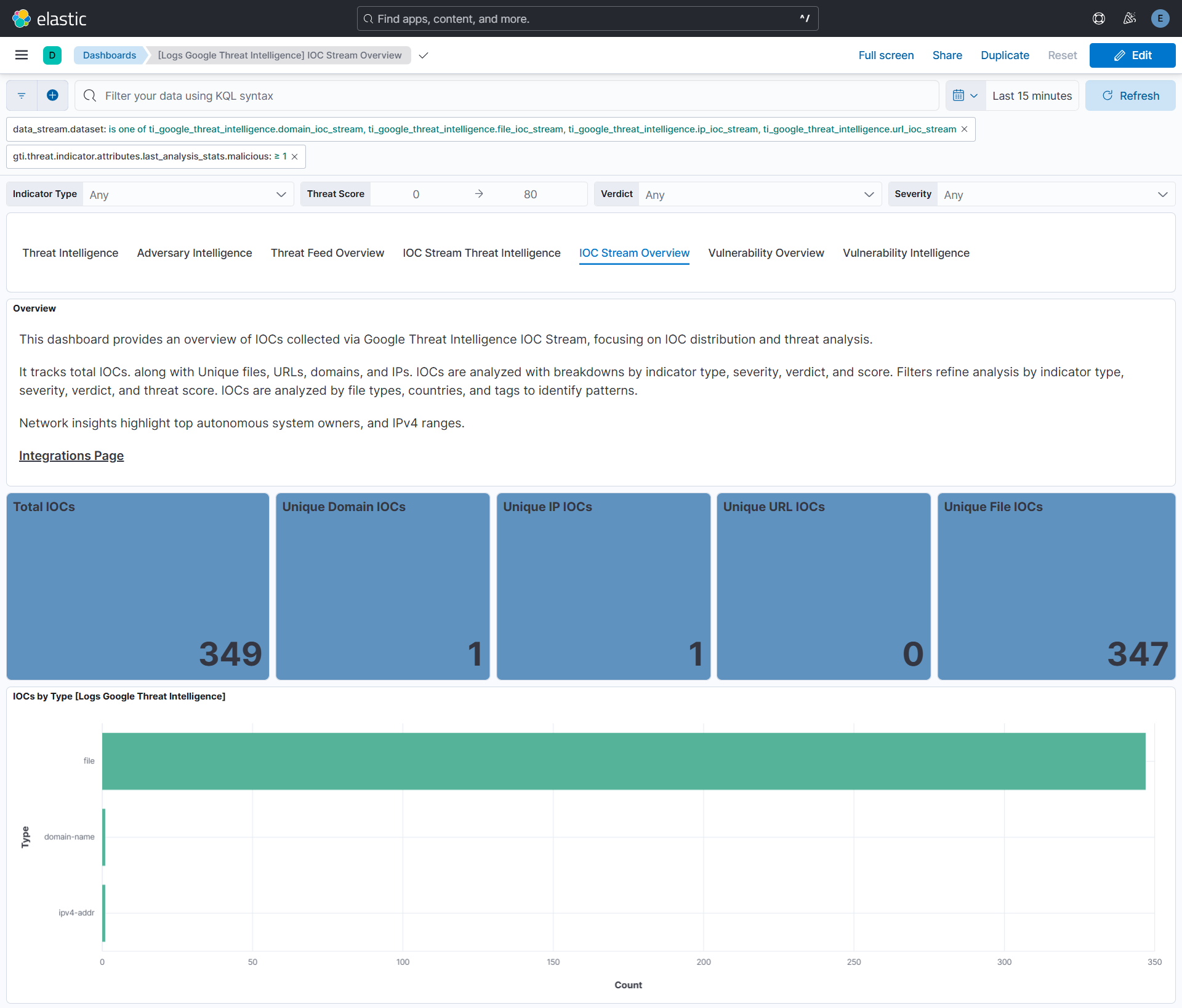
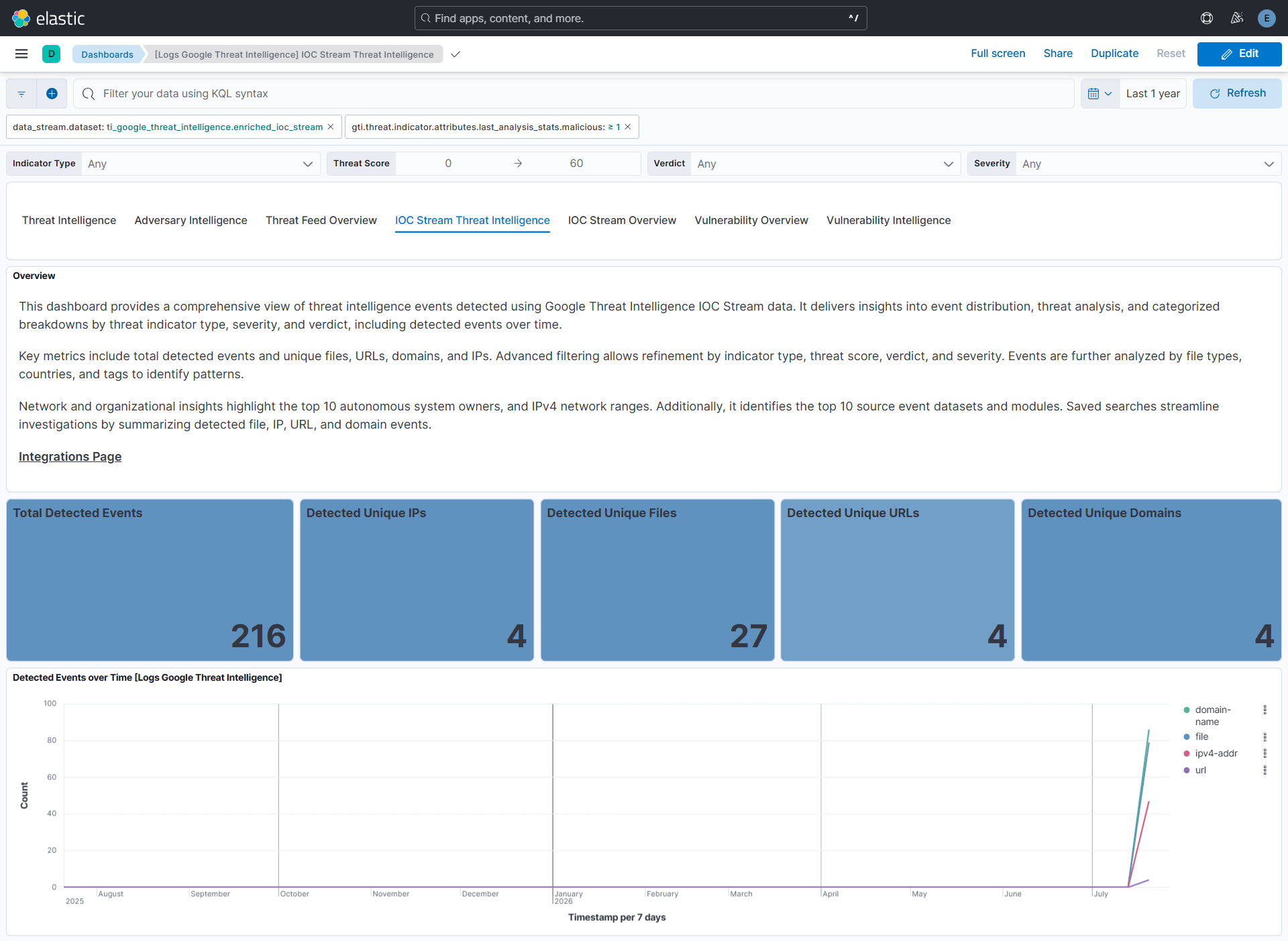
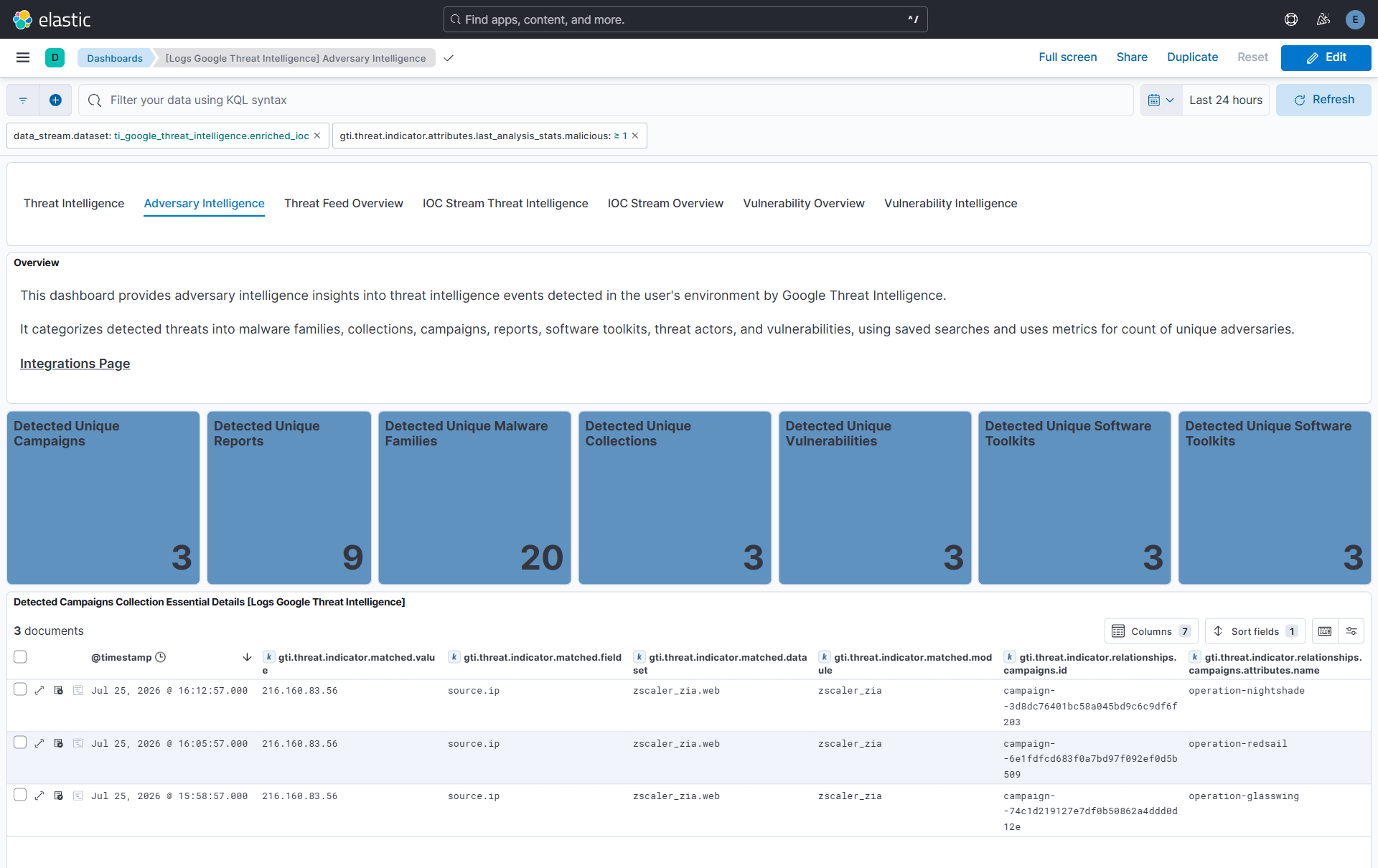
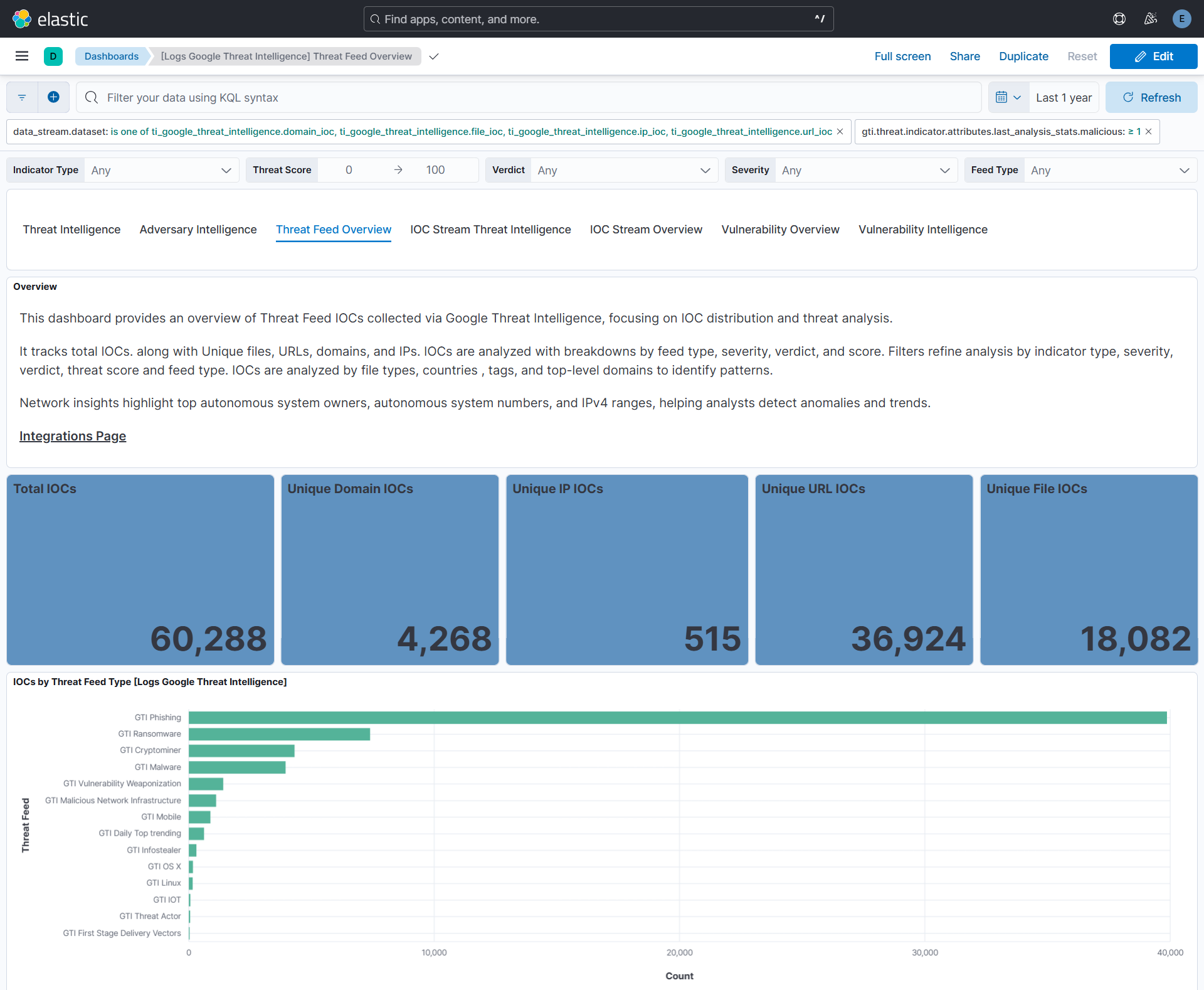
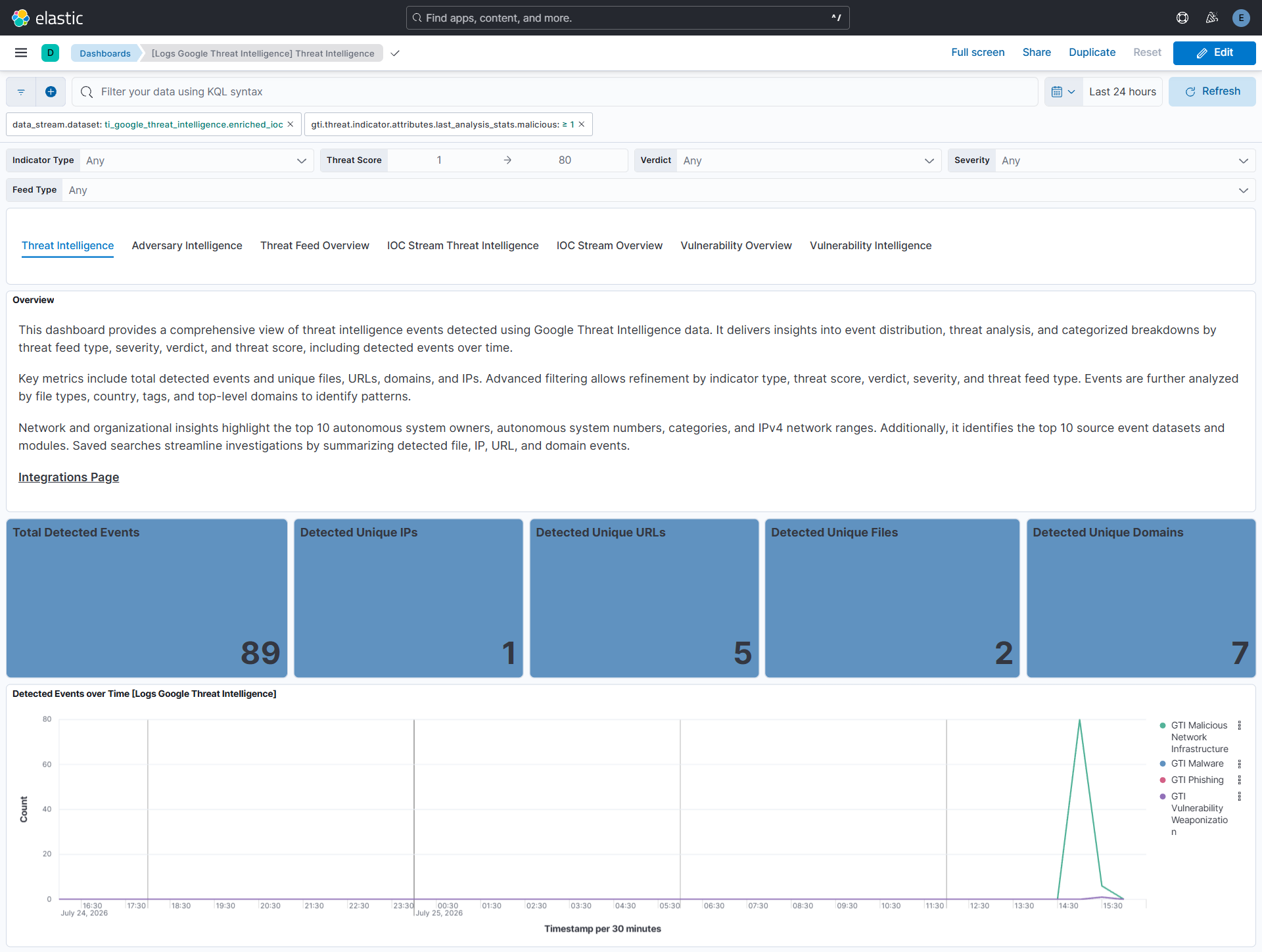
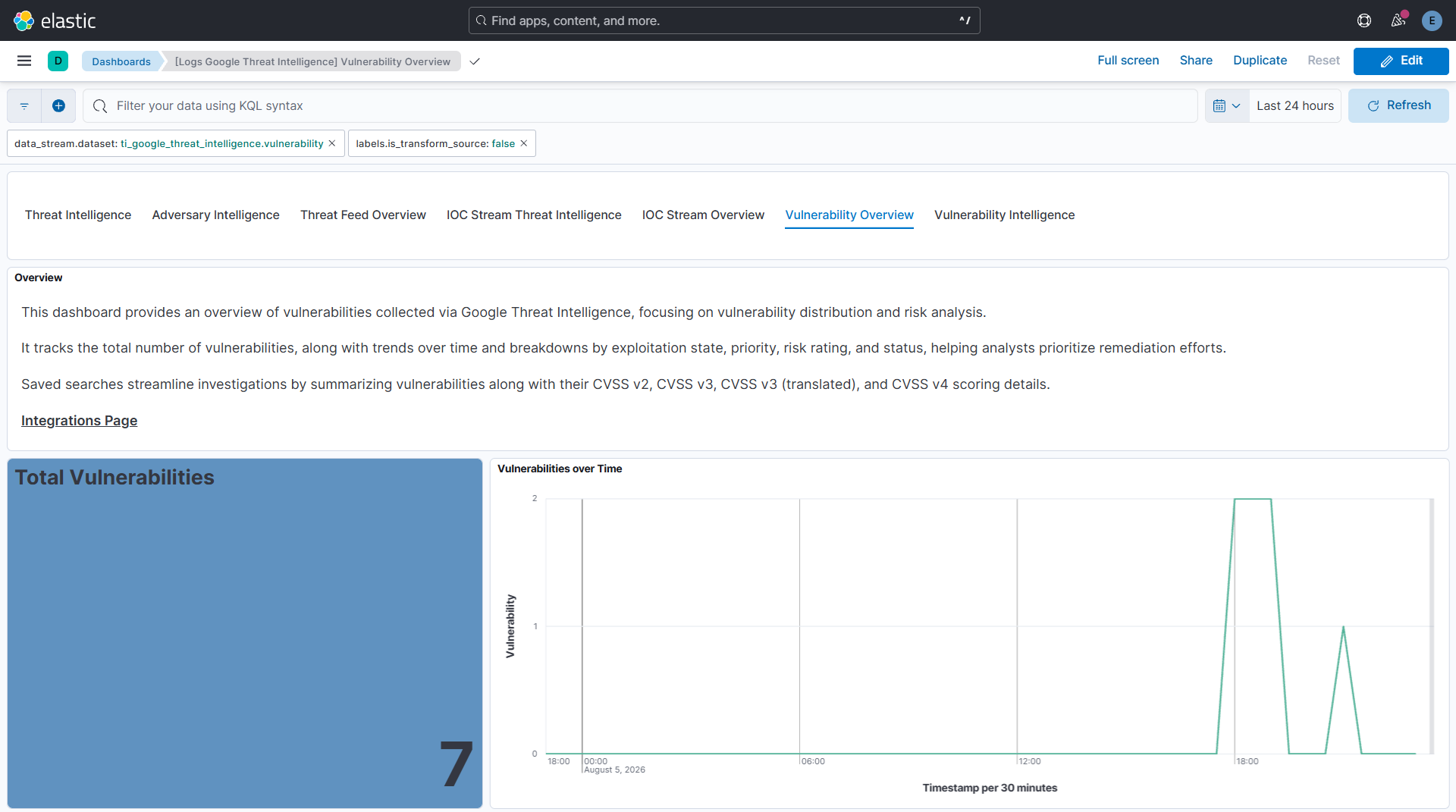
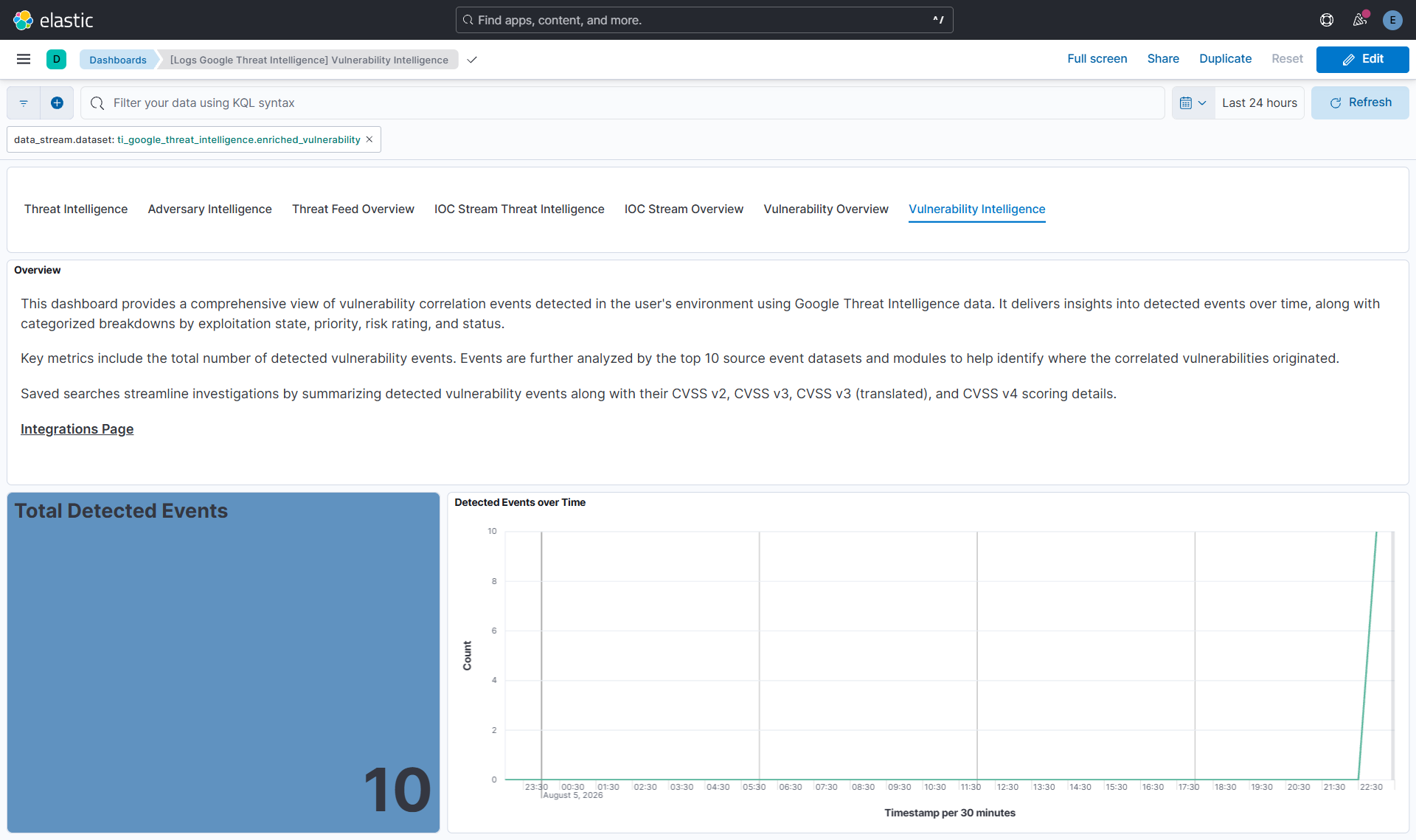
Changelog
| Version | Details | Minimum Kibana version |
|---|---|---|
| 1.3.0 | Enhancement (View pull request) Add tags to ingest pipeline processors and add preserve_original_event to pipeline-level on_failure handlers. |
9.0.0 8.16.0 |
| 1.2.0 | Enhancement (View pull request) Add Vulnerability datastream. |
9.0.0 8.16.0 |
| 1.1.3 | Enhancement (View pull request) Set agentless deployment mode release field to ga. |
9.0.0 8.16.0 |
| 1.1.2 | Bug fix (View pull request) Prevent the IOC Stream data stream from indefinitely replaying a request that the API persistently rejects. On errors the stale pagination cursor is now discarded, and after three consecutive HTTP 400 responses for the same collection window the window is skipped and the skip is surfaced as an error event. |
9.0.0 8.16.0 |
| 1.1.1 | Bug fix (View pull request) Fix transform destination to use keyword for data_stream.namespace, allowing multi-namespace deployments. |
9.0.0 8.16.0 |
| 1.1.0 | Enhancement (View pull request) Rename detection rules section to avoid confusion with data enrichment. |
9.0.0 8.16.0 |
| 1.0.0 | Bug fix (View pull request) Fix IOC stream correlation pipeline field mappings for indicator enrichment. Bug fix (View pull request) Sync CEL User-Agent version with package version. Enhancement (View pull request) Update threat list setup documentation to describe availability delay and hourly package collection. Enhancement (View pull request) Promote Google Threat Intelligence integration to GA. |
9.0.0 8.16.0 |
| 0.12.2 | Bug fix (View pull request) Guard against null IOC arrays in CEL programs to prevent runtime failures. |
9.0.0 8.16.0 |
| 0.12.1 | Bug fix (View pull request) Use the ECS definition for threat.enrichments. |
9.0.0 8.16.0 |
| 0.12.0 | Enhancement (View pull request) Remove unused fields from the transform. |
9.0.0 8.16.0 |
| 0.11.0 | Enhancement (View pull request) Use new release field for agentless deployment mode to establish as beta. |
9.0.0 8.16.0 |
| 0.10.1 | Bug fix (View pull request) Make security rules discoverable in the Add Elastic rules UI. |
9.0.0 8.16.0 |
| 0.10.0 | Bug fix (View pull request) Prevent threat list data streams from requesting hourly packages before they are available. Enhancement (View pull request) Add configurable availability delay for threat list data streams. |
9.0.0 8.16.0 |
| 0.9.0 | Enhancement (View pull request) Use num_failure_retries instead of unattended mode for transform failure recovery. |
9.0.0 8.16.0 |
| 0.8.1 | Bug fix (View pull request) Remove duplicate security-solution-default tag references |
9.0.0 8.16.0 |
| 0.8.0 | Enhancement (View pull request) Update default initial interval for threat list data streams to account for the API's 2-hour delay in data availability. |
9.0.0 8.16.0 |
| 0.7.0 | Enhancement (View pull request) Add ingest pipeline references to the transforms. |
9.0.0 8.16.0 |
| 0.6.2 | Bug fix (View pull request) Downgrade the format_version to the minimum version that supports all the necessary features for the package. |
9.0.0 8.16.0 |
| 0.6.1 | Bug fix (View pull request) Fix the sizes of the metric panels on the two IOC-related dashboards. |
9.0.0 8.16.0 |
| 0.6.0 | Enhancement (View pull request) Add data streams - IOC Stream. |
9.0.0 8.16.0 |
| 0.5.0 | Enhancement (View pull request) Add data streams - phishing, ransomware, threat_actor, trending and vulnerability_weaponization. |
9.0.0 8.16.0 |
| 0.4.0 | Enhancement (View pull request) Enable Agentless deployment. |
9.0.0 8.16.0 |
| 0.3.0 | Enhancement (View pull request) Add data streams - linux, malicious_network_infrastructure, malware, mobile, osx. |
8.16.0 |
| 0.2.0 | Enhancement (View pull request) Use terminate processor instead of fail processor to handle agent errors. |
8.16.0 |
| 0.1.0 | Enhancement (View pull request) Google Threat Intelligence integration package with "cryptominer", "first_stage_delivery_vectors", "infostealer" and "iot" data streams. |
8.16.0 |